CP-7-series Verification System Instruction manual(2.0E).pdf - 第44页
6. Settings Edition 2.0 33 CP-7-series V erification System Instruction Manual Wildcard Explanation W ildcards can be used to enable more versatile handling of device comments. Note that wildcards cannot be used in DIDs.…
6. Settings
Edition 2.0 32 CP-7-series Verification System Instruction Manual
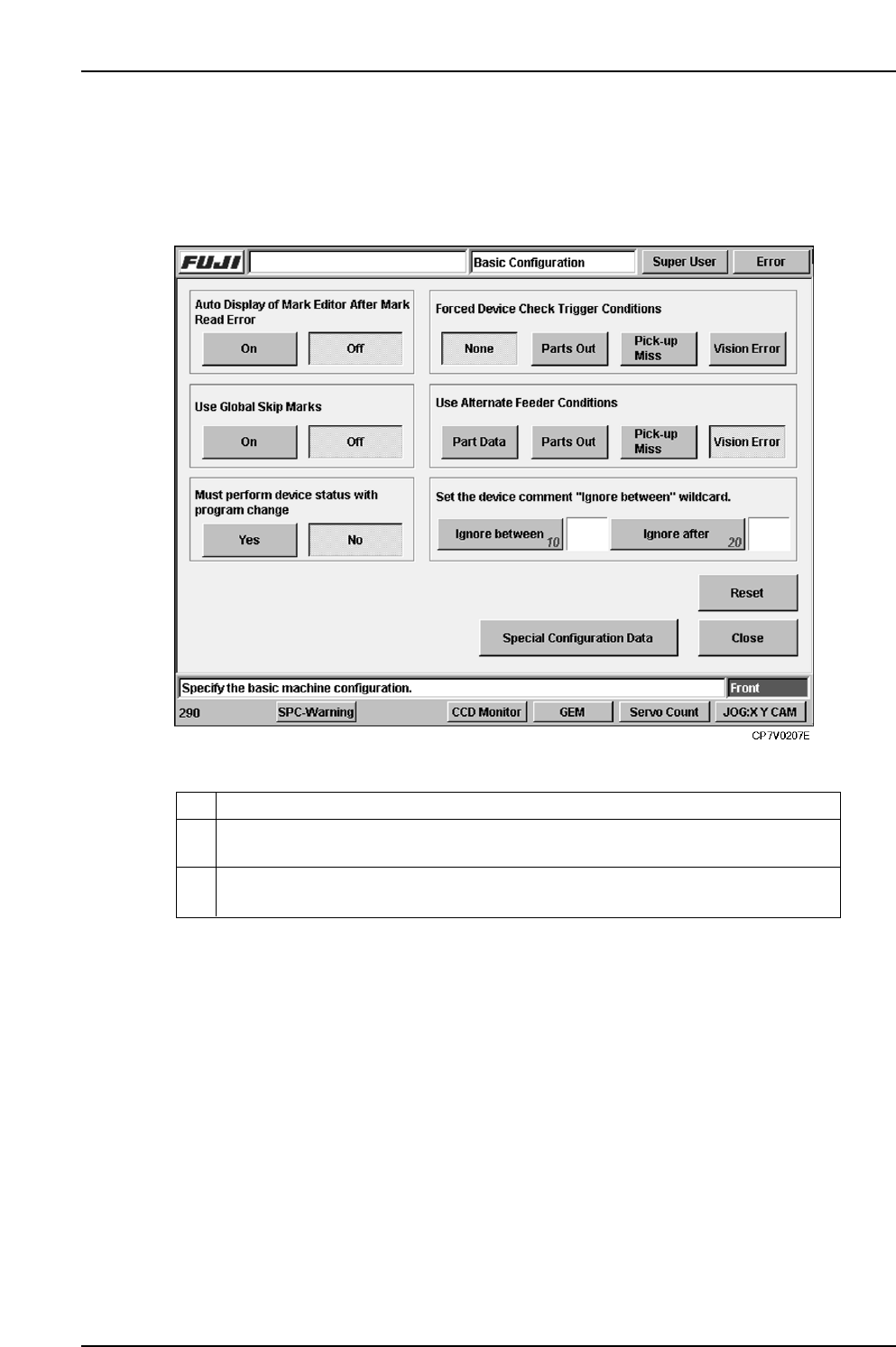
6.7 Wildcard Setting
The device comment wildcard character to be used can be specified at the [Basic
Configuration] screen which can be displayed by selecting the following:
[Maintenance] - [Configuration] - [Basic].
10
Specifies the wildcard character used to enclose a part of the device comment
character string which is to be ignored.
Specifies the wildcard character which indicates that all the subsequent device
comment character string is to be ignored.
20
ExplanationNo.
VT010E

6. Settings
Edition 2.0 33 CP-7-series Verification System Instruction Manual
Wildcard Explanation
Wildcards can be used to enable more versatile handling of device comments. Note that
wildcards cannot be used in DIDs.
The following 4 wildcard types can be used on the Handy Terminal.
?...Expresses one random character.
For example, if a “RECT32160?0” device comment is specified in the recipe, this could
apply to any of the following:
RECT3216060
RECT32160A0
RECT32160-0
*...Expresses a random character string.
For example, if a “RECT*60” device comment is specified in the recipe, this could apply
to any of the following:
RECT3216060
RECTFU59d60
RECTDW07960
Delimiter for ignoring part of comment...Only the characters between a specified
delimiter code are handled as a comment.
For example, if a comment delimiter code such as “/” is specified, and if REC/3216/60
is entered in the recipe as a device comment, a barcode reading of “REC60” will be
accepted (OK).
Delimiter for ignoring comment beyond specified character...All the device comment
character string beyond this delimiter is ignored.
For example, if a comment delimiter code such as “%” is specified, and if REC32%6060
is entered in the recipe as a device comment, a barcode reading of “RECT32” will be
accepted (OK).

7. Dedicated Verification Devices and Communication
Edition 2.0 34 CP-7-series Verification System Instruction Manual
7. Dedicated Verification Devices and Communication
Dedicated devices (Handy Terminal, Setup Sensor & LED sequencer, feeder ID reader system)
for the Verification operation are connected to the machine by a dedicated serial
communication line. This communication status must be established correctly in order for the
optional devices to function.
This chapter explains the communication timing and the items to check when communication
errors occur.
7.1 When Using PDT-3100
This section does not apply to scanner types because there is no communication involved.
Communication timing
Communication with Handy Terminal (HT) occurs at the times shown below. The
phrase, "With HT setting" implies that verification system settings is specified as "With
HT".
• When the Handy Terminal power is turned on.
• When the re-connect command (7. TRY COMMUNICATION) is executed from the
Handy Terminal.
• When the [Device Check] button is pressed at the operation screen with a "With HT"
setting in effect.
Items to check when communication errors occur
• Check to see if the Handy Terminal cable is properly connected to the machine.
• Check to see if the wrong Handy Terminal connection port number has been
specified at the parts administration system settings screen.
• Verify that the version number which displays when Handy Terminal is started up
matches the machine’s control software version.
(If the versions do not match, upgrade the Handy Terminal’s software from the
machine’s peripheral device version upgrade screen (at machine control panel).