CP-7-series Verification System Instruction manual(2.0E).pdf - 第19页
4. Adjustments Edition 2.0 8 CP-7-series V erification System Instruction Manual 4.2 Setup Sensor & LED Adjustment 1. Select the following commands: [Maintenance] - [Configuration] - [Machine Function Settings] - [Pa…

4. Adjustments
Edition 2.0 7 CP-7-series Verification System Instruction Manual
4. Adjustments
CAUTION
Check the D-axis calibration data before performing the
adjustments described below.
4.1 Handy Terminal Adjustment
This procedure consists only of a Handy Terminal operation check as no physical adjustments
are required. To perform the operation check, use a program with the same content as that
used on the CP-643E. The same verification barcodes are also used.
• For PDT3100
1. Select the following commands: [Maintenance] - [Configuration]
- [Machine Function Settings] - [Part Administration System] - [Use Handy Terminal] at
the machine’s touch screen.
2. Select the [Maintenance] - [Configuration] - [Machine Function Settings]
- [Part Administration System] - [Handy Terminal Settings], then select [PDT3100] as the
Handy Terminal type.
3. Turn the Handy Terminal power on.
4. Select the following commands to upgrade the Handy Terminal version: [Maintenance]
- [Maintenance for Each Machine] - [Version Up].
5. Using a production program, perform the device check function from the Handy
Terminal.
• For BL-N60
1. Select the following commands: [Maintenance] - [Configuration]
- [Machine Function Settings] - [Part Administration System] - [Use Handy Terminal] at
the machine’s touch screen.
2. Select the [Maintenance] - [Configuration] - [Machine Function Settings]
- [Part Administration System] - [Handy Terminal Settings], then select [Scanner] as the
Handy Terminal type.
3. Using a production program, perform the device check function from the Handy
Terminal.
4. Adjustments
Edition 2.0 8 CP-7-series Verification System Instruction Manual
4.2 Setup Sensor & LED Adjustment
1. Select the following commands: [Maintenance] - [Configuration]
- [Machine Function Settings] - [Part Administration System]
- [Use Setup Sensor and LED System] at the machine’s touch screen.
2. Select the [Maintenance] - [I/O Check] commands to display the monitoring system’s
[Stage 1] and [Stage 2] buttons.
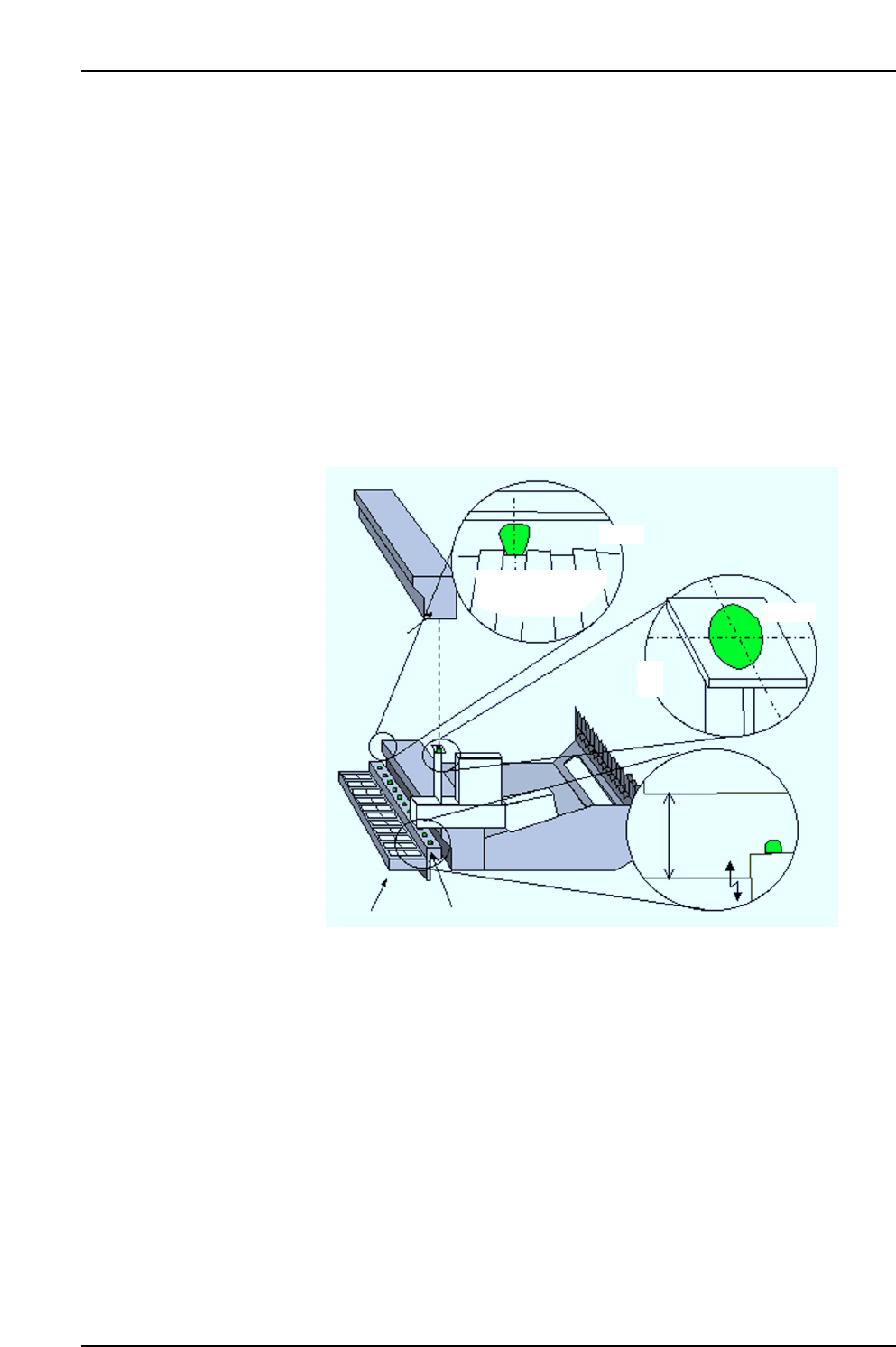
Turn the I/O output signals on at the first and last slots of each stage (slot Nos. 1 and 30,
or 1 and 40 on the CP-742ME and, 1 and 70 on the CP-742E) to turn the LEDs ON.
Adjust the positions of the feeder removal position LED and the feeder set position LED
so that they are aligned with the feeder lever and feeder pallet slot centers as shown in
the figure below.
Next, adjust the height until the distance between the sensor and feeder is 80 mm, then
set a feeder in position and use I/O commands to check the response.
Feeder removal
position LED
Sensor beam
Feeder pallet
Rear view
Feeder
lever
Feeder
80 mm
Sensor
Feeder set position LED
Setup sensor
CP7V0086E
Sensor beam
4. Adjustments
Edition 2.0 9 CP-7-series Verification System Instruction Manual
4.3 Feeder ID Reading System Adjustment
1. Adjustment Method For 2D Code Camera
Note: The 1~4 procedure steps below are settings to enable communication between the
application and the 2D camera controller. Once these controller settings have been
specified, they need not be specified again unless the controller is replaced.
(1) Connect the auxiliary console to the 2D code camera controller. Connect a monitor to
the controller for those machines not equipped with a rear monitor.
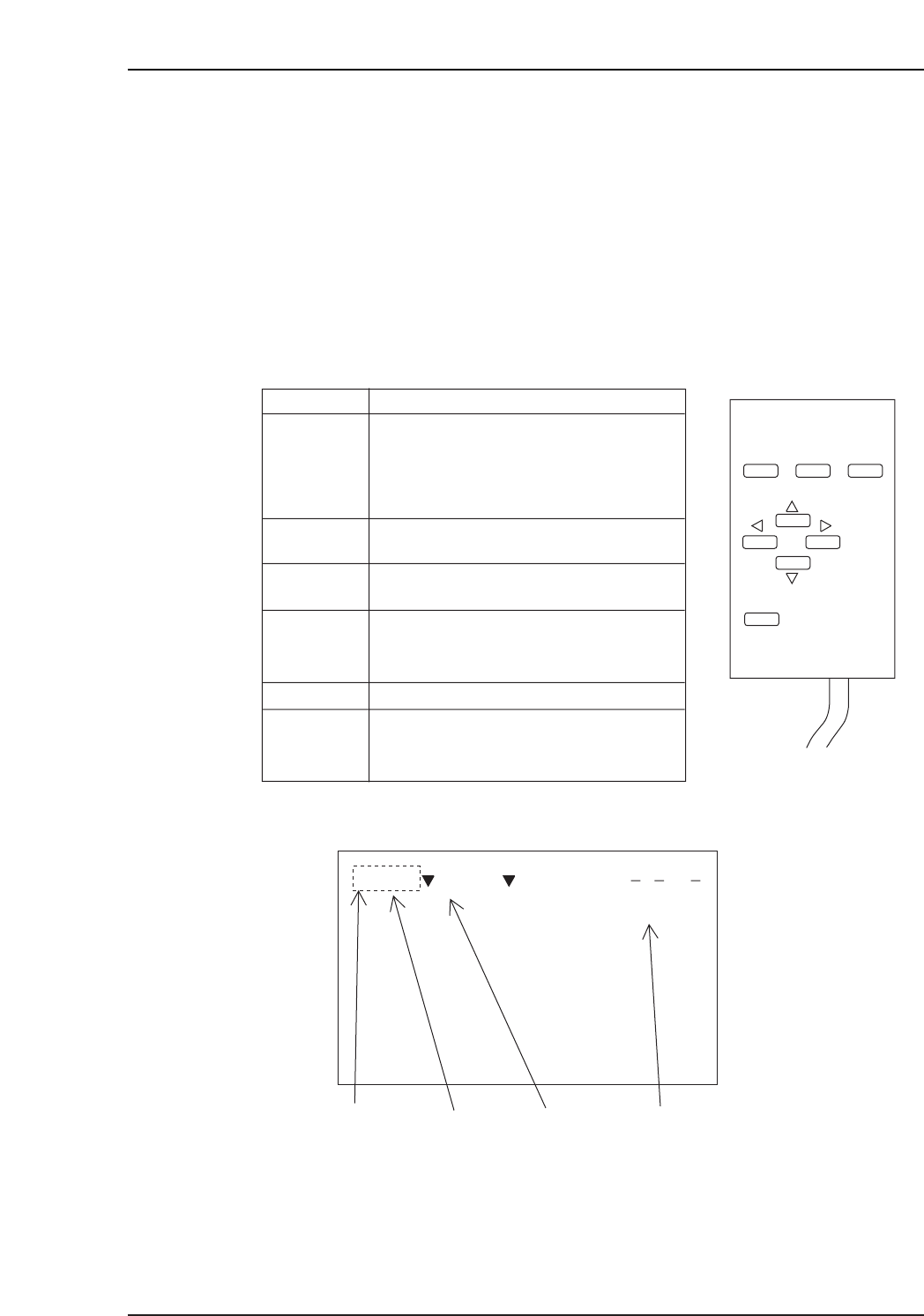
• Console operation procedure
• Monitor screen display
Scene No.: This should be set to “Scene 1”.
Mode: The currently selected mode is indicated.
Displayed Image: Indicates the type of image which is currently displayed. The
“Freeze” mode displays the most recent 24 images (0 ~ 23)
which are always saved. The “Through” mode displays the
real (live) image. Switch between the “Freeze” and “Through”
modes by pressing [SHIFT]+[▼] or [SHIFT]+[▲].
CP7V0088E
Scene 0 System
Cursor Scene No. Mode Displayed image
—ms
ESC TRIG
SHIFT
ENT
Key Operation
At hierarchical menu screens, pressing
this key moves 1 level upward. At setting
screens, pressing this key aborts a
setting operation and returns 1 level
upward.
ESC
Executes a reading operation.
(Press 1 time = 1 reading operation.)
TRIG
Registers the selected function or setting
value.
ENT
These keys move the cursor up and down.
They are also used when entering numeric
setting values (increase/decrease).
UP/DOWN
These keys move the cursor left and right.LEFT/RIGHT
This key has no function when pressed by
itself. It functions only when pressed
together with another key.
SHIFT
CP7V0087E
Console