N7201A304E05(1)_0.pdf - 第123页
NPM LNB 3.4 Result Information Display EJM9BE-MB-03L-20 Page 3-31 When you click [<], the lot list di splay period moves to the future. When you click [>], the lot list display period move s to the past. The travel…
NPM
LNB
3.4 Result Information Display
Page 3-30 EJM9BE-MB-03L-20
②
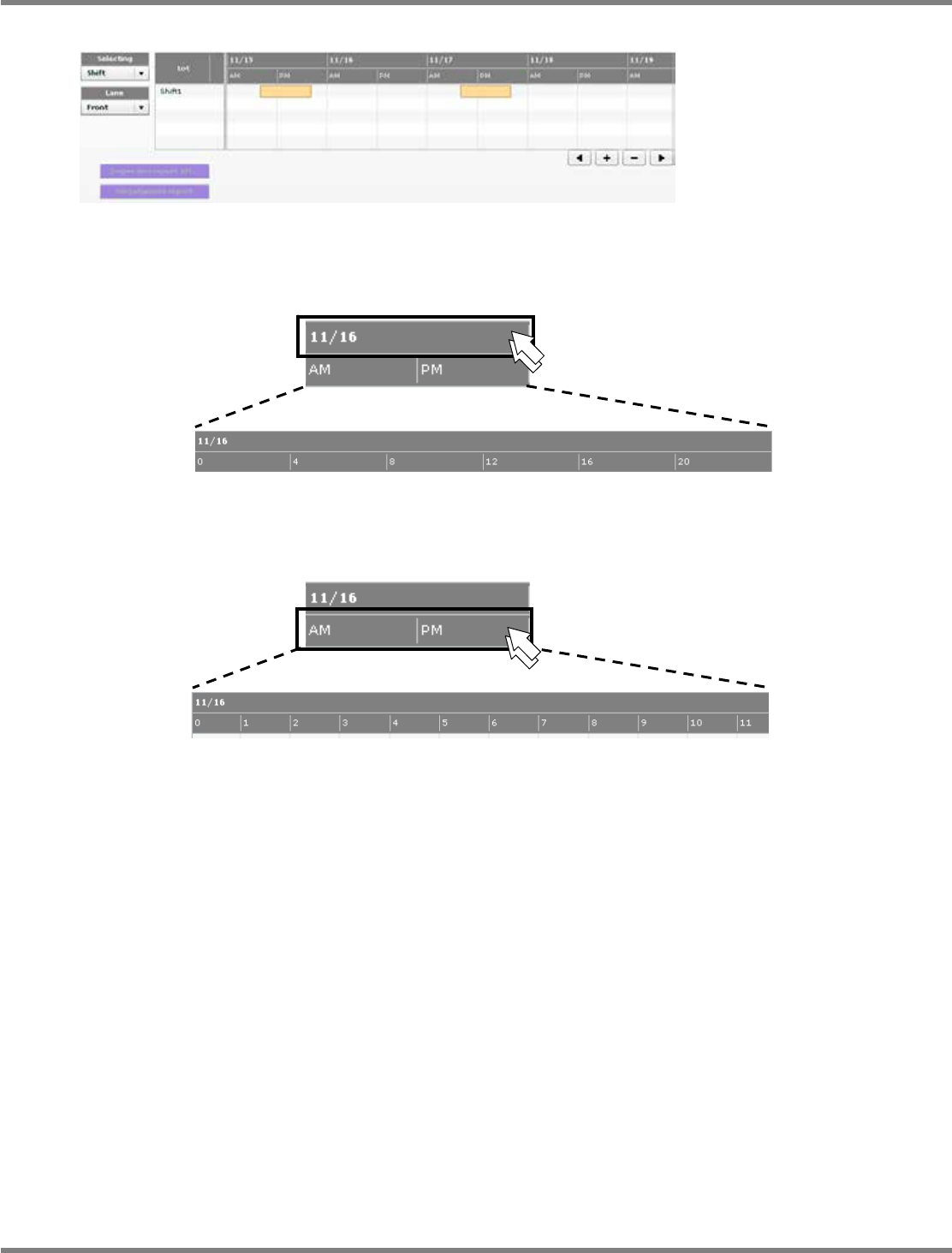
Operating the list screen
・
When you double-click the date, every-four-hour cells for 24 hours appear.
・
When you double-click the time, every-hour cells for 24 hours appear.
lnb3-4009_e
lnb3-4010_e
lnb3-4011
_
e
lnb3-4010_e
lnb3-4012_e
NPM
LNB
3.4 Result Information Display
EJM9BE-MB-03L-20 Page 3-31
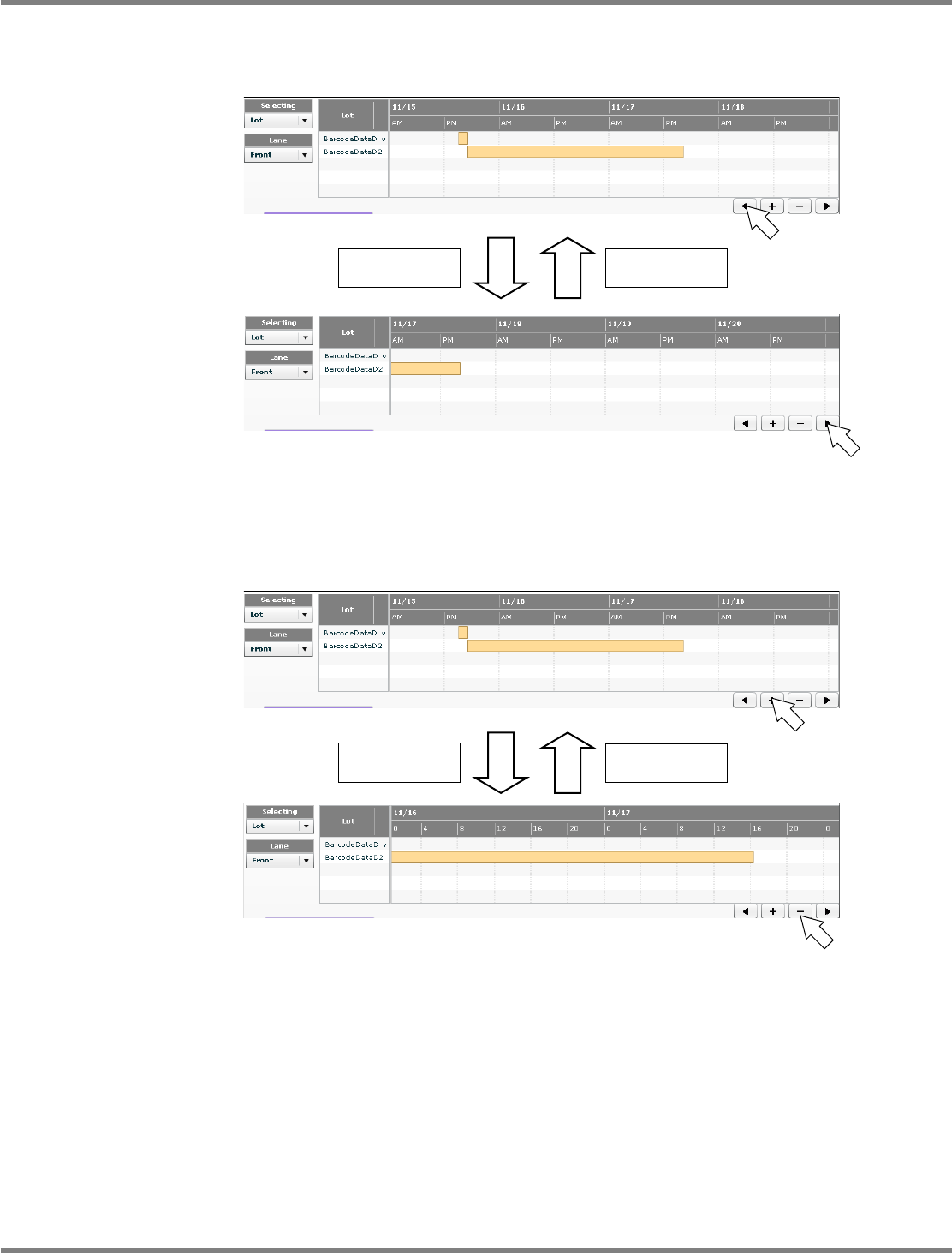
When you click [<], the lot list display period moves to the future.
When you click [>], the lot list display period moves to the past.
The travel depends on the selected display type.
When you click [
+
], the lot list display period zooms in.
When you click [
−
], the lot list display period zooms out.
The scale depends on the selected display type.
To the future
To the past
Zoom in
Zoom out
lnb3-4009_e
lnb3-4013_e
lnb3-4009_e
lnb3-4014_e
NPM
LNB
3.4 Result Information Display
Page 3-32 EJM9BE-MB-03L-20
③
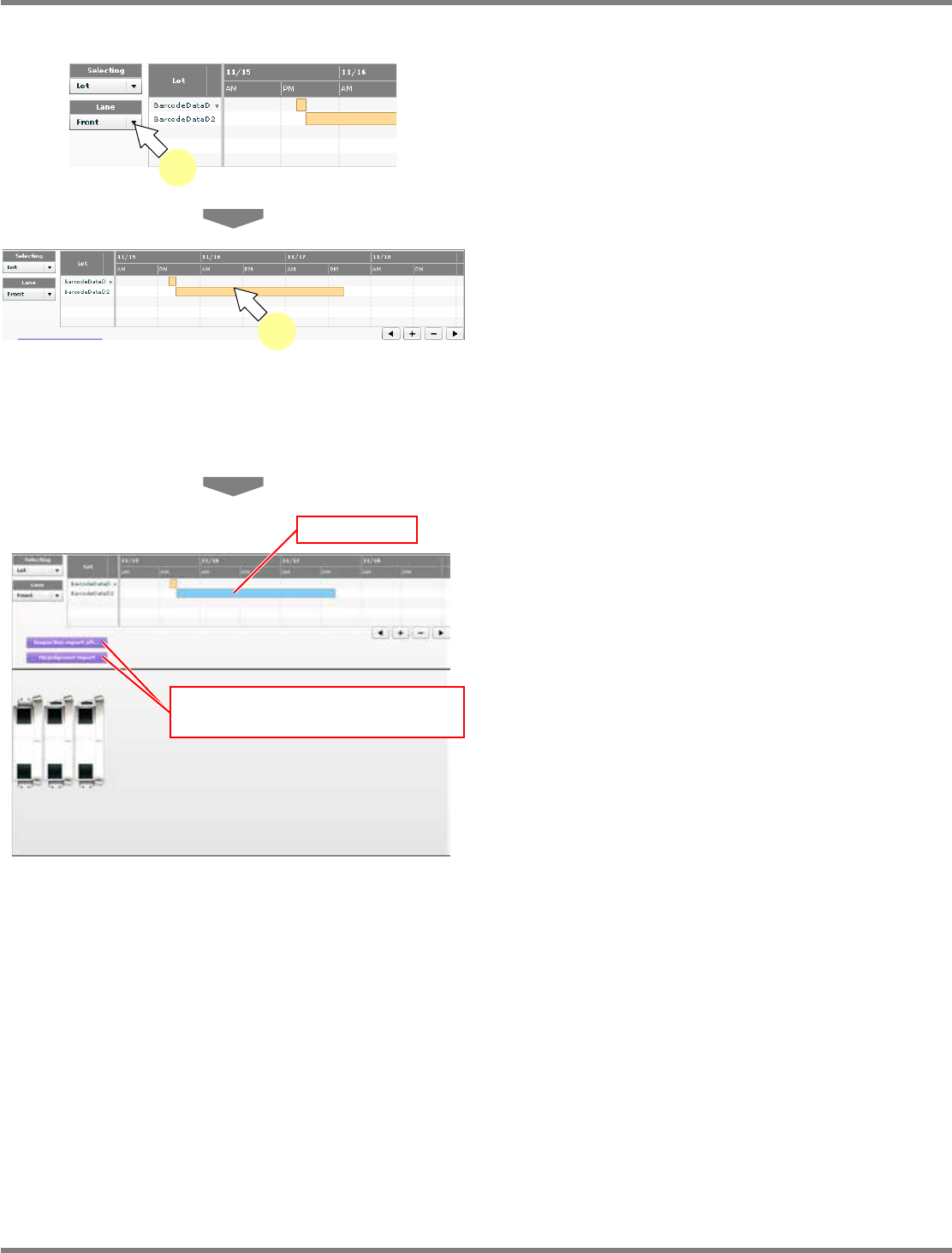
Selecting the target data for report
1
Select the target lane for analysis.
•
Select the target lane for report, from the lane
combo box.
•
The lot list or shift list of the specified lane is
displayed in chronological order.
2
Select the target lot (or the target
shift) for report.
•
To select it, double-click the target lot (or the
target shift) from the lot list (or the shift list). It
is not possible to select more than one lot
(shift).
•
The bar of the specified lot (shift) turns light
blue, and the [Inspection report aft...] button
and the [Misjudgment report] button become
active.
lnb3-4007_e
1
lnb3-4009_e
2
lnb3-4015_e
[Inspection report aft...] and
[Misjudgment report] buttons enabled
Turns light blue.