N7201A304E05(1)_0.pdf - 第78页
NPM LNB 2.4 Login/Logout Page 2-8 EJM9BE-MB-02L-20 2.4 Login/Logout 2.4.1 Login To use LNB, you need to log in. When you type “http:// {{{{ : 8080/lws/Login.jsp” in the addr ess box of browser (Microsoft Internet Explore…
NPM
LNB
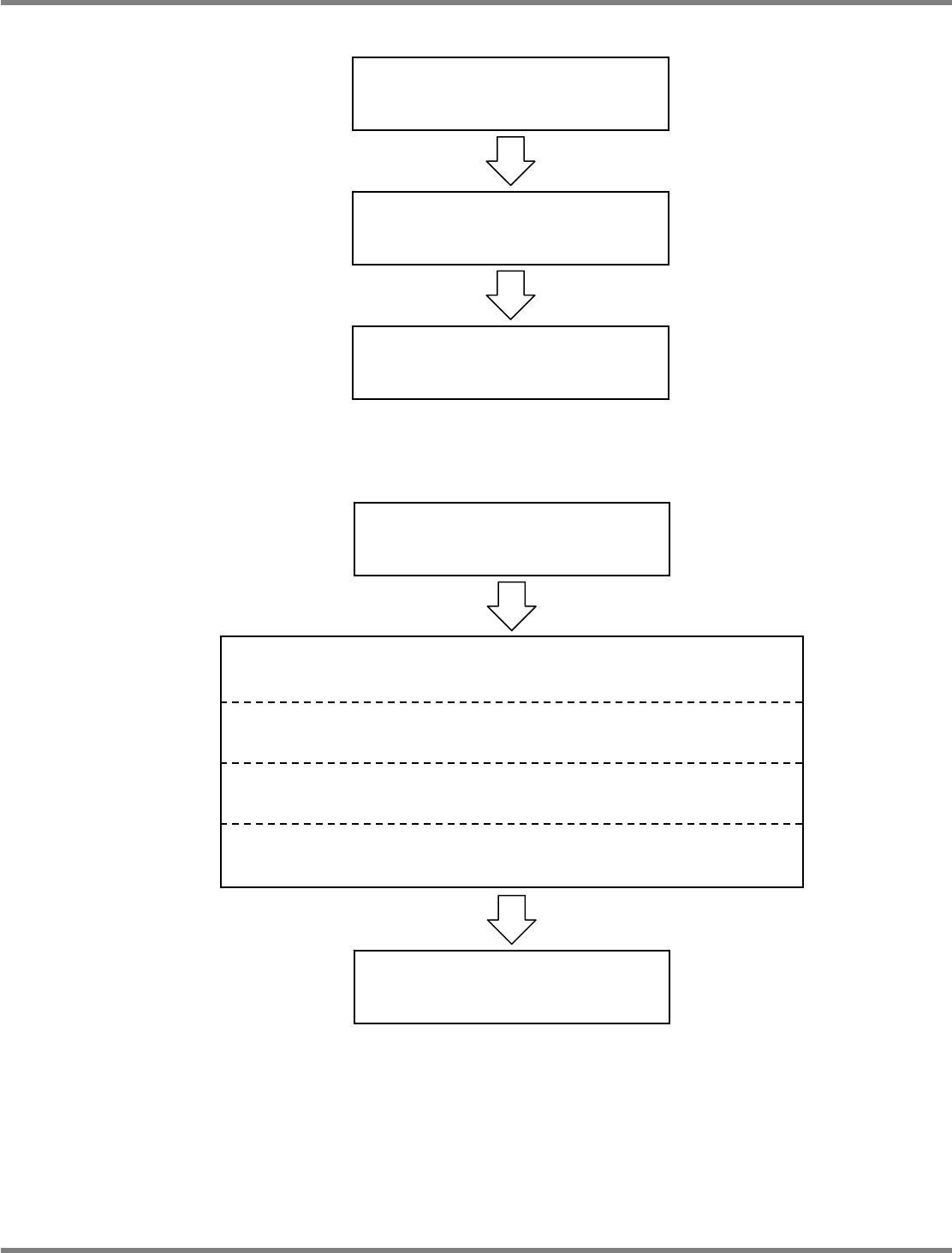
2.3 Operation Flow
EJM9BE-MB-02L-20 Page 2-7
2.3.5 Changing the Settings with Easy Setting
2.3.6 Changing the Settings with Advanced Setting
Login
(See “2.4.1 Login.”)
Maintenance/Easy setting
(See “4.2 Easy Setting.”)
Logout
(See “2.4.2 Logout.”)
Login
(See “2.4.1 Login.”)
Maintenance/Advanced setting/Security setting
(See “4.3.2 Security Setting.”)
Maintenance/Advanced setting/Network setting
(See “4.3.3 Network Setting.”)
Maintenance/Advanced setting/Timetable setting
(See “4.3.4 Timetable Setting.”)
Maintenance/Advanced setting/Summary method setting
(See “4.3.5 Calculation Method Setting.”)
Logout
(See “2.4.2 Logout.”)
NPM
LNB
2.4 Login/Logout
Page 2-8 EJM9BE-MB-02L-20
2.4 Login/Logout
2.4.1 Login
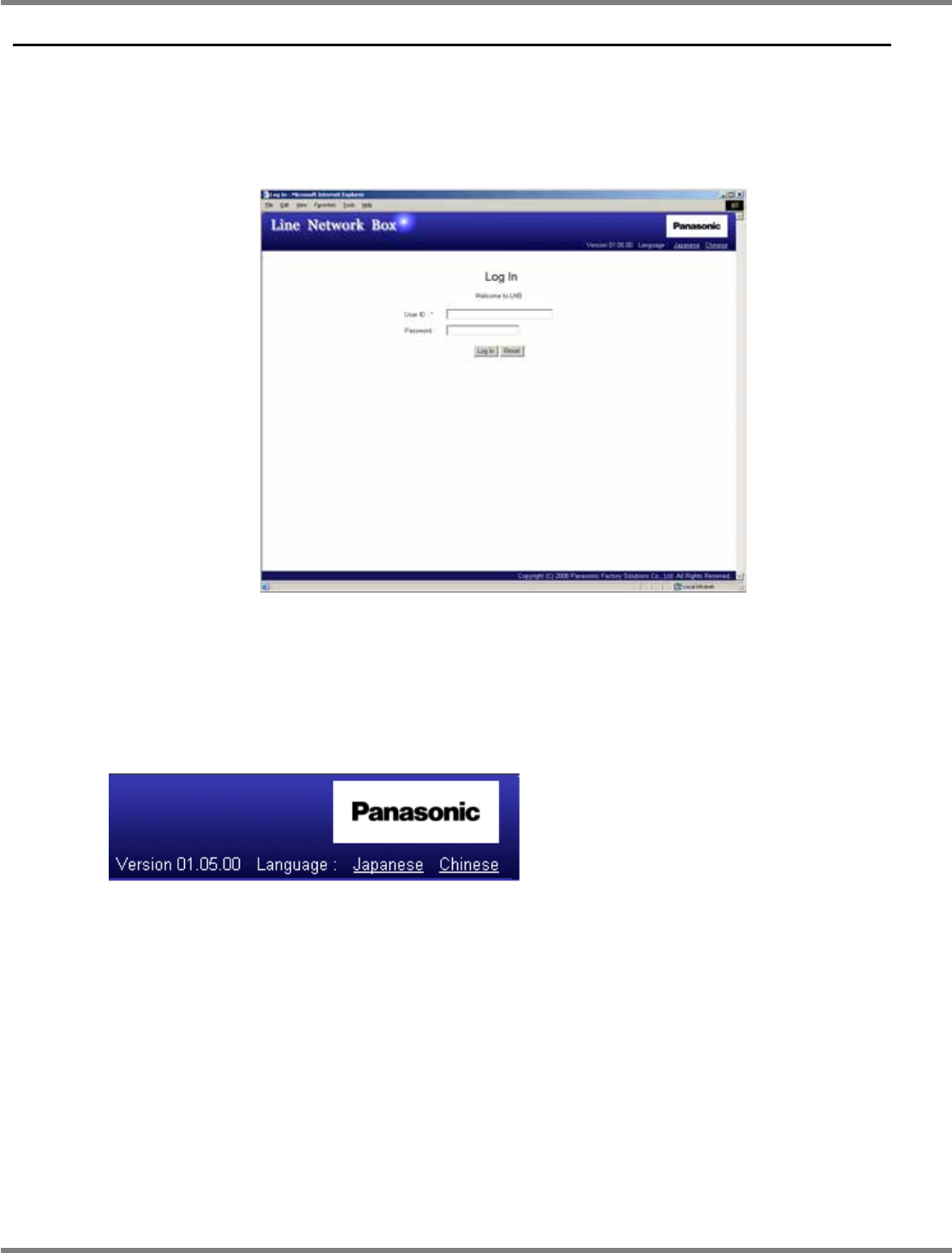
To use LNB, you need to log in.
When you type “http://{{{{: 8080/lws/Login.jsp” in the address box of browser (Microsoft
Internet Explorer 6 or later), the following login screen is displayed.
“{{{{” in the above address depends on your network environment. For details, contact your
network administrator.
Moreover, by adding the login screen to “Favorites,” you do not need to type the address
anymore.
Language selection
LNB supports three languages: Japanese,
English, and Chinese.
The default page display is in English.
To select the language, click [Japanese],
[English], or [Chinese] in the upper right of the
screen.
∗
The above picture shows the screen display in Japanese.
The other two languages, “English” and “Chinese,” are displayed.
∗
The language to be displayed can be changed on the login screen only. To change the
language after you have been logged in, log out of the screen first and then change the display
language on the login screen.
The login procedure is as follows.
lnb2-3001_e
lnb2-3004_e
NPM
LNB
2.4 Login/Logout
EJM9BE-MB-02L-20 Page 2-9
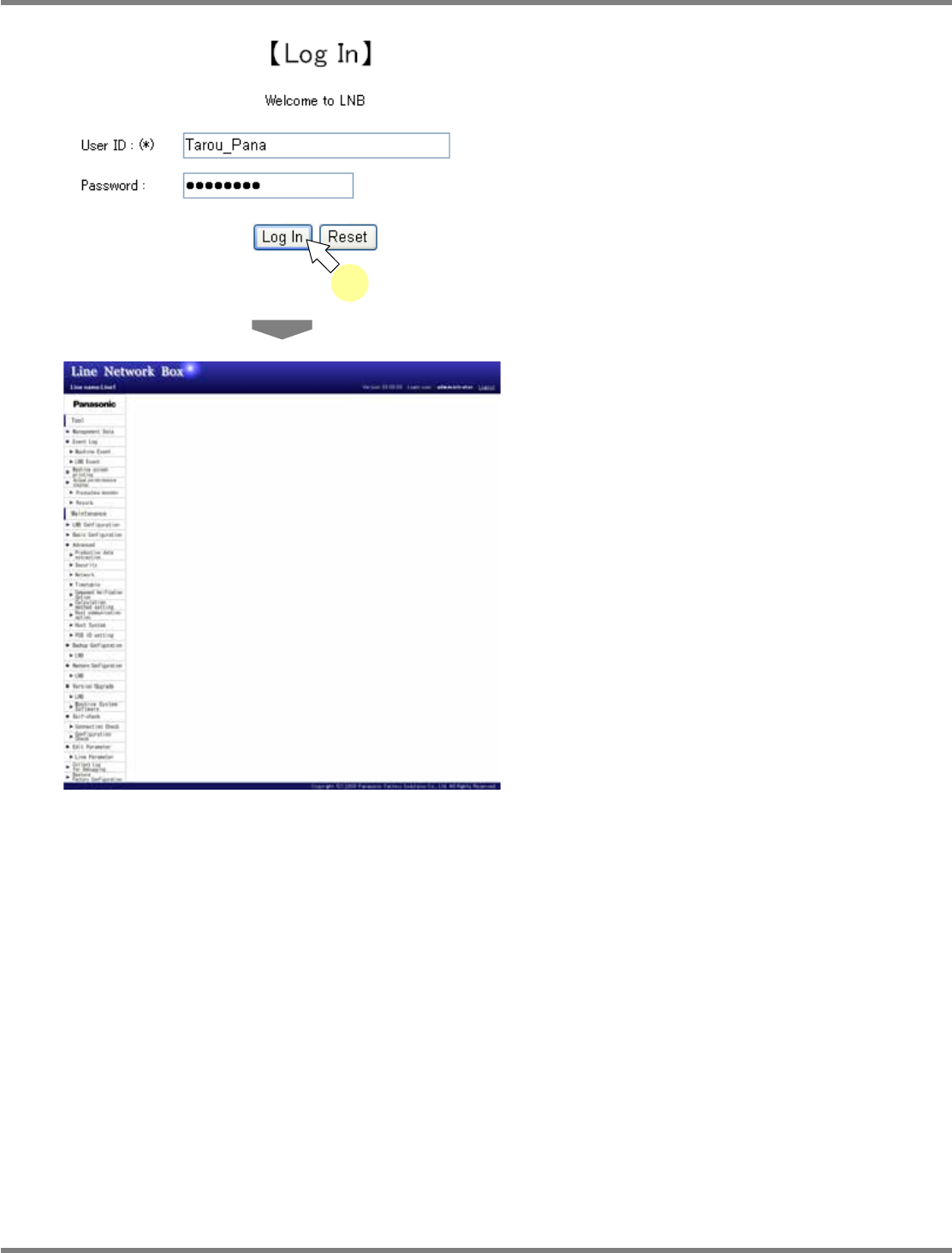
1
Enter your user ID and password, and
click [Log In].
•
If a user ID unregistered in LNB or a wrong
password is used for login, a login error
occurs.
∗
In initial introduction, you can log in as the
following user.
User ID : administrator
Password : “” (blank)
∗
The main screen (menu) is displayed. The
menu layout varies according to the mode
(the user group of the login user). For details,
see “A) New user registration” in “4.3.2
Security Setting.”
Security precautions
In initial introduction, “administrator” is registered.
Change the password periodically in order to maintain the LNB security.
To change the password, see “C) Referring/Changing user information” in “4.3.2 Security
Setting.”
lnb2-3002_e
1
lnb2-3003_e