N7201A304E05(1)_0.pdf - 第89页
NPM LNB 2.5 Initial Setting EJM9BE-MB-02L-20 Page 2-19 12 Click the link suited to your environment. • Select the combination of “OPERATING SYSTEM,” “BROWSERS,” “LANGUAGES,” and “INSTALLER” suited to your environment. • …
NPM
LNB
2.5 Initial Setting
Page 2-18 EJM9BE-MB-02L-20
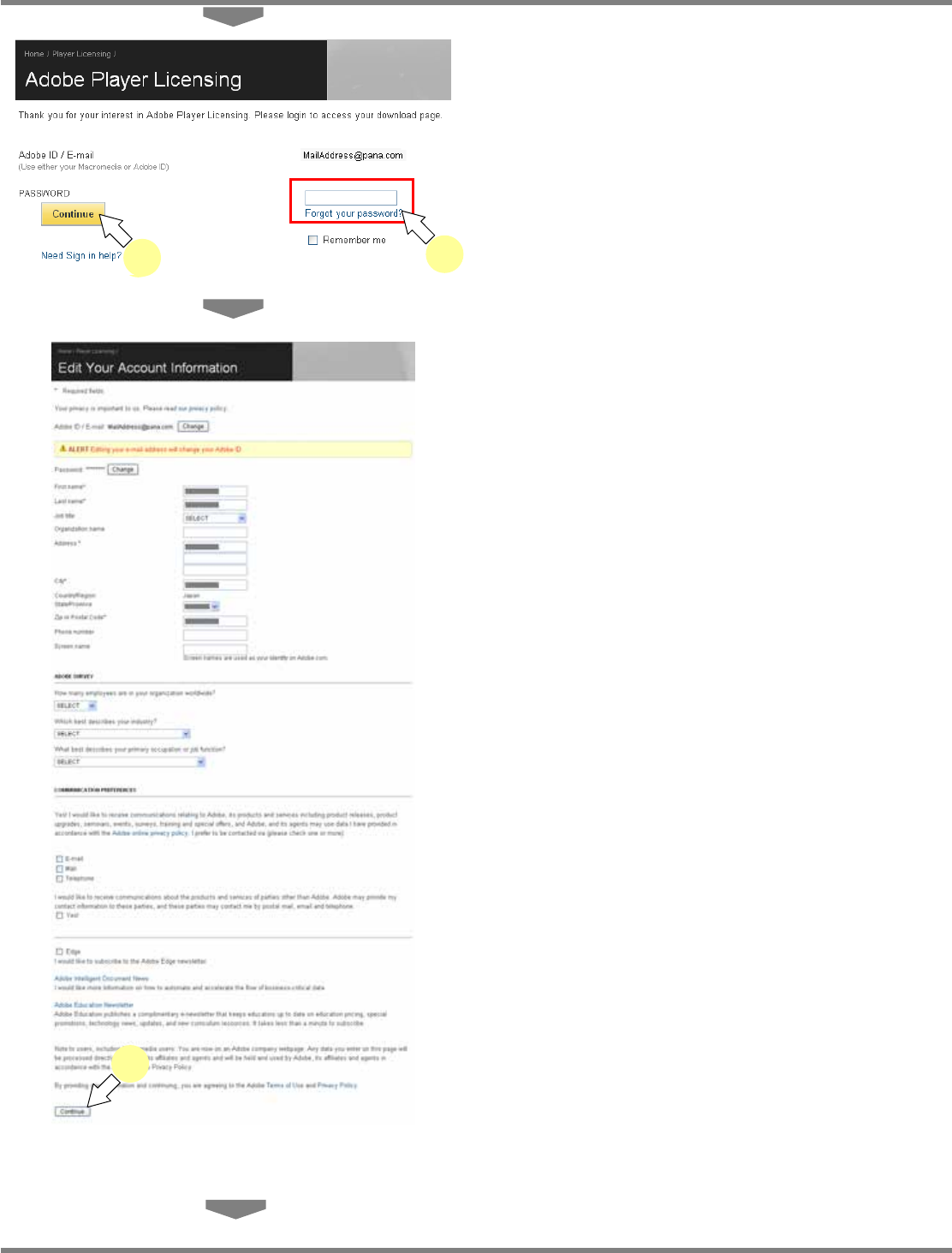
10
Enter the password, and click
[Continue].
•
The <Edit Your Account Information> screen
is displayed.
11
Enter the necessary information, and
click [Continue].
∗
If there is no need to change, just click
[Continue].
•
The Flash Player download link screen is
displayed.
lnb2-4018_e
11
10
lnb2-4017_e
10
10
NPM
LNB
2.5 Initial Setting
EJM9BE-MB-02L-20 Page 2-19
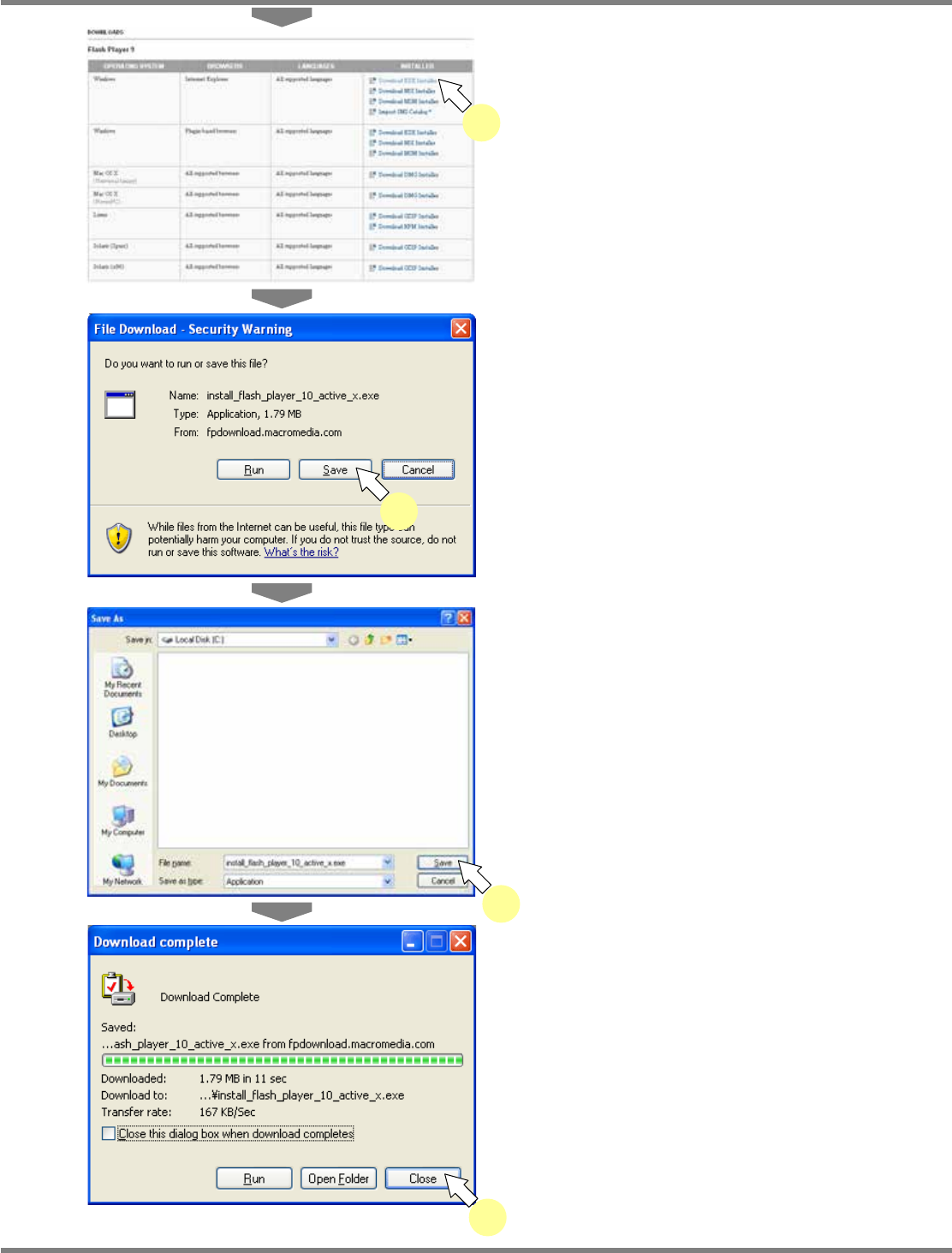
12
Click the link suited to your
environment.
•
Select the combination of “OPERATING
SYSTEM,” “BROWSERS,” “LANGUAGES,”
and “INSTALLER” suited to your environment.
•
The security alert screen is displayed.
13
Click [Save].
•
The save destination selection screen is
displayed.
14
Select the save destination, and click
[Save].
•
Download of the install file begins. When the
download is complete, the message of
download completion appears.
15
Click [Close].
lnb2-4019_e
12
lnb2-4020_e
13
lnb2-4021_e
14
lnb2-4022_e
15
NPM
LNB
2.5 Initial Setting
Page 2-20 EJM9BE-MB-02L-20
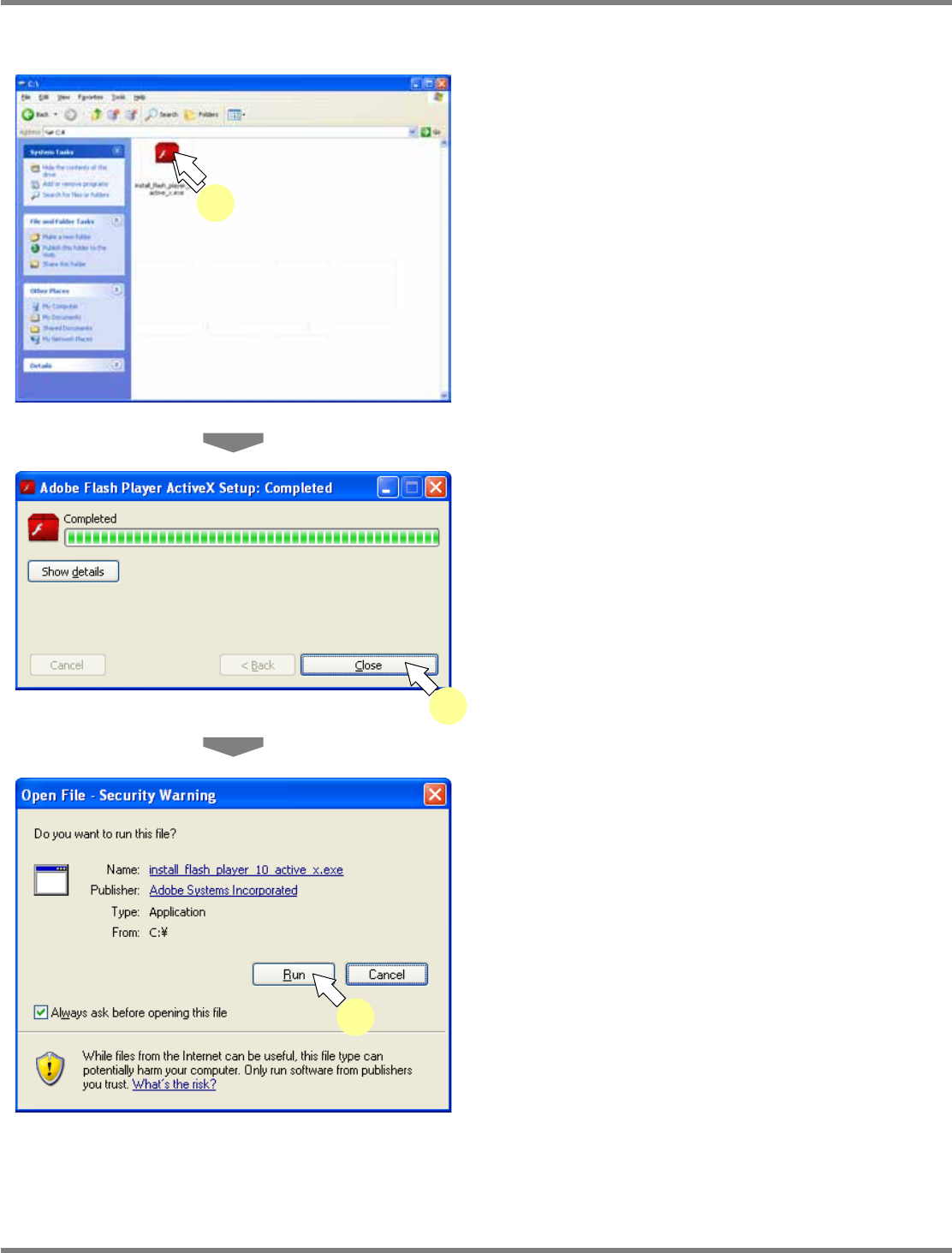
Transfer the downloaded install file to the target PC terminal via a USB flash memory etc.
For the subsequent steps, use the PC terminal where you will install Flash Player.
1
Double-click the install file.
•
Run the acquired install file.
•
Installation of Flash Player begins. When the
installation is complete, the message of
installation completion appears.
2
Click [Close].
3
Cick [Run].
∗
Depending on your security setting, the
following <Security Warning> screen may be
displayed. Just click [Run].
lnb2-4023_e
1
lnb2-4024_e
2
lnb2-4025_e
3