N7201A304E05(1)_0.pdf - 第167页
NPM LNB 4.10 Parameter Edit EJM9BE-MB-04L-20 Page 4-37 4.10 Parameter Edit 4.10.1 Line Parameter You can display and change the line parameters of all the machines composing the production line. A) Displaying the line pa…
NPM
LNB
4.9 Self-diagnosis
Page 4-36 EJM9BE-MB-04L-20
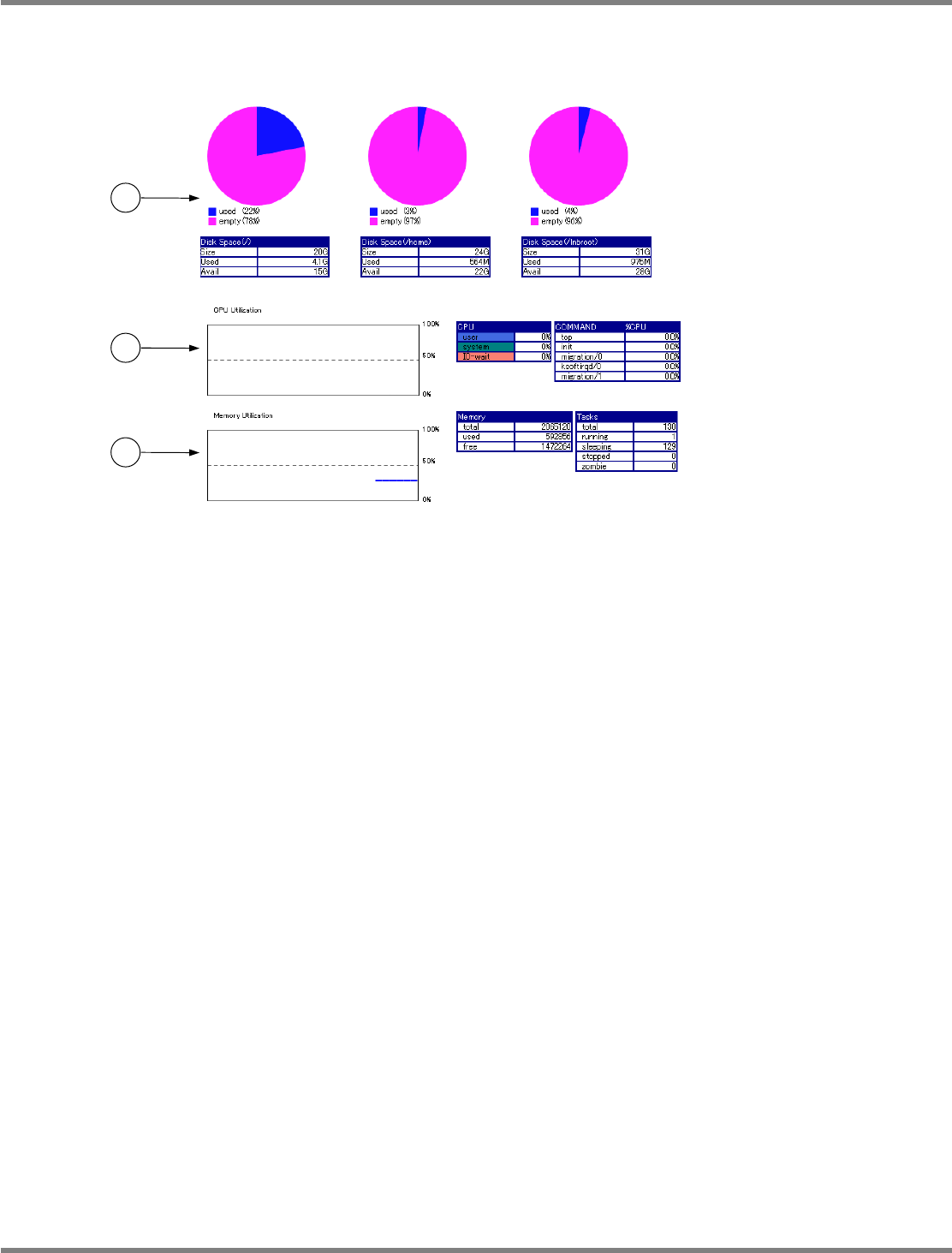
Details about the performance screen display
This part describes information displayed on the performance screen.
①
Hard disk utilization
Three types of disk space (/, home and Inbroot) represent the hard disk space and each displays
the hard disk usage on its own.
②
CPU Usage
CPU usage is displayed by a graph and tables.
③
Memory utilization
Memory utilization is displayed by a graph and tables.
4-9009
1
2
3
NPM
LNB
4.10 Parameter Edit
EJM9BE-MB-04L-20 Page 4-37
4.10 Parameter Edit
4.10.1 Line Parameter
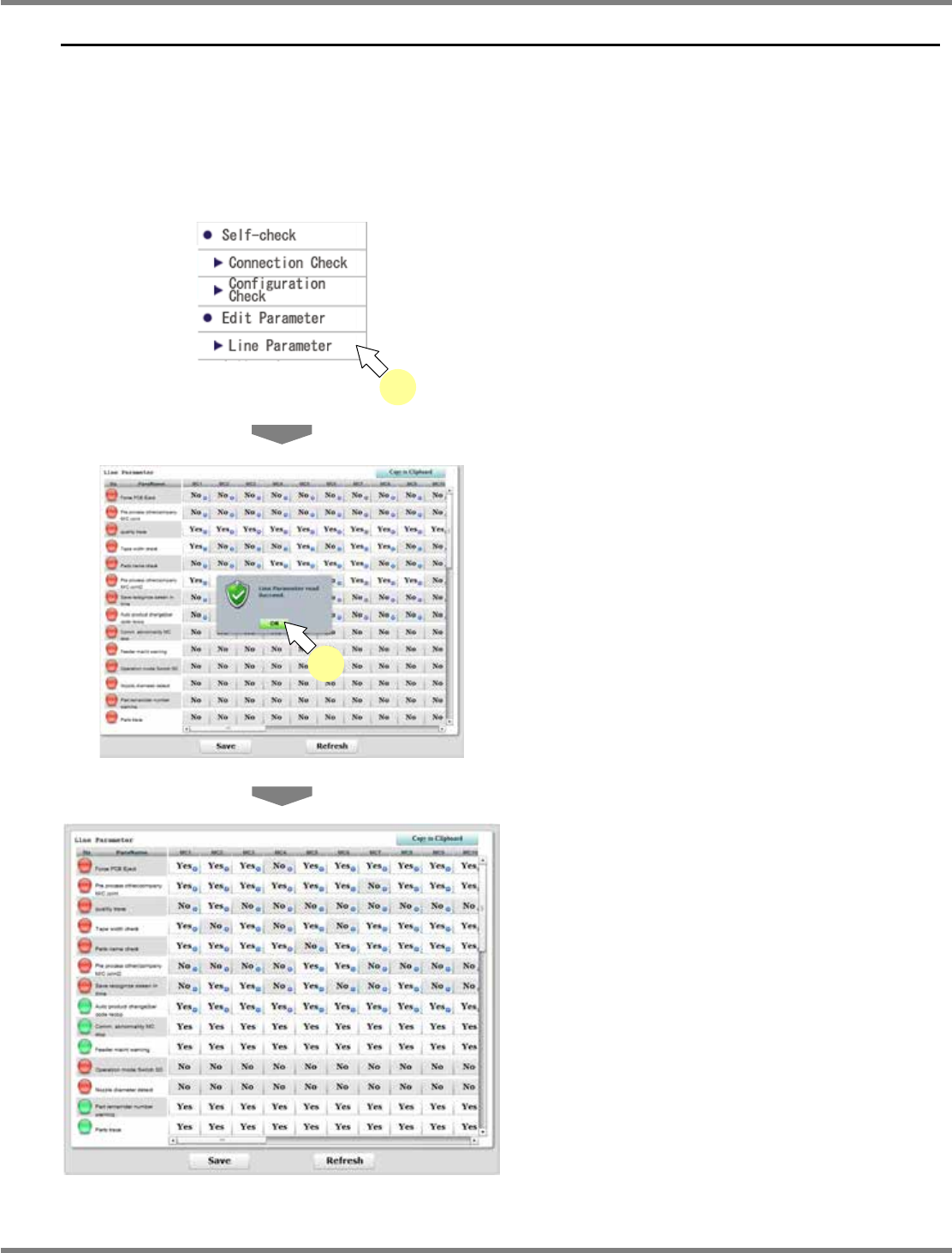
You can display and change the line parameters of all the machines composing the production
line.
A) Displaying the line parameters
1
Choose [Line Parameter] in [Edit
Parameter] from the menu.
•
Line parameters of machines are loaded.
When all of them are loaded, the message
“Line Parameter read Succeed” appears.
2
Click [OK].
•
Line parameters of machines are displayed.
∗
The green indicator at the beginning of each
row shows that settings of the parameter are
the same in all the machines. If there is a
machine with a different setting, the indicator
is displayed in red.
lnb4-9001_e
1
lnb4-10001_e
2
lnb4-10002_e
NPM
LNB
4.10 Parameter Edit
Page 4-38 EJM9BE-MB-04L-20
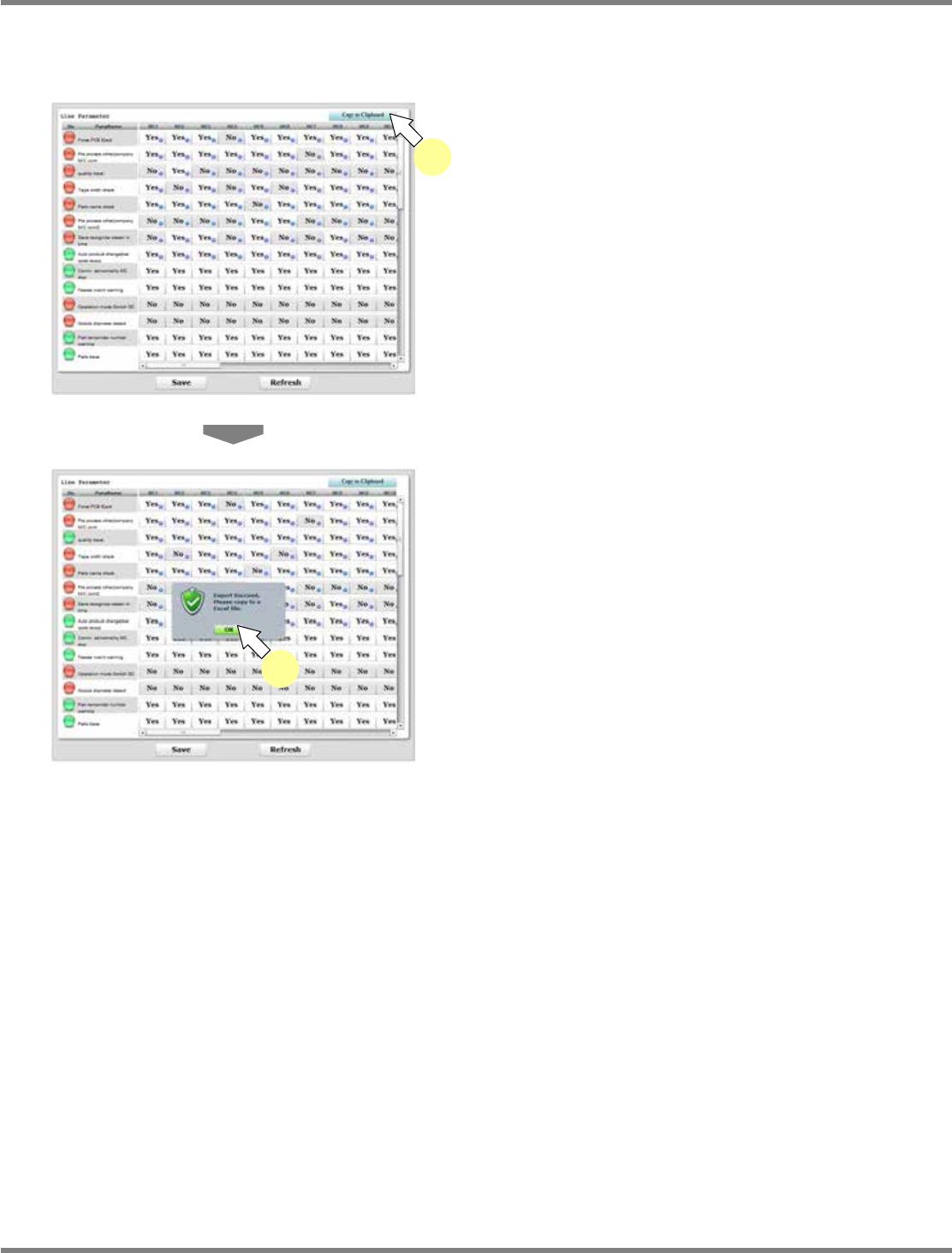
B) Copying the line parameters to the clipboard
You can copy the loaded line parameters to the clipboard as CSV data.
The data on the clipboard can be pasted on Excel or text files.
1
Display the line parameters.
∗
Following the above procedure ‘A) Displaying
the line parameters,’ display the line
parameters.
2
Click [Copy to Clipboard].
•
A message says they are copied to the
clipboard.
3
Click [OK].
lnb4-10002_e
2
lnb4-10006_e
3