N7201A304E05(1)_0.pdf - 第84页
NPM LNB 2.5 Initial Setting Page 2-14 EJM9BE-MB-02L-20 ② When first using the function that needs Flash Player 1 Select an applicable menu. • The functions that need Flash Player include the “result information display f…
NPM
LNB
2.5 Initial Setting
EJM9BE-MB-02L-20 Page 2-13
•
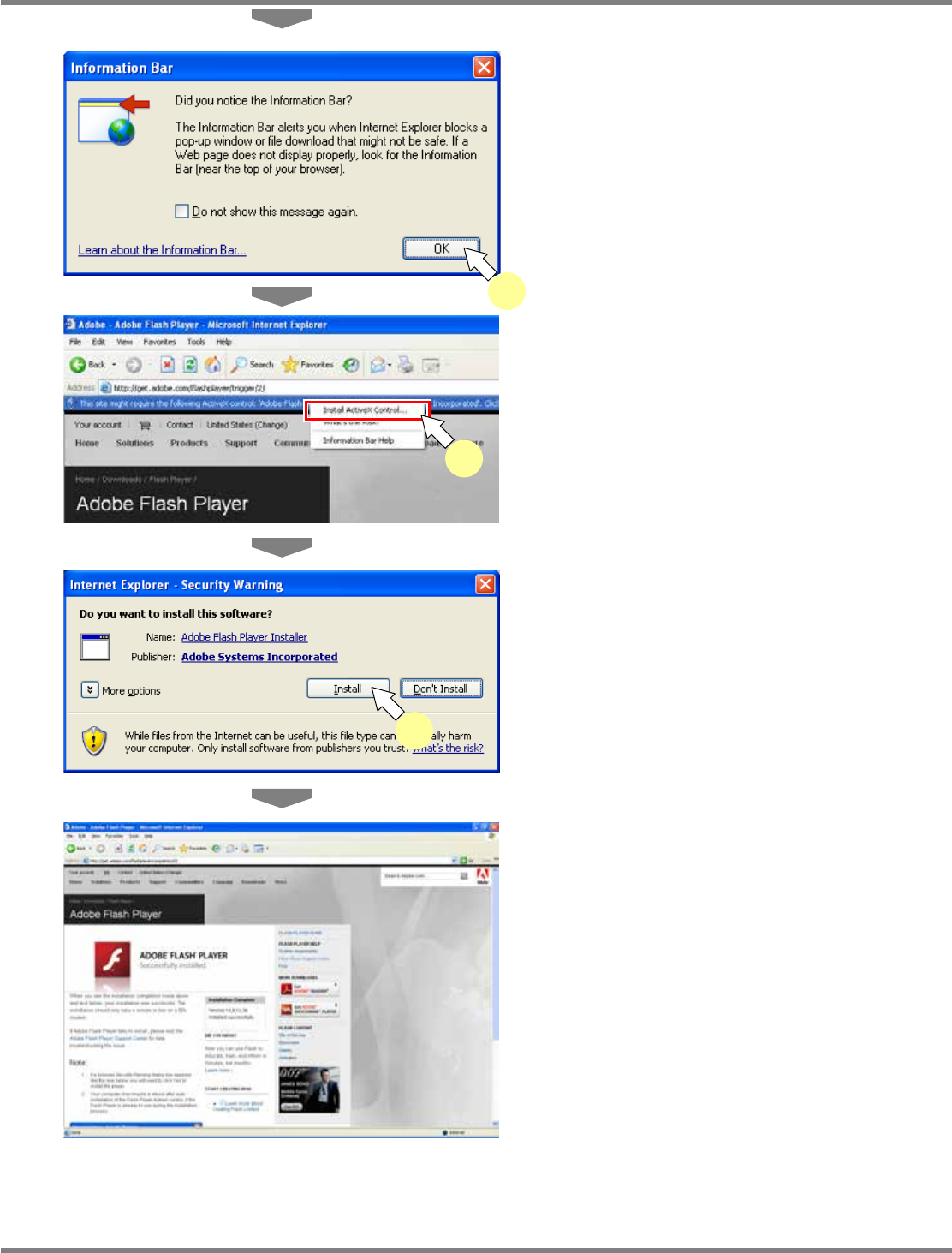
An information bar message appears.
4
Click [OK].
5
Choose [Install ActiveX Control] from
the pop-up menu that appears by
clicking the information bar.
•
The security alert screen is displayed.
6
Click [Install].
•
Installation begins.
7
Confirm the completion of installation,
and then close the site.
•
When the installation is complete, the
message “ADOBE FLASH PLAYER
Successfully installed.” appears on the site.
∗
Depending on your security setting, <step 4>,
<step 5>, and <step 6> may not be required.
lnb2-4003_e
4
lnb2-4004_e
5
lnb2-4005_e
6
lnb2-4006_e
NPM
LNB
2.5 Initial Setting
Page 2-14 EJM9BE-MB-02L-20
②
When first using the function that needs Flash Player
1
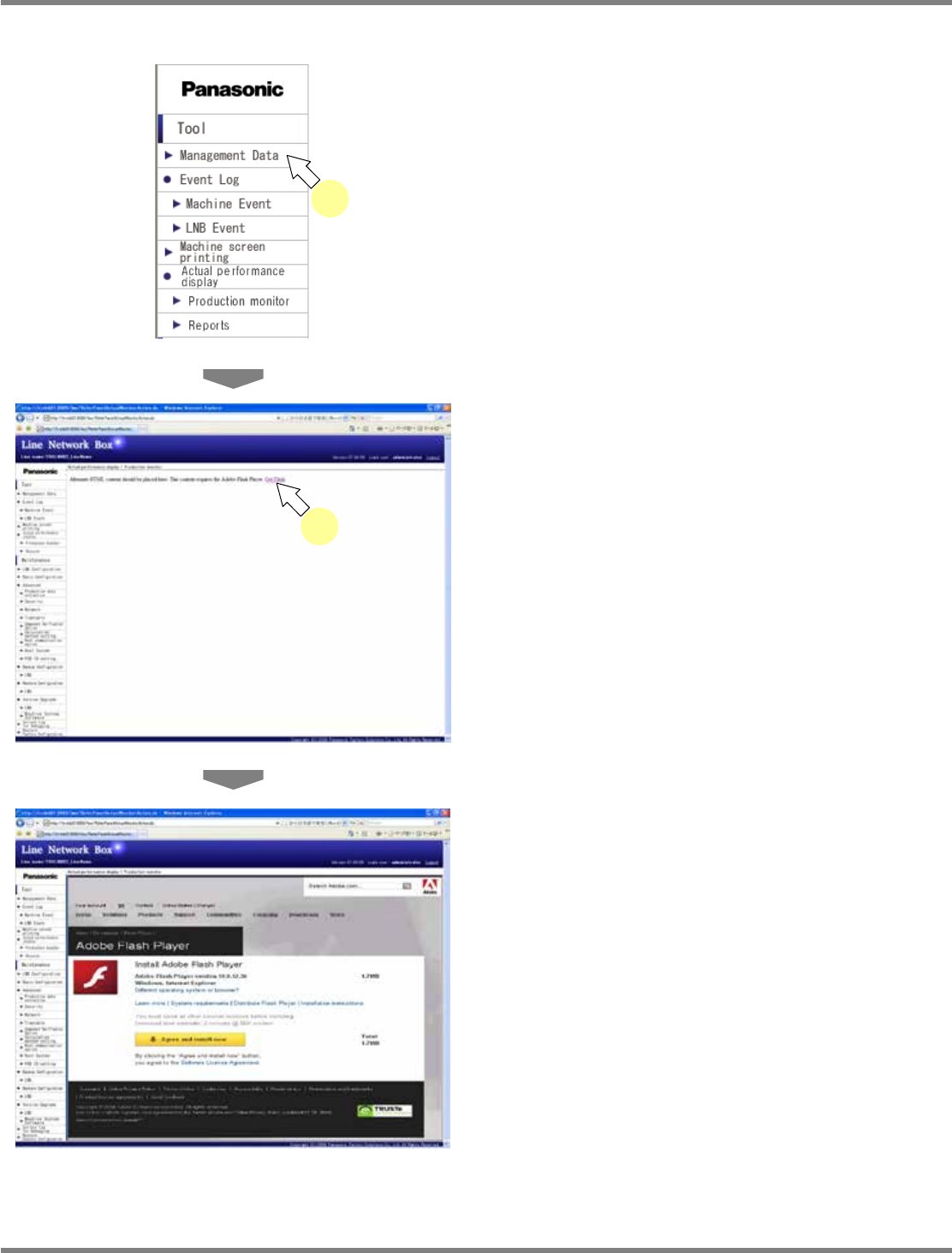
Select an applicable menu.
•
The functions that need Flash Player include
the “result information display function
(production status monitor, reports),” the
“self-diagnosis function (connection check,
setting check),” and the “parameter edit
function (line parameter).”
•
The screen of the corresponding function is
displayed.
2
Click [Get Flash] in the displayed
message.
•
The message saying Flash Player is required
to display the page appears.
•
The “Flash Player” download site is displayed.
∗
For the subsequent steps, see <step 3> or
later in the above “Installing Flash Player in
advance.”
lnb2-4007_e
1
lnb2-4009_e
lnb2-4008_e
2
NPM
LNB
2.5 Initial Setting
EJM9BE-MB-02L-20 Page 2-15
B) When the Internet access is not available
The PC terminal that is not ready for the Internet access needs the install file of Flash Player.
For the subsequent steps, use another terminal ready for the Internet access.
1
Access the Adobe ID application site.
∗
Enter the following URL in the address bar of browser.
Japanese URL: https://www.adobe.com/cfusion/membership/index.cfm?loc=jp&nl=1#
English URL: https://www.adobe.com/cfusion/membership/index.cfm?loc=en_us&nl=1
Chinese URL: https://www.adobe.com/cfusion/membership/index.cfm?loc=cn&nl=1
•
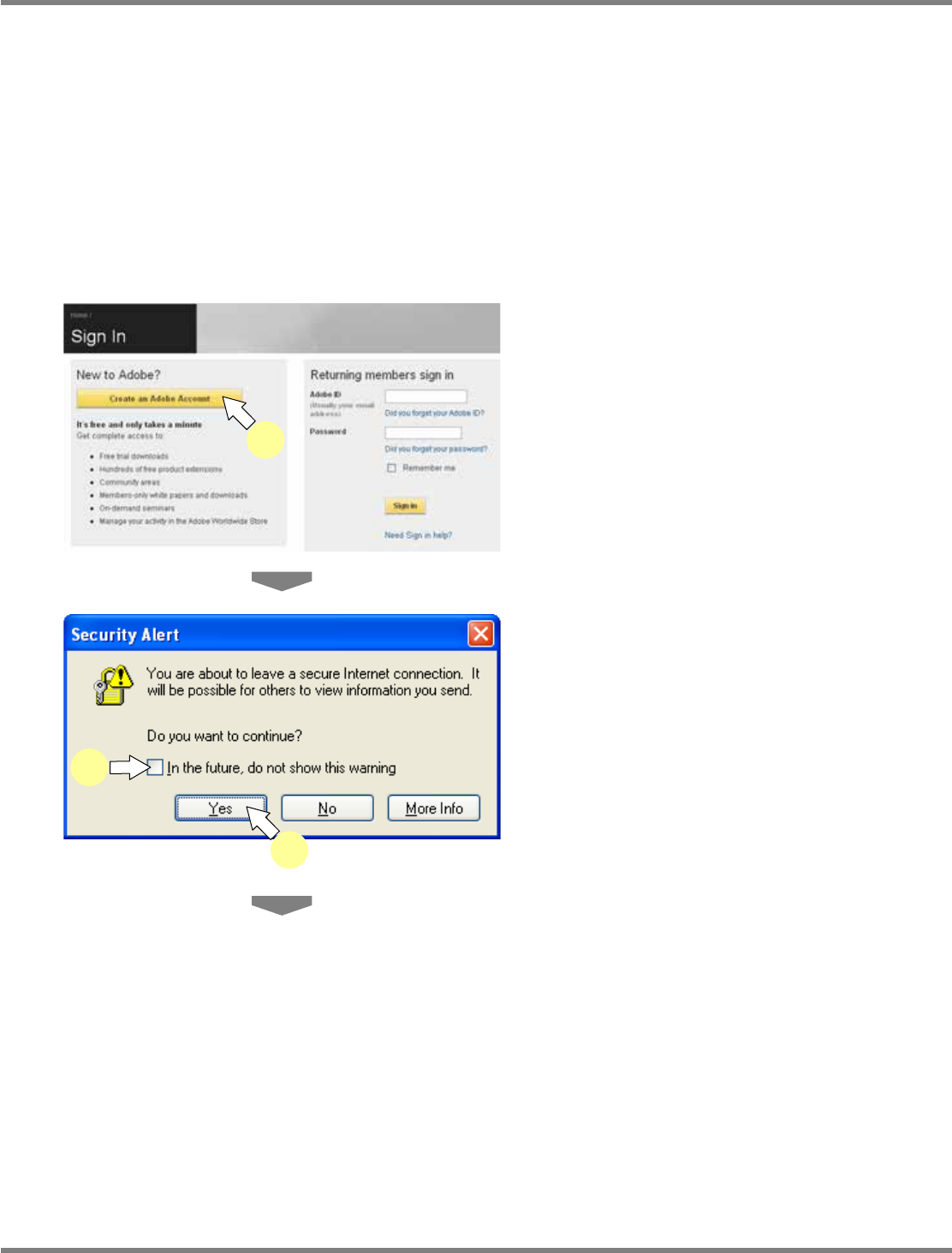
The <Sign In> screen is displayed.
2
Click [Create an Adobe Account].
•
The <Join Adobe> screen is displayed.
3
Click [Yes].
∗
Depending on your security setting, the
following <Security Alert> screen may be
displayed. Check off “In the future, do not
show this warning,” and click [Yes].
lnb2-4010_e
2
lnb2-4011_e
3
3