N7201A304E05(1)_0.pdf - 第81页
NPM LNB 2.5 Initial Setting EJM9BE-MB-02L-20 Page 2-11 2.5 Initial Setting 2.5.1 LNB Initial Setting To carry out production, the initial settin g is required. For LNB, if the initial setting is not done (e.g. in initial…
NPM
LNB
2.4 Login/Logout
Page 2-10 EJM9BE-MB-02L-20
2.4.2 Logout
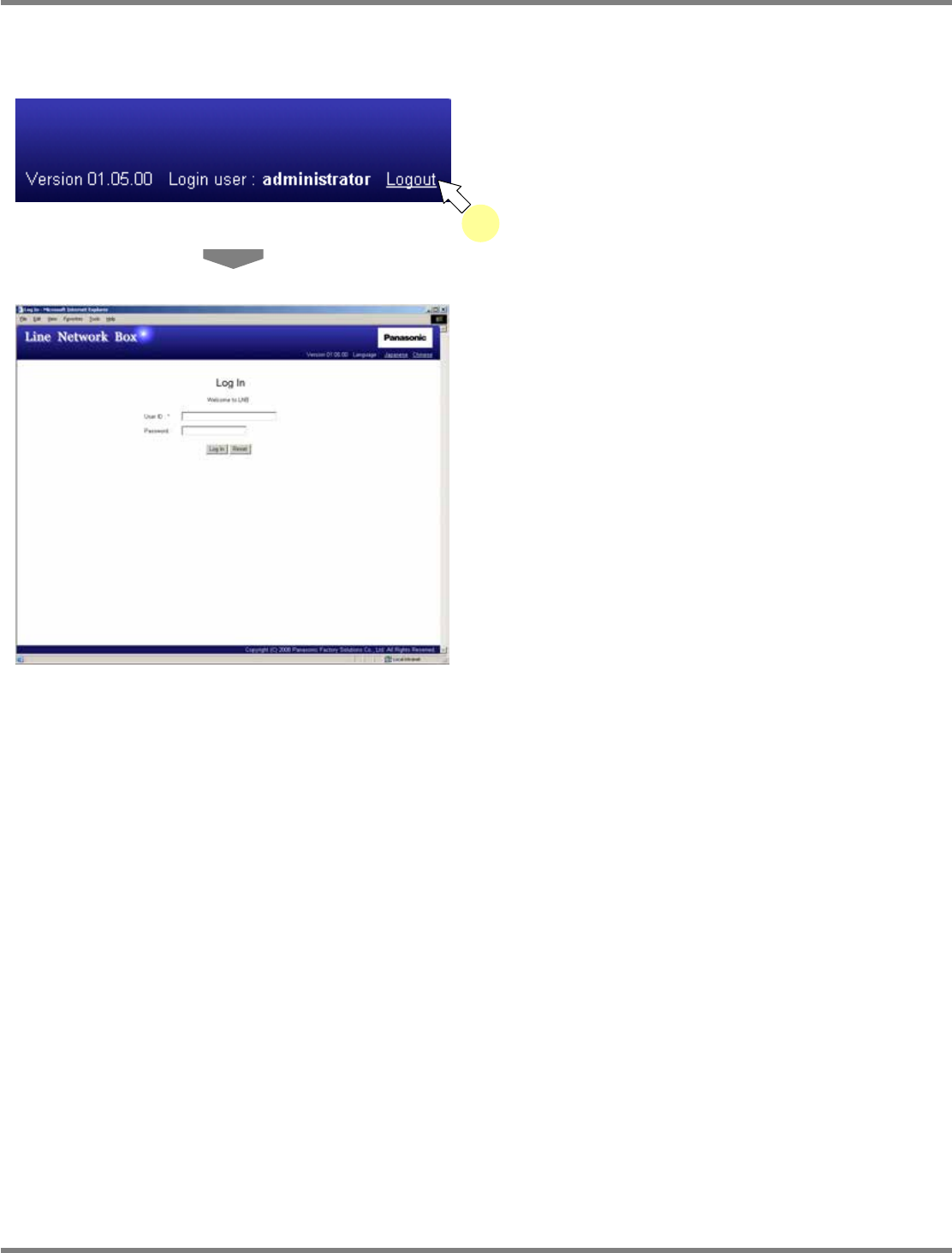
To exit LNB, you need to log out. The logout procedure is as follows.
1
Click [Logout] in the upper right of the
screen.
•
The login screen reopens.
Security precautions
LNB runs on your terminal. Once having logged in, you can operate it in response to your
respective rights until exit. If you step out midway through the work, another person may
potentially use your terminal meanwhile. Therefore, we strongly recommend logging out, locking
the screen, or other measures.
lnb2-3005_e
1
lnb2-3001_e

NPM
LNB
2.5 Initial Setting
EJM9BE-MB-02L-20 Page 2-11
2.5 Initial Setting
2.5.1 LNB Initial Setting
To carry out production, the initial setting is required.
For LNB, if the initial setting is not done (e.g. in initial introduction), the easy setting screen is
automatically displayed after login.
For the initial setting procedure, see “4.2 Easy Setting.”
NPM
LNB
2.5 Initial Setting
Page 2-12 EJM9BE-MB-02L-20
2.5.2 Installing Flash Player
To use the result information display function, the self-diagnosis function, or the parameter edit
function, Adobe Flash Player is required.
This part explains the procedure for installing Adobe Flash Player.
A) When the Internet access is available
When the Internet access is available, you can install Flash Player from the Adobe site. If it is not
installed in advance, LNB prompts for installation of Flash Player when you first use the function
that needs Flash Player.
①
Installing Flash Player in advance
1
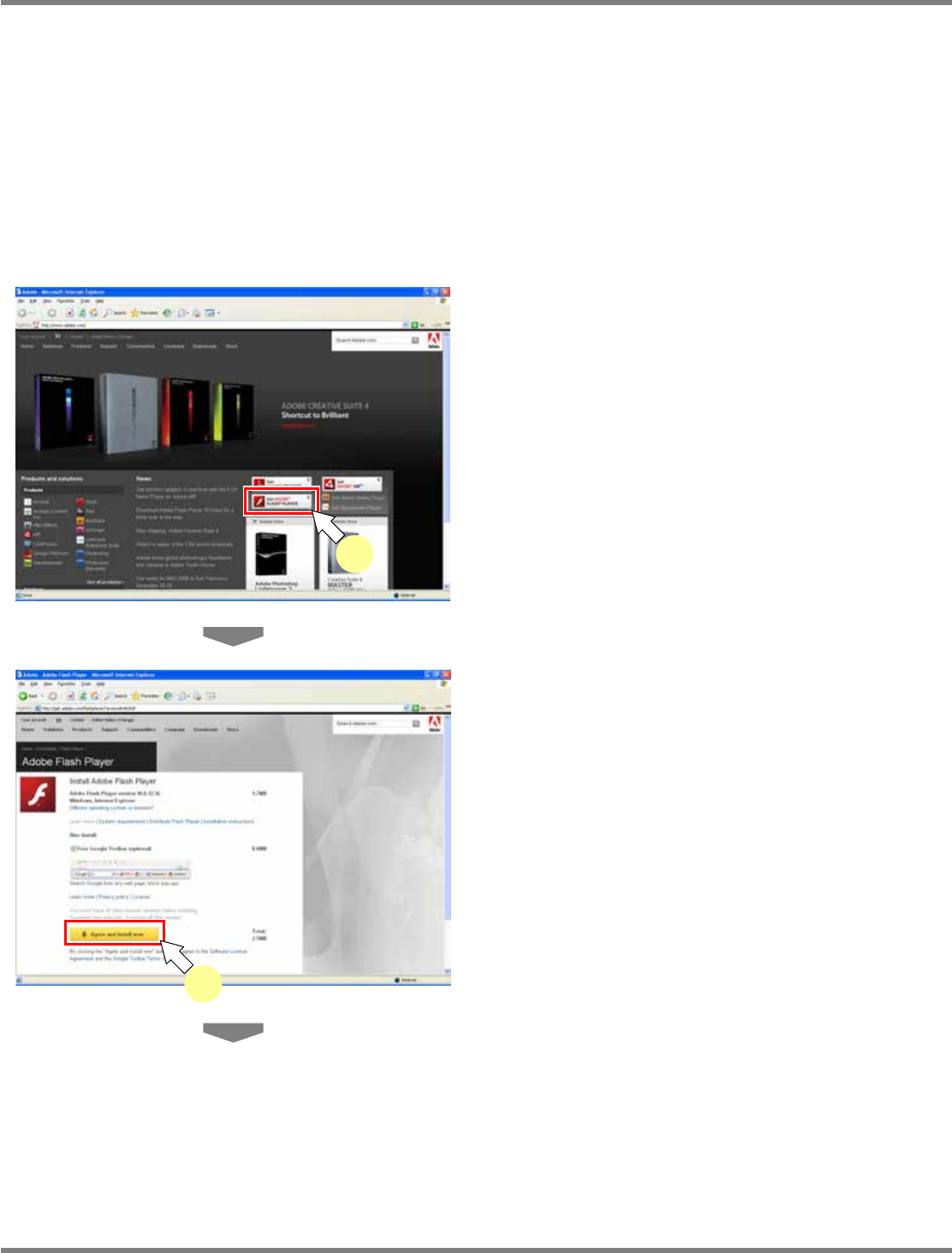
Access the Adobe site.
•
Type “http://www.adobe.com” in the address
bar of browser.
2
Click [Get ADOBE FLASH PLAYER].
•
The Flash Player download site is displayed.
3
Check the displayed conditions, and
click [Agree and install now].
•
Check the version to be installed, and the
OS/browser to be used.
lnb2-4002_e
3
lnb2-4001_e
2