N7201A304E05(1)_0.pdf - 第141页
NPM LNB 4.3 Advanced Setting EJM9BE-MB-04L-20 Page 4-11 B) Deleting the user information You can delete the registered user. 1 Check off the desired user on the <User List> screen, and click [Delete]. • It is not p…
NPM
LNB
4.3 Advanced Setting
Page 4-10 EJM9BE-MB-04L-20
∗
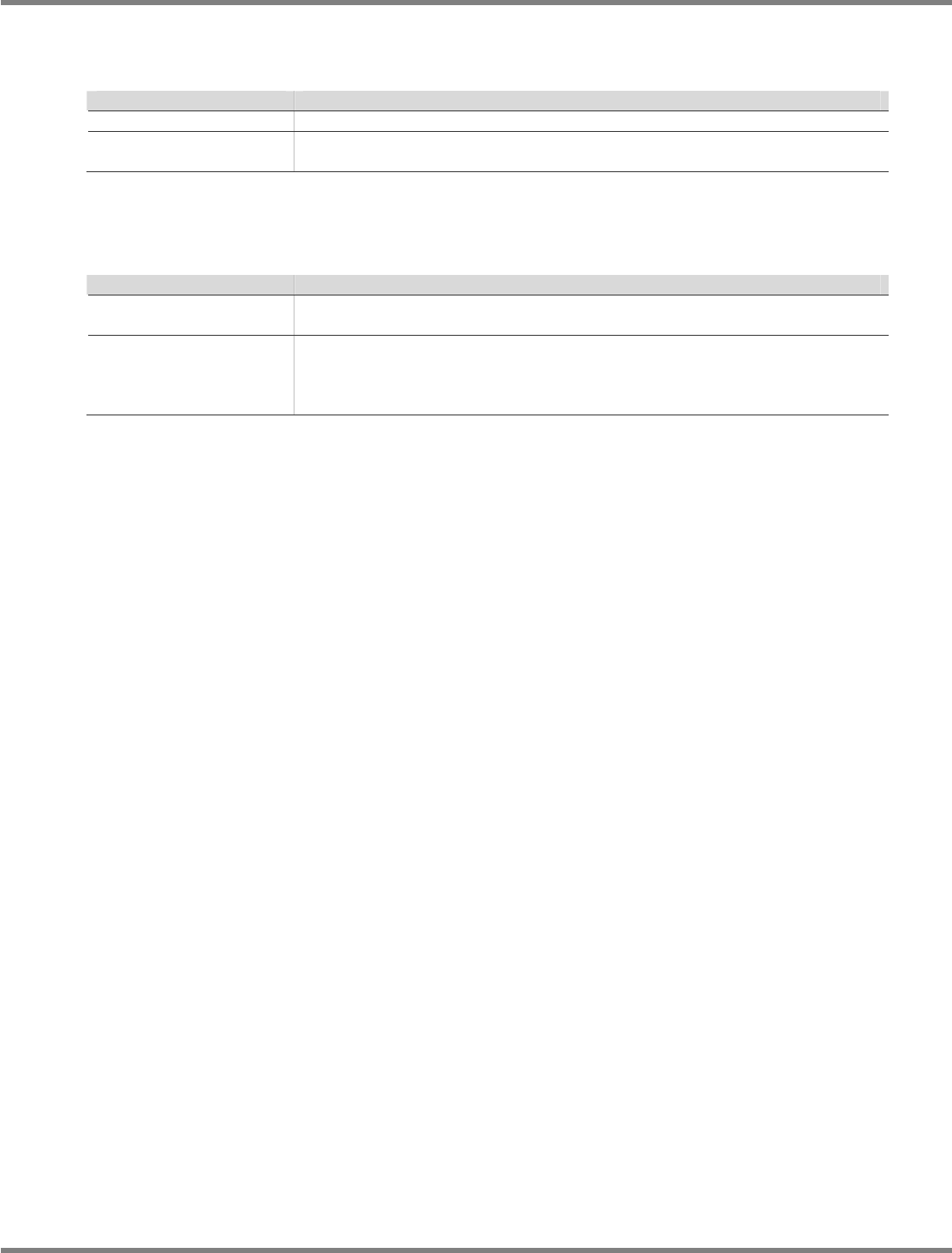
About the group
“System administrator,” “Operator,” and “Engineer” are set in the group combo box. The right of
each group is as follows.
Group
Right
System administrator
Both tool and maintenance functions are available.
Operator/Engineer
Tool functions are available. Maintenance functions are hidden from the
menu, and not available.
∗
About the mode (the machine operation right)
The correspondence between each mode and group and the machine operation right are as
follows.
Group
Right
Engineer
Choose ‘Engineer’ mode.
All operations on the machine become available.
Operator Choose one of the ‘A–E’ modes.
The A–E modes have the operation right specified by the machine, and the
operator is given the corresponding operation right.
For the machine operation right, refer to the instruction manual of NPM.
NPM
LNB
4.3 Advanced Setting
EJM9BE-MB-04L-20 Page 4-11
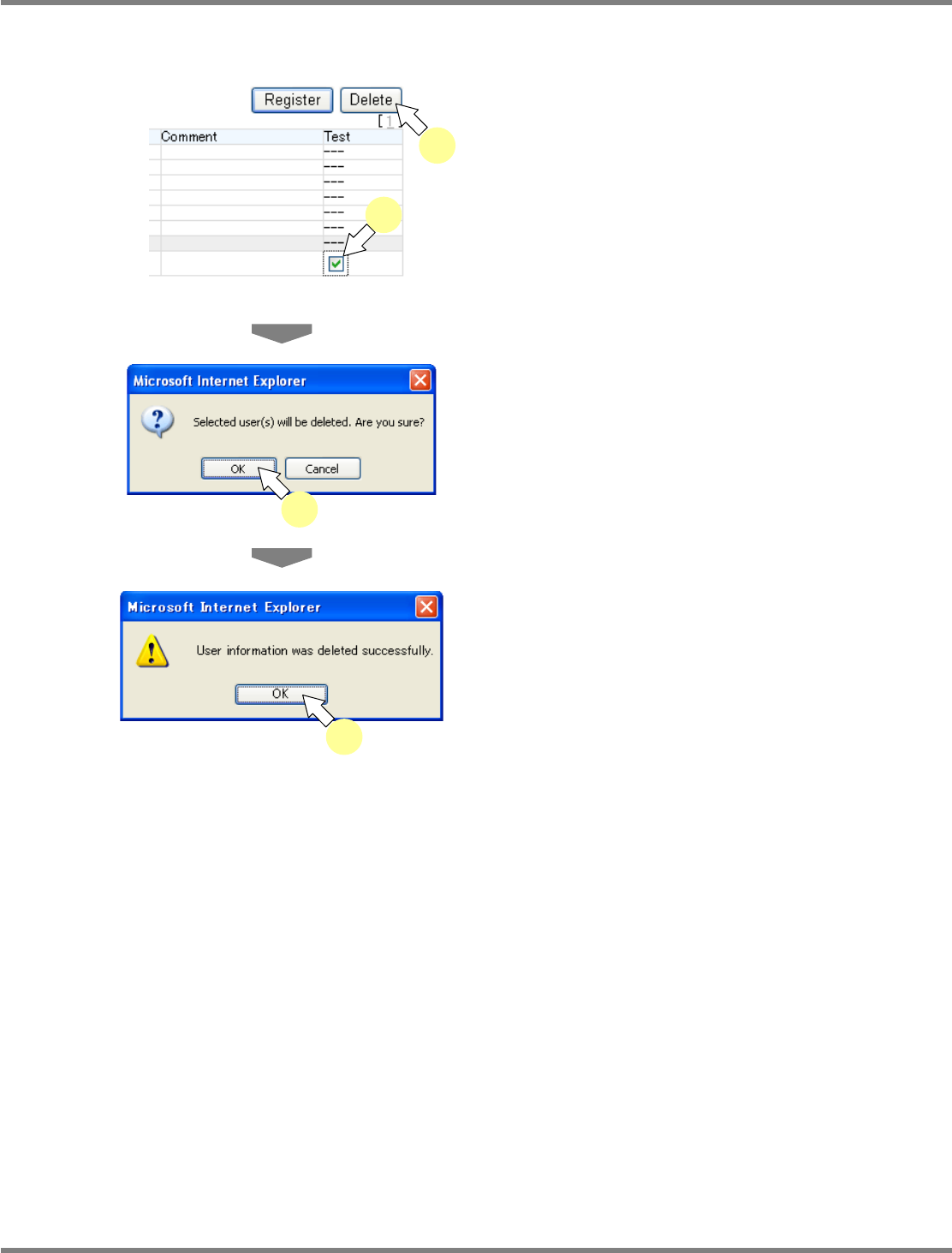
B) Deleting the user information
You can delete the registered user.
1
Check off the desired user on the
<User List> screen, and click [Delete].
•
It is not possible to delete the default users
(administrator, engineer, operator A–E)
created in installation.
•
The dialog of deletion confirmation opens.
2
Click [OK].
•
The message of user deletion completion
appears.
3
Click [OK].
Security precautions
①
In initial introduction, ‘administrator’ is registered.
Change the password periodically in order to maintain the LNB security.
②
The user information in security settings should be managed on your own responsibility. In the case
of retirement, transfer, or the like, leaving unused users unattended can cause the leakage of user
information. We strongly recommend deleting unused users.
lnb4-3012_e
2
lnb4-3011_e
1
1
lnb4-3013_e
3
NPM
LNB
4.3 Advanced Setting
Page 4-12 EJM9BE-MB-04L-20
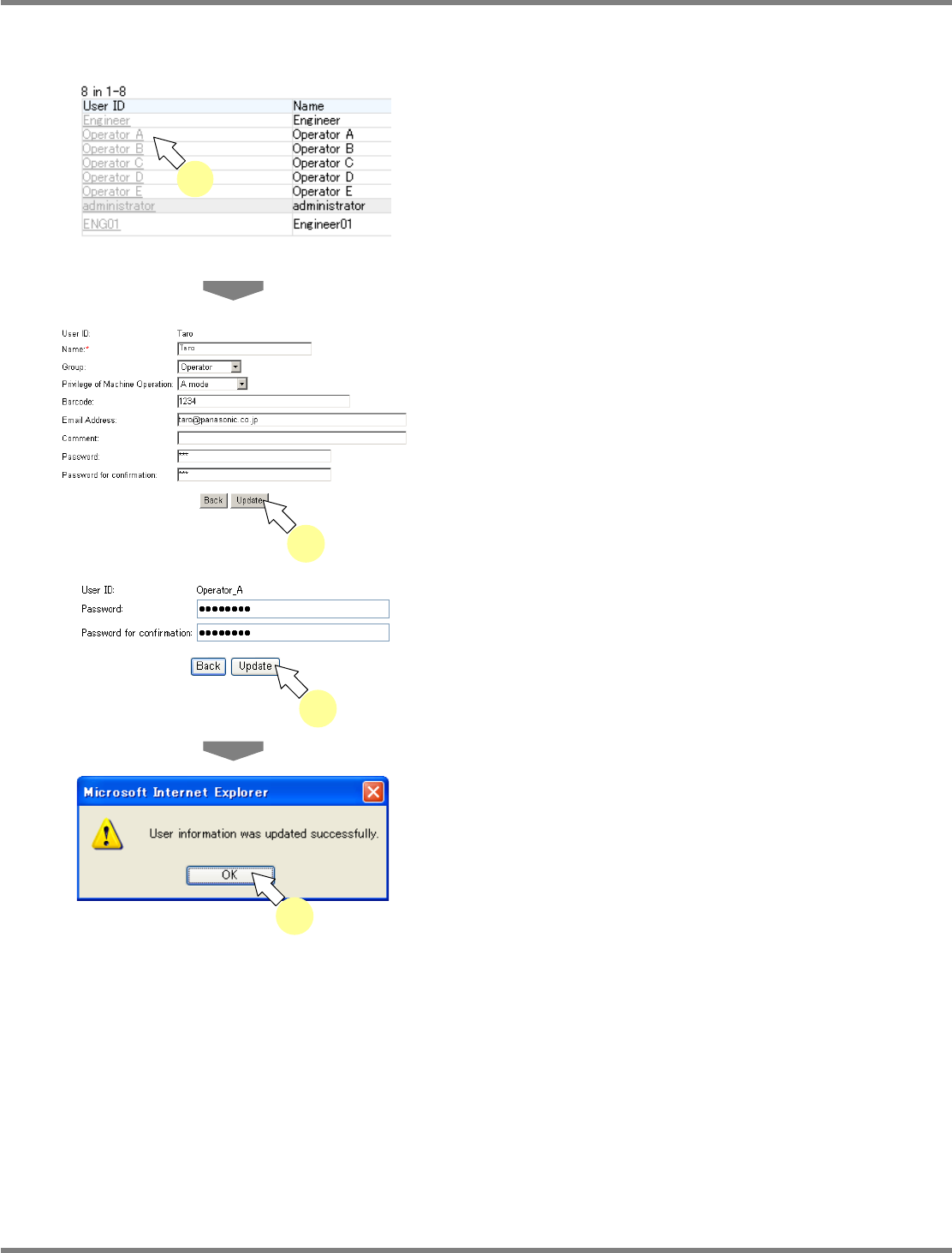
C) Referring/Changing user information
You can browse and change the registered user information.
1
Click the desired user ID on the <User
List> screen.
•
The user information is displayed.
2
Enter the new information in the
desired items, and click [Update].
•
Clicking [Back] returns to the <User List>
screen.
•
For the default users (engineer, operator A–E)
created in installation, the left user information
screen is displayed, and you can only change
the password.
•
The message of user information update
completion appears.
3
Click [OK].
lnb4-3014_e
1
lnb4-3017_e
3
lnb4-3016_e
2
lnb4-3015_e
2