SIPLACE-SX4-DX4-用户手册.pdf - 第265页
Settings 5.7.1 Setting the Actuator on the Component Trolley Settings on the Component Trolley Service Manual SIPLACE SX4/DX4 265 5.7 5 . 7 S e t t in g s o n t h e C o m p o n e n t T r o lle y Settings on the Component…
Settings
Nozzle Changer Setting 5.6.3 Jumpers on the Nozzle Changer
264 Service Manual SIPLACE SX4/DX4
5.6.3
5.6.3 Jumpers on the Nozzle Changer
Jumpers on the Nozzle Changer
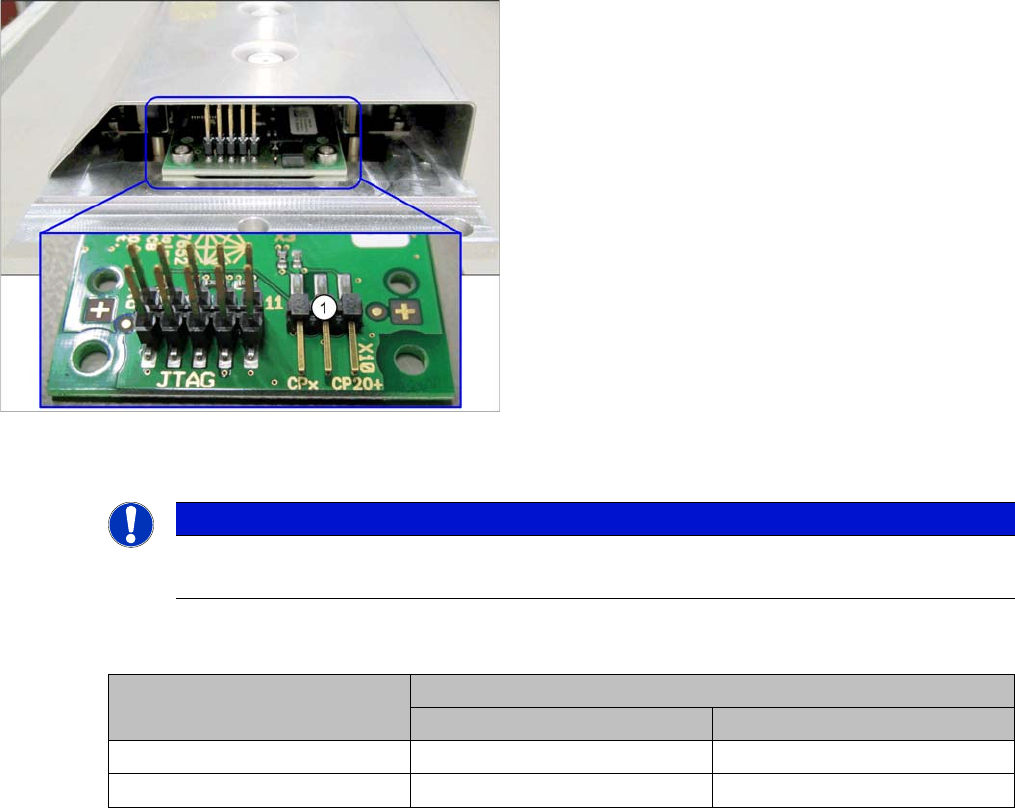
The jumper X10 needs to be set at the following nozzle changers:
▪ Nozzle changer basic structure CPx/all assembly - short [03103649-xx]
▪ Nozzle changer basic structure CPx/all assembly - long [03103514-xx]
Overview
Setting
► Set the correct value for your head type and software.
Nozzle Changer CP20P - Jumper X10
Jumper X10
See also
6.6.2 Nozzle Changer Main Board C&P20P [03107652-xx] [ ➙ 295]
1. Jumper X10
NOTICE
Before installation
Due to the design, this setting must be performed before installation in the machine.
Head Jumper position
SW <= 706.x SW >= 707.x
CPx, DLM 1-2 1-2 or 2-3
C&P20 P --- 2-3 (factory settings)
Settings
5.7.1 Setting the Actuator on the Component Trolley Settings on the Component Trolley
Service Manual SIPLACE SX4/DX4 265
5.7
5.7 Settings on the Component Trolley
Settings on the Component Trolley
5.7.1
5.7.1 Setting the Actuator on the Component Trolley
Setting the Actuator on the Component Trolley
Parts, equipment and tools
▪ Allen key
Setting
See also
3.11.6 Replacing the Actuator/Protective Bracket [ ➙ 189]
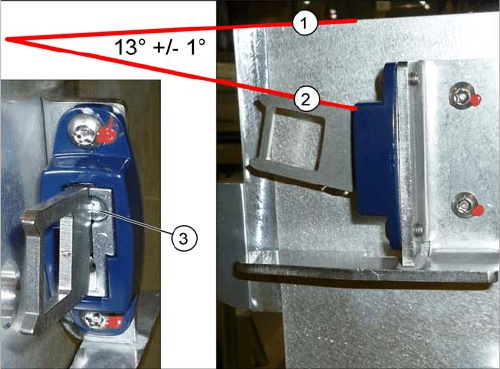
► Set the actuator with the help of the grub screw (3).
Between the upper edge (1) of the table and the
actuator (2) you need to set an angle of 13° +/- 1°.
The actuator must be able to slide into the safety
switch without rubbing against the plastic.
Settings
Other Settings 5.8.1 Firmware Download (SW 70x)
266 Service Manual SIPLACE SX4/DX4
5.8
5.8 Other Settings
Other Settings
5.8.1
5.8.1 Firmware Download (SW 70x)
Firmware Download (SW 70x)
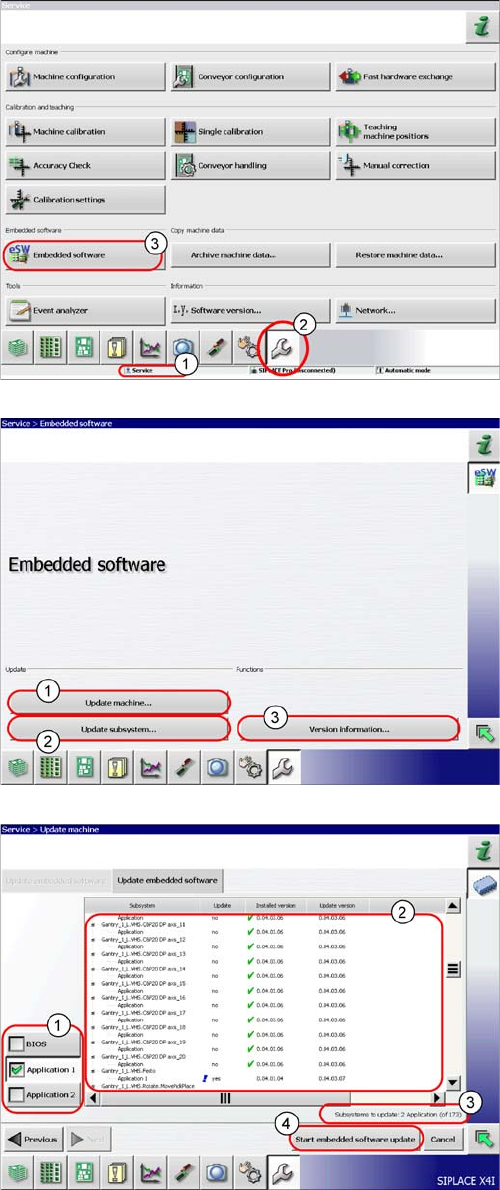
► The function Firmware Download can be performed
with the operator levels (1) Machine-Service or
SIPLACE-Service.
► Switch over to the service menu (2).
► Select the button Embedded Software (3).
► (1) Select this button to check the entire machine and
to perform an eSW download for multiple subsys-
tems.
► (2) Select this button to select and check one subsys-
tem, to perform an eSW download.
► (3) Select this button to view all versions of the sub-
systems, BIOS application 1/2.
1. Selection button, BIOS application 1/2
2. Shows the status of the individual subsystems.
3. Update information about the number of subsystems
which still have to be downloaded.
4. Starts the download.