00198227-03_UM_MaterialSetupAssistant_2.3-R17-1_DE_EN.pdf - 第166页
Preconditions and Configuratio ns Configuration Settings in EDM 166 ASM Material Setup Assistant 2.3 (R17-1) ASM Material Setup Ass i st a n t 2 . 3 Edit rule - Object Types tab ► In the Name and Comment fields, ent er t…
Preconditions and Configurations
Configuration Settings in EDM
ASM Material Setup Assistant 2.3 (R17-1) ASM Material Setup Assistant 2.3 (R17-1) 165
2.4.2
2.4.2 Suppressing the Display of a Callback When Changing the EDM Production Schedule
Suppressing the Display of a Callback When Changing the EDM Production Schedule
Create a rule that suppresses the display of a callback before the EDM Production Schedule is changed.
2.4.2.1
2.4.2.1 Creating a Rule
Creating a Rule
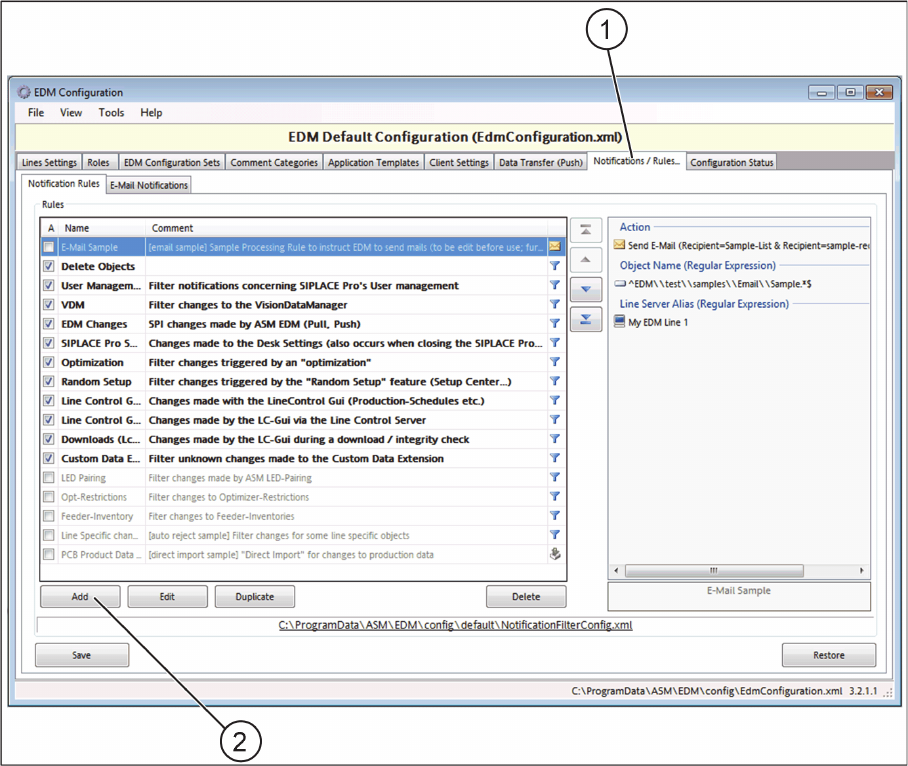
► Open the EDM Configuration.
► Select the Notifications/Rules (1) tab.
EDM Configuration - Notifications/Rules tab.
► Click the Add button (2).
⇨ The Edit rule dialog box will open.
Preconditions and Configurations
Configuration Settings in EDM
166 ASM Material Setup Assistant 2.3 (R17-1) ASM Material Setup Assistant 2.3
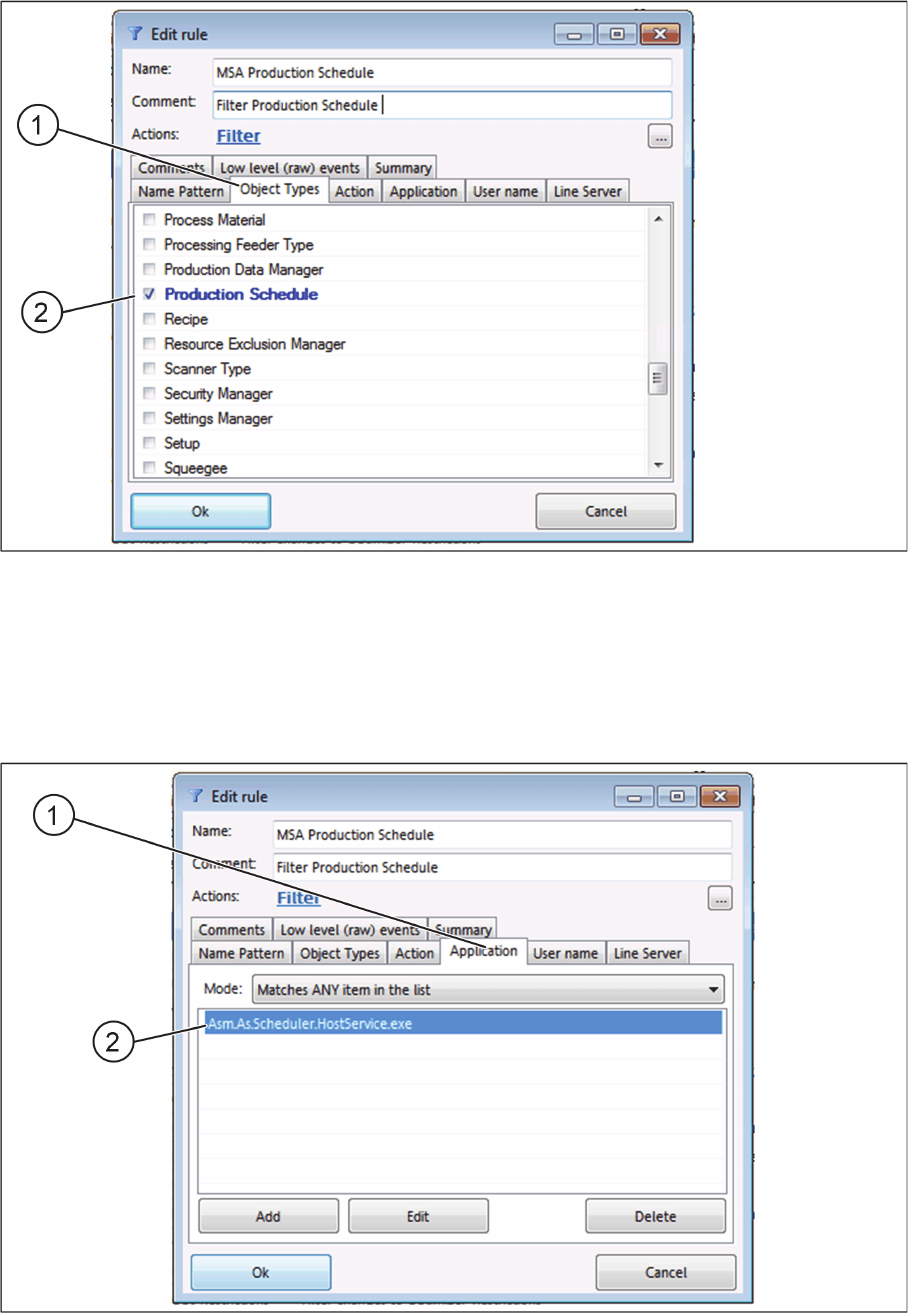
Edit rule - Object Types tab
► In the Name and Comment fields, enter the relevant information for the rule.
► Select the Object Types (1) tab.
► Select the Production Schedule (2).
► Confirm with OK.
► Select the Application (1) tab.
Edit rule - Application tab
► Click Add and enter the name of the application. Asm.As.Scheduler.HostService.exe in this exam
-
ple.
► Confirm with OK.
Preconditions and Configurations
Configuration Settings in EDM
ASM Material Setup Assistant 2.3 (R17-1) ASM Material Setup Assistant 2.3 (R17-1) 167
► Confirm with OK and save the ED configuration with Save.
Additional Filter Options
In the Name Pattern tab, you can set further filter restrictions. As the rule is normally to be applied to all
production schedules, this is, however, an exception.
► Enter a regular expression to which the name of the production schedule is linked. If no entry is
made, the filter is set to the notifications of changes to ALL production schedules of the lines.
► Confirm with OK and save the ED configuration with Save.