00198227-03_UM_MaterialSetupAssistant_2.3-R17-1_DE_EN.pdf - 第174页
Getting Started and Overview of the Order Manager Production Order Manager 174 ASM Material Setup Assistant 2.3 (R17-1) ASM Material Setup Ass i st a n t 2 . 3 4.2 4 . 2 P r o d u c t io n O r d e r M a n a g e r Product…

Getting Started and Overview of the Order Manager
Introduction
ASM Material Setup Assistant 2.3 (R17-1) ASM Material Setup Assistant 2.3 (R17-1) 173
4
4 Getting Started and Overview of the Order Manager
Getting Started and Overview of the Order Manager
4.1
4.1 Introduction
Introduction
The Order Manager enables you to plan and monitor the SIPLACE Material Setup Assistant workflow.
Two tools are available for this:
Production Order Manager
The Production Order Manager is used to import SIPLACE Pro jobs or individual recipes of a SIPLACE
Pro job.
When importing SIPLACE Pro jobs, the optimized jobs are imported with the recipes and setups from
SIPLACE Pro and the production order of setups and recipes is scheduled for the lines. When importing
recipes, individual recipes of the optimized job can be imported.
After successful scheduling, you can approve the production order for the lines. The connected lines and
their presetup areas, plus the items in stock, will be updated and the required information is automatically
made available at the workplaces.
Monitoring
When production jobs are approved, an internal planning run is started in the background. After the pro
-
duction run is finished, the following information is shown as tasks/time bars in a Gantt diagram in the
Monitoring view:
▪ Line: production status of the recipe on the line
▪ Presetup area: presetup tasks for preparing setups in the presetup area
▪ Warehouse: material picking for scheduled setups
Workflow
The integrated SIPLACE Material Setup Assistant workflow facilitates communication with the connect
-
ed systems at the respective workplaces:
▪ SIPLACE Line Control GUI
– Updates the production schedule and enables you to perform downloads to the lines.
▪ SIPLACE Setup Center GUI
– Makes the data for setup preparation available so that offline setup tasks can be performed.
▪ ASM Material Manager - Full Version
– Creates the material requirement lists so that material can be taken out of the warehouse.
For a detailed description of the SIPLACE Material Setup Assistant workflow, refer to:
▪ "5 Workflow with Flexible Family Setup" [ ➙ 189]
▪ "6 Workflow with Fixed Setup and Constant Tables" [ ➙ 225]
Production Order Manager
Monitoring
Getting Started and Overview of the Order Manager
Production Order Manager
174 ASM Material Setup Assistant 2.3 (R17-1) ASM Material Setup Assistant 2.3
4.2
4.2 Production Order Manager
Production Order Manager
4.2.1
4.2.1 Starting the Production Order Manager
Starting the Production Order Manager
► Start ASM Studio.
⇨ ASM Studio will open with the modules installed.
► Start the module Production Order Manager.
⇨ The Production Order Manager module will open.
See also "4.2.2 Overview - Production Order Manager" [ ➙ 174].
4.2.2
4.2.2 Overview - Production Order Manager
Overview - Production Order Manager
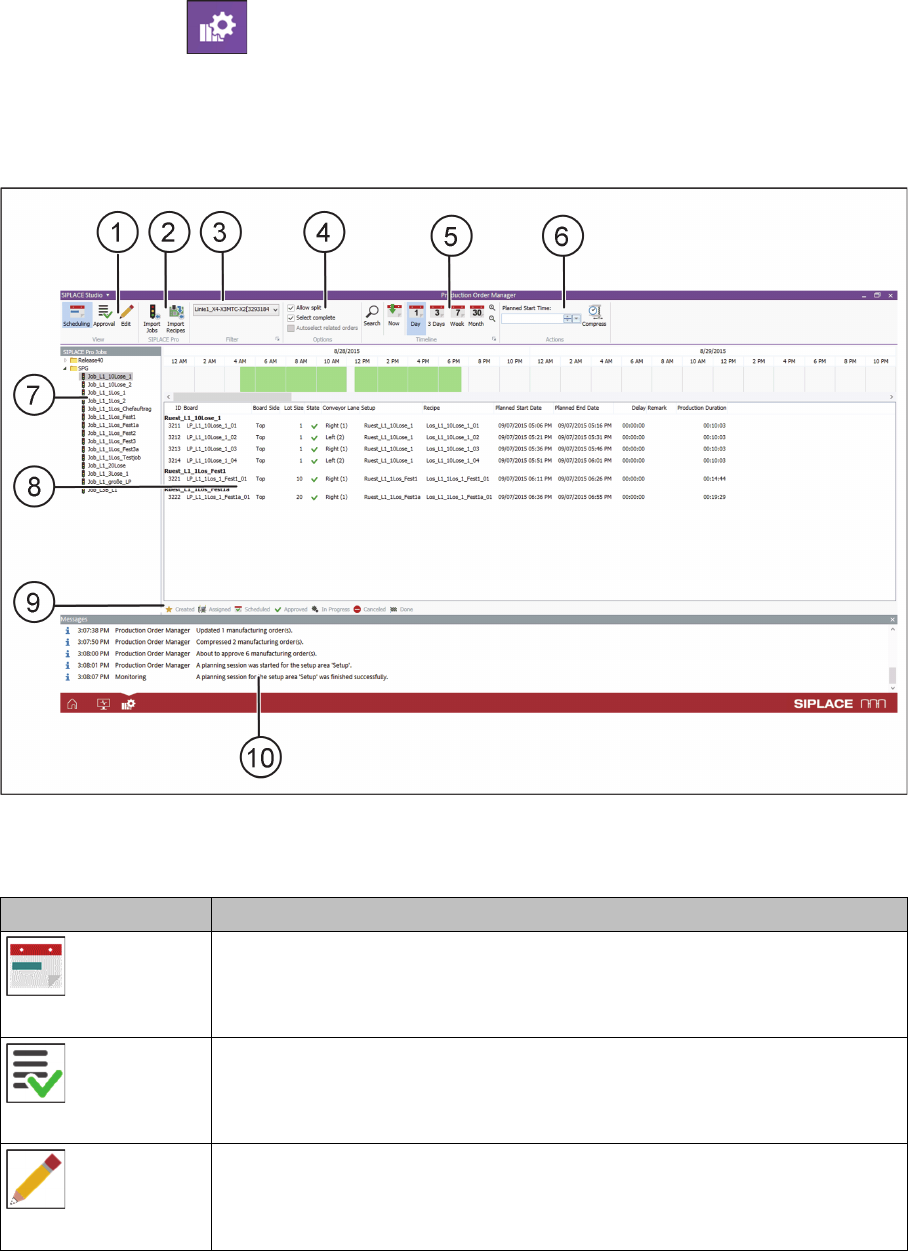
Overview of the user interface – Production Order Manager
View (1)
Icon Description
Scheduling
Switches over to the Scheduling view. See also "4.2.3 View - Scheduling"
[ ➙ 177].
Approval
Switches over to the Approval view. See also "4.2.4 View - Approval" [ ➙ 178].
Edit
Switches over to the Edit view. See also "4.2.5 View - Edit" [ ➙ 179].
Getting Started and Overview of the Order Manager
Production Order Manager
ASM Material Setup Assistant 2.3 (R17-1) ASM Material Setup Assistant 2.3 (R17-1) 175
SIPLACE Pro (2)
Filter (3)
The filter options for your view will be shown.
The ribbon bar icon opens a dialog in which the filter setting options can be selected. See also
"4.2.7.2 Dialog - Line Filter Options" [ ➙ 180].
Settings (4)
Timeline (5)
The ribbon bar icon opens a dialog in which the timeline options can be selected. See also "4.2.7.3
Dialog - Timeline Options" [ ➙ 180].
Icon Description
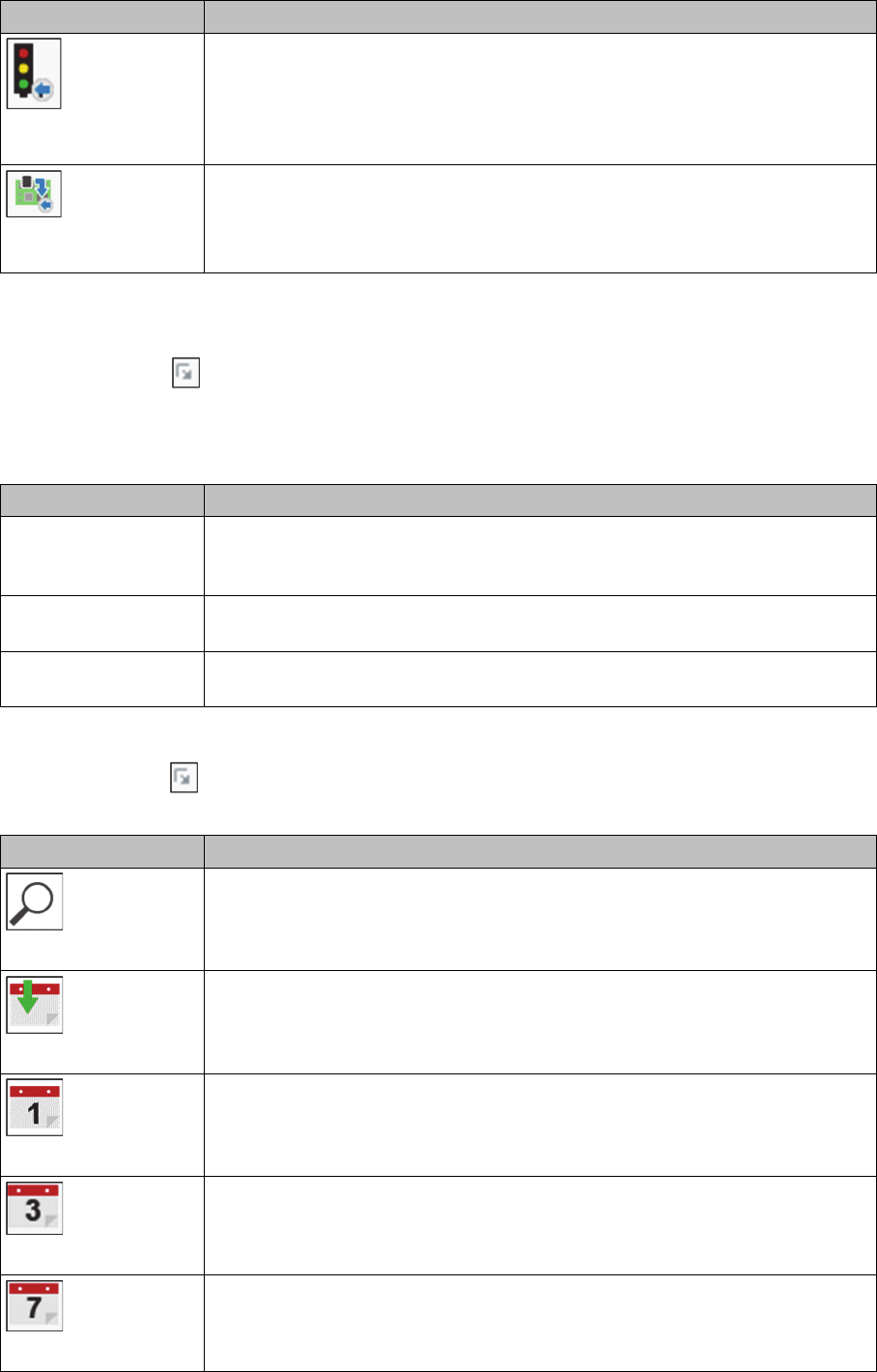
Import Jobs
This imports the jobs selected in the tree structure and added to the end of the
existing jobs. A job number (ID) is created for each job. The imported jobs are
shown in the job list.
You can also drag and drop the selected jobs into the the job list. This enables
you to insert the new jobs between the existing ones.
Import Recipe
Individual recipes of a SIPLACE Pro job can be added. This is helpful if you
want to import individual recipes into jobs which contain a lot of recipes.
The Import selected recipes dialog is displayed. See also "4.2.7.5 Dialog - Im
-
port selected recipes" [ ➙ 181].
Function Description
Allow split Allows you to split family setups during drag&drop in the timeline. This means
that individual jobs in the family setup can be selected and moved. If splitting
is not permitted, you will only be able to move family setups as a whole.
Select complete If an individual job in a family setup is selected and moved, the complete family
setup will be moved.
Autoselect related or
-
ders
Jobs which produce the same board will be selected automatically as well.
Function Description
Search
Opens the "4.2.7.4 Dialog - Search" [ ➙ 181] dialog. This enables you to
search for items in the timeline.
Now
Shows the part of the timeline with the current date and time.
Day
Shows the part of the timeline for a whole day.
3 days
Shows the part of the timeline for three days.
Week
Shows the part of the timeline for seven days.