00198227-03_UM_MaterialSetupAssistant_2.3-R17-1_DE_EN.pdf - 第175页
Getting Started and Overview of the Order Manager Production Order Manager ASM Material Setup Assistant 2.3 (R17-1) ASM Material Setup Ass istant 2.3 (R17-1) 175 SIPLACE Pro (2) Filter (3) The filter options for your vie…
Getting Started and Overview of the Order Manager
Production Order Manager
174 ASM Material Setup Assistant 2.3 (R17-1) ASM Material Setup Assistant 2.3
4.2
4.2 Production Order Manager
Production Order Manager
4.2.1
4.2.1 Starting the Production Order Manager
Starting the Production Order Manager
► Start ASM Studio.
⇨ ASM Studio will open with the modules installed.
► Start the module Production Order Manager.
⇨ The Production Order Manager module will open.
See also "4.2.2 Overview - Production Order Manager" [ ➙ 174].
4.2.2
4.2.2 Overview - Production Order Manager
Overview - Production Order Manager
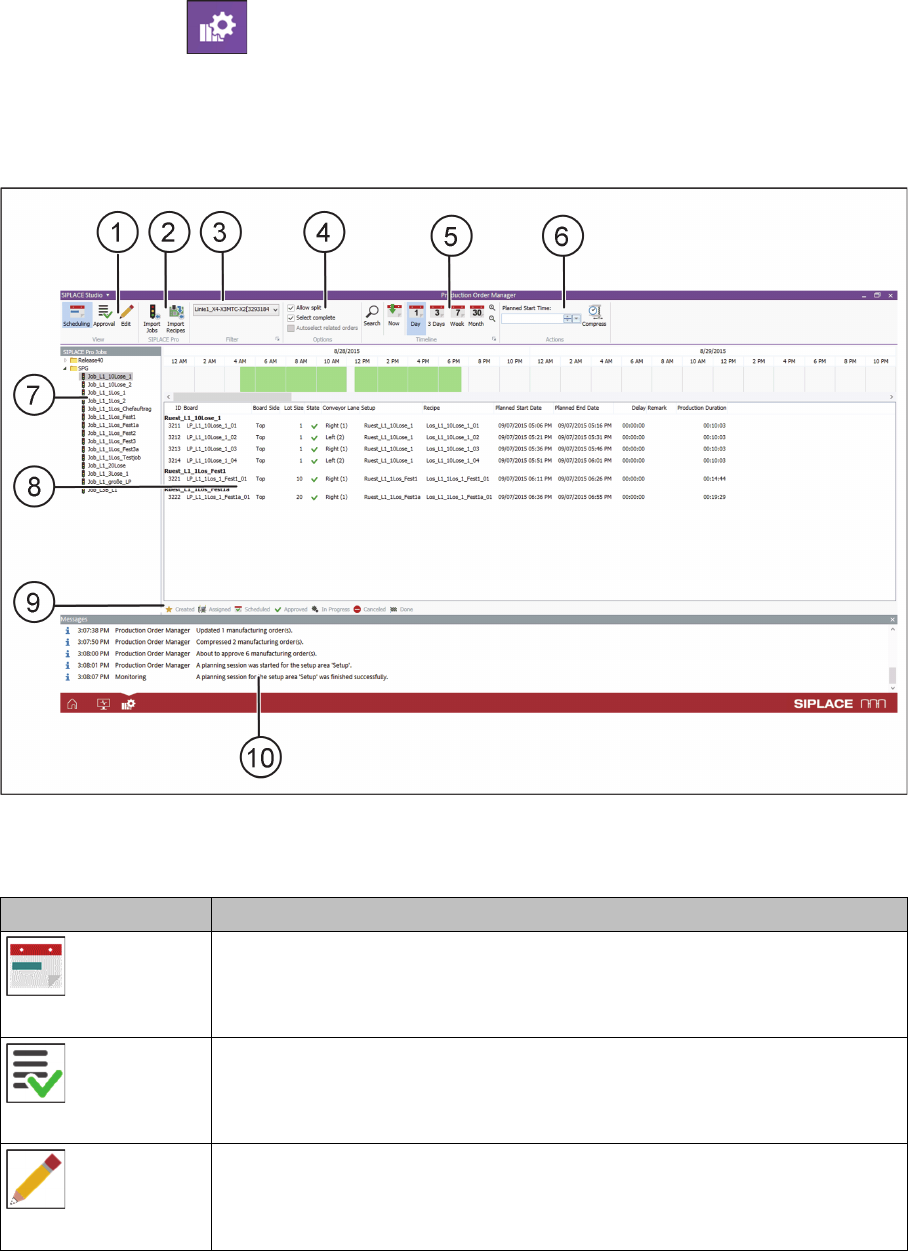
Overview of the user interface – Production Order Manager
View (1)
Icon Description
Scheduling
Switches over to the Scheduling view. See also "4.2.3 View - Scheduling"
[ ➙ 177].
Approval
Switches over to the Approval view. See also "4.2.4 View - Approval" [ ➙ 178].
Edit
Switches over to the Edit view. See also "4.2.5 View - Edit" [ ➙ 179].
Getting Started and Overview of the Order Manager
Production Order Manager
ASM Material Setup Assistant 2.3 (R17-1) ASM Material Setup Assistant 2.3 (R17-1) 175
SIPLACE Pro (2)
Filter (3)
The filter options for your view will be shown.
The ribbon bar icon opens a dialog in which the filter setting options can be selected. See also
"4.2.7.2 Dialog - Line Filter Options" [ ➙ 180].
Settings (4)
Timeline (5)
The ribbon bar icon opens a dialog in which the timeline options can be selected. See also "4.2.7.3
Dialog - Timeline Options" [ ➙ 180].
Icon Description
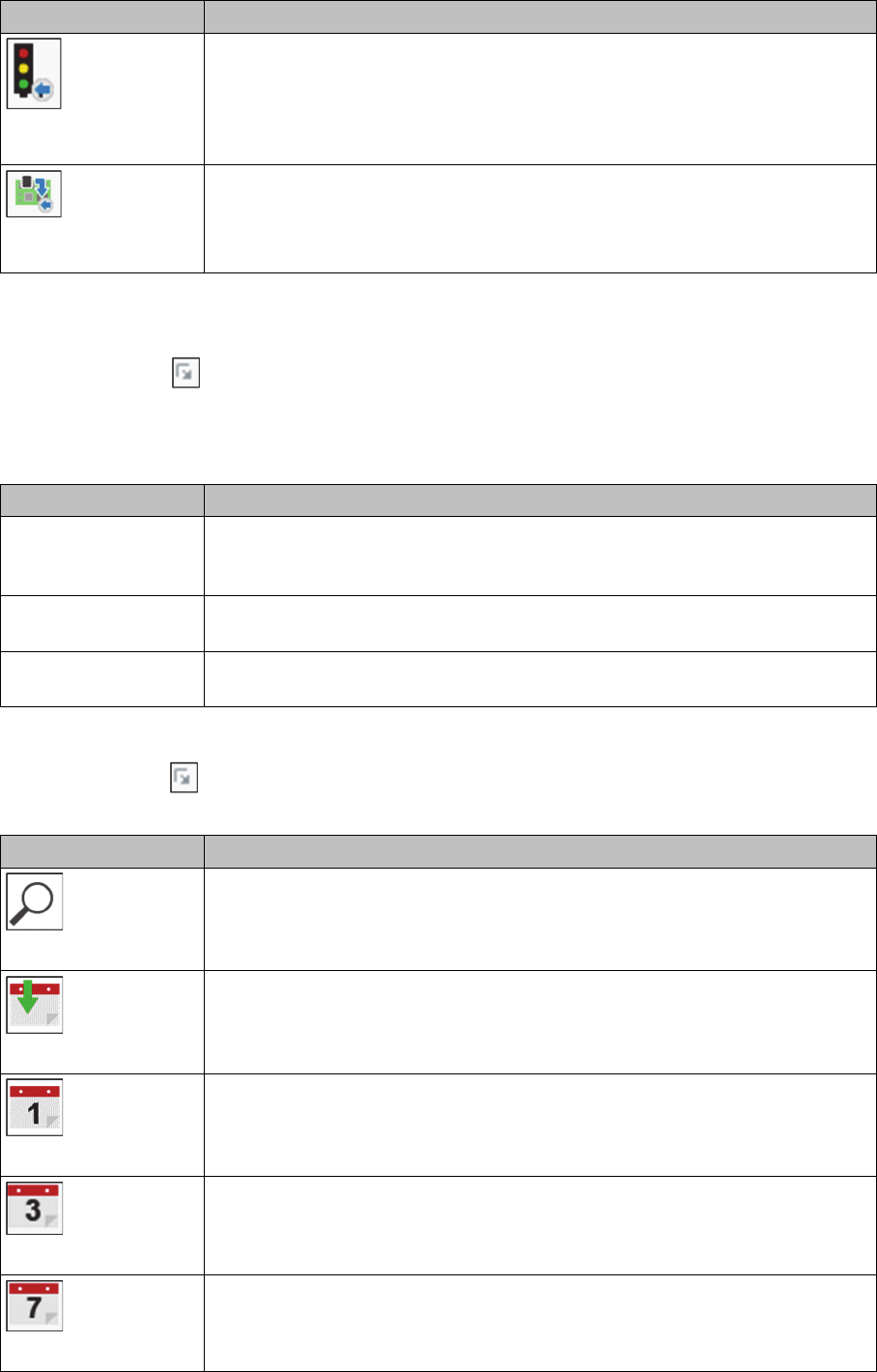
Import Jobs
This imports the jobs selected in the tree structure and added to the end of the
existing jobs. A job number (ID) is created for each job. The imported jobs are
shown in the job list.
You can also drag and drop the selected jobs into the the job list. This enables
you to insert the new jobs between the existing ones.
Import Recipe
Individual recipes of a SIPLACE Pro job can be added. This is helpful if you
want to import individual recipes into jobs which contain a lot of recipes.
The Import selected recipes dialog is displayed. See also "4.2.7.5 Dialog - Im
-
port selected recipes" [ ➙ 181].
Function Description
Allow split Allows you to split family setups during drag&drop in the timeline. This means
that individual jobs in the family setup can be selected and moved. If splitting
is not permitted, you will only be able to move family setups as a whole.
Select complete If an individual job in a family setup is selected and moved, the complete family
setup will be moved.
Autoselect related or
-
ders
Jobs which produce the same board will be selected automatically as well.
Function Description
Search
Opens the "4.2.7.4 Dialog - Search" [ ➙ 181] dialog. This enables you to
search for items in the timeline.
Now
Shows the part of the timeline with the current date and time.
Day
Shows the part of the timeline for a whole day.
3 days
Shows the part of the timeline for three days.
Week
Shows the part of the timeline for seven days.
Getting Started and Overview of the Order Manager
Production Order Manager
176 ASM Material Setup Assistant 2.3 (R17-1) ASM Material Setup Assistant 2.3
Actions (6)
Shows the possible actions for your current view.
SIPLACE Pro jobs (7)
Shows the jobs present in SIPLACE Pro in the tree structure. These can be dragged and dropped or
imported with the Import Job function.
Job and timeline view (8)
Shows the imported jobs and timeline. The jobs shown may vary according to your current view.
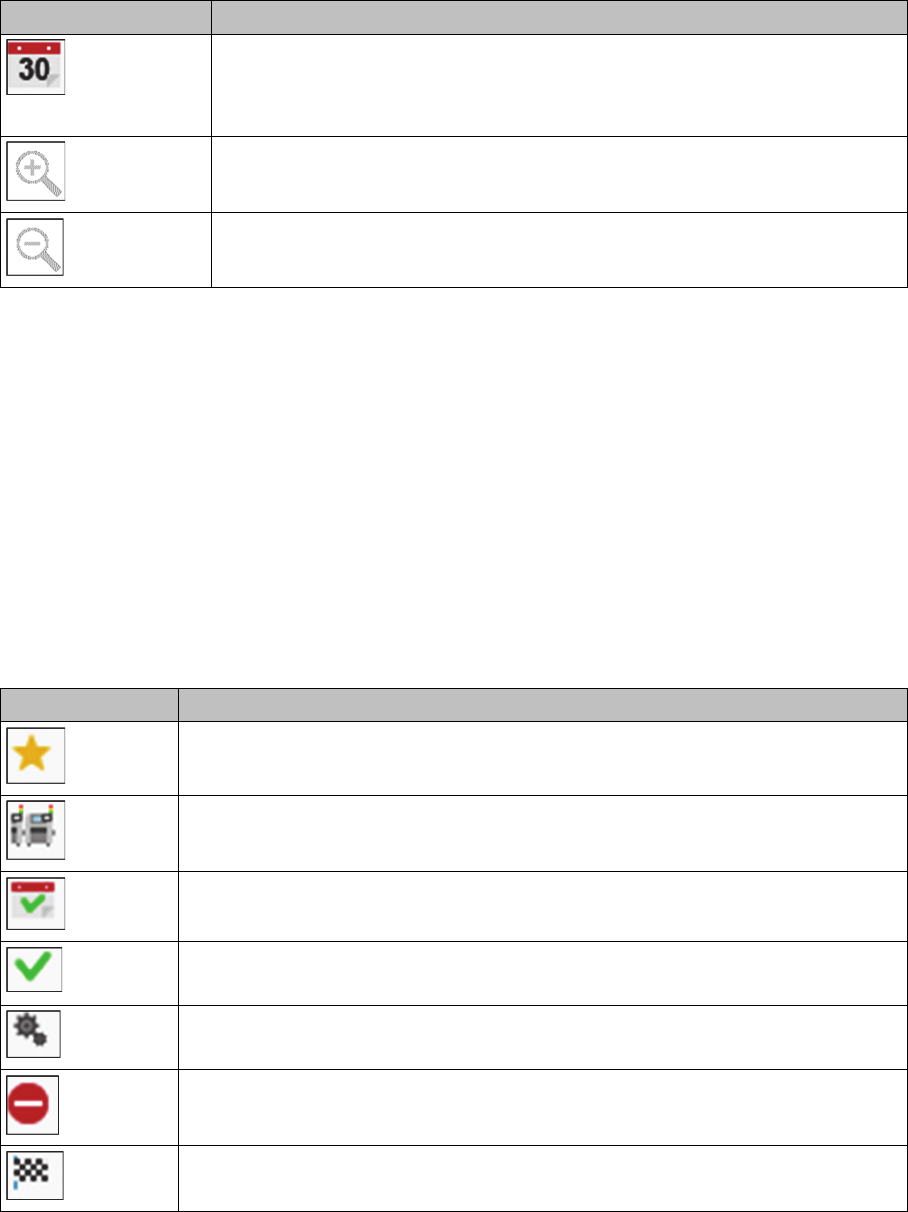
Status (9)
The status of jobs is indicated with a symbol. The following symbols are available and are shown on the
Status column.
Notifications (10)
Notifications are issued during processing. Please observe these and perform the actions requested.
Month
Shows the part of the timeline for one month.
Zooms in on the the timeline. Keep the mouse button pressed until you reach
the size you want.
Zooms out of the timeline. Keep the mouse button pressed until you reach the
size you want.
Icon Status
Created
This status is currently not in use.
Assigned
This status is currently not in use.
Scheduled
The job has been scheduled. A starting time has been defined.
Approved
The job has been approved and will be produced at the defined starting time.
In Progress
The job is in progress. The boards are being placed.
Canceled
The job has already been approved but has now been canceled.
Done
The job has been produced. The boards have been placed.
Function Description