00198227-03_UM_MaterialSetupAssistant_2.3-R17-1_DE_EN.pdf - 第195页
Workflow with Flexible Family Setup Approving Production Schedules ASM Material Setup Assistant 2.3 (R17-1) ASM Material Setup Ass istant 2.3 (R17-1) 195 5.4 5 . 4 A p p r o v in g P r o d u c t io n S c h e d u le s App…
Workflow with Flexible Family Setup
Editing Production Schedules
194 ASM Material Setup Assistant 2.3 (R17-1) ASM Material Setup Assistant 2.3
How to edit productions schedules
▪ Deleting production jobs
– You can only delete production jobs which have not yet been started or which have already been
completed.
– The production jobs are deleted completely from the system. This may be necessary if you im
-
ported the wrong jobs from SIPLACE Pro.
▪ Recalling production jobs
– The recalling of production jobs may be necessary if you want to change the order or the start/
end times later on.
– Recalled production jobs remain in the system and are marked with the status Planned.
– You can only recall approved production jobs if the production has not yet started on the line.
NOTICE
Observing notifications
If subsequent production jobs are affected by these changes, a notification will be issued ac
-
cordingly.
WARNING
Deleting and recalling production jobs
When deleting and recalling production jobs, there may be problems if the picking or presetup
tasks have already been started. You may need to manually identify, tear down and put back
into the warehouse the materials concerned. If the picking and/or the presetup for the affected
production jobs has already been started, a warning will be issued accordingly.
NOTICE
Reapproving production schedules
After processing the production schedules, these need to be approved again. The production
schedule will be updated with the changes made.
Workflow with Flexible Family Setup
Approving Production Schedules
ASM Material Setup Assistant 2.3 (R17-1) ASM Material Setup Assistant 2.3 (R17-1) 195
5.4
5.4 Approving Production Schedules
Approving Production Schedules
Production schedules for which scheduling has been completed, must be approved. Non-approved pro
-
duction schedules can be edited. Approved productions schedules can be called back. See also View -
Edit.
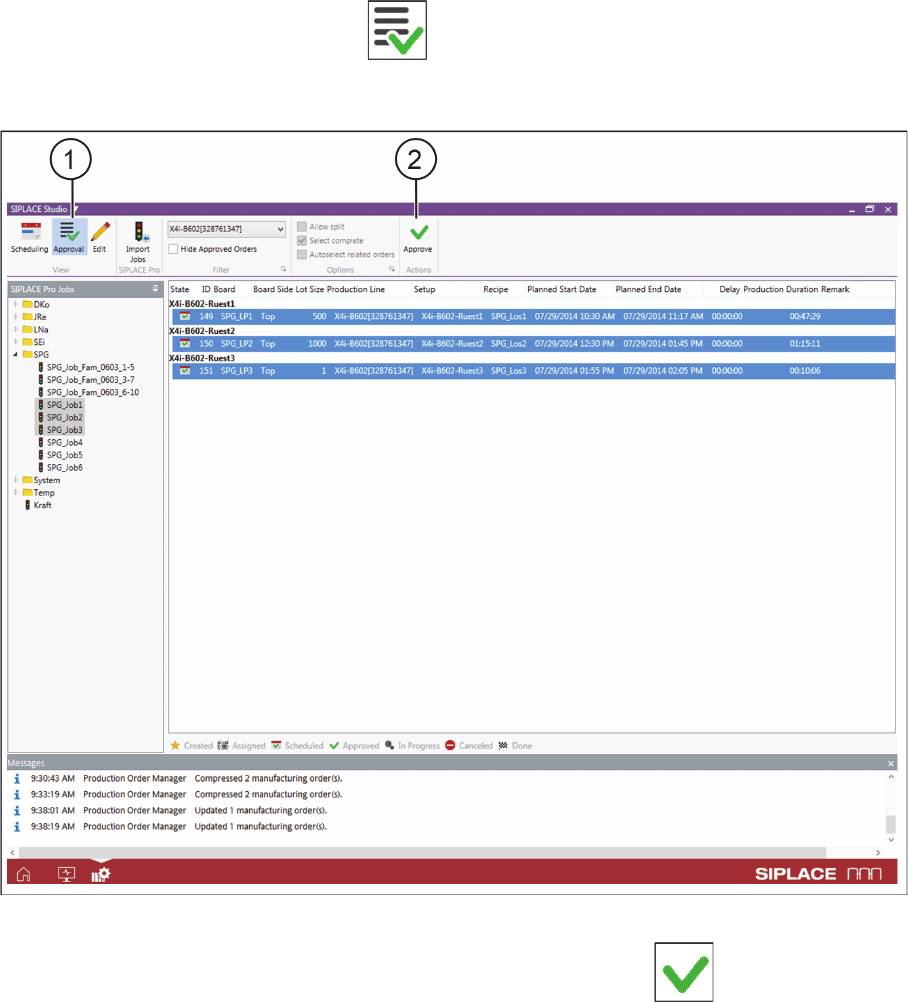
► Go to the View toolbar and select the Approval icon (1).
⇨ Switches over to the Approval view. In the Approval view you can approve the scheduled jobs for pro
-
duction.
Production Order Manager – start approval
► Select one or more production jobs and approve these with the action Approve (2).
⇨ If a production job is marked, all production jobs before this one, which have not yet been approved,
will also be marked and approved.
⇨ Notifications are issued in the notifications window. Observe these messages and perform any tasks
requested.
Workflow with Flexible Family Setup
Approving Production Schedules
196 ASM Material Setup Assistant 2.3 (R17-1) ASM Material Setup Assistant 2.3
Result
Production Order Manager – approval completed
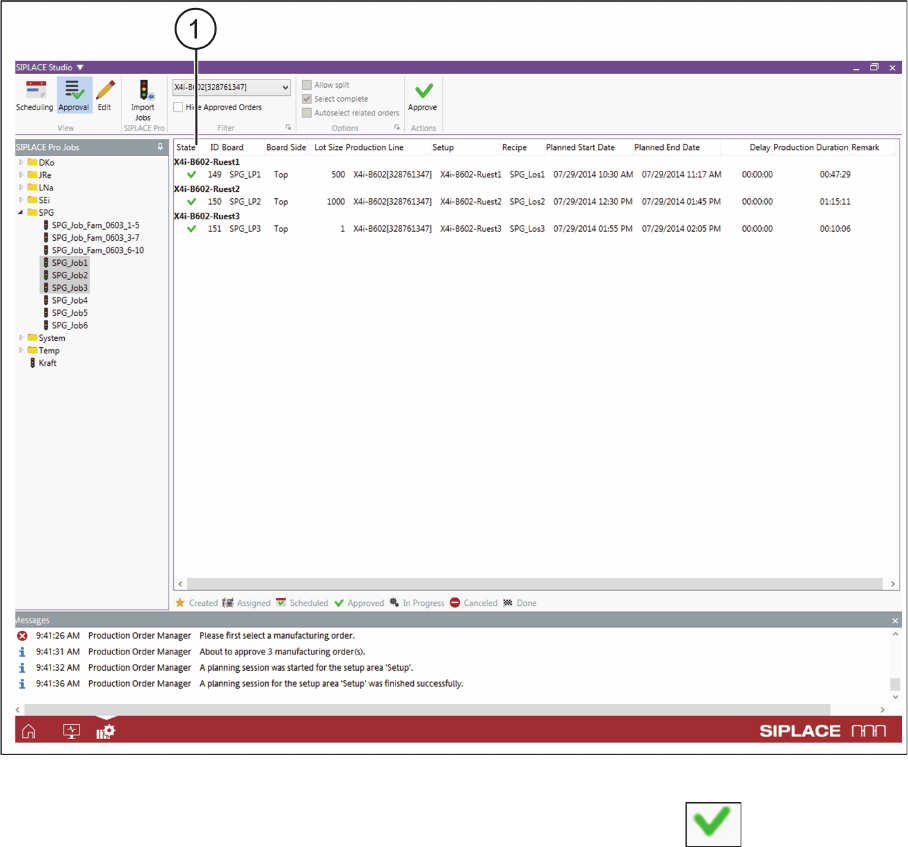
In the Status column, the symbol for the approved production jobs changes to Approved (1). For
an overview of the available statuses, refer to Overview - Production Order Manager-
Notes on Approving Production Schedules
▪ Only those setups which have been approved will be taken into account for material reuse. It is there
-
fore important to make sure that there are always enough setups approved, so that material reuse
can take place.
▪ It may be advisable to hold back setup approvals. For example, if you already have a high level of
material reuse and additional approvals would lead to a scarcity of feeder capacity and/or space on
the AFP hardware (feeder rack or docking station).
▪ With EDM: In an EDM or EDMn scenario, the behavior of SIPLACE Material Setup Assistant chang
-
es for the approval of production schedules. After approval in the Order Manager, the EDM master
pushes the recipes of the production schedules to the EDM client. See also "7.1 Production Sched
-
ule Approval With EDM" [ ➙ 237].
► Observe the following chapter "5.5 System Status after Production Schedule Approval" [ ➙ 197].