00198227-03_UM_MaterialSetupAssistant_2.3-R17-1_DE_EN.pdf - 第200页
Workflow with Flexible Family Setup System Status after Production Schedule Approval 200 ASM Material Setup Assistant 2.3 (R17-1) ASM Material Setup Ass i st a n t 2 . 3 5.5.2.1 5 . 5 . 2 . 1 D e f in in g P r e s e t t …
Workflow with Flexible Family Setup
System Status after Production Schedule Approval
ASM Material Setup Assistant 2.3 (R17-1) ASM Material Setup Assistant 2.3 (R17-1) 199
5.5.2
5.5.2 SIPLACE Line Control GUI
SIPLACE Line Control GUI
► Open the SIPLACE Line Control GUI.
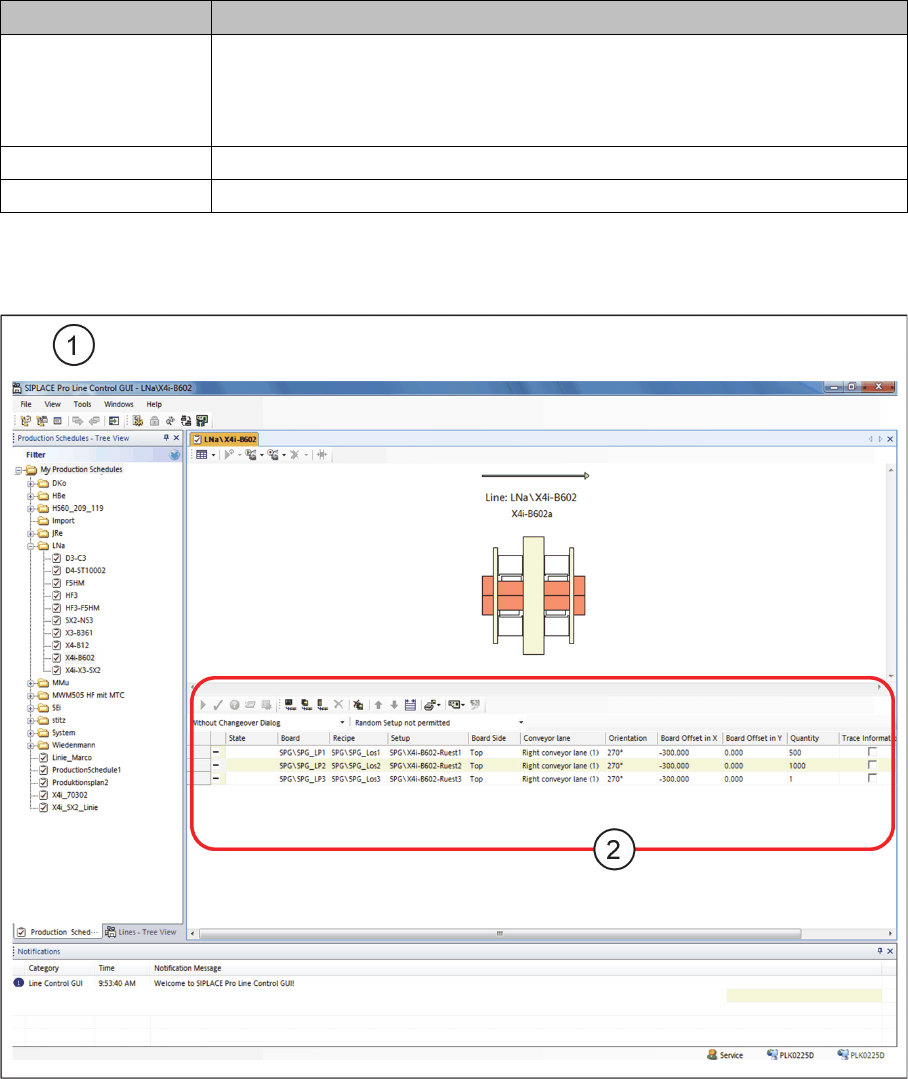
SIPLACE Line Control GUI – production jobs after approval
► Go to My Production Schedules and open the relevant production schedule (1).
► At (2) you can see the individual recipes for the production job, which are now ready for download
to the line.
Gray/blue
Gray/orange
Gray/red
The relevant task status is "in progress". The warehouse is already processing
the picking order etc.
Gray means completed and the second color represents the status (on sched
-
ule or with start/end delayed).
Blue/Yellow The setup contains constant/fixed tables.
Gray The task has been fully completed.
Color Description
Workflow with Flexible Family Setup
System Status after Production Schedule Approval
200 ASM Material Setup Assistant 2.3 (R17-1) ASM Material Setup Assistant 2.3
5.5.2.1
5.5.2.1 Defining Presettings for the SIPLACE Line GUI
Defining Presettings for the SIPLACE Line GUI
You may delete recipes that were planned with the SIPLACE Material Setup Assistant only after they
have been downloaded to the line. You can remove a recipe that has not been downloaded to the line
yet from the production schedule by recalling or deleting it with the Order Manager.
Recipes that have been planned with the SIPLACE Material Setup Assistant must not be added manu
-
ally in the SIPLACE Line Control GUI.
Recommendation
▪ Observe the order of recipes during download.
▪ Perform recipe download in the list from top to bottom.
▪ Always begin with the top recipe first.
To prevent manual intervention in the production schedules, enable the following options in the
SIPLACE Line Control GUI.
► Open the SIPLACE Line Control GUI menu: Extras => Configuration.
⇨ The Configuration dialog box will open.
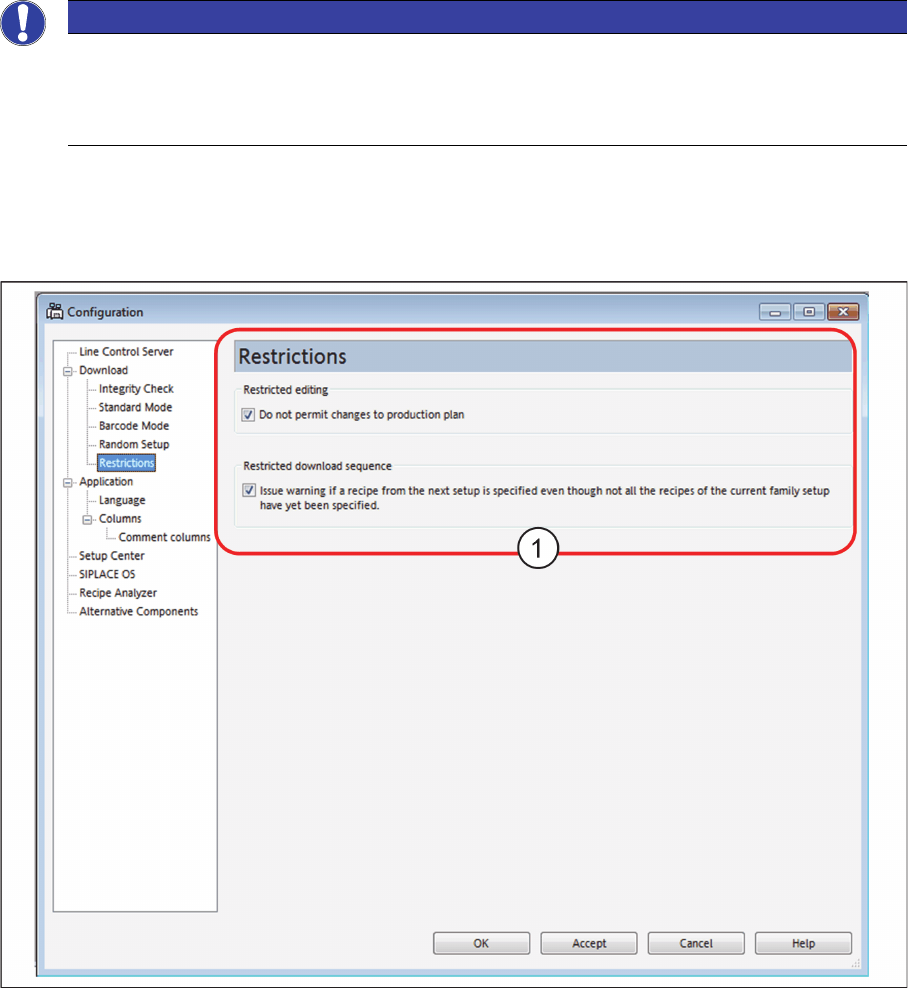
SIPLACE Line Control GUI - configuration
► Select Download => Restrictions.
► Enable the following restrictions (1).
NOTICE
Manual intervening in the production schedule
SIPLACE Material Setup Assistant enables you to define recipes in a different order. If you do
this, the scheduled times will be adjusted accordingly and the subsequent jobs may be sched
-
uled later. This prevents any overlapping.
Workflow with Flexible Family Setup
System Status after Production Schedule Approval
ASM Material Setup Assistant 2.3 (R17-1) ASM Material Setup Assistant 2.3 (R17-1) 201
Not permitting any change to production schedule
Enabled: the recipes scheduled by the SIPLACE Material Assistant can not be produced in the produc
-
tion schedule. It is not possible to manually insert recipes into the production schedule.
Warning, if a recipe has been defined in the next setup, although the recipes in the current fam
-
ily setup have not all been defined.
Enabled: A warning will be issued if a recipe has been defined in the next setup, although the recipes in
the current family setup have not all been downloaded. A list with the recipes not yet downloaded will
also be displayed.
No warning is displayed if recipes already downloaded are repeatedly downloaded. The Line Control
Server stores a maximum of the last 100 downloads.
5.5.3
5.5.3 ASM Setup Center – Setup Preparation
ASM Setup Center – Setup Preparation
The Setup preparation view shows the planned SIPLACE Material Setup Assistant tasks for setup
preparation with the Setup Center. The material demand, start and end times will be determined for all
scheduled setups, based on the corresponding setup in SIPLACE Pro.
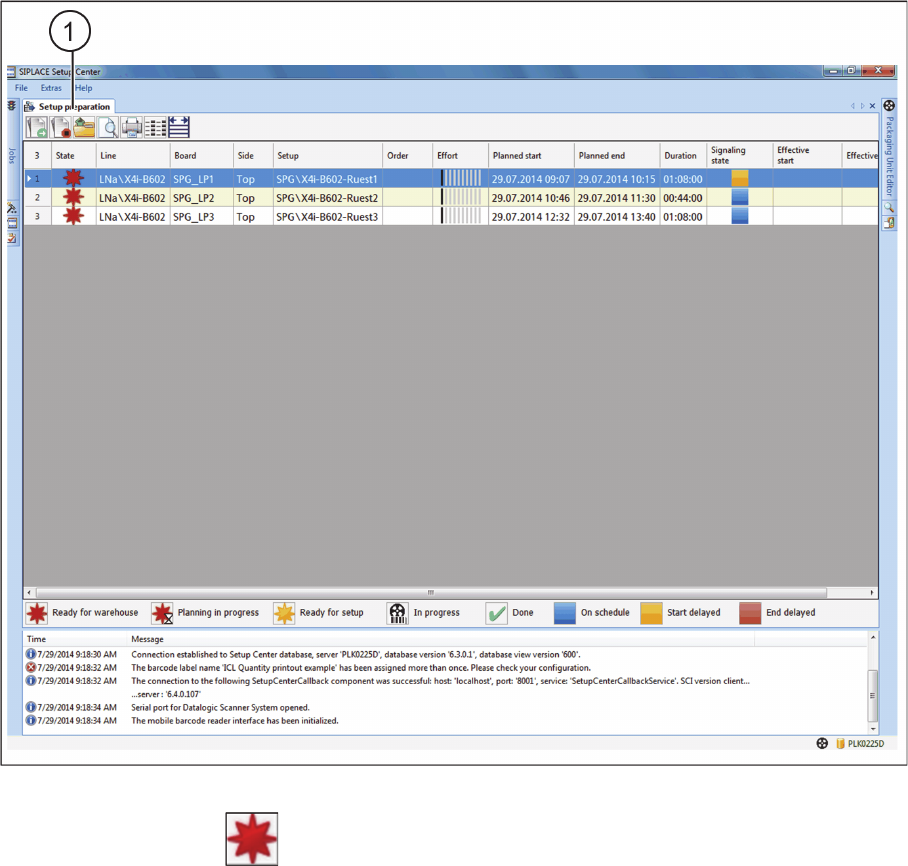
► Open ASM Setup Center in offline mode.
► Open the Setup preparation (1) view.
ASM Setup Center – setup preparation after approval
In the Status column, the Ready for storage symbol shows that material picking has not yet start
-
ed.
Refer to "3 Overview of Setup Preparation in ASM Setup Center" [ ➙ 169] for a description of possible
actions in the toolbar, a description of the status symbols and a description of the parameters in the table.