00198227-03_UM_MaterialSetupAssistant_2.3-R17-1_DE_EN.pdf - 第183页
Getting Started and Overview of the Order Manager Monitoring ASM Material Setup Assistant 2.3 (R17-1) ASM Material Setup Ass istant 2.3 (R17-1) 183 Timeline and Gantt diagram (2) Placement of the recipe on the line, setu…
Getting Started and Overview of the Order Manager
Monitoring
182 ASM Material Setup Assistant 2.3 (R17-1) ASM Material Setup Assistant 2.3
4.3
4.3 Monitoring
Monitoring
4.3.1
4.3.1 Starting Monitoring
Starting Monitoring
► Start ASM Studio.
⇨ ASM Studio will open with the modules installed.
► Start the Monitoring module.
⇨ The Monitoring module is opened.
See also "4.3.2 Overview - Monitoring" [ ➙ 182].
4.3.2
4.3.2 Overview - Monitoring
Overview - Monitoring
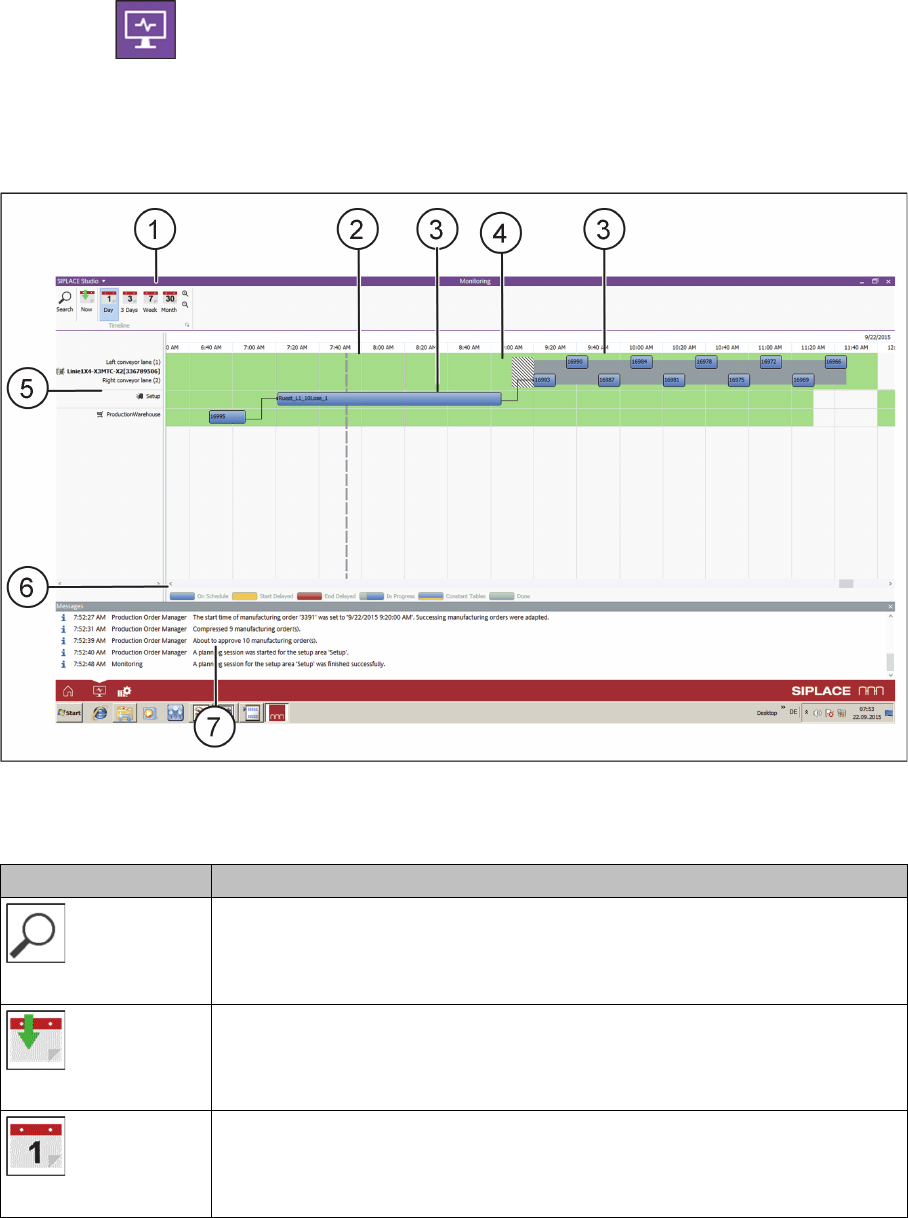
Overview of user interface - monitoring
Toolbar (1)
Function Description
Search
Opens the "4.2.7.4 Dialog - Search" [ ➙ 181] dialog box. This enables you to
search for items in the timeline.
Now
Shows the part of the timeline with the current date and time.
Day
Shows the part of the timeline for a whole day.
Getting Started and Overview of the Order Manager
Monitoring
ASM Material Setup Assistant 2.3 (R17-1) ASM Material Setup Assistant 2.3 (R17-1) 183
Timeline and Gantt diagram (2)
Placement of the recipe on the line, setup preparation and the material picking (5) with their time depend
-
encies and connections will be shown as tasks/progress bars in the form of a Gantt diagram on the time
-
line.
Tasks/Timeline Progress Bars (3)
The respective tasks/progress bars are color-coded in the Gantt diagram and show the relevant status.
In line (6), you see the colors and their descriptions. The following table shows the standard setting of
these colors; you can adapt the colors to your needs in Production Order Manager Configurations.
3 days
Shows the part of the timeline for three days.
Week
Shows the part of the timeline for seven days.
Month
Shows the part of the timeline for one month.
Zooms in on the the timeline. Keep the mouse button pressed until you reach
the size you want.
Zooms out of the timeline. Keep the mouse button pressed until you reach the
size you want.
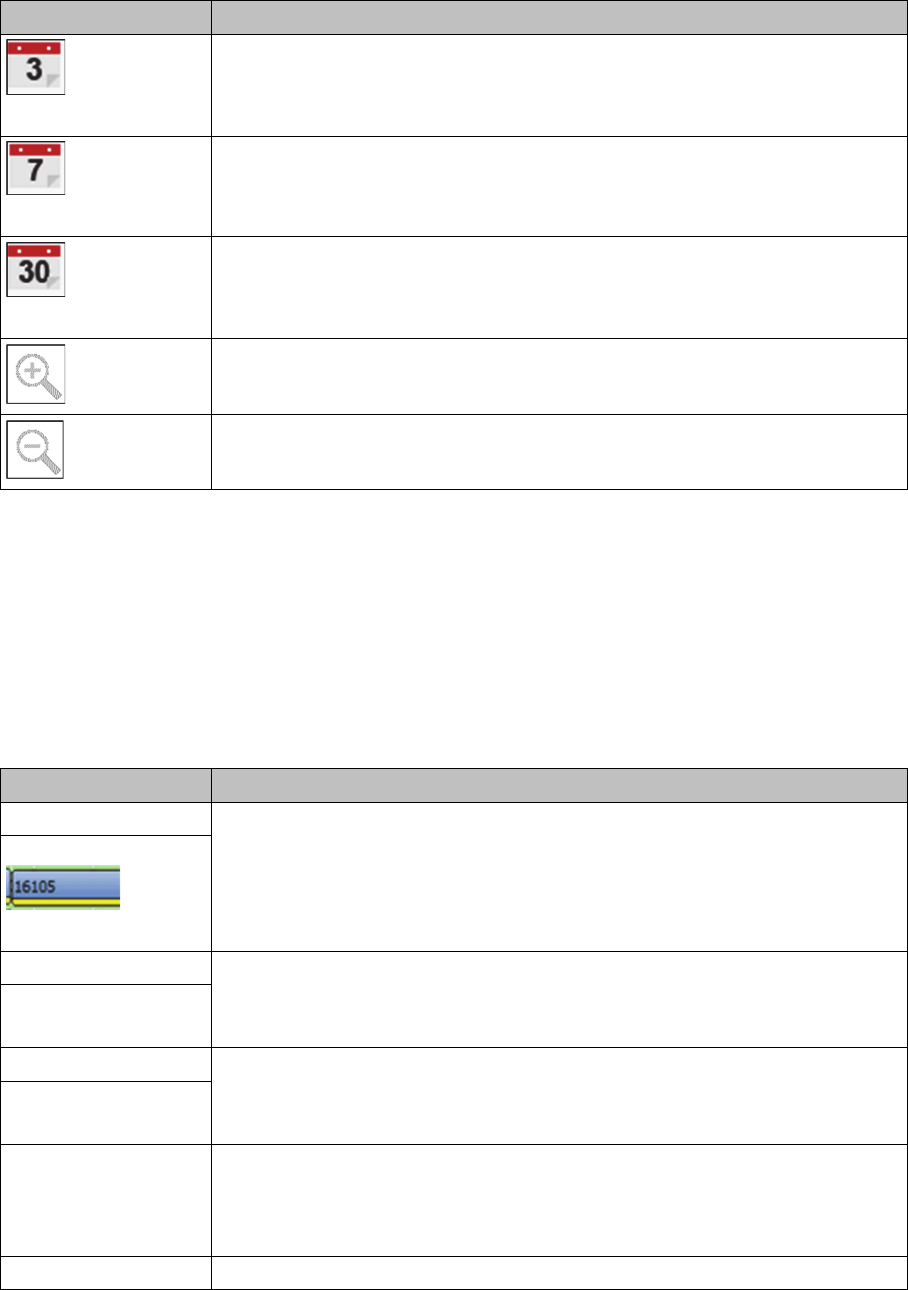
Color Description
Blue The task scheduling status is "on schedule".
Blue/Yellow
(For constant tables)
Orange The task start has been delayed. The start time has already passed, the end
time is still in the future and could still be achieved.
Orange/Yellow
(For constant tables)
Red The task end has been delayed. The end time has already passed and can no
longer be achieved.
Red/Yellow
(For constant tables)
Gray/blue
Gray/orange
Gray/red
The relevant task status is "in progress". The warehouse is already processing
the picking order etc.
Gray means completed and the second color represents the status (on sched
-
ule or with start/end delayed).
Gray The task has been fully completed.
Function Description
Getting Started and Overview of the Order Manager
Monitoring
184 ASM Material Setup Assistant 2.3 (R17-1) ASM Material Setup Assistant 2.3
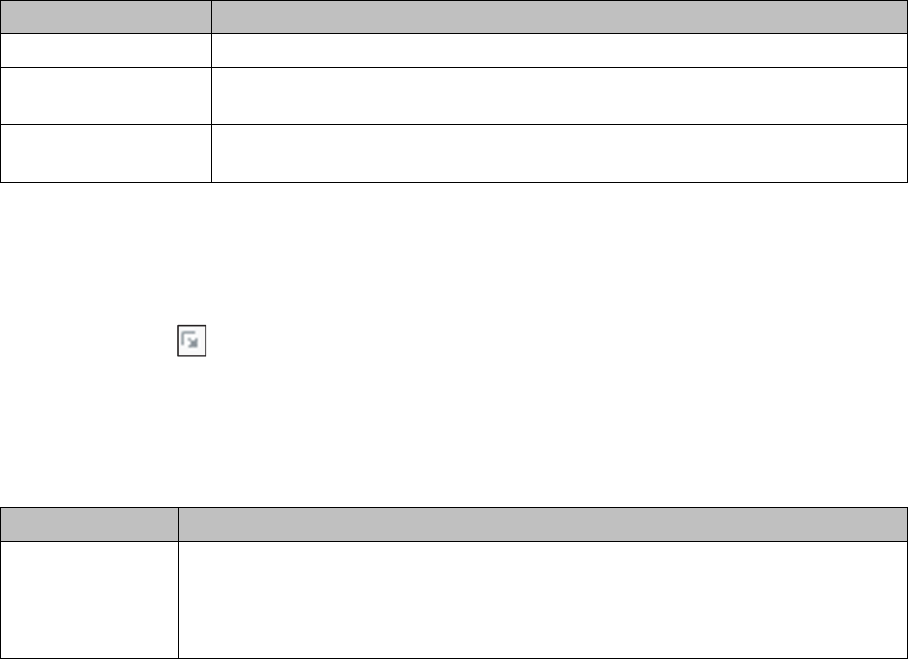
Dependencies and Relations (4)
In the Gantt diagram, the respective dependencies and relations between the tasks are color-coded in
the background.
Notifications (7)
Notifications are issued during processing. Please observe these and perform the actions requested.
Ribbon Bar
The ribbon bar icon opens a dialog in which the timeline options can be selected. See also "4.3.3.3
Dialog - Timeline Monitoring" [ ➙ 187].
4.3.3
4.3.3 Dialogs
Dialogs
4.3.3.1
4.3.3.1 Dialog - Change Progress
Dialog - Change Progress
Call using:
► Open the context menu for the task and select the function Change progress….
Color Description
Gray These tasks belong to one setup.
Black/Gray
shaded
Shows a setup changeover.
Black/Blue
shaded
Shows parallel recipes within a setup.
Function Status
Progress Here, you can manually change the progress of a task. Only enter values between
0% and 100%.
0% = not yet started
100% = completed