00198227-03_UM_MaterialSetupAssistant_2.3-R17-1_DE_EN.pdf - 第192页
Workflow with Flexible Family Setup Scheduling Starting Times and Production Order 192 ASM Material Setup Assistant 2.3 (R17-1) ASM Material Setup Ass i st a n t 2 . 3 5.2 5 . 2 S c h e d u lin g S t a r t in g T im e s …
Workflow with Flexible Family Setup
Importing SIPLACE Pro Jobs
ASM Material Setup Assistant 2.3 (R17-1) ASM Material Setup Assistant 2.3 (R17-1) 191
Result
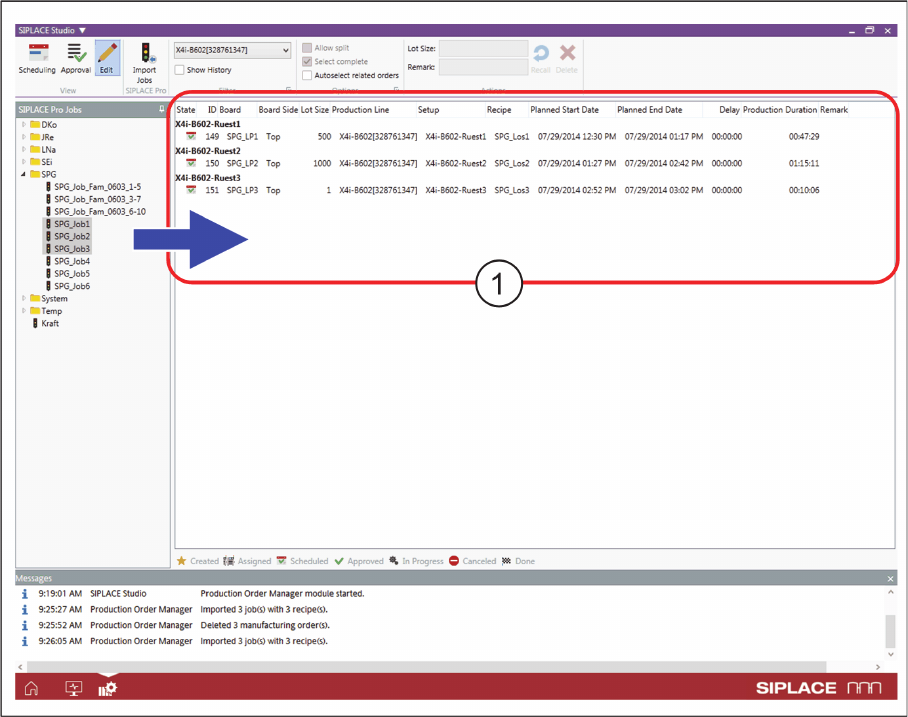
Production Order Manager - SIPLACE Pro jobs imported
▪ The jobs selected in the tree structure will be imported and added to the end of the existing produc
-
tion jobs.
▪ The imported production jobs will be shown in the list of jobs (1).
▪ An internal ID is generated for these production jobs and shown in the ID column. If the top and bot
-
tom of a board are in the same job, a common job ID will be created for both board sides.
▪ Production jobs with the same setup in one job will be automatically connected as a family setup.
This is also the case if recipes from different jobs are later imported with the same setup.
▪The Production Duration for the jobs is automatically calculated. The factory settings (e.g. correction
factors, run in time etc.) for the configuration are taken into account. See also Defining Factory Con
-
figurations.
► In the next step, you schedule the starting times and the order of production.
Workflow with Flexible Family Setup
Scheduling Starting Times and Production Order
192 ASM Material Setup Assistant 2.3 (R17-1) ASM Material Setup Assistant 2.3
5.2
5.2 Scheduling Starting Times and Production Order
Scheduling Starting Times and Production Order
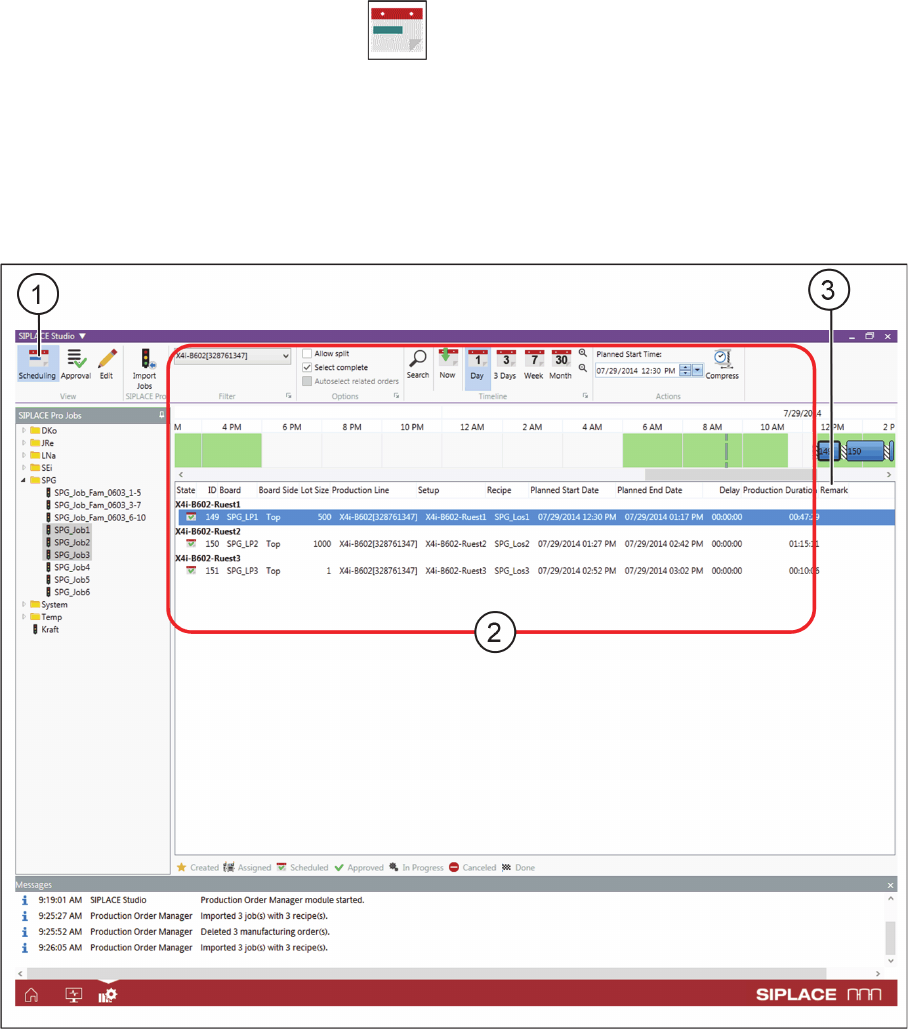
► Go to the View toolbar and select the Scheduling icon (1).
⇨ The view switches over to Scheduling.
You can define the starting times and the order of production for the individual jobs in the Scheduling (2)
view.
The Remark (3) column shows customized comments fields (such as furnace profile, soldering or print
-
ing details etc.), which can be defined in the SIPLACE Pro settings. These additional comments are
shown in extra columns. They need to be enabled in the configuration settings at Additional comment
columns. See also Production Order Manager Configurations.
Production Order Manager – start scheduling
► Drag & drop the production jobs with the mouse into the timeline, until you have reached the required
order, starting and end times.
⇨ The selected jobs will be inserted at their new position and will be assigned the modified start and
end times. The times of the following jobs will also be adjusted.
⇨ The production order is worked through from top to bottom.
⇨ The work-free times from the factory calendar will be taken into account and shown as gaps between
the production jobs.
⇨ The factory settings from the configuration, such as the Setup change time, Recipe change time or
Gaps at shift end will be taken into account. See also Defining Factory Configurations.
Workflow with Flexible Family Setup
Editing Production Schedules
ASM Material Setup Assistant 2.3 (R17-1) ASM Material Setup Assistant 2.3 (R17-1) 193
Compressing
The action Compress eliminates time gaps between jobs. The approved jobs in the timeline are
collected together so that no additional pauses exist. The Dialog - Compress dialog box will open.
► Select the setting in this dialog box which is to be used for compressing.
5.3
5.3 Editing Production Schedules
Editing Production Schedules
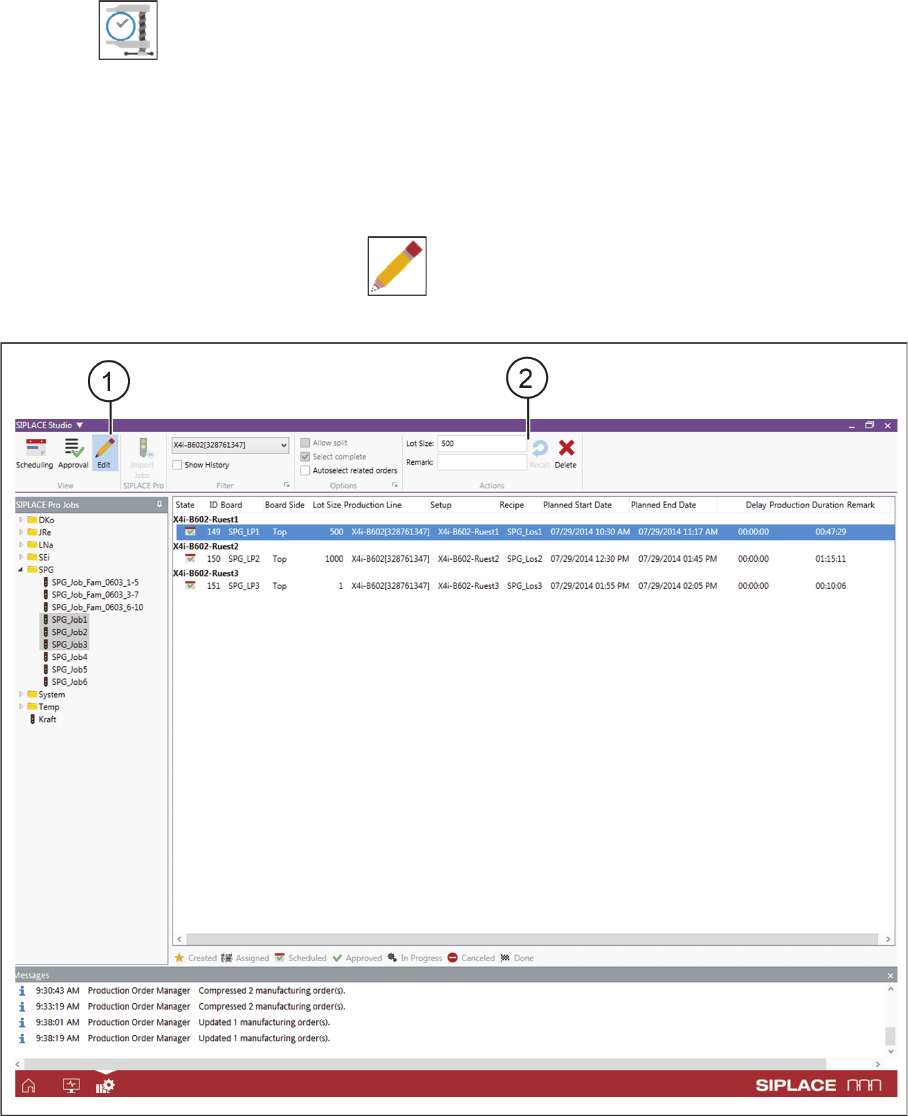
Scheduled and non-approved production schedules can be edited.
► Go to the View toolbar and select the Editing icon.
⇨ Switches over to the Edit view.
Production Order Manager – editing production schedules
Refer to View - Edit to see the available Filters and Actions for editing production schedules.