00198227-03_UM_MaterialSetupAssistant_2.3-R17-1_DE_EN.pdf - 第185页
Getting Started and Overview of the Order Manager Monitoring ASM Material Setup Assistant 2.3 (R17-1) ASM Material Setup Ass istant 2.3 (R17-1) 185 4.3.3.2 4 . 3 . 3 . 2 D ia lo g - M a t e r ia l D e m a n d Dialog - Ma…
Getting Started and Overview of the Order Manager
Monitoring
184 ASM Material Setup Assistant 2.3 (R17-1) ASM Material Setup Assistant 2.3
Dependencies and Relations (4)
In the Gantt diagram, the respective dependencies and relations between the tasks are color-coded in
the background.
Notifications (7)
Notifications are issued during processing. Please observe these and perform the actions requested.
Ribbon Bar
The ribbon bar icon opens a dialog in which the timeline options can be selected. See also "4.3.3.3
Dialog - Timeline Monitoring" [ ➙ 187].
4.3.3
4.3.3 Dialogs
Dialogs
4.3.3.1
4.3.3.1 Dialog - Change Progress
Dialog - Change Progress
Call using:
► Open the context menu for the task and select the function Change progress….
Color Description
Gray These tasks belong to one setup.
Black/Gray
shaded
Shows a setup changeover.
Black/Blue
shaded
Shows parallel recipes within a setup.
Function Status
Progress Here, you can manually change the progress of a task. Only enter values between
0% and 100%.
0% = not yet started
100% = completed
Getting Started and Overview of the Order Manager
Monitoring
ASM Material Setup Assistant 2.3 (R17-1) ASM Material Setup Assistant 2.3 (R17-1) 185
4.3.3.2
4.3.3.2 Dialog - Material Demand
Dialog - Material Demand
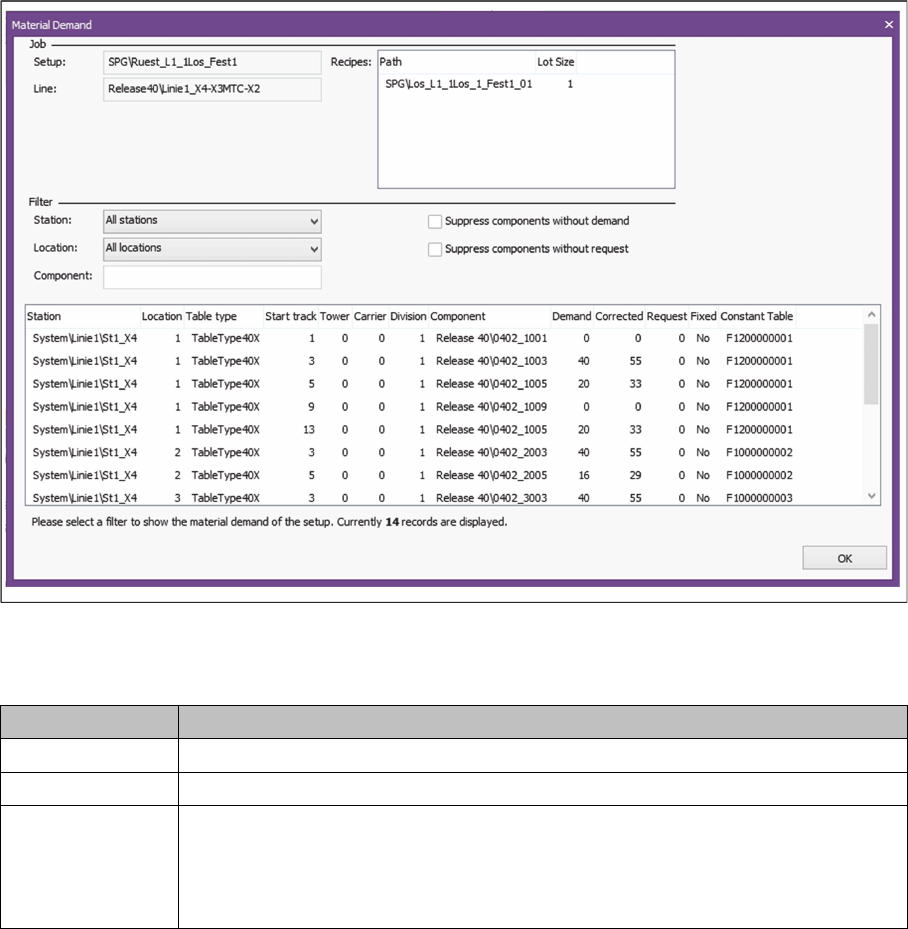
Shows the material demand for the selected setup preparation. It gives you a quick overview of the re
-
quired material needed for this setup preparation in the pre-setup area. For material and production
tasks, the Material Requirement dialog can be called via the the context menu and shows the relevant
material requirement.
Call using:
► In the setup preparation area or in the material and production tasks area, open the context menu
and select the function Material demand….
Displaying the material demand (example)
Job
Element Description
Setup Shows the path and the name of the setup.
Line Shows the path and the name of the line.
Recipes Path
Shows the path and the name of the individual recipes for the job (family setup).
Lot size
Shows the number of boards to be produced for this recipe.
Getting Started and Overview of the Order Manager
Monitoring
186 ASM Material Setup Assistant 2.3 (R17-1) ASM Material Setup Assistant 2.3
Filter
Select a filter and the relevant data will be shown in the table.
Table
The material demand for this job will be shown according to the filter settings.
Element Description
Station Enables you to filter the contents by stations.
Location Enables you to filter the contents by locations.
Component Allows filtering on components. You can use the character * as a wildcard.
Suppress compo
-
nents without de
-
mand
Enabled: Only shows those components for which there is a material demand (de
-
fault setting).
Disabled: Shows the components which occur in the placement but which will not
be set up. No material will be needed for these components.
Suppress compo
-
nents without re
-
quest
Activated: Only shows the material which still needs to be picked.
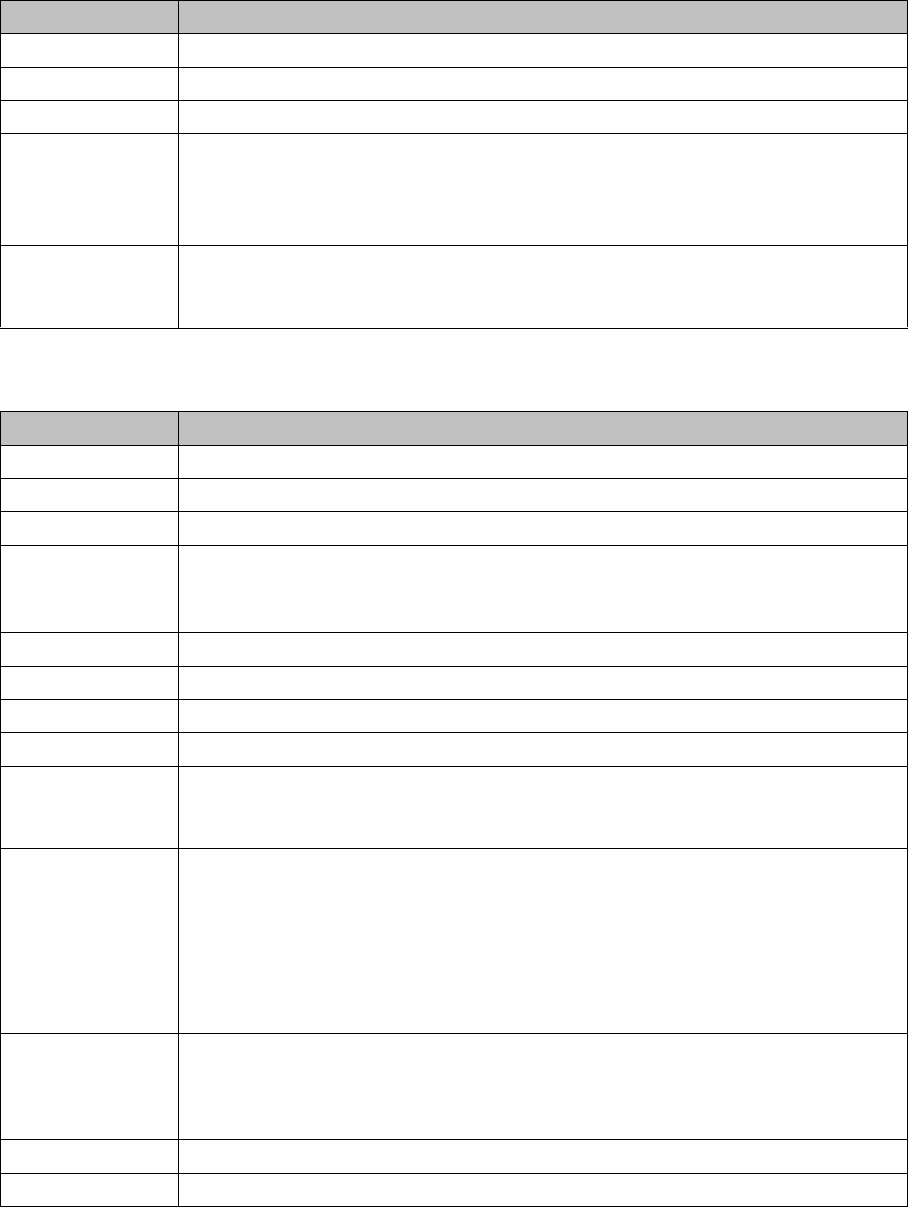
Element Description
Station Shows the path and the name of the station.
Location Shows the location for the station.
Table Type Shows the table type which is at this location.
Start track Shows on which track of the table the feeder is standing. If the feeder is multiple
tracks wide, the track which the feeder occupies (left position) will be shown here.
A 2x8 mm X feeder occupies, for example, two tracks on the table.
Tower Shows the tower on which the component has been set up (e.g. for MTC).
Level Shows the level in the tower or the WPC on which the component has been set up.
Pocket Shows the division of the level on which the component is set up.
Component Shows the path and name of the component.
Demand Shows the number of components which have been calculated as required for this
table. All boards in the family setup which belong to this material picking order can
be produced with these.
Corrected 1. If you have enabled the Use Setup Center thresholds options in the Factory
Explorer, at Application Settings => Material Setup Assistant => Factory, the
Setup Center thresholds will be used to additionally increase the demand.
2. If you have entered the Setup Demand Correction in the Factory Explorer, at
Application Settings => Material Setup Assistant => Factory, this corrected de
-
mand will be shown accordingly. The actual demand will be multiplied by this
correction factor.
Request If the material in the pre-setup area is recognized as a reuse, this quantity already
present will be subtracted from the actual demand. The reused material is already
in the pre-setup area and does not need to be picked from stock. The quantity
shown here is the material which still needs to be picked.
Fixed Shows whether the component on the table is fixed or not.
Constant table If a constant table is present in the setup, the table ID is shown here.