SIPLACE Station Software 7xx to 714 介绍.pdf - 第190页
Station Software 7xx to 714.0 (R20-2) / Feature Description 11/2020 Edition 190 – The Single calibration vi ew has been redesigned a s follows: Figure 10 - 14 : Single cali bration view The new view is separated into one…
Station Software 7xx to 714.0 (R20-2) / Feature Description 11/2020 Edition
189
By clicking the Stop button, the execution of scripts is paused and the Stop button changes to a
Continue button. When the user clicks the Continue button, the execution of scripts is continued.
Whenever the user clicks the Cancel button, the initial state of the dialog is restored (confirmation
requested).
When the last script is finished, the Stop button changes to a Done button and the Generate
report button is enabled. When clicking the Generate report button, the user is asked for the user
name and a comment that are stored together with the script results. The report is stored in the
C:\Sirio\Work\MaintenanceReports directory from where it can be collected by SIPLACE Pro Line
Diagnostics.
By clicking the Done button, the initial state of the dialog is restored.
10.10 Station Software GUI – Improvements
The station software GUI has been improved as follows:
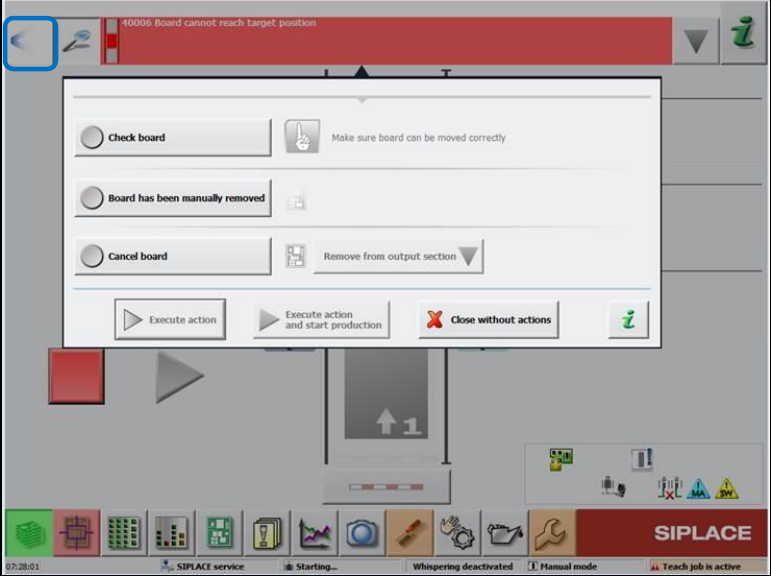
– The Reset all changes button has been entered in the detailed error view for pickup errors.
– It is now possible to jump between the normal error view and the detailed error view without
having to solve the detailed error completely first.
Figure 10-13: Switching between error views
The user can switch between the error views by clicking the arrow at the top bar. Within the
detailed error window, all solutions for solving the problem are listed for selection.
– The machine name used in SIPLACE Pro is displayed in the info bar at the bottom of the main
view of the station software GUI. This field is only filled when a production job has been
downloaded.
– The Inspect pickup window is now the same in the detailed error view as in the feeder
settings view.
Station Software 7xx to 714.0 (R20-2) / Feature Description 11/2020 Edition
190
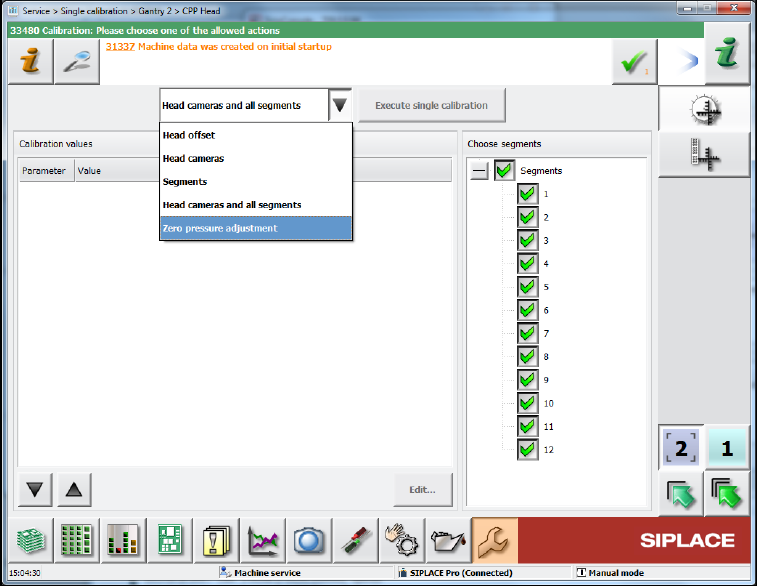
– The Single calibration view has been redesigned as follows:
Figure 10-14: Single calibration view
The new view is separated into one part for the calibration results and one part for segment
selection. If no selection is necessary, the table will be expanded to full size. Every calibration
step displays the results in an individual table. A calibration step can be selected in the combo
box and executed by pressing the Execute single calibration button.
SIPLACE Vision is active only while executing the calibration. The images of the camera are
displayed in a detailed result window.
Station Software 7xx to 714.0 (R20-2) / Feature Description 11/2020 Edition
191
Features (V709.1: Compatible Mode 708.2)
10.11 SIPLACE TX-Series – Enhancements
Compatible mode: Not supported
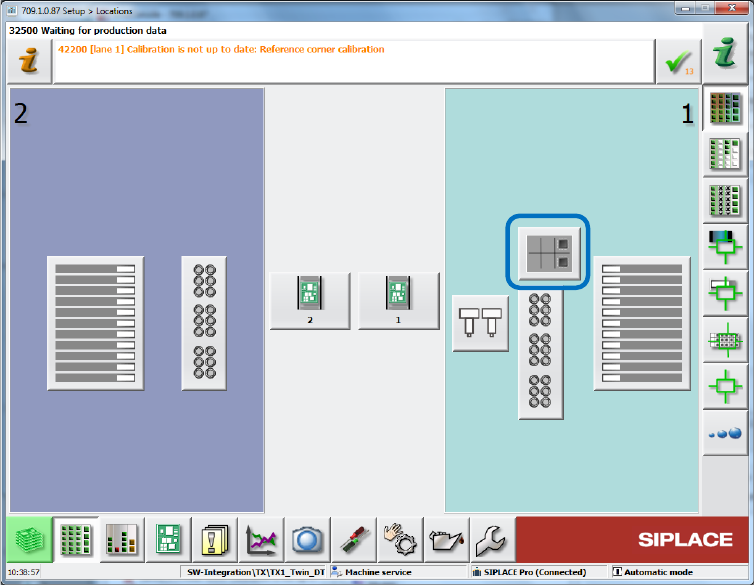
10.11.1 Reject Plate Supported on GUI
The reject plate is a fixed mounted plate on which the station can drop rejected components after
the SIPLACE Vision system detected errors. If a reject plate is installed in a SIPLACE TX
placement machine, a corresponding button will be displayed in the main menu of the station
software. This option must be enabled in SIPLACE Pro for the respective component / component
shape.
Figure 10-15: Reject plate in main menu