SIPLACE Station Software 7xx to 714 介绍.pdf - 第51页
Station Software 7xx to 714.0 (R20-2) / Feature Description 11/2020 Edition 51 During production a simple overvie w with information on the setu p and the number of produced boards is displayed: Figure 6-3 : SIPLACE Smar…
Station Software 7xx to 714.0 (R20-2) / Feature Description 11/2020 Edition
50
6.9 No Machine Stop at "Track Empty" Errors in I-Placement Mode
If a feeder is only emptied on one side of the processing area in I-placement mode, the machine
continues to place with the remaining placement heads and does not stop anymore. A
corresponding error message is displayed in the status area. The Machine stop at pickup failure
option can be activated / deactivated on the GUI under Settings – Software options.
Default: activated = Machine stop.
Restrictions
– If the Machine stop at pickup error option is deactivated, no machine stop errors caused by
pickup errors are transmitted to OIS and Explorer. In this case, the reporting of idle times
caused by pickup errors is not possible anymore.
– If the placement machine does not stop it may happen that it in fact does not place anymore (it
waits for he feeders to be filled) but is not stopped either (e.g. boards might still be loaded).
This state is then displayed as "Producing" and not as stopped in OIS.
6.10 SIPLACE Smart GUI
With the new SIPLACE Smart GUI it is possible for an unskilled operator on the Production
activity level to keep the placement machine running and, if problems occur, to solve these without
having to read any error messages. To integrate SIPLACE Smart GUI into the station software
GUI, it has to be installed after the installation of the station software from the corresponding
additional DVD that is included in the standard package. See the installation manual to the station
software, item number 00196771-xx.
On the station software GUI there is a new button for the SIPLACE Smart GUI to the left at the
bottom of the tool bar. This view is preset when the station software GUI is started.
Station Software 7xx to 714.0 (R20-2) / Feature Description 11/2020 Edition
51
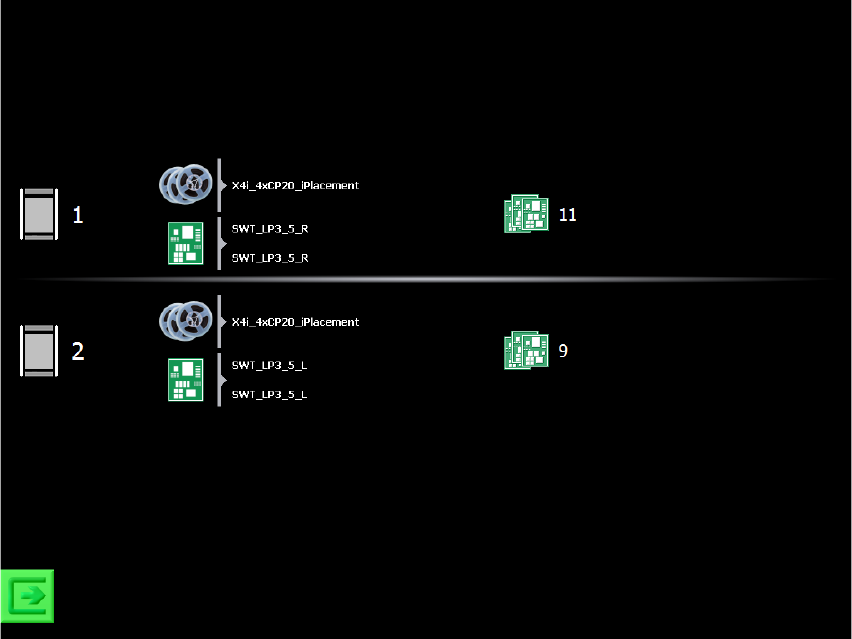
During production a simple overview with information on the setup and the number of produced
boards is displayed:
Figure 6-3: SIPLACE Smart Tool view
The recipes are displayed in table form (one row for each recipe). Each row displays the setup
name, recipe name and board name. If these names are given in form of a path with the separator
“\” (backlash), only the last part of the path will be displayed. Additionally, the lane where the recipe
is produced is displayed. If the recipe is produced in dual conveyor mode, then the lane numbers
are also displayed. The number of produced boards is displayed at the end of the row (i.e. boards
that left the machine and were not aborted).
At the bottom to the left there is a button for switching to the station software GUI. The service icon
is only displayed if a skilled operator is needed for assistance.
As soon as a detailed message arrives, a search for troubleshooting assistance is started in the
SIPLACE Smart GUI. If assistance is available, the standard view is replaced by a corresponding
troubleshooting / assistance view.
Station Software 7xx to 714.0 (R20-2) / Feature Description 11/2020 Edition
52
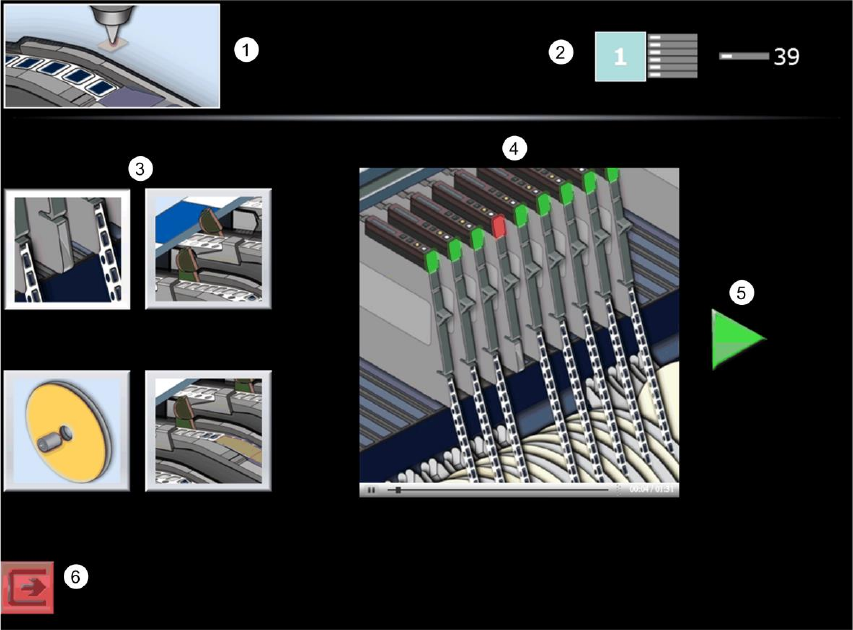
Troubleshooting assistance is automatically offered in a graphical form in the SIPLACE Smart GUI
for the most frequent downtime causes. The assistance instructions display where the problem
occurred, which problem has occurred and how the problem can be solved. In all other cases an
icon is displayed that prompt the operator to call for a skilled operator for assistance.
Figure 6-4: View with troubleshooting assistance
1) Error / Assist type
Here the error / assist type is displayed. Error / assist types exist for the following problems:
– Pick-up failure
– Dirty nozzle
– Cover foil torn
– Cover foil peeled
– Refill components
– Conveyor board jam
– PCB fiducial recognition
2) Problem location
Here the location is displayed, where the problem occurred.