SIPLACE Station Software 7xx to 714 介绍.pdf - 第213页
Station Software 7xx to 714.0 (R20-2) / Feature Description 11/2020 Edition 213 11 Feature Description – Station Software V710.x Features (V710.0 (R16- 2) : Compatible Mode 709.2) 11.1 SIPLACE TX micron – New Placement M…
Station Software 7xx to 714.0 (R20-2) / Feature Description 11/2020 Edition
212
10.23 Miscellaneous Improvements and Adaptions
Compatible mode: Complete
10.23.1 AutoLogOff functionality
– At the AutoLogOff time, the open dialog is automatically closed because access to the dialog is
no longer allowed. When closing a dialog, a Cancel action is automatically executed, changes
will not be saved.
– An independent timeout value has been introduced for the SIPLACE service AutoLogOff.
10.23.2 Message Bar
Detailed errors and errors are now displayed in a single message bar. The rules for determining the
top message in the stack remain, i.e.:
– Detailed errors have a higher stack level than errors.
– Detailed errors are sorted following the rule: "the sooner, the higher the stack level".
– Errors are sorted following the rule: "the sooner, the lower the stack level".
– Within the errors, the stack order is affected by the priority defined in the user message: "the
higher priority, the higher the stack level".
All messages are also displayed in a combo box. However, the errors do not offer direct navigation
to SIPLACE Vision dumps or online help, they can only be selected.
10.23.3 Table Symbol in Production View
In the Production view is displayed how the boards are moved in the machine. The tables are also
schematically displayed in this view. Up til now they could have two states: idle (green) and alarm
(red).
The tables are also displayed in the Setup view, but there they can have three states: idle (green),
warning (orange) and alarm (red as in the Production view).
For more consistency, the tables in the Production view now also have the warning state (orange).
10.23.4 Faster Calibration and Head Mapping
The segment offset calibration and head mapping have been speeded up by using the Z-height of
the calibration tool and calibration tool pocket.
10.23.5 Enabling Pin1 Detection
The Pin1 detection option does not have to be enabled in the station software anymore but in
SIPLACE Pro. Please refer to the SIPLACE Pro 13.1 Software Version Description, item no.:
[00198005-xx].
Station Software 7xx to 714.0 (R20-2) / Feature Description 11/2020 Edition
213
11 Feature Description – Station Software V710.x
Features (V710.0 (R16-2): Compatible Mode 709.2)
11.1 SIPLACE TX micron – New Placement Machine
Compatible mode: Not supported
The new SIPLACE TX micron placement machine supports high precision placement on a dual
lane conveyor system. The placement machine exists in two variants: TX2 micron and TX2i
micron. The C&P20 M2 and CPP placement heads and the SIPLACE JTF-ML feeder are
supported. There are two X fiducial bars. A special vacuum tooling is optionally used to meet the
highest accuracy requirements. Along with the vacuum tooling, two Y fiducial bars are provided.
X fiducial bars are structured by crosses, point matrices and mini MAC structures that are used by
a new measuring procedure. The procedure offers features to increase the accuracy and make the
placement results long time stable. New calibration steps will be automatically performed, amongst
others for computing the head offset and recalibrating the gantry shape.
The precision capabilities of the station are defined in the new Accuracy Procedures XML table.
Please also refer to section 11.3.
11.1.1 Vacuum Tooling
A special vacuum tooling must be installed per conveyor lane for high precision placement with
15µm on the SIPLACE TX micron. The exact dimension of the vacuum tooling and the positions of
the fiducials are customer specific. The operator must select the vacuum tooling manually from a
list during the auto configuration.
The fiducials of the vacuum tooling will be measured in a measuring machine and the results
stored in a file. Every vacuum tooling entity is identified by a unique identifier that is contained in
the file. This file can be imported to the station and the data assigned to the related vacuum tooling.
The vacuum tooling must be removed during mapping. After mapping, it must be mounted and
calibrated again. The corresponding calibration step determines the current position (offset and
rotation) of the vacuum tooling in the machine during the automatic calibration.
If a vacuum tooling is installed, the following actions on the conveyor are not allowed:
– Adjusting a new rail configuration
– Moving a mapping board
11.1.2 ACT – Dependent on Precision
Compatible mode: Not supported
Placement machines like the SIPLACE TX, TX micron, CA4, CA4 eWLP, X4 S micron support
different classes of precision. To perform an ACT measurement for a specific accuracy new
SIPLACE Pro programs are available at the Download Center.
Dependent on the precision specified for a component shape in SIPLACE Pro, the appropriate
precision class will be selected for the ACT measurements. If there is no specific precision defined
the same algorithm as today will be used for selecting the used precision.
Station Software 7xx to 714.0 (R20-2) / Feature Description 11/2020 Edition
214
11.2 Shuttle Extension for SIPLACE TX-Series
Compatible mode: Not supported
To reach the best possible output, shuttles might be required in the SIPLACE line, e.g. when
I-Placement mode is used. For this, the new Shuttle Extension has been introduced for the
SIPLACE TX-series. One machine can have up to two shuttle extensions attached – one input
shuttle and one output shuttle.
The shuttle extension itself and its lane settings has to be configured in SIPLACE Pro. At the
station, the shuttle extension can be selected and configured as described in the following.
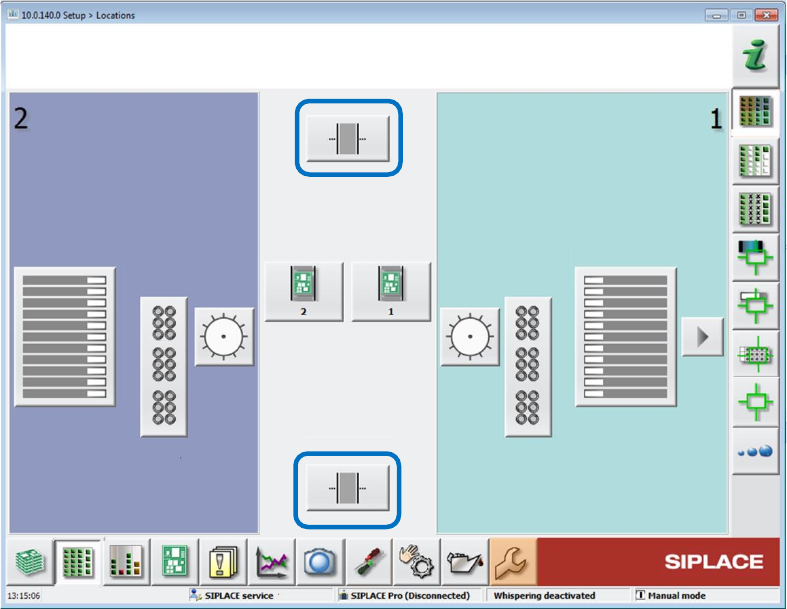
On the station, the Setup view has been extended by an additional button per shuttle extension.
Figure 11-1: Setup with shuttle extensions
The Manual operations subsystems dialog has been extended by a Manual operations shuttle
button for each shuttle extension.
The subsequent Manual operations dialog for the shuttle extension offers the following sections:
Current position / Align shuttle to
Transport width
Signals
Transport board to
Single functions are only available if the shuttle extension is not in automatic mode.
The Service tool has been extended by a Shuttle configuration button. The operator can
configure speed parameters, eSW parameters and single drives in the subsequent configuration
dialogs.
The Single calibration dialog has been extended by one button per shuttle extension.
The shuttle lane width has to be calibrated.
The alignment of the fixed conveyor rails of all lanes adjacent to the shuttle has to be calibrated.
When a lane is selected, the shuttle aligns itself to the chosen lane. The operator can then move
the shuttle in small or big steps to align the fixed rail and save the setting.