SIPLACE Station Software 7xx to 714 介绍.pdf - 第65页
Station Software 7xx to 714.0 (R20-2) / Feature Description 11/2020 Edition 65 The component onto which the glue dots will be applied can be man ually taught. For this, the operator selects the component (that is marked …
Station Software 7xx to 714.0 (R20-2) / Feature Description 11/2020 Edition
64
The XML file is available under the C:\Sirio\Types directory on the service desktop and may be
edited by an XML editor, if necessary. The process parameters can only be modified, copied or
distributed at the station by a SIPLACE service engineer. For this the Service (SIPLACE) activity
level is required. After the XML file has been changed, the station has to be warm-started or the
placement machine rebooted.
After the job has been downloaded to the station, the operator can measure the X-, Y- and Z-
positions of the jet and check if the jet is soiled via SIPLACE Vision (manually in the Manual
Operations for the feeder) The X- and Y-positions are measured with the PCB camera and the Z-
position with a nozzle and a reference plate.
The station software generates a glue job for each glue dot during which the following steps are
performed:
– The component is moved to the X-/Y-positions to apply the glue dots (considering the
measured X-/Y-offsets of the jet).
– The component is moved to the configured Z-position (XML file) to apply the glue dots
(considering the measured Z-height of the jet).
– The component presence is checked by SIPLACE Vision to ensure that the glue dots are not
applied onto an empty nozzle.
– The glue dots are applied onto the component using the process parameters that are stored in
the characteristic line at the station.
– The component presence is checked again by SIPLACE Vision to ensure that the component
did not get out of place during the glue process. If a measuring error occurs during the
component check by SIPLACE Vision, the component is rejected, i.e. components from a tray
are not returned into the tray.
– The Z-axis is moved to the initial position.
A collision check of the process height is performed before the glue process starts. At risk of
collision the glue process is rejected or the component is not picked-up.
Glue dot inspection and teaching by SIPLACE Vision
In order for SIPLACE Vision to detect and evaluate a glue dot, a reference image of a component
will be acquired right before the glue is applied onto the component.
During a measuring job with glue dot inspection, there will be a check for each glue dot, if:
– The glue dot exists.
– The size is within the defined tolerance, i.e. if the measured surface of the glue dot lies
between the minimal and maximal circular area in the model.
– The glue dot lies within the defined "target area": a rectangular target area can be defined in
the model. The inspection checks if the glue dot is completely positioned within this target area.
An error message is displayed if the glue dot touches the border of the target area.
Optionally, a separate lighting can be set for the glue dot inspection.
The following glue dot parameters may be modified in the GF Editor at the station:
– Inspection
– Tolerance
– Target area (X/Y/size)
Station Software 7xx to 714.0 (R20-2) / Feature Description 11/2020 Edition
65
The component onto which the glue dots will be applied can be manually taught. For this, the
operator selects the component (that is marked accordingly) from the component list. A dialog box
is opened in which the operator can decide, whether the glue dots shall be applied onto the
component before teaching or not.
SIPLACE Vision creates automatic output files for the components with glue dots. With these files
the operator can perform the inspection offline.
The glue dot inspection is optional and can be activated / deactivated in SIPLACE Pro.
NOTICE
Calibration of the Glue Feeder
The Glue Feeder has to be calibrated each time the machine is booted or the Glue
Feeder is inserted or removed.
Detailed information on SIPLACE Glue Feeder can be found in the correspondent user manual,
item number 00197219-01 and in the online help files to SIPLACE Vision and station software.
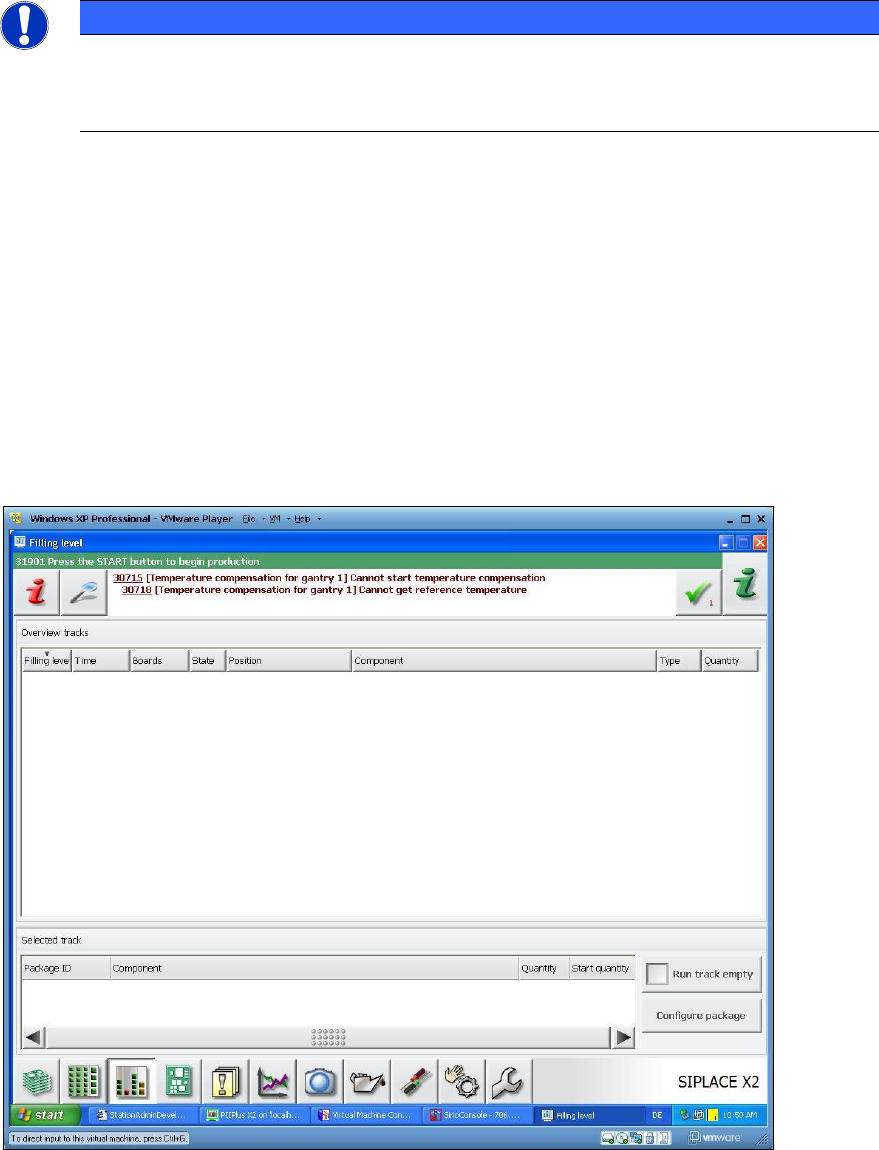
7.7 Display of Remaining Time in the Filling Level View
With this feature the remaining time is calculated as for the components required to produce the
boards completely. The remaining time until a feeder gets empty is calculated by means of the
component levels from Setup Center, the job data from SIPLACE Pro and / or the panel at the
station.
The remaining Time in [hh:mm] and the number of boards to be produced are displayed in the
Filling level view on the GUI of the station software. After this time is elapsed, the boards cannot
be completely produced.
Figure 7-1: Filling level view
Station Software 7xx to 714.0 (R20-2) / Feature Description 11/2020 Edition
66
NOITCE
Filling level view
The Filling level view is now a separate tool and is not displayed in the Setup view
anymore.
7.8 Counter for Operating Hours
On the placement machines with GCU (Gantry Control Unit), i.e. on all placement machines of the
DX- and SX-series, a counter for operating hours has been implemented that captures the runtime
of the station software console.
The software counts the operating hours as soon as the station software is started. The value is
stored to the second every five minutes.
On the GUI of the station software the value is displayed in complete hours under Manual
operations and is updated as soon as another complete hour is elapsed.
To prevent that the counter for operating hours gets lost if an I/O module is exchanged, the value is
additionally stored in a file. This ensures that either an I/O module can be exchanged or a new
software version installed without deleting the counter for operating hours.
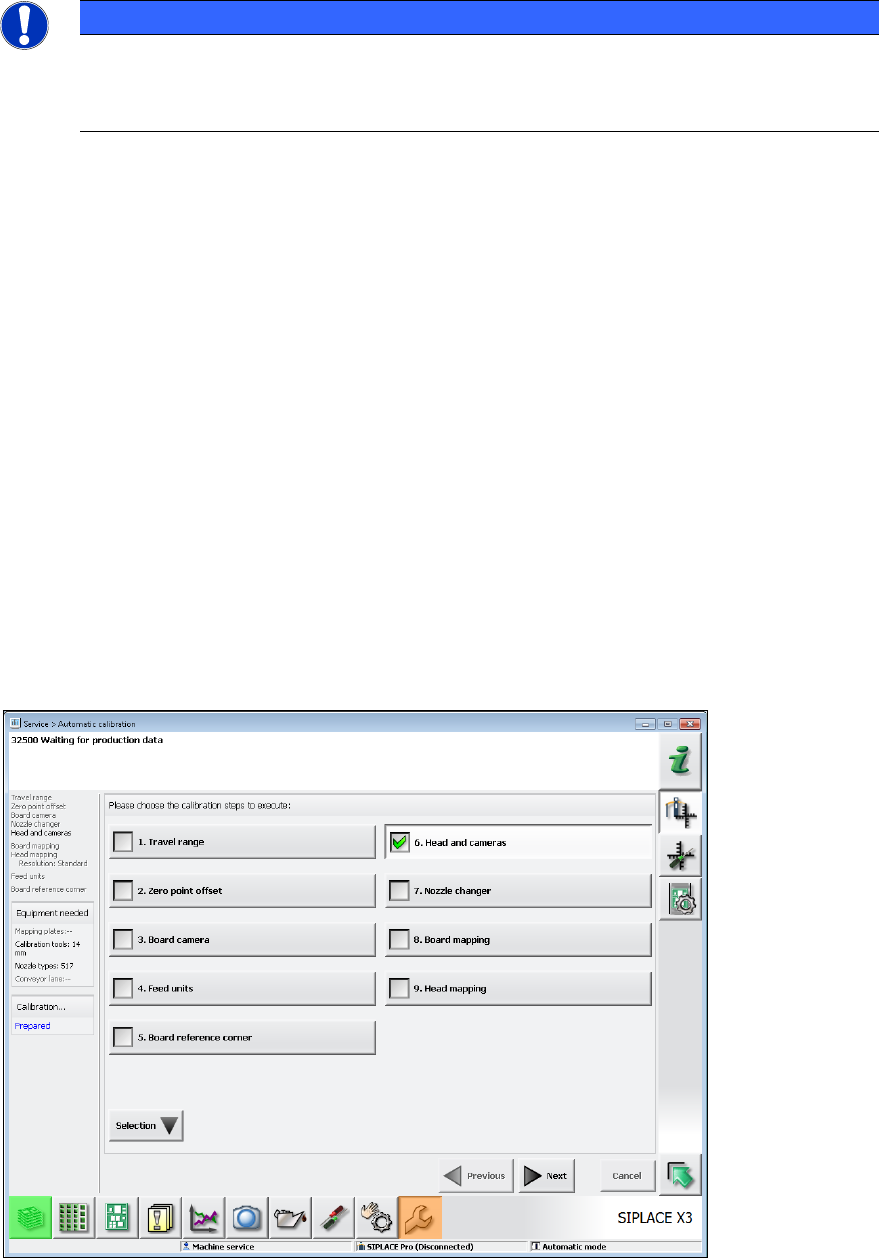
7.9 Enhancement of the Automatic Calibration
If the Head and cameras button is selected, different calibration steps are included in the entire
calibration depending on the head type.
Figure 7-2: Automatic calibration – Head and cameras