00197395-03_AI_3D_Sensor-Koplan_X-Serie_S_DE_EN.pdf - 第120页
3 Installation 3.12 Installing the Coplanarity Computer 120 Assembly Instructions / Montageanleitung SIPLACE X-Series S 3D-Sensor 06/2020 3.12.2 Fixing the Coplan Computer and Routing the Cables Fig.50: Sticking the Vel…
3 Installation
3.12 Installing the Coplanarity Computer
Assembly Instructions / Montageanleitung SIPLACE X-Series S 3D-Sensor 06/2020 119
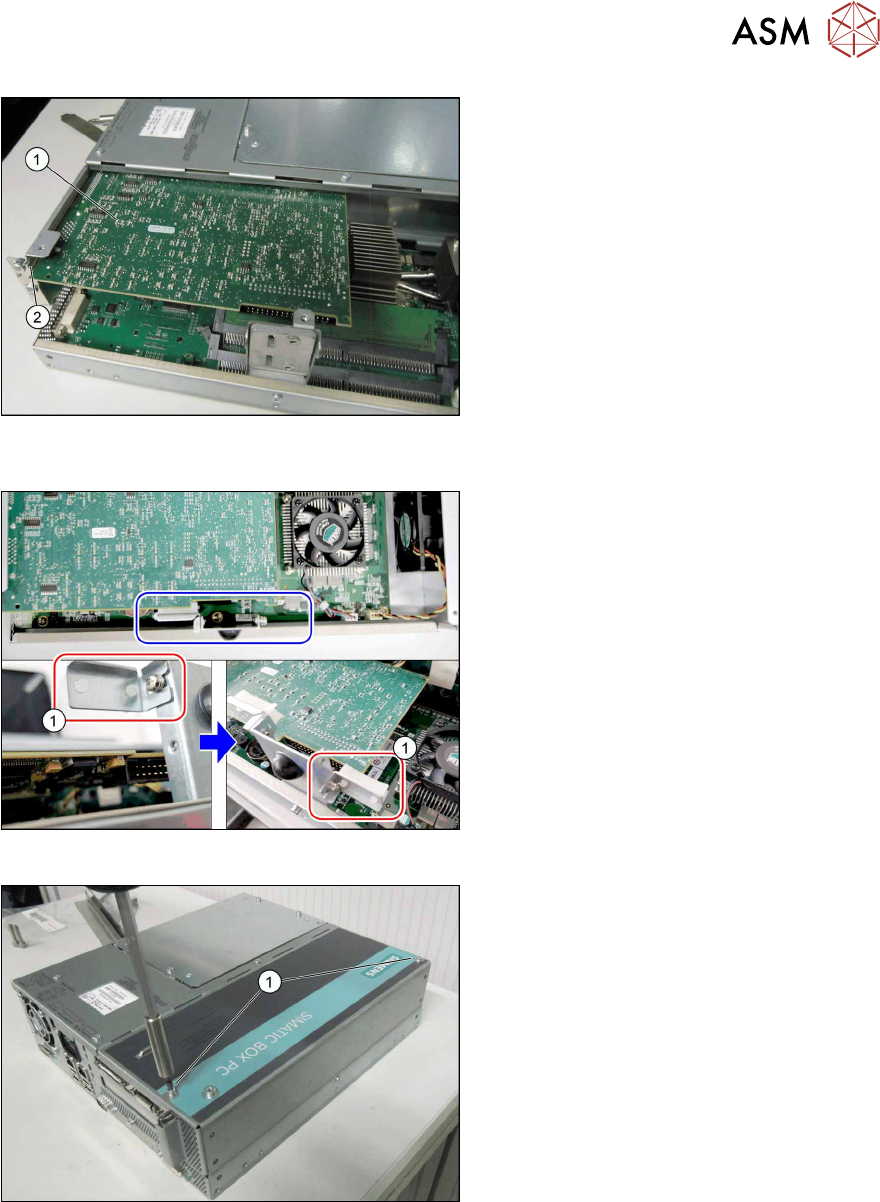
Fig.47: Inserting the interface board (BoxPC 627C shown as
example)
► Insert the new "camera link interface NI
PCI-1428" board [03052591-xx] (1)
into
the slot(2)
. Make sure that it fits cor-
rectly.
Fig.48: Converting the plug-in card support
► iBase BoxPC only: Remove the plug-
in card support(1)
from the left side
and fit to the right side. If you do not do
this, parts on the camera link interface
could be damaged.
Fig.49: Fitting the cover (BoxPC 627C shown as example)
► Close the cover of the coplanarity com-
puter.
► Tighten the screws(1).
3 Installation
3.12 Installing the Coplanarity Computer
120 Assembly Instructions / Montageanleitung SIPLACE X-Series S 3D-Sensor 06/2020
3.12.2 Fixing the Coplan Computer and Routing the Cables
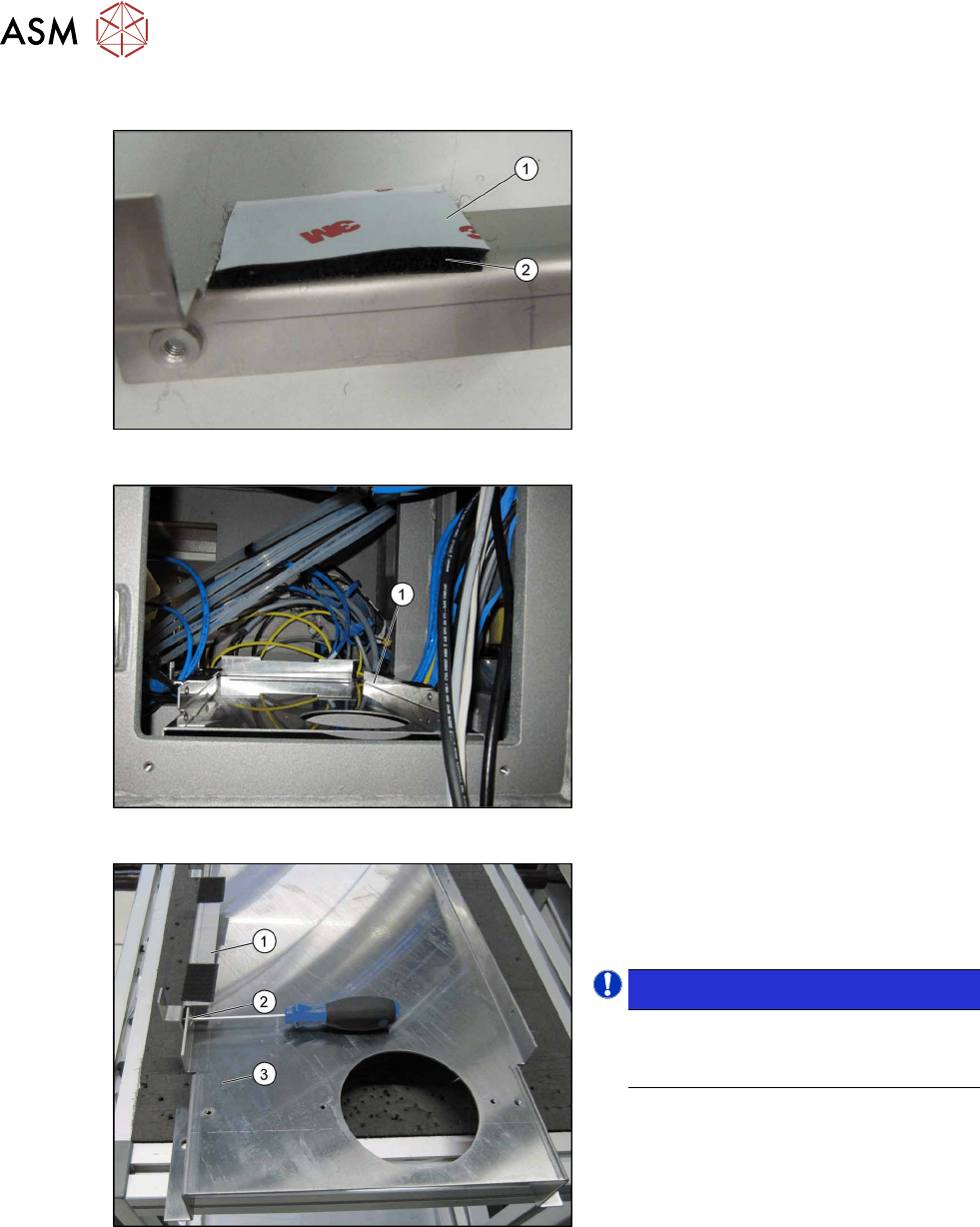
Fig.50: Sticking the Velcro strips into place
► Stick four Velcro strips to the retaining
brackets ,[03102046‑xx] and
[03102026‑xx] with the hard side(2)
fa-
cing down. Leave the protective foil(1)
on the soft side. This is only removed
just before the installation of the co-
planarity computer.
Fig.51: Support plate installed
Support plate (1) inside the machine.
Fig.52: Fixing the retaining bracket
► Fasten the fixture bracket(1) for the co-
planarity computer on the left and right,
using the four M4x6screws (2)
, to the
support plate(3)
at location1.
NOTICE!
Assembly direction:
Make sure that you fit the bracket with
the angle pointing to the left.
.
3 Installation
3.12 Installing the Coplanarity Computer
Assembly Instructions / Montageanleitung SIPLACE X-Series S 3D-Sensor 06/2020 121
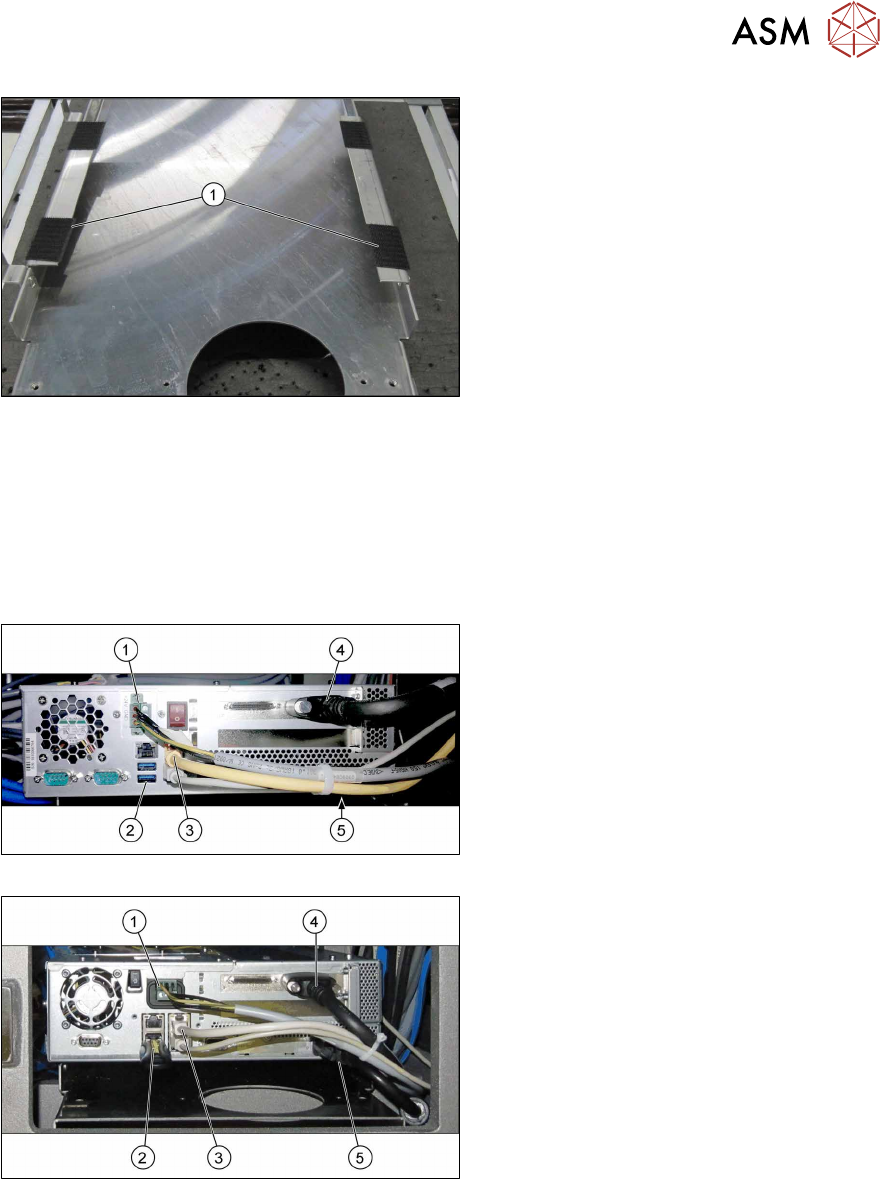
Fig.53: Velcro strips
► Pull the protective foil off the Velcro
strips and position the coplanarity com-
puter onto the brackets.
► Place the coplanarity computer onto
the brackets so that the Velcro
strips(1)
cover one another exactly.
► Reestablish all connections to the coplanarity computer.
See also:
– 3.10 "Fitting the station computer (from Hxxxx)" [}115]
– 3.11 "Installing the station computer (up to Gxxxx)" [}116]
– 4.4 "Circuit Diagrams" [}153]
► Connect the LAN cable to the station computer.
Fig.54: Cabling for coplanarity computer (BoxPC 627C)
Fig.55: Cabling for coplanarity computer (iBase)
Cables
1. Power connection: [03090848‑xx] X1qb
2. USB bottom right: USB extension cable
[03057639‑xx] X7qb
Only used for the installation of the co-
planarity computer.
USB bottom left: slot for installation me-
dium (e.g. USB stick)
3. Right LAN socket: LAN cable
[03103204‑xx] X5qb
This LAN cable connects the coplanar-
ity computer to the station computer.
4. Camera link cable from the coplanarity
computer: [03053017‑xx] X1pn
5. DVI extension cable : [03103212‑xx]
X4qb
Only used for the installation of the co-
planarity computer.