00197395-03_AI_3D_Sensor-Koplan_X-Serie_S_DE_EN.pdf - 第123页
3 Installation 3.14 Installing station software 7xx on the coplanarity computer Assembly Instructions / Montageanleitung SIPLACE X-Series S 3D-Sensor 06/2020 123 3.14 Installing station software 7xx on the coplanarity co…
3 Installation
3.13 Completing the Mechanical Work
122 Assembly Instructions / Montageanleitung SIPLACE X-Series S 3D-Sensor 06/2020
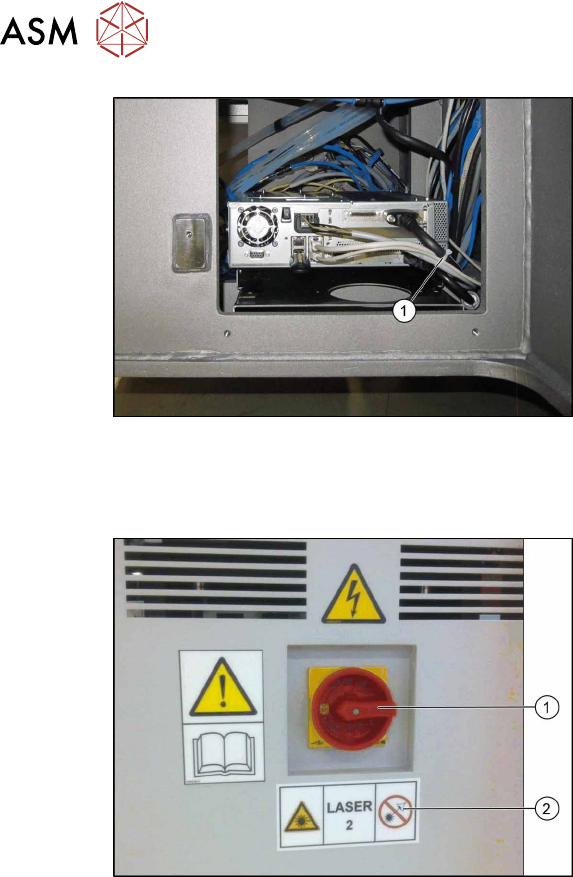
Fig.56: Cable ties (example of BoxPC 627C shown)
► Fasten the cable with cable ties(1).
3.13 Completing the Mechanical Work
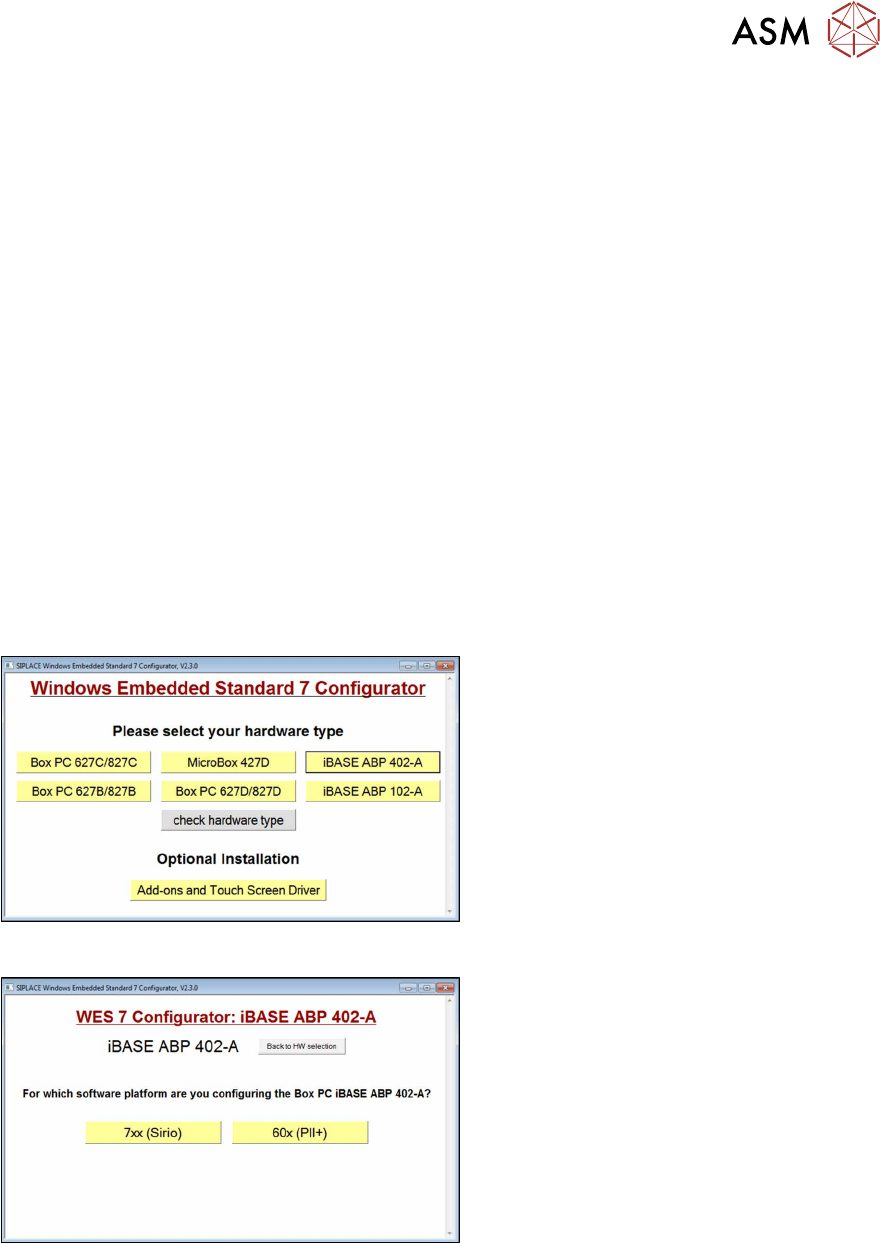
Fig.57: Laser warning label
► Complete the installation of the IC cam-
era. For details, read the assembly
instructions "Stationary Camera Type
25/33" [00197397-xx].
► Fit the used tape chutes (see 4.1.1 "Re-
placing the waste tape slide" [}137]).
► As shown in the diagram, stick the
laser warning label(2)
next to the main
switch(1)
.
► Push the component trolley into the
machine.
3 Installation
3.14 Installing station software 7xx on the coplanarity computer
Assembly Instructions / Montageanleitung SIPLACE X-Series S 3D-Sensor 06/2020 123
3.14 Installing station software 7xx on the coplanarity
computer
Connecting the mouse, keyboard, monitor, and installation medium
► Switch the station computer off before you install the coplanarity computer.
► Unplug the keyboard from the station computer.
► Use the USB extension to connect the keyboard to the coplanarity computer.
► Connect the following components to the coplanarity computer:
– DVI extension to the monitor
– Keyboard to the USB extension
– Installation medium (e. g. USB stick)
Installing the operating system
► Before you install the software, you will need to define a few settings in the coplanarity com-
puter BIOS. Read the relevant installation guide.
► Start the coplanarity computer.
► Install the operating system on the coplanarity computer. This software was supplied with the
line.
Installing the station SW
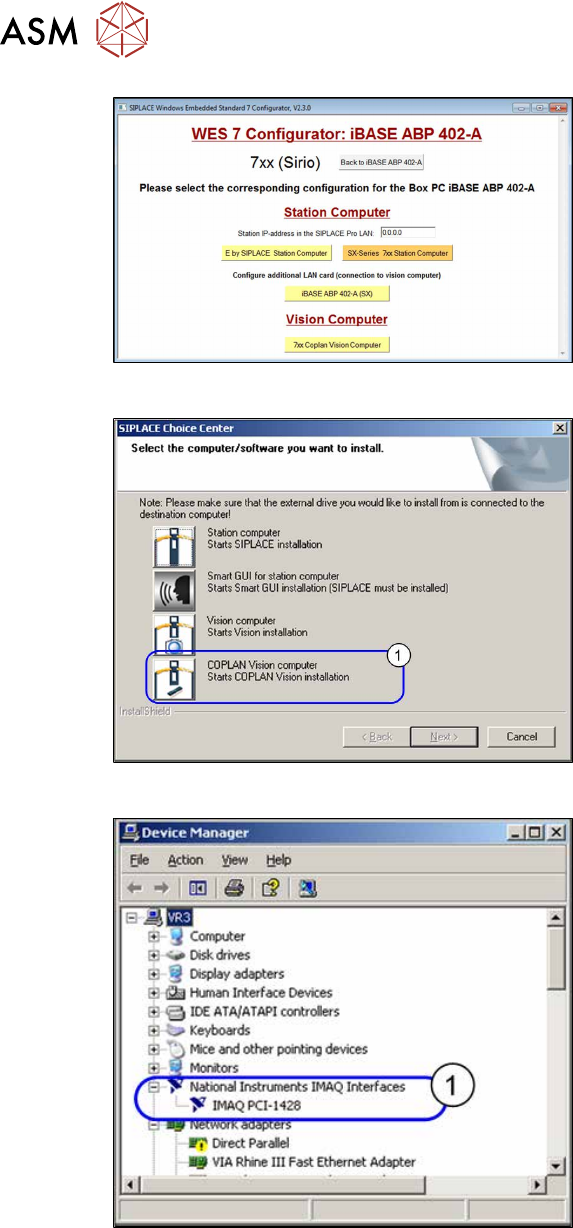
Fig.58: Configurator: Installation 1
► Log into Windows as the administrator:
Login: ASM_admin
.
► Insert the installation CD "SIPLACE
WES7 Configurator" into the CD drive.
► Start the start.hta file.
► Select your BoxPC model (e.g. iBase
ABP 402-A).
Fig.59: Configurator: Installation 2
► Select the software platform 7xx
(Sirio).
3 Installation
3.14 Installing station software 7xx on the coplanarity computer
124 Assembly Instructions / Montageanleitung SIPLACE X-Series S 3D-Sensor 06/2020
Fig.60: Configurator: Installation 3
► Select the configuration 70x Coplan
Vision computer.
ð The "Coplan Vision Computer" in-
stallation will be started.
► Follow the instructions on the screen.
► After successful installation, remove
the CD.
► Insert the station software CD. If the
station software does not start automat-
ically, run the EXE file from the station
software CD.
Fig.61: SIPLACE Choice Center dialog
► Go to the SIPLACE Choice Center
dialog and click on the Coplan Vision
computer(1) icon, to start the installa-
tion.
► Acknowledge all following popup win-
dows with Accept
, until the installation
has been completed.
► Check the network settings for the LAN
connection. The connection must be
set to Connected
.
► If the connection is not set to Connec-
ted, make sure that the LAN cable has
been correctly connected to the station
computer.
Fig.62: Device manager
► Perform a restart.
► Check the Devices Manager (System
Control), to make sure that the camera
link card from National Instruments(1)
has been properly recognized.
► Shut down the computer and switch off
the machine.