00197395-03_AI_3D_Sensor-Koplan_X-Serie_S_DE_EN.pdf - 第132页
3 Installation 3.17 Commissioning with SW 70x 132 Assembly Instructions / Montageanleitung SIPLACE X-Series S 3D-Sensor 06/2020 From SW 712.x Fig.79: Calibration (combined steps) Fig.80: Calibration (all steps) You can…
3 Installation
3.17 Commissioning with SW 70x
Assembly Instructions / Montageanleitung SIPLACE X-Series S 3D-Sensor 06/2020 131
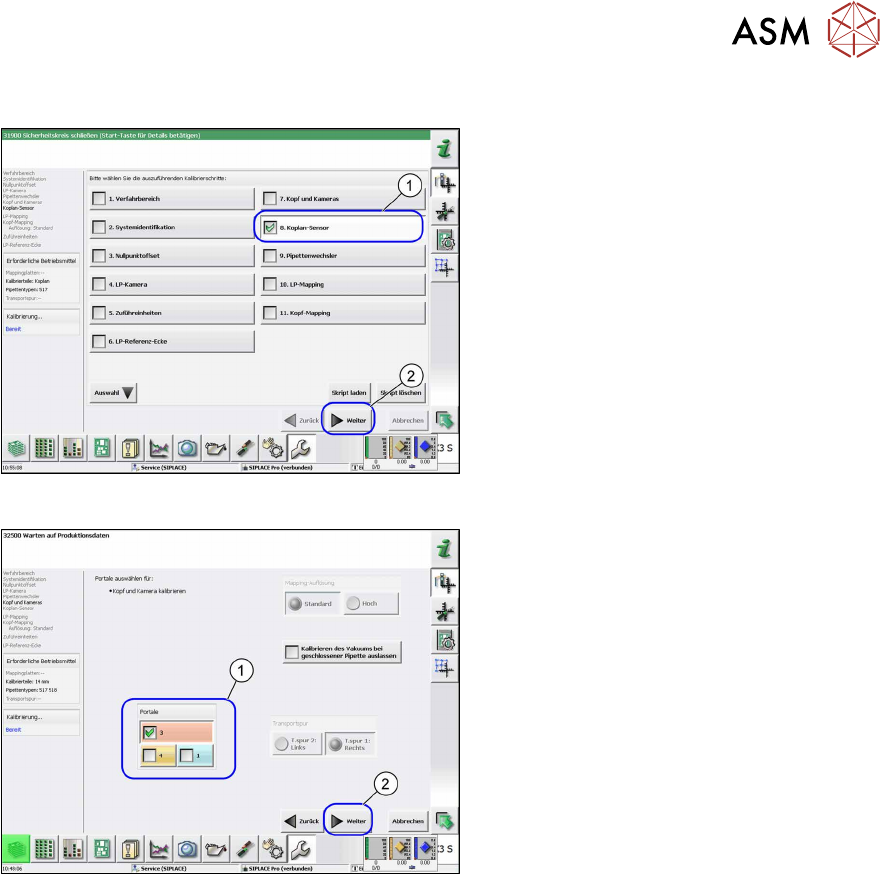
Up to SW 711.x
Fig.77: Coplanarity sensor
► Select the Coplan Sensor(1) button.
► Select the Next(2) button.
ð The Coplan Sensor view will be
shown.
Fig.78: Gantry selection
► Select the relevant gantry (1).
► Select the Next(2) button.
ð The calibration will be started.
► Once the calibration values are dis-
played, click on the Accept
button.
► Remove the calibration jig.
3 Installation
3.17 Commissioning with SW 70x
132 Assembly Instructions / Montageanleitung SIPLACE X-Series S 3D-Sensor 06/2020
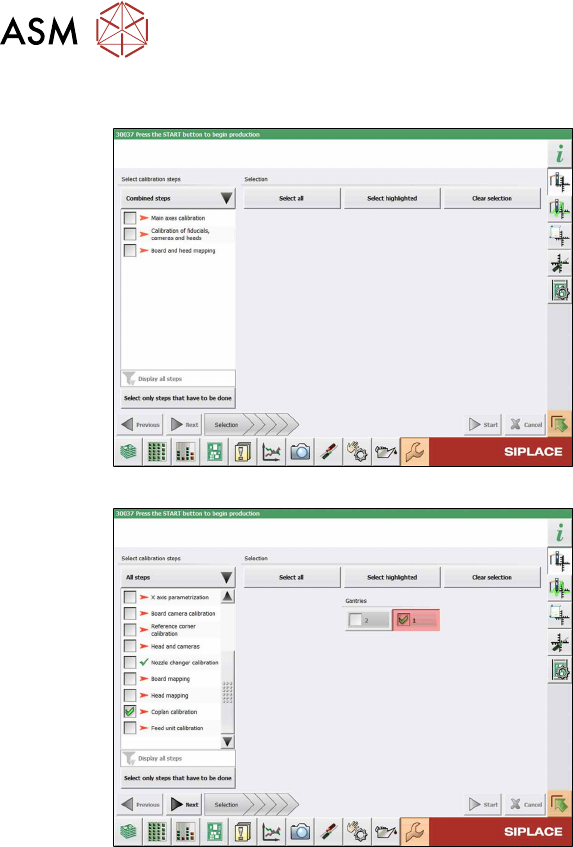
From SW 712.x
Fig.79: Calibration (combined steps)
Fig.80: Calibration (all steps)
You can choose between Combined steps
and All steps.
The procedure for All steps is described
below.
► Go to Select calibration steps and se-
lect All steps
.
► Select Coplan Calibration.
► Select the relevant gantries and then
click on the Next
button.
Follow the instructions on the next pages.
► The next step is to check the calibration
conditions (calibration tool etc.). Follow
the instructions provided.
After this step, the calibration will begin. All
required intermediate steps will be per-
formed automatically.
3 Installation
3.17 Commissioning with SW 70x
Assembly Instructions / Montageanleitung SIPLACE X-Series S 3D-Sensor 06/2020 133
3.17.4 Performing the MFU
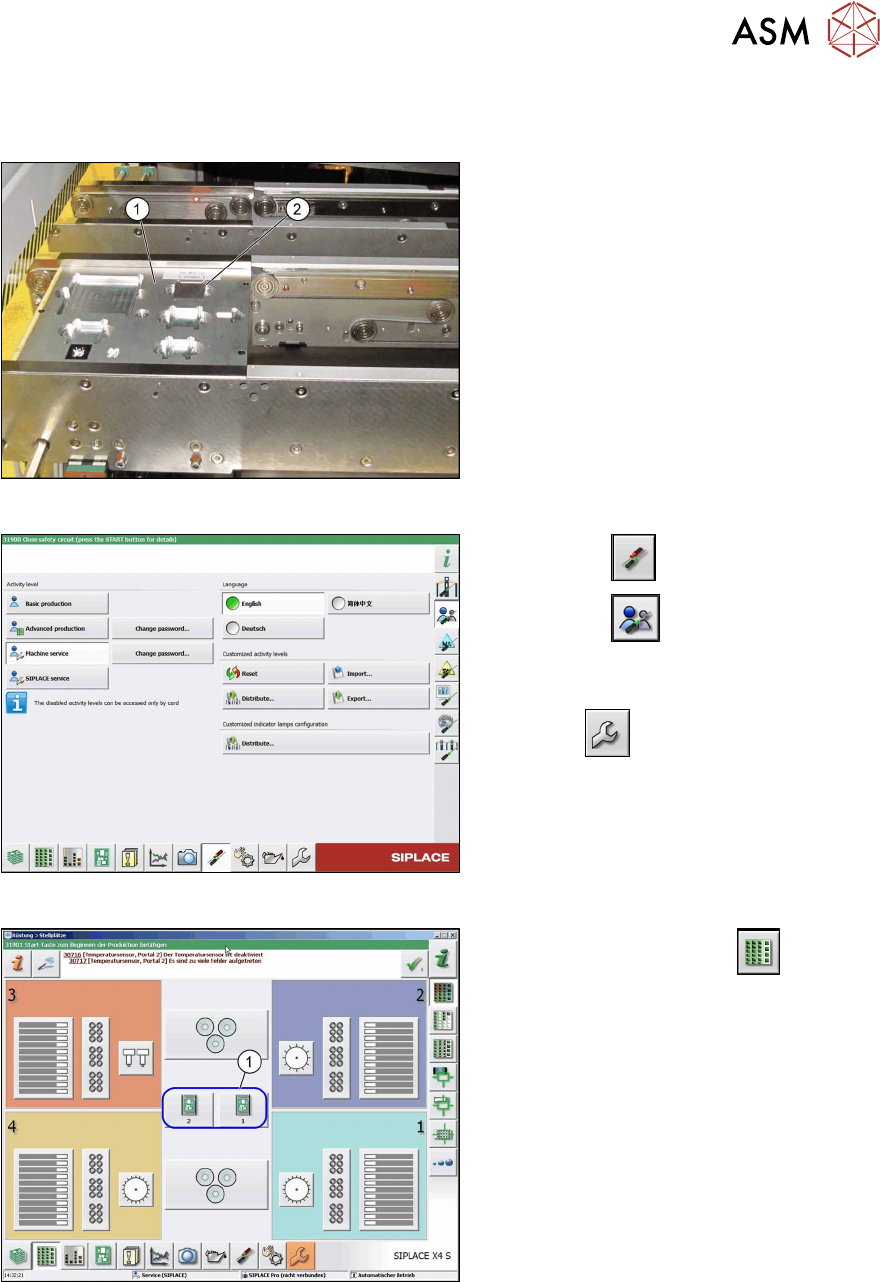
Perform a 3D coplanarity MFU with the FCCS tray.
Fig.81: Input conveyor with FCCS tray
► Replace the nozzles on the TwinHead
for nozzles of type 519.
► Place the FCCS tray (1) on the input
conveyor of the machine.
► Place the MFU tool into the marked
groove (2)
.
Fig.82: Select operator level
► Select the button.
► Select the button.
► Switch over to the operator level Ma-
chine service.
ð The button will be shown.
Fig.83: View: setup locations
► Switch over to the menu .
► Select the relevant location(1).
ð The placement section view will be
opened.