EUKYX-199-2100_G5S2_Instruction_Vol2_E.pdf - 第181页
EUKYX 3-5 199-2100 1.2 Basic Operations in "Selection of component ID" Window 1 . 2. 2 Deleting the Compone nt ID (1 ) Se lec t the co mpone nt ID to b e del ete d. (Th e sele ct ed comp onent I D turns bl ue, …
EUKYX
3-4199-2100
1.2 Basic Operations in "Selection of component ID" Window
1.2 Basic Operations in "Selection of component ID" Window
1.2.1 Type Addition
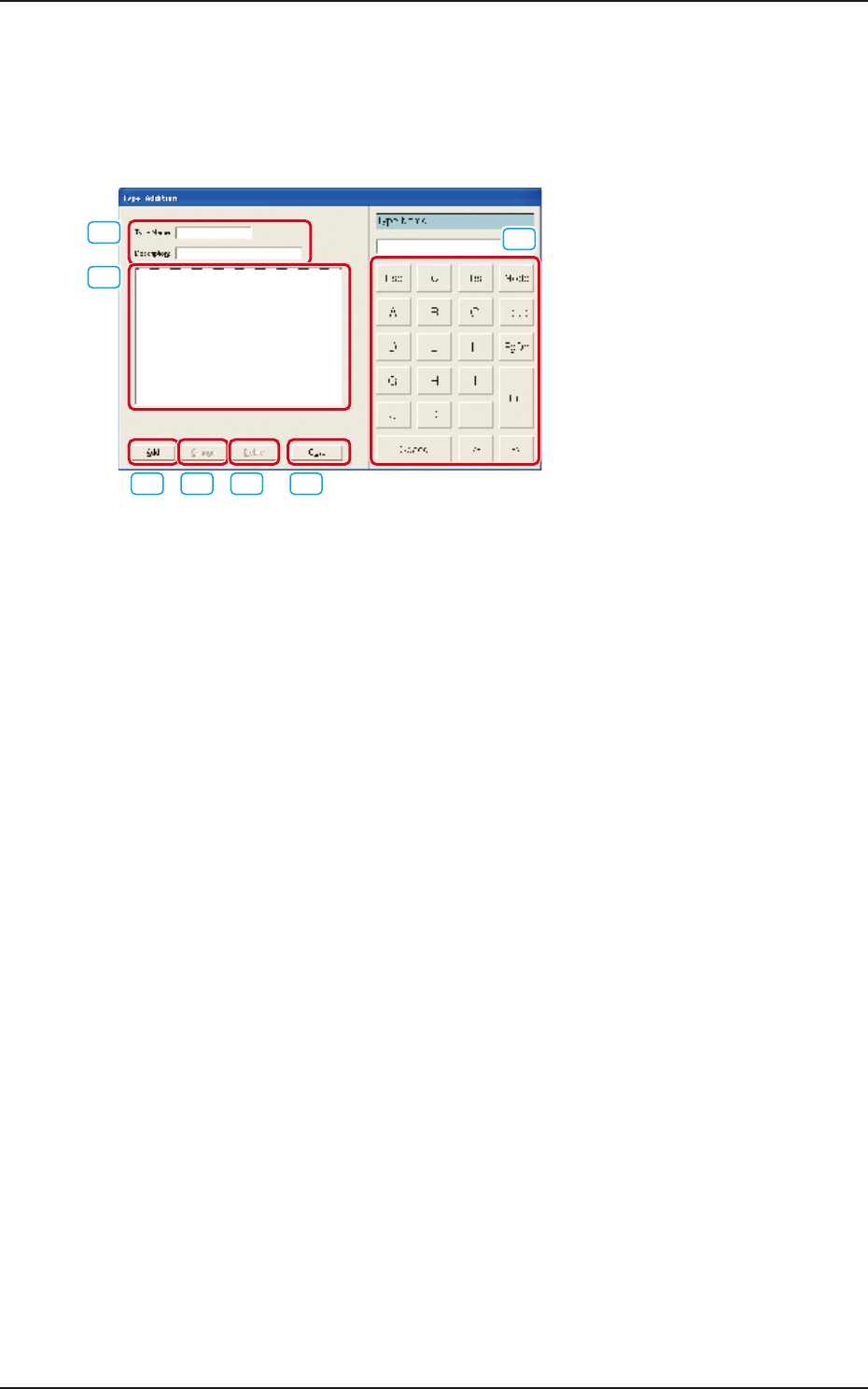
When the [Type Addition] button is pressed, the following "Type Addition" dialog box opens. By
adding a type, the list of component IDs is displayed after being filtered.
[1]
[2]
[3] [4] [5] [6]
[7]
F2C2
[1] "Type Name" and "Description"
Enter parameters in these text boxes.
[2] "List of Component Types" Pane
Newly created component types are displayed in this pane.
[3] [Add] Button
When this button is pressed, a type entered in the "Type Name" text box is added as a new type.
[4] [Change] Button
When this button is pressed, a component type is changed to the contents entered in the "Type
Name" and "Description" text boxes.
[5] [Delete] Button
When this button is pressed, the component type selected in "[2]" is deleted.
[6] [Close] Button
When this button is pressed, the "Type Addition" dialog box closes.
[7] Touch Panel for Data Editing
Data can be entered from the touch panel or with the mouse.
EUKYX
3-5199-2100
1.2 Basic Operations in "Selection of component ID" Window
1.2.2 Deleting the Component ID
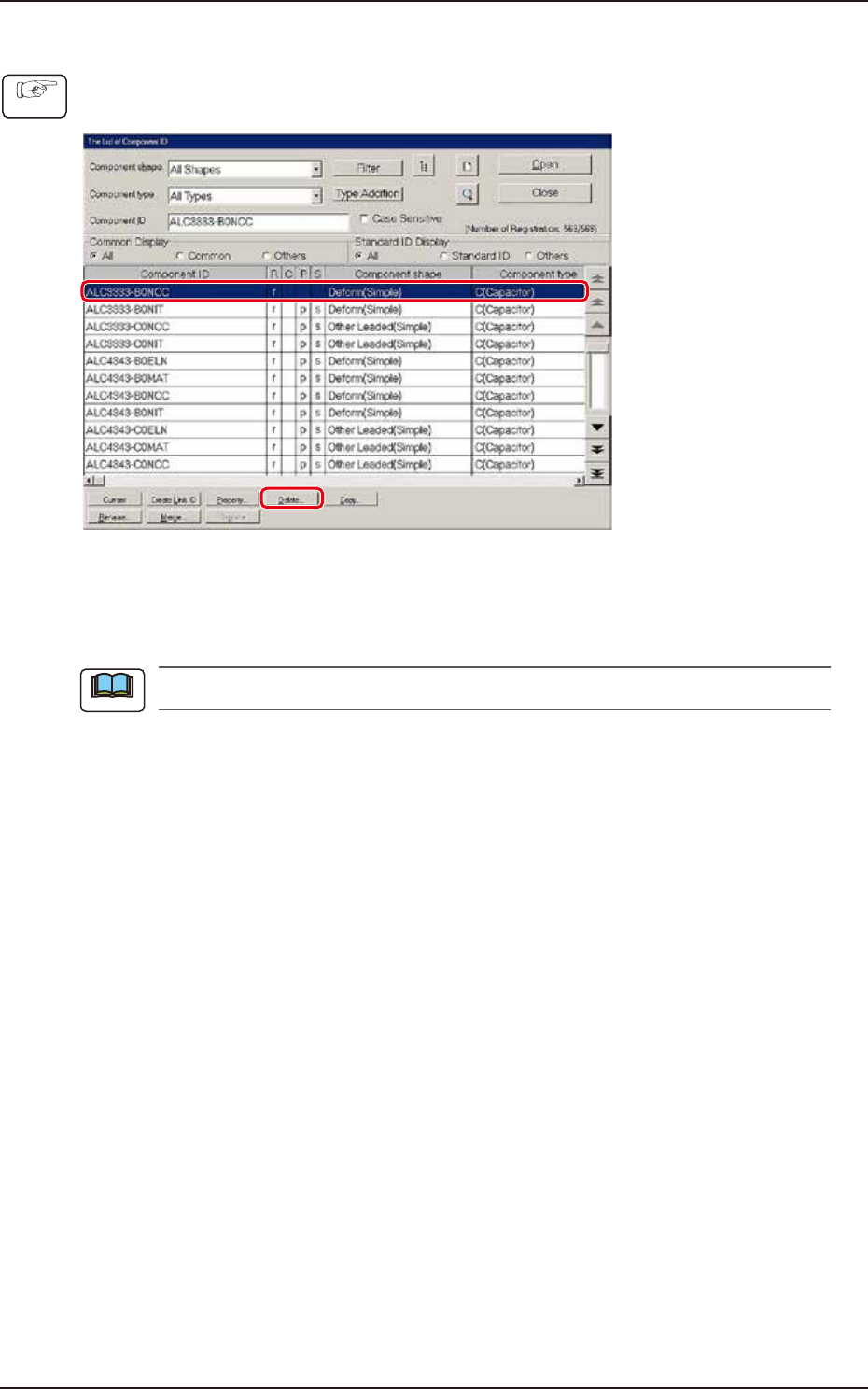
(1) Select the component ID to be deleted.
(The selected component ID turns blue, indicating that it is selected.)
F2C3
(2) Press the [Delete...] button.
(The "Confirmation" dialog box opens. When the [YES] button is pressed, the component
ID is deleted.)
Pressing the [NO] button cancels the deletion of the component ID.
Procedure
Note
EUKYX
3-6199-2100
1.2 Basic Operations in "Selection of component ID" Window
1.2.3 Copying the Component ID
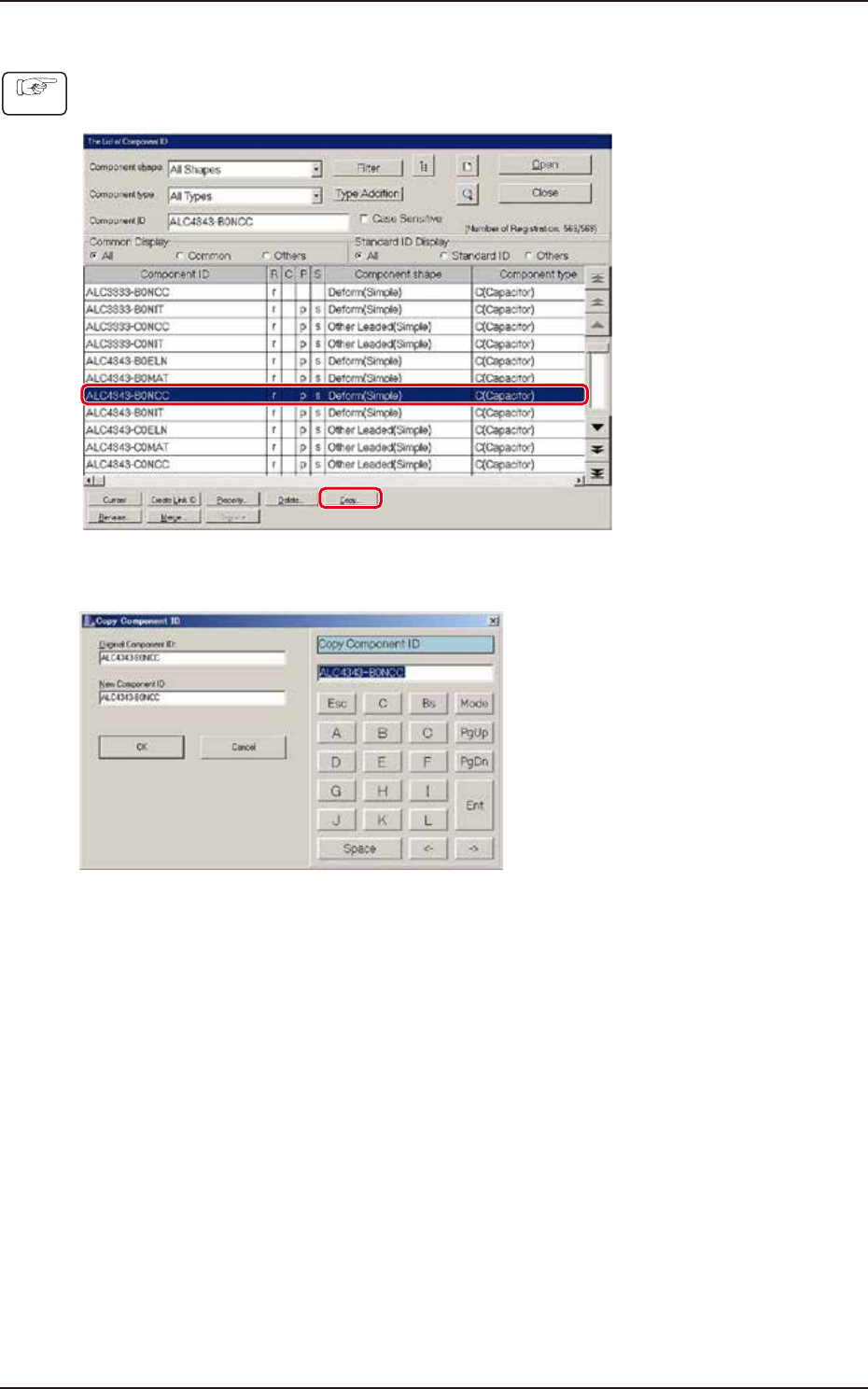
(1) Select the component ID to be copied.
(The selected component ID turns blue, indicating that it is selected.)
F2C4
(2) Press the [Copy...] button. (The "Copy Component ID" dialog box opens.)
F2C5
(3) Enter a new component ID name in the "New Component ID" text box and press the [OK]
button. (A Component ID is created.)
Procedure