EUKYX-199-2100_G5S2_Instruction_Vol2_E.pdf - 第246页
EUKYX 6-9 199-2100 4.1 Collecting PCB Support Pins/Setting up Conveyor Width 4. 1 Collec ting PCB Suppor t Pins / Set ting up Conv ey or Width • For Suppor t Pin Manual Chan ge The PCB suppor t pi ns are used to k eep t …

EUKYX
6-8199-2100
4. "CNVR Set-up" Window
[3] "PCB Support Pins" Group Box
[Reset PCB Sup.Pins] Button
When the [START] button is pressed within 10 seconds after this button is pressed, the
support pins are housed in the stock area.
[Stkr.Area Edit] Button
In the case that the PCB support pins are to be moved manually or an error occurs, the stock
area parameters are edited.
When the [Stkr.Area Edit] button is pressed, the "Stkr.Area Edit" window appears.
Refer to “4.2 “Stkr.Area Edit” Window” for the details of the "Stkr.Area Edit" window.
[4] PCB Locate Section Select Buttons
When pressed, the PCB positioning section on the side where the setup operation is to be
performed, is selected.
[Side L] Button : PCB Locate L Section
[Side R] Button : PCB Locate R Section
[5] "PCB Locate" Group Box
[Locate] Button :
When pressed, this button moves up the Z clamp and the backup base
and locates the PCB.
[Release] Button :
When pressed, this button moves down the Z clamp and the backup
base and releases the PCB locating.
[6] "Conveyor Width" Group Box
PCB Size Y, Y Standard Pos.
The "PCB size Y" and "Y Standard Pos." set on the pattern program data for the product
model, are shown in these data boxes.
[Clearance] Button
When this button is pressed, the "Clearance" window opens. Enter the value as a leeway
between the conveyor width and the PCB. The entered value appears in the text box beside
this button. The actual conveyor width becomes "PCB Size Y + Clearance (Recommended
Value: 0.5 mm)".
Reference
EUKYX
6-9199-2100
4.1 Collecting PCB Support Pins/Setting up Conveyor Width
4.1 Collecting PCB Support Pins/Setting up Conveyor Width
• For Support Pin Manual Change
The PCB support pins are used to keep the upper surface of the PCB in proper height for
stabilization of the component placement. If the conveyor width is not correctly set, the PCB
support pins cannot be attached correctly.
When 0402 and 0603 components must be placed, it is important to secure the flatness of the
PCB. Use the support pins or a backup plate.
Contact YAMAHA sales representatives for how to make a backup plate.
CAUTION
The load power to the motors, etc., is turned
OFF but the setup operation must be performed
carefully when you put your hand inside the
machine. Avoid hand and nger injuries.
(1)
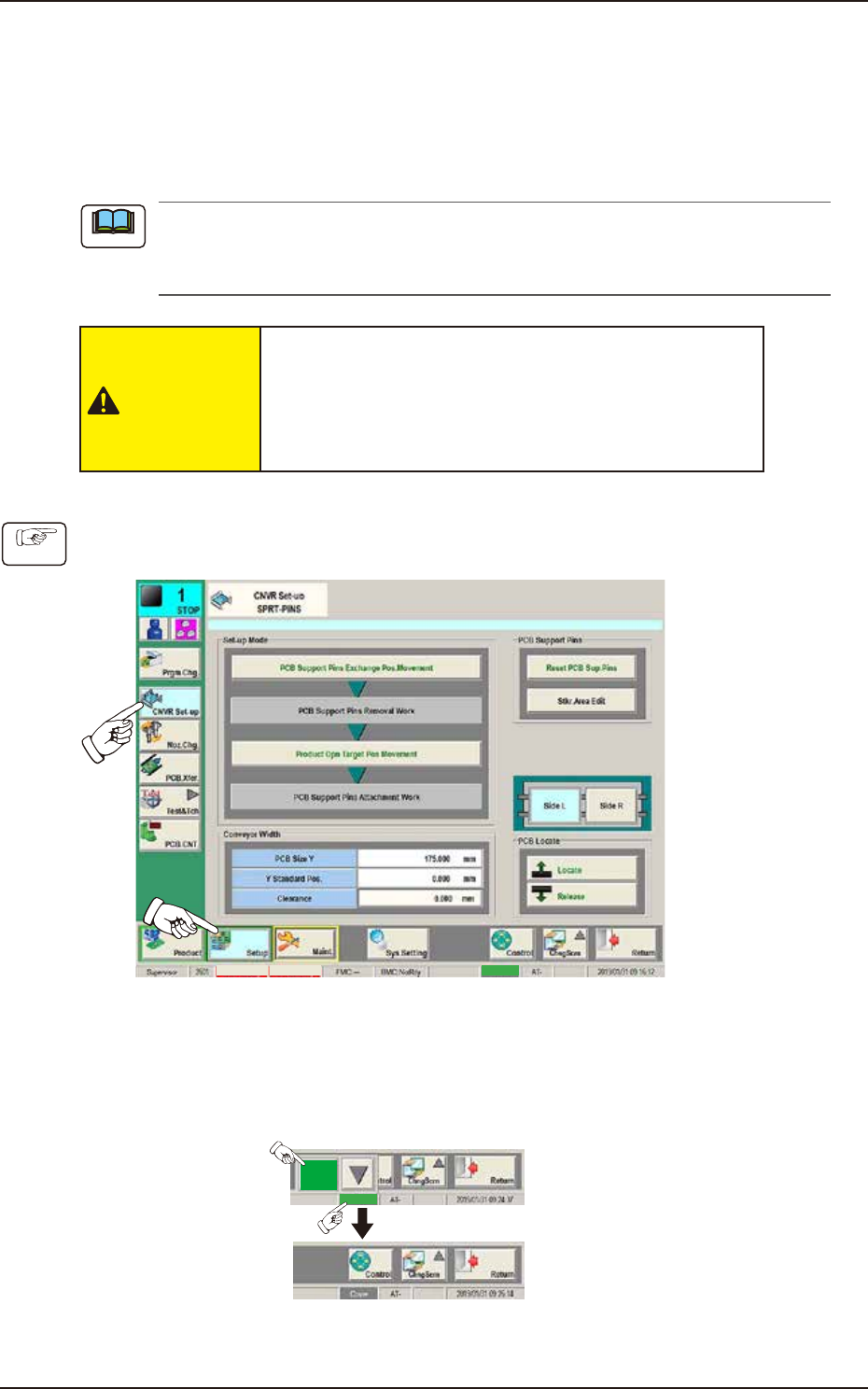
Press the [Setup] button and [CNVR Set-up] button to display the “CNVR Set-up SPRT-PINS“
window.
MTN:NotRdy RCG:NotRdy Cover
F2F10
(2)
Press the [PCB Support Pins Exchange Pos. Movement] button.
After that, press the [START] button on the operation panel within 10 seconds (The machine
retracts the head and maximizes the conveyor width.)
(3) Press the “cover” to unlock the cover.
Cover
Cover
F2F10A
Note
Procedure
EUKYX
6-10199-2100
4.1 Collecting PCB Support Pins/Setting up Conveyor Width
(4) Open the cover and remove the support pins.
(5) Close the cover.
(6)
Press the [Product Opn Target Pos Movement] button.
Within 10 seconds, press the [START] button on the operation panel.
(The conveyor width is changed appropriate for the selected pattern program.)
(7)
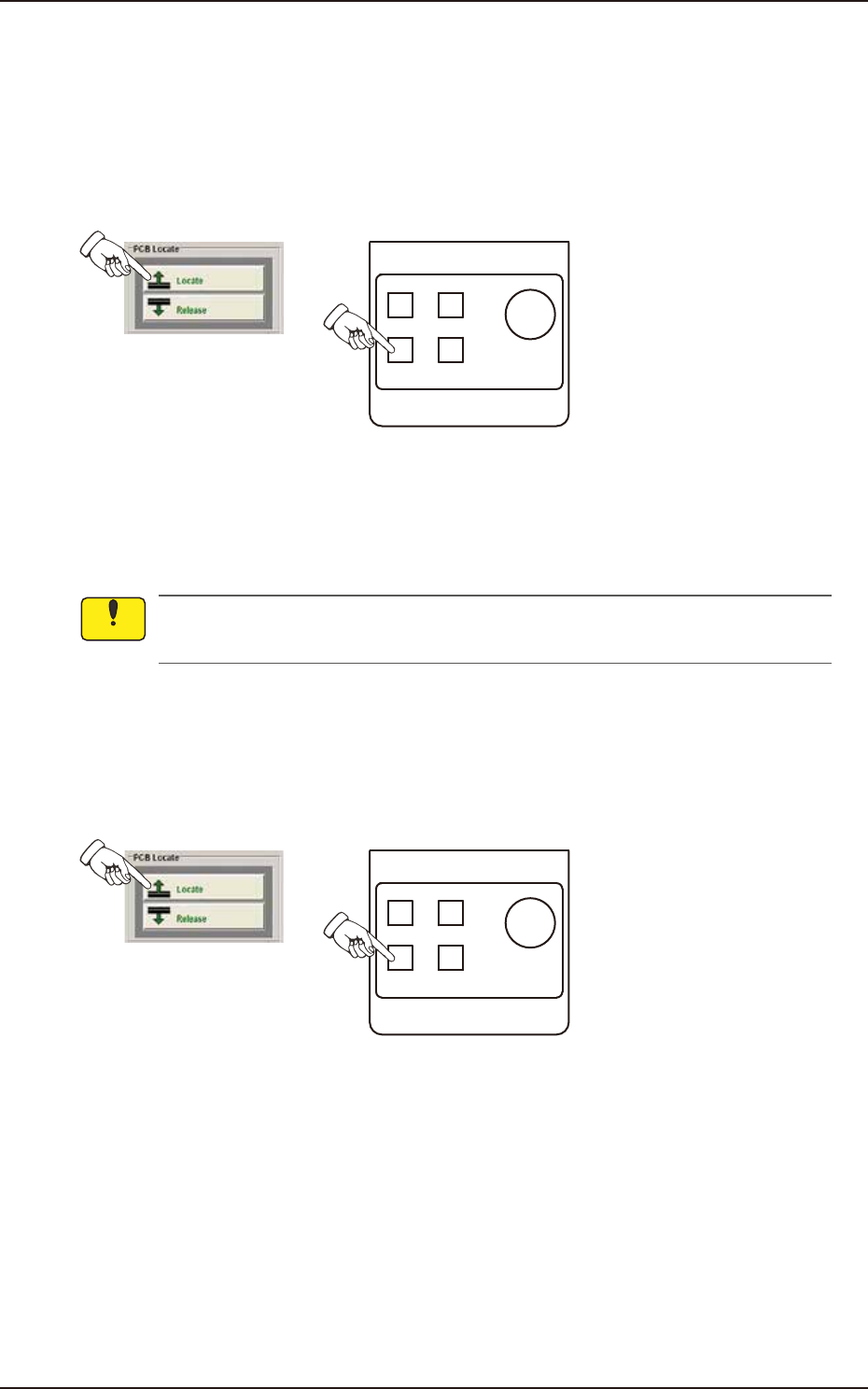
Press the [Locate] button in the “PCB Locate” group box and press the [START] button on
the operation panel within 10 seconds. (The backup base is moved up.)
POWER ON
STOP
PNL CHANGE
START
F2F10B
(8) Press the [COVER] button at the bottom of window to unlock the cover and open the cover.
(9)
Insert the PCB support pins vertically to the holes on the backup base.
(Be sure to set up the PCB support pins such that they are dispersed to support the object
PCB equally.)
Do not put your hand or any heavy object on the backup base while working on the backup
base. Otherwise, the backup base may be deformed due to an excessive load.
(10)
Confirm that a PCB support pin, etc., is not left behind on the backup base. (Confirm that
no component or dust, etc., has fallen into the holes on the backup base.)
(11) Close the cover .
(12)
Press the [Locate] button in the “PCB Locate” group box and press the [START] button on
the operation panel within 10 seconds. (The backup base is moved down.)
POWER ON
STOP
PNL CHANGE
START
F2F13
Notice