EUKYX-199-2100_G5S2_Instruction_Vol2_E.pdf - 第323页
EUKYX 6-86 199-2100 7.5 "PU Pos Ofst T ch" Window 7 .5 "PU P os Of st T ch " Window For the components whic h can not be pic ked up at its center , t he teach ing for the p ick - up positi on is p er …
EUKYX
6-85199-2100
7.4 "PEC RCG" Test Window
• Move
(1) Press the [Crnt.PP.Set Data] button on PEC RCG window to display the “Set Data (Crnt.PP.)“
window. Check the “Mark Pos X, Y (Move position)“. Pressing the [OK] button returns to the “PEC
RCG“ window.
(2) When the [START] button on the operation panel is pressed within 10 seconds after the
[Move] button is pressed, the XY beam is moved to the specified position.
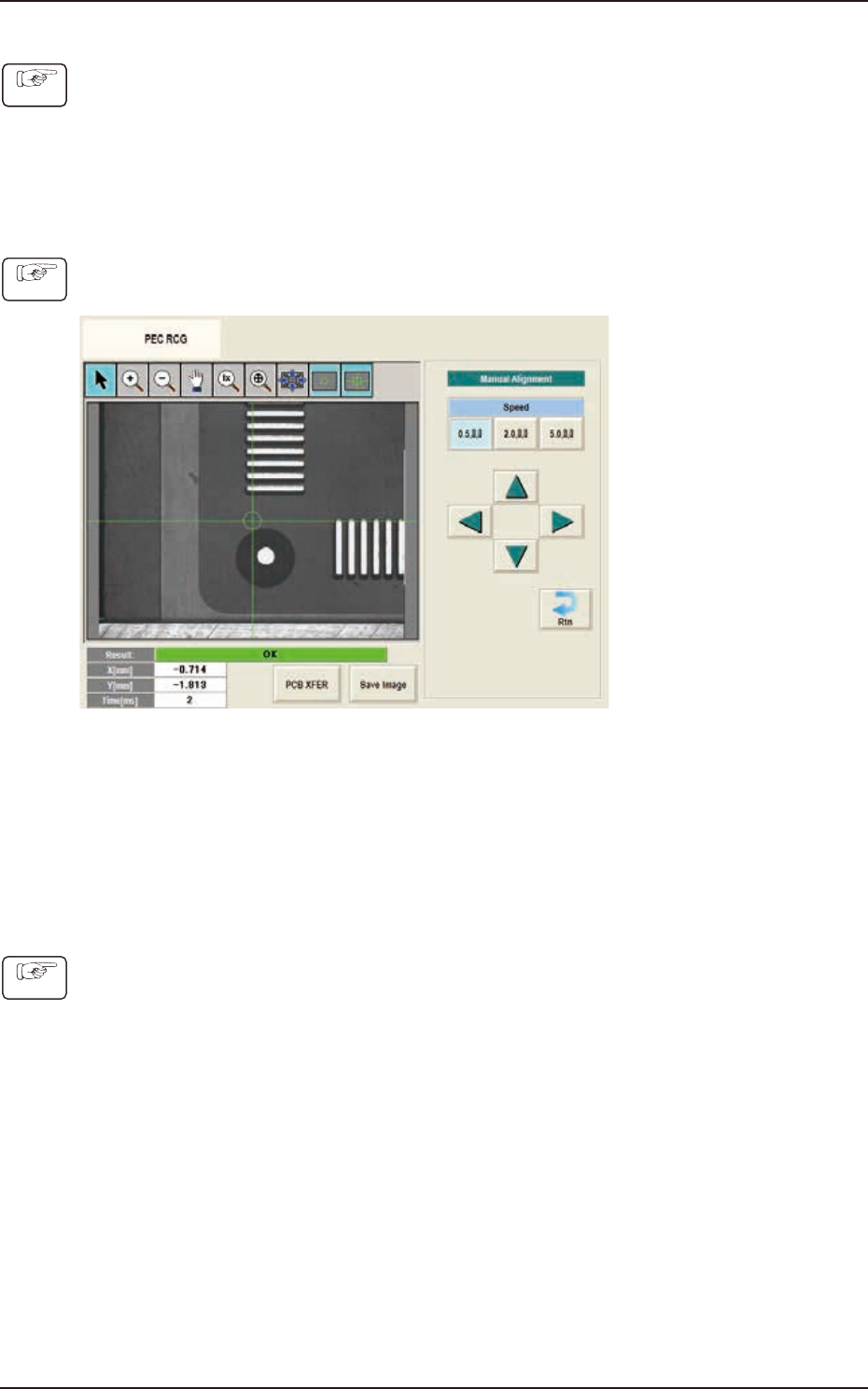
• Manual Alignment
(1) Press the [Manual Alignment] button on the “PEC RCG“ window to display the "Manual
Alignment" window.
F2F119
(2) Setup the XY beam movement speed using with the "Speed" buttons.
(3) Press the direction button (Upper, Right, Lower or Left Arrows) to setup the beam movement
direction.
(4) Press the [START] button on the operation panel within 10 seconds after pressing the
direction button (The XY beam will be moved to the recognition test position.)
• PEC Recognition Test Execution
(1) Press the [START] button on the operation panel within 10 seconds after pressing the [Recog]
button. (The PEC recognition operation are performed.)
• When the recognition test fails, an error (recognition error) window appears.
Collect each parameter referring to the descriptions in the “Error” window and perform
the PEC recognition test again.
• When the recognition test is completed successfully, make a note of collected parameters
and reflect them onto the pattern program data for the product PCB to be tested.
Procedure
Procedure
Procedure
EUKYX
6-86199-2100
7.5 "PU Pos Ofst Tch" Window
7.5 "PU Pos Ofst Tch" Window
For the components which can not be picked up at its center, the teaching for the pick-up position
is performed.
The manual alignment operation is performed from the current eccentric pick-up position, of which
data obtained by means of adding the data of component center position correction, simple package
shape and pick-up angle.
Graphic
Development
F2F120
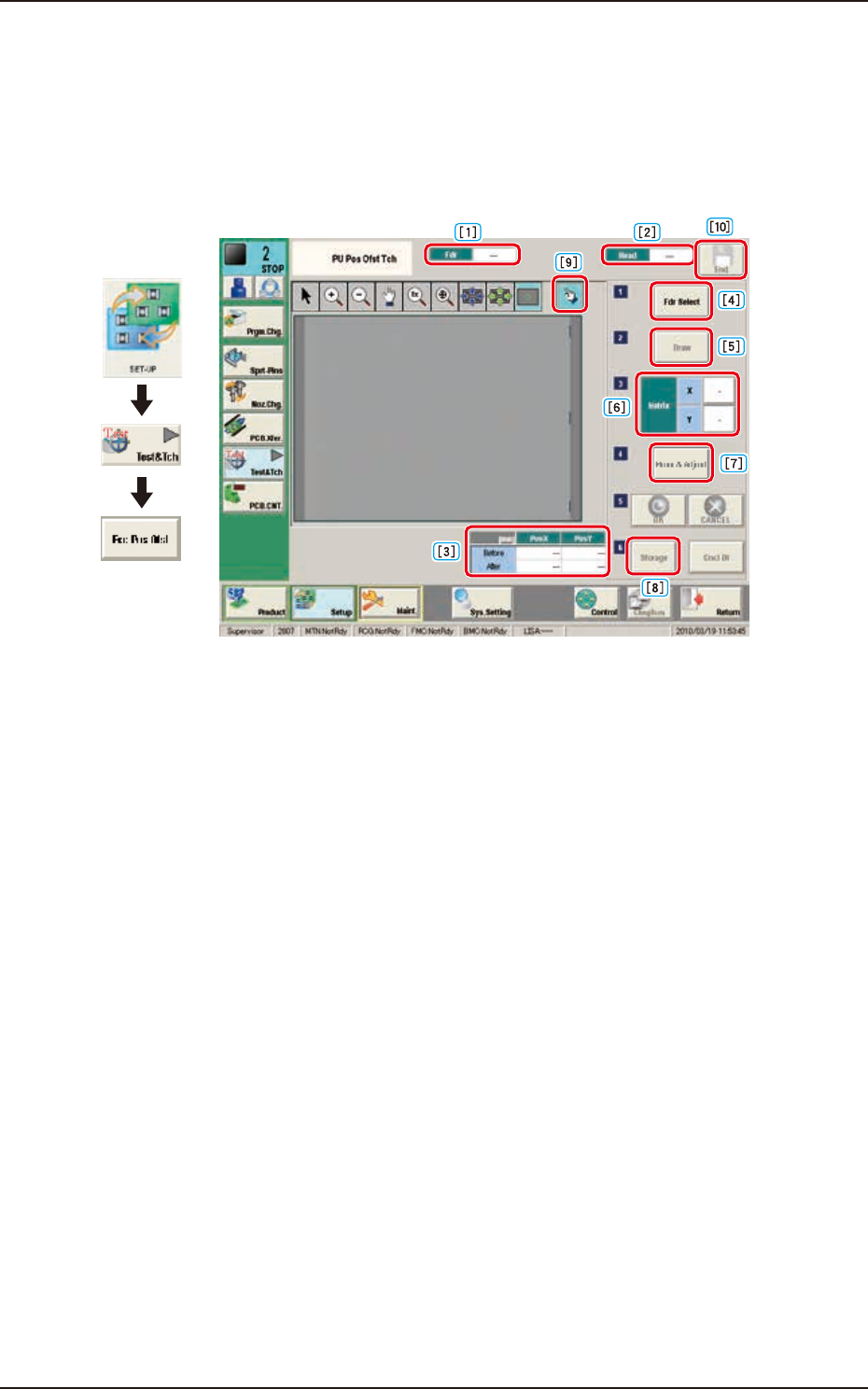
[1] Fdr
The Feeder No. to pick-up the component is displayed in this data box.
[2] Head
The head No. to be used to perform the teaching operation is displayed in this data box.
[3] Pick-up Position Offset
The pick-up position correction values on the component library data are displayed for the
components in the specified feeder No.
Before : Value before the teaching operation
After : Resultant value after the teaching operation
[4] [Fdr Select] Button
When this button is pressed, the "Fdr Select Form" window is displayed. In this window, select the
feeder to be used to perform the teaching operation.
[5] [Draw] Button
This button is used for the multi-layer tray feeder (option).
[6] Matrix
This group box is used for the multi-layer tray feeder (option).
[7] [Move & Adjust] Button
Pressing this button displays the move & adjust recognition window and performs manual alignment
operation for the pick-up position.
[8] [Storage] Button
This button is used for the multi-layer tray feeder (option).
EUKYX
6-87199-2100
7.5 "PU Pos Ofst Tch" Window
[9] [Re-Recogition] Button
After pressing this button, the recognition image is touched in the matching window to re-recognize
the pockets.
When the pocket recognition is unavailable due to the feeder type, the [Re-Recognition] button
is not displayed.
[10] [End] Button
Pressing this button displays the confirmation window to save teaching data.
[Yes] button: Teaching data is reflected to component library data and overwritten.
[No] button: The saving of teaching data is canceled.
• Re-Recognition Procedure
(1) Press the [Re-Recognition] button on the Matching Window.
(2) Touch the position around the pocket to be re-recognized.
(The graphic image is moved.)
• Teaching Procedure
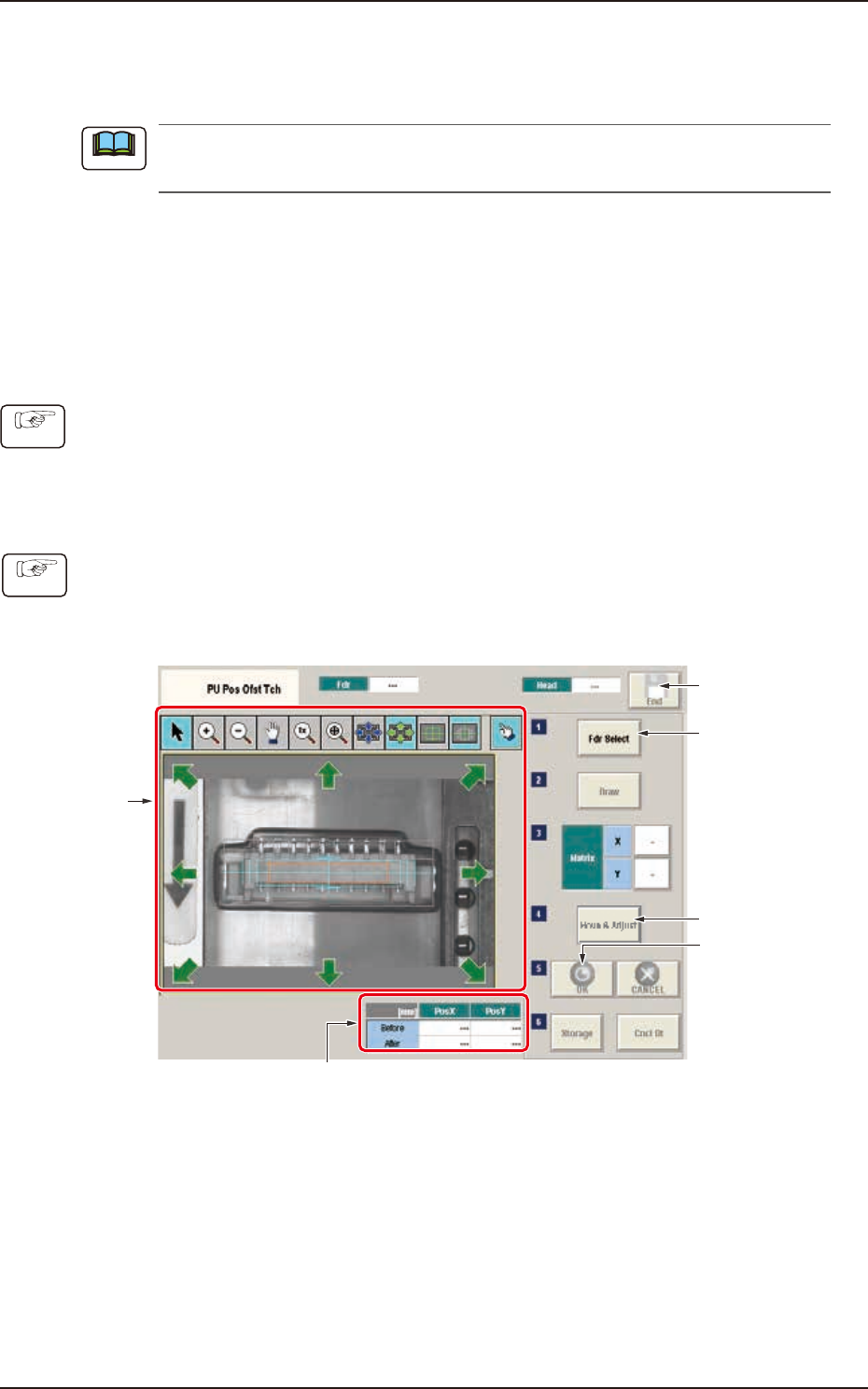
(1) Press the [Fdr Select] button to select the feeder for which the teaching operation is
performed.
(2) Press the [Move & Adjust] button. (The move & adjust recognition window will be displayed
to enable the manual alignment operation).
(1)
(5)
(2)
(4)
Correction value of pickup position
(3)
F2F121
(3) Move the eccentric pick-up position of the subject for which the manual alignment operation
is performed, so that it is the center of the cross hairs using the image movement button in
the recognition window.
(4) Press the [OK] button to determine the position. (The teaching results are displayed in the
data boxes for the pick-up position corrected values.)
(5) Press the [Save] button. (The confirmation window for the data saving will be displayed).
• When [Yes] is pressed, the data is reflected on the component library data and saved.
• When [No] is pressed, the data saving operation is stopped.
Note
Procedure
Procedure