EUKYX-199-2100_G5S2_Instruction_Vol2_E.pdf - 第68页
EUKYX 1-18 199-2100 4.1 "Run Mode" T ab Sheet 4. 1 "Run Mode " T ab S heet [3] [1] [2] Graphic Development F2A16 [ 1 ] "Run Mode" Select ion But tons Press either one of the fol lowi ng but …
EUKYX
1-17199-2100
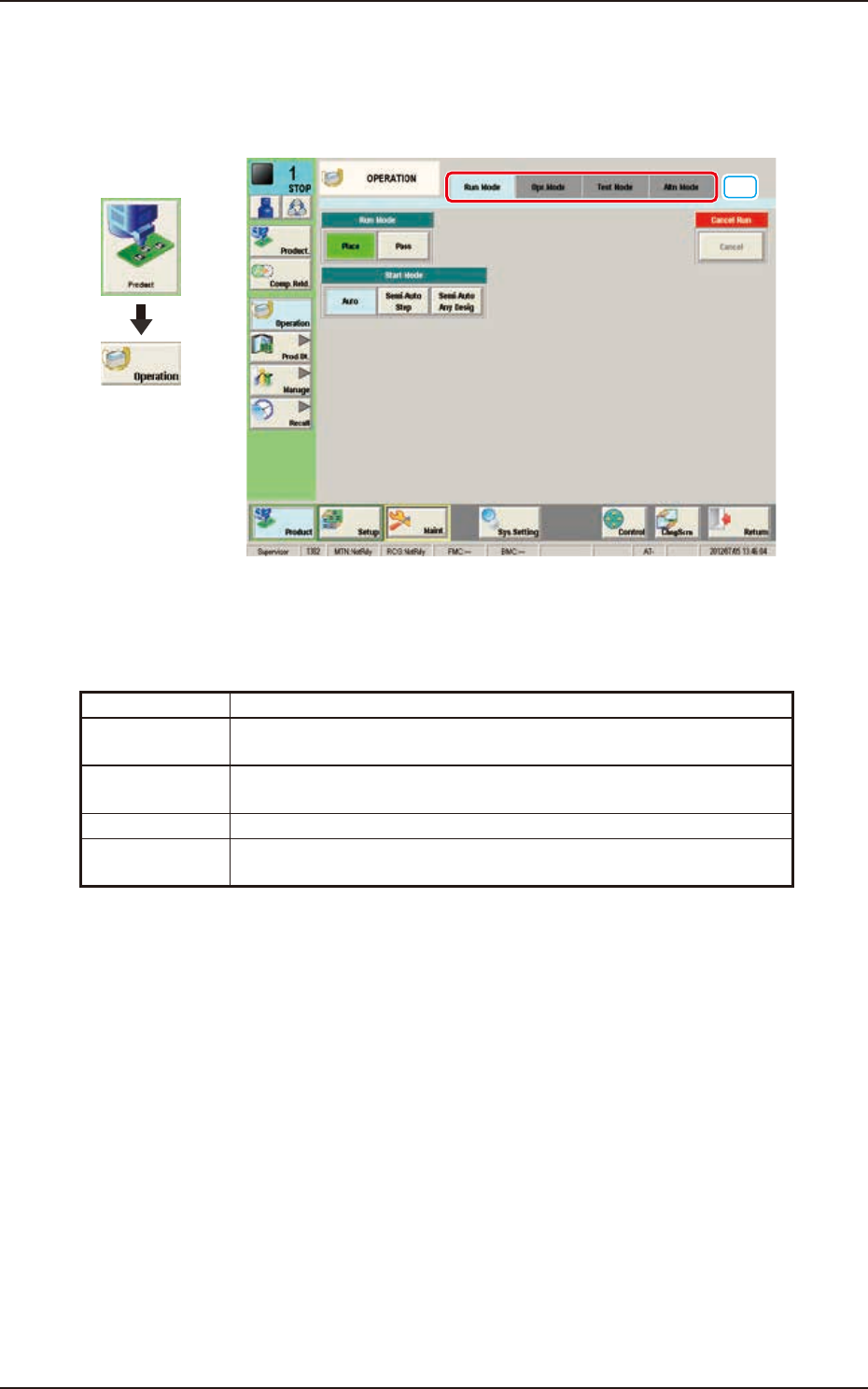
4. "OPERATION" Window
4. "OPERATION" Window
The constraints based on the designation of any of the various operation modes in the automatic
operation and operation method in the test operation, are set in this window.
[1]
Graphic
Development
F2A15
[1] Tabs and Tab Sheets
The "OPERATION" window is provided with the following four tabs. When each tab is pressed, the
corresponding tab sheet appears inside the window.
Tabs Description
Run Mode The corresponding tab sheet enables the operator to change the
operation mode or stop the production.
Opr. Mode The corresponding window enables the operator to select an operation
mode such as Over Tact-Time Reduction.
Test Mode The corresponding window enables the operator to set test modes.
Altn Mode The corresponding tab sheet enables the operator to set the "Feeder
Alternate"function.
EUKYX
1-18199-2100
4.1 "Run Mode" Tab Sheet
4.1 "Run Mode" Tab Sheet
[3]
[1]
[2]
Graphic
Development
F2A16
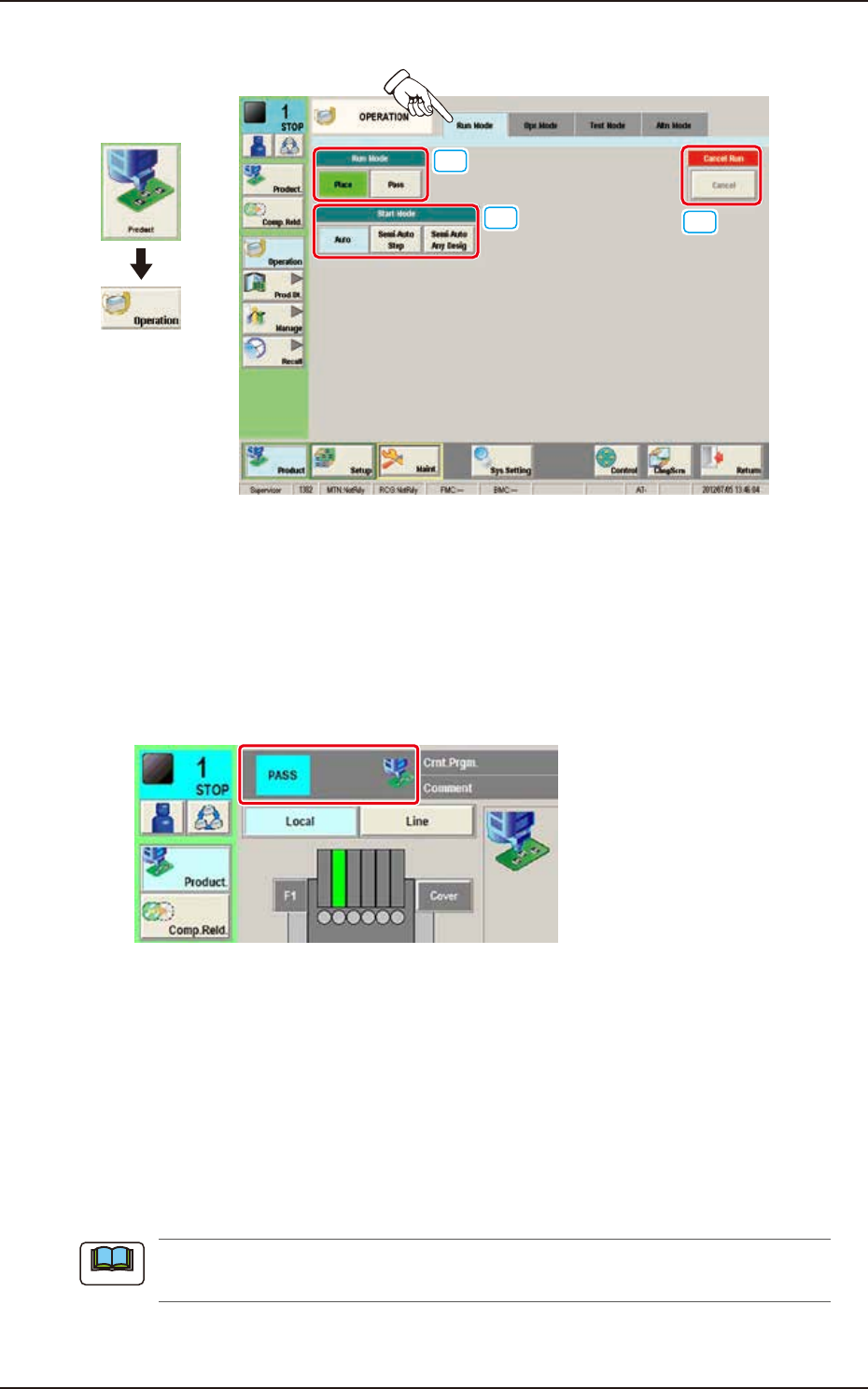
[1] "Run Mode" Selection Buttons
Press either one of the following buttons to select the desired run mode.
[Place] Button : Select this button to set the machine in the "PLACE (Automatic
Operation)" mode.
[Pass] Button : Select this button to set the machine in the "PASS" mode.
In the case that the pass operation has been setup, "PASS" is displayed in the "Status
Indicator" on the upper area of the "Product" window.
Status Indicator
F2A17
[2] “Start Mode” Selection Buttons
Using the following buttons, the start mode is setup.
[Auto] Button : Select this button to start up the machine automatically.
[Semi-Auto Step] Button : When this button is pressed, the designated step operation (one
component/point) is performed.
[Semi-Auto Any Desig] Button : When this button is pressed, the designated step operation
(Designating two or more steps is available) is performed.
[3] Cancel Run
When the [Cancel] button is pressed, the “Pause” condition is cancelled and the machine is turned
to the “STOP” mode.
When the machine is set to the “PAUSE” mode by pressing the [STOP] button on the operation
panel during the automatic operation, etc., the [Cancel] button becomes available.
Note
EUKYX
1-19199-2100
4.1 "Run Mode" Tab Sheet
4.1.1 With the start of step described
This function is used when the step is designated in the component reload, recovery or test PCB
placement operation, etc.
There are two types of start with the step designated: Semi-Auto Step and Semi-Auto Step Any
Desig (free designation).
The display window and start procedure are described as follows.
• Description of Semi-Auto Step
A single step operation (1 component/point) can be designated.
Description of "Semi-Auto Step" Window
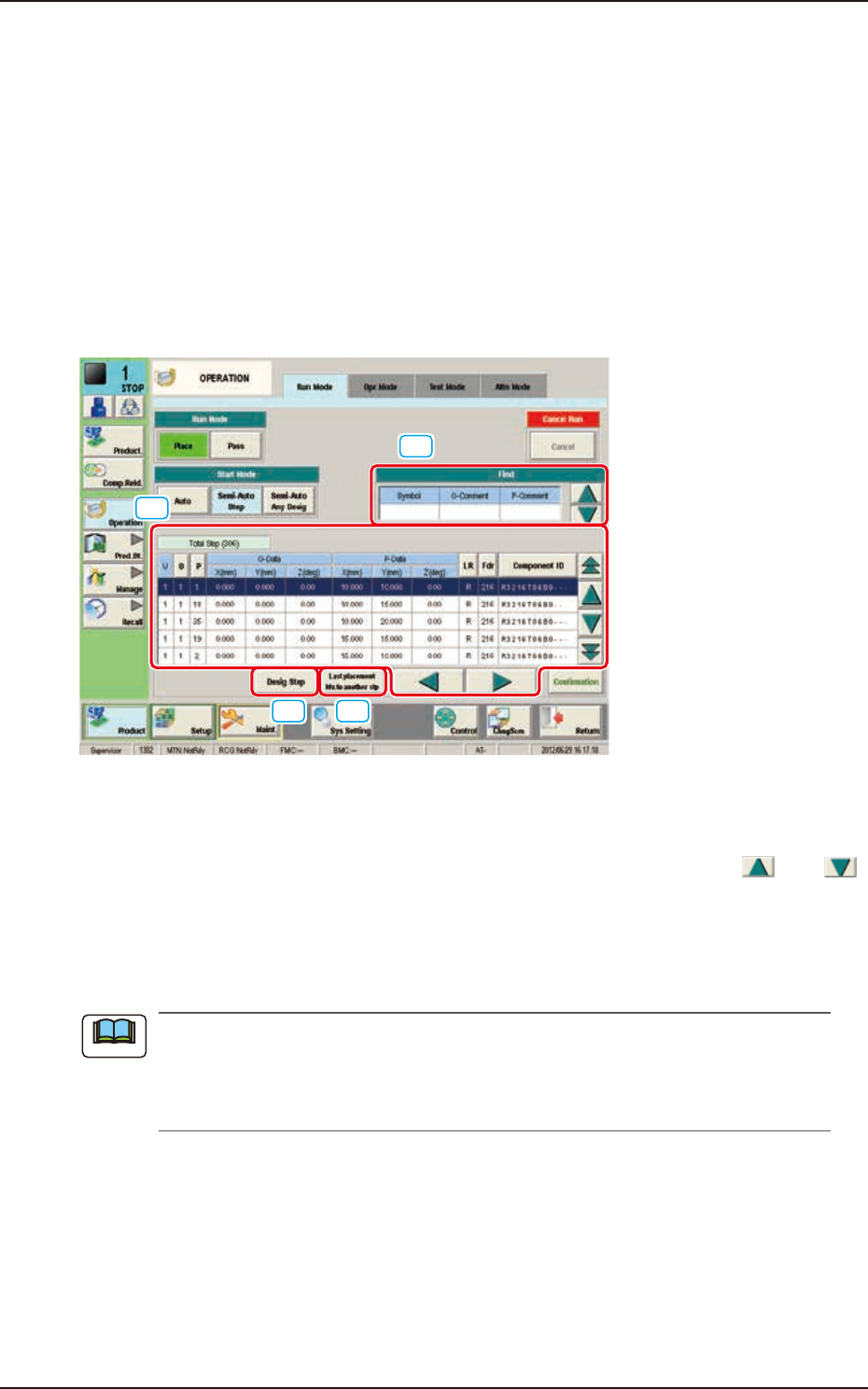
When the [Semi-Auto Step] button is pressed in the "Start Mode" group box, the following window
appears.
[1]
[2]
[3] [4]
F2A18
[1] "Find" (Search) Section
The search can be performed with "Symbol", "O Comment" and "P Comment" data. Entering the set
parameters in "Symbol", "O Comment" and "P Comment" data box and pressing the [
] or [
] button designate the entered step.
[2] Step Display Section
The No. of total steps in the pattern program set in the machine, is displayed in this section.
Setting the cursor on the step can also designate the step.
In normal cases, the starting step Nos. are displayed in the order of actual component
placement. By pressing the [O] or the [P] button, the steps can be re-arranged in the ascending
order. Even when the step Nos. are rearranged, the component placement order is not
changed.
[3] [Desig Step] Button
The step No. can be entered and designate in the entry window displayed by pressing the [Desig
Step] button. Enter the step No. in the order of “U”, “O” and “P”.
[4] [Last placement Mv.to another stp] Button
When this button is pressed, the step is moved to the “Last placement Mv. to another stp” (final
placement step) position.
Note