EUKYX-199-2100_G5S2_Instruction_Vol2_E.pdf - 第255页
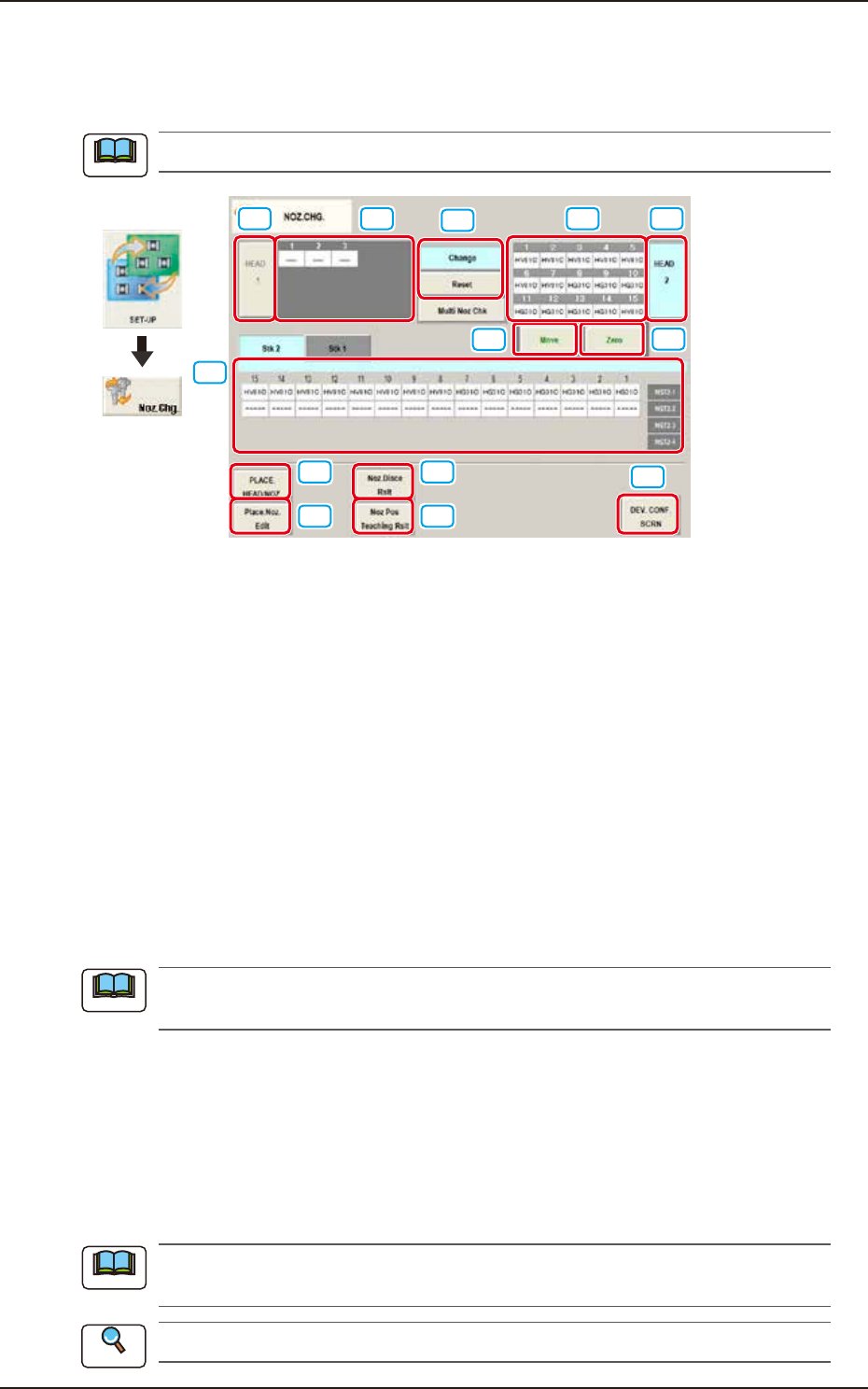
EUKYX 6-18 199-2100 5. "NOZ.CHG." Window [ 6] [Zero] Button When pressed, al l devi ces are zeroed. [ 7 ] [PLACE. HEA D /NO Z .] Butto n Us ing thi s button, the head / no zzle p la cement da ta set in the patt…
EUKYX
6-17199-2100
5. "NOZ.CHG." Window
5. "NOZ.CHG." Window
For the nozzle change, the "Overall Setup" or "Manual Setup" operation is performed.
The window shows the condition where a multi-functional head is mounted onto the head No. 1 position.
[1]
[2]
[4]
[5]
[6]
[7]
[8]
[9]
[10]
[11]
[3] [3][2]
Graphic
Development
F2F21
[1] "Nozzle Stocker Status Indicator" Panel
Indicated is the status of the nozzle stockers. The address that nozzle stocker is not set is not
displayed. (Example: “NST2-3 and “NST2-4“ above)
[2] "Vacuum Nozzle Status Indicator" Field
Indicated is the status of the nozzles attached to each head.
[3] Head Selection Buttons
Press the [Head 1] or [Head 2] button to select the head for which some nozzles should be
changed. The background color of the selected button turns light blue.
[4] Nozzle Operation Buttons
The following buttons are provided.
When the [START] button on the operation panel is pressed within 10 seconds after the
button corresponding to the required operation is selected and the [Move] button is pressed,
the machine performs the selected operation for the nozzle.
[Change] Button
When pressed, this button attaches the vacuum nozzle to the placement head.
When the vacuum nozzles (to be used after a program change operation) are prepared in the
extended stocker (option), they are stored and attached in succession.
[Reset] Button
When pressed, this button stores the vacuum nozzle in the object nozzle stocker.
[Multi Noz Chk] Button
When pressed, this button checks if the multi nozzle set on the nozzle stocker is correct or not
.
[5] [Move] Button
Select the work of the nozzle operation buttons. Press the [Move] button. When the [START] button
on the operation panel is pressed within 10 seconds, the selected nozzle operation is performed.
When the nozzle quantity is not enough in this operation, the required nozzles are displayed
on the “Nozzle Check” window.
Refer to “3. “PP CHANGE” Window” for how to use the “Nozzle Check” window.
Note
Note
Note
Reference
EUKYX
6-18199-2100
5. "NOZ.CHG." Window
[6] [Zero] Button
When pressed, all devices are zeroed.
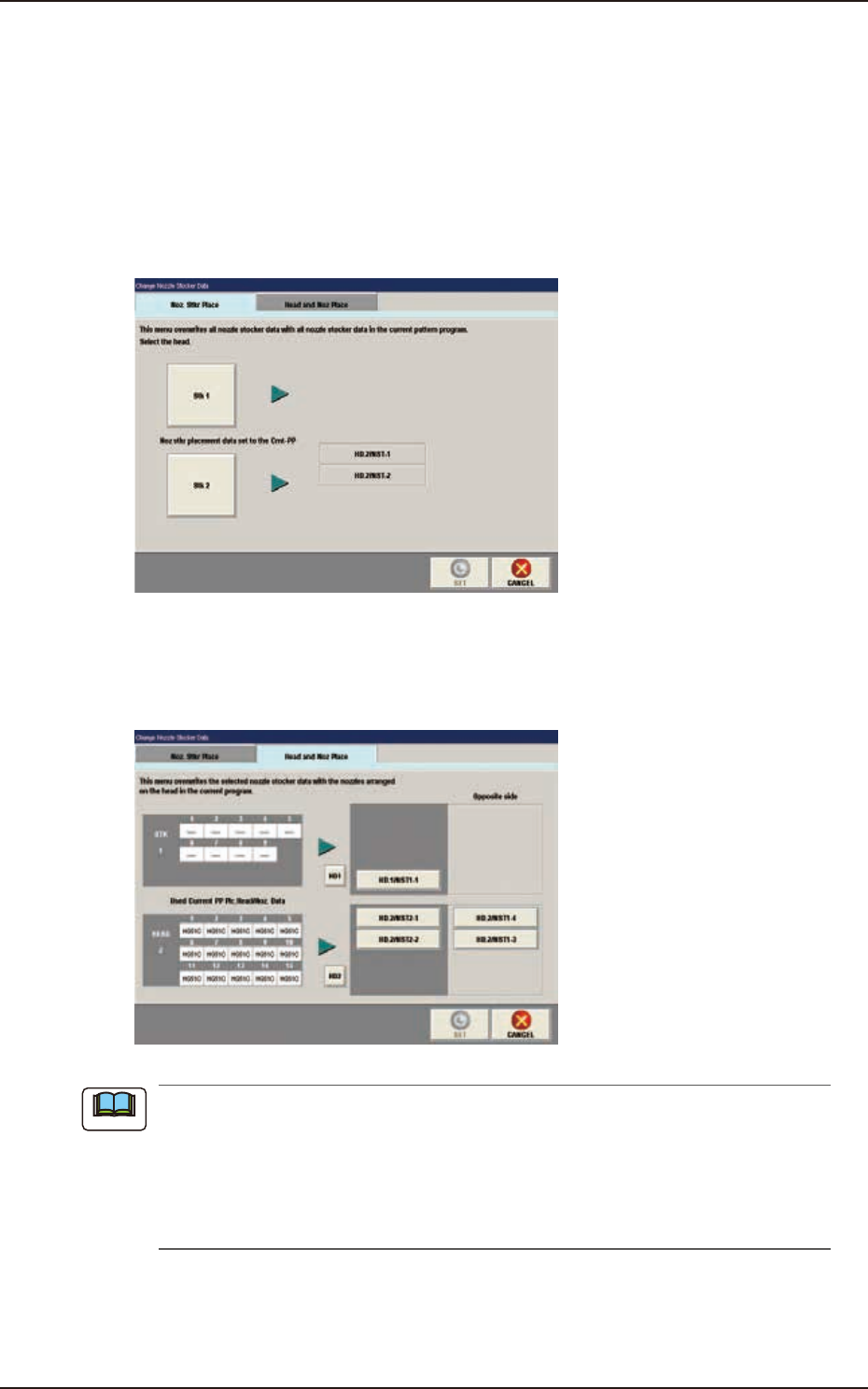
[7] [PLACE. HEAD/NOZ.] Button
Using this button, the head/nozzle placement data set in the pattern program can be read
and reflected on the setup.
[Noz Stkr Place] Tab
When pressing the stocker button to rewrite the nozzle stocker arrangement data and then
pressing the [SET] button, the data is rewritten.
When the [Noz Stkr Place] tab is pressed, the following tab sheet appears.
F2F22
[Head and Noz Place] Tab
When the [Head and Noz Place] tab is pressed, the tab sheet is changed to the "Head and
Noz Place" setup tab sheet. When pressing the stocker button to rewrite the head nozzle
arrangement data and then pressing the [SET] button, the data is rewritten.
F2F23
(a) Only the nozzles corresponding to each nozzle stocker (housing) can be allocated. That
is, only the high-speed nozzles can be allocated to the high-speed nozzle stockers
(housings) and only the middle-size odd shaped nozzle to the middle-size odd shaped
nozzle stockers (housings).
(b) In the case that there is any nozzle stocker where the nozzle allocation setting is
available, on the opposite side, the nozzles can be allocated on the opposite side.
Note
EUKYX
6-19199-2100
5. "NOZ.CHG." Window
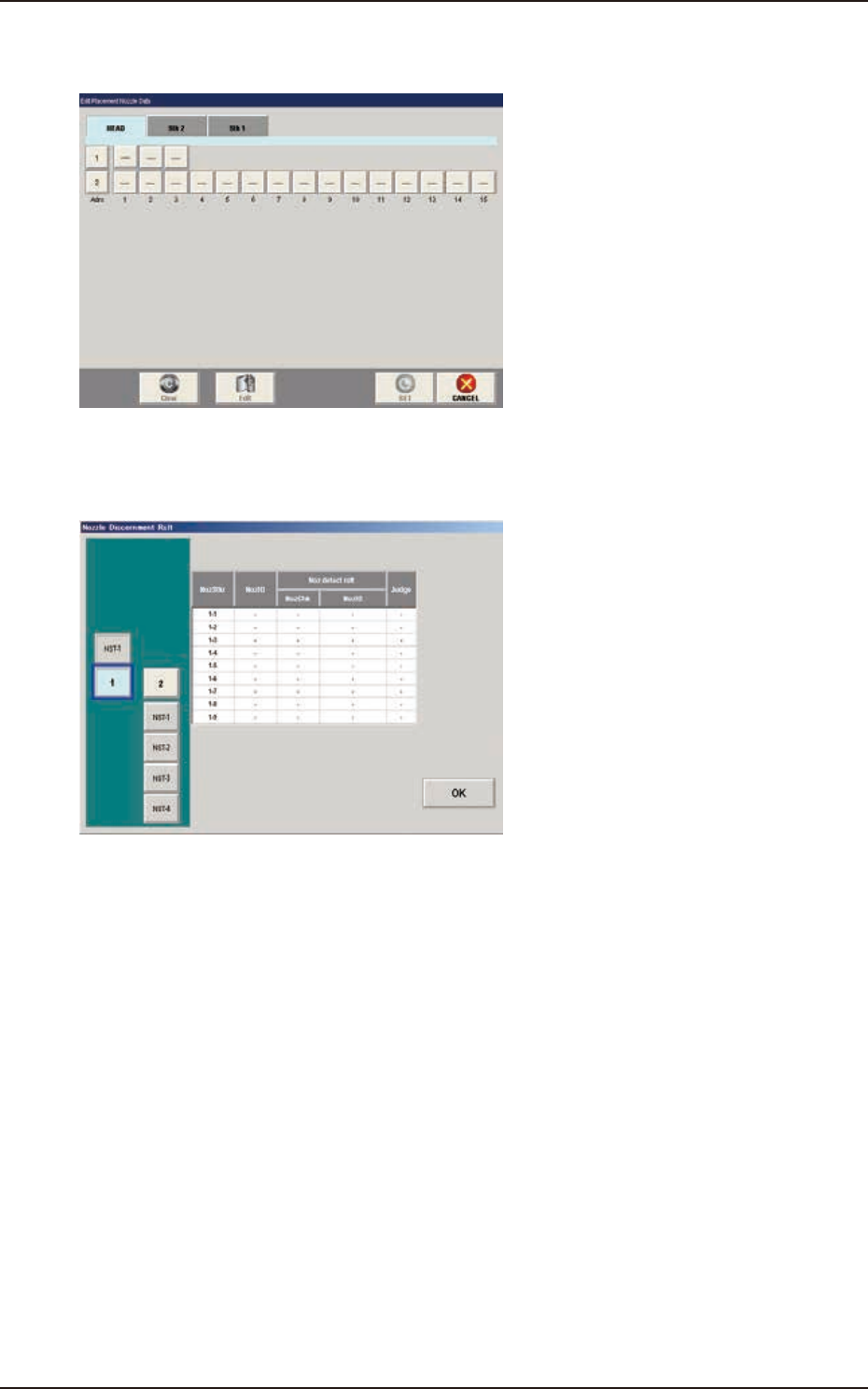
[8] [Place. Noz Edit] Button
When the [Place.Noz Edit] button is pressed, the "Edit Placement Nozzle Data" window appears.
F2F24
[9] [Nozzle Disce Rslt] Button
When the [Noz.Disce Rslt] button is pressed, the "Nozzle Discernment Rslt" window appears.
F2F25