EUKYX-199-2100_G5S2_Instruction_Vol2_E.pdf - 第297页
EUKYX 6-60 199-2100 (2 ) Confirm that t he comp onent is in the yell ow circle (frame) . When it is in the circle, press the [ Y es] but ton. Ot her wise, press t he [No] but ton. F2F68 When the [No] button is sele cte d…
EUKYX
6-59199-2100
7.3.7 "Create Teach" Wizard
Follow the steps below to newly create data to be taught.
7.3.7.1 Leaded Components - QFP
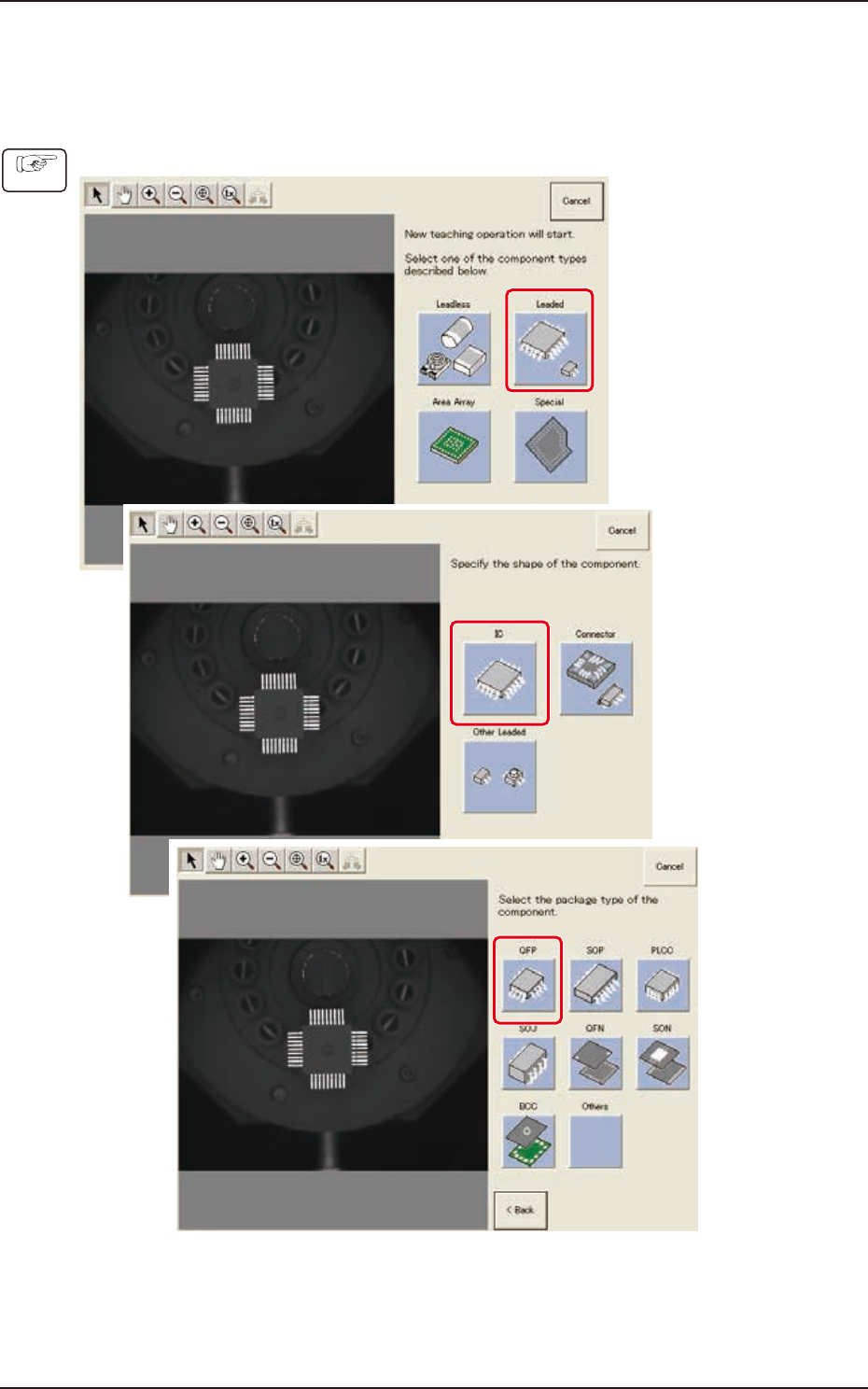
(1) Select [Leaded] - [IC] - [QFP] on “Create teach wizard” window.
F2F65
Procedure
7.3 "COMP RCG" Test Window
EUKYX
6-60199-2100
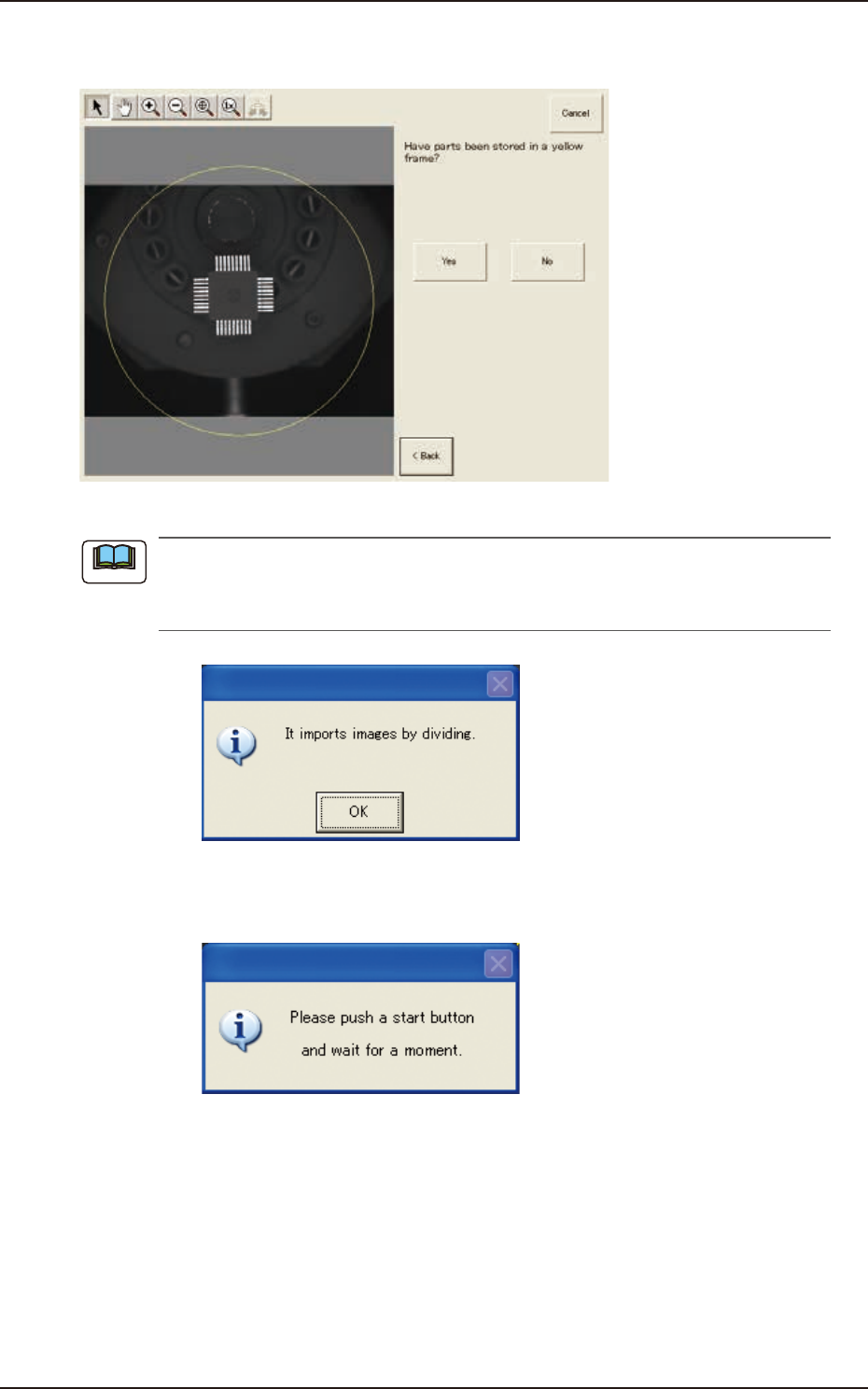
(2) Confirm that the component is in the yellow circle (frame).
When it is in the circle, press the [Yes] button. Otherwise, press the [No] button.
F2F68
When the [No] button is selected, the component image is split into several parts which are
subsequently captured and reassembled to create the whole image to be displayed.
The following dialog box appears. Press the [OK] button.
F2F69
When the [OK] button is pressed, the following dialog window opens. Press the [START] button on
the operation panel and wait until the divided image capturing is completed.
F2F70
Note
7.3 "COMP RCG" Test Window
EUKYX
6-61199-2100
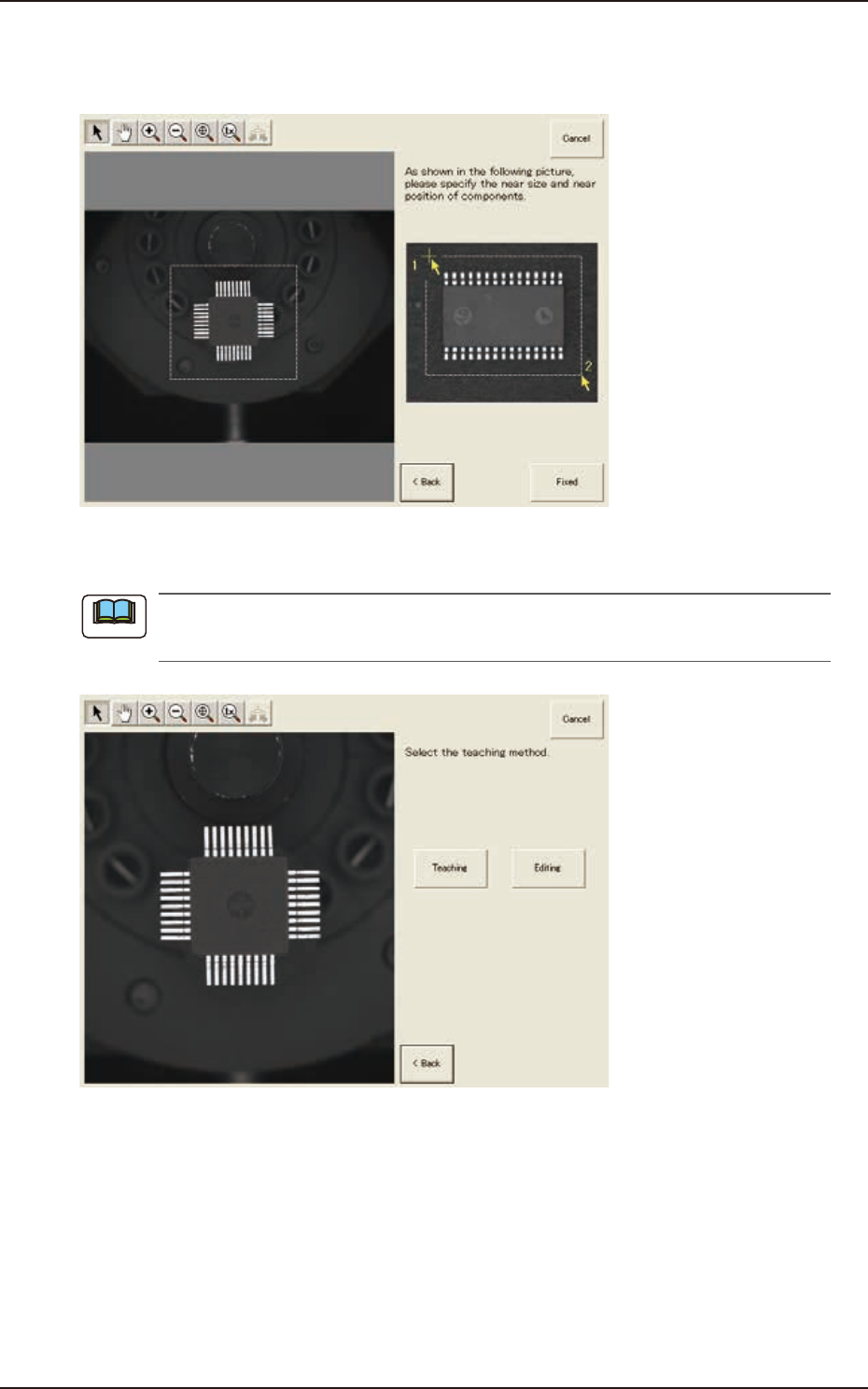
(3) After clicking the upper left of the component image, click the lower right to place the
whole component image within a frame.
(Specify an approximate size and position of the component.)
F2F71
(4) Press the [Teaching] button to select the teaching method.
When the [Editing] button has been selected, the editing operation is performed based on the
sample data. Press the [Complete] button to return to the component library teaching window.
F2F72
Note
7.3 "COMP RCG" Test Window