EUKYX-199-2100_G5S2_Instruction_Vol2_E.pdf - 第90页
EUKYX 1-40 199-2100 4.2.6 F eeder The fol lowi ng wi ndow appear s by press in g the [ Feed er] button on the “Opr . Mo de“ tab sheet . [1] [4] [2] [3] [5] [6] F2A32A [ 1 ] Pickup Auto Adjust Thi s function i s used to c…
EUKYX
1-39199-2100
[5] Nozzle Pickup Ascent
When this button is pressed, the "Nozzle Pick-Up Ascent" edit window opens.
Set the rate of speed reduction in the data entry field for the ascending movement of the nozzle
(nozzle movement after the nozzle has picked up a component from the feeder).
[6] Nozzle Plcmnt Descent
When this button is pressed, the "Nozzle Plcmnt Descent" edit window opens.
Set the rate of speed reduction in the data entry field for the descending movement of the nozzle
(nozzle movement to place a component on the PCB).
[7] Nozzle Plcmnt Ascent
When this button is pressed, the "Nozzle Plcmnt Ascent" edit window opens.
Set the rate of speed reduction in the data entry field for the ascending movement of the nozzle
(nozzle movement after the nozzle has placed a component on the PCB).
[8] Nozzle Select
When this button is pressed, the "Nozzle Select" edit window opens.
Enter the rate of speed reduction in the data entry field for a series of operations performed when
the nozzle is changed.
[9] Head Up/Down
When this button is pressed, the "Head Up/Down" edit window opens.
Enter the rate of speed reduction in the data entry field for the head upward and downward
movement.
[10] Head Rotation
When this button is pressed, the “Head Rotation” edit window opens.
Enter the rate of speed reduction in the data entry field for the head rotation.
(a) If a higher speed than that specified in this window is set in the component library data,
it is regulated to the specified upper limit.
(b) If a lower speed than that specified in this window is set for some components in the
component library data, it becomes valid.
[11] Retention time bfr Pl descent
The stop time before the moving down for the placement, is set in this data box.
Rang : 0 to 255 ms
Value : 0 ms
Note
4.2 "Opr.Mode" Tab Sheet
EUKYX
1-40199-2100
4.2.6 Feeder
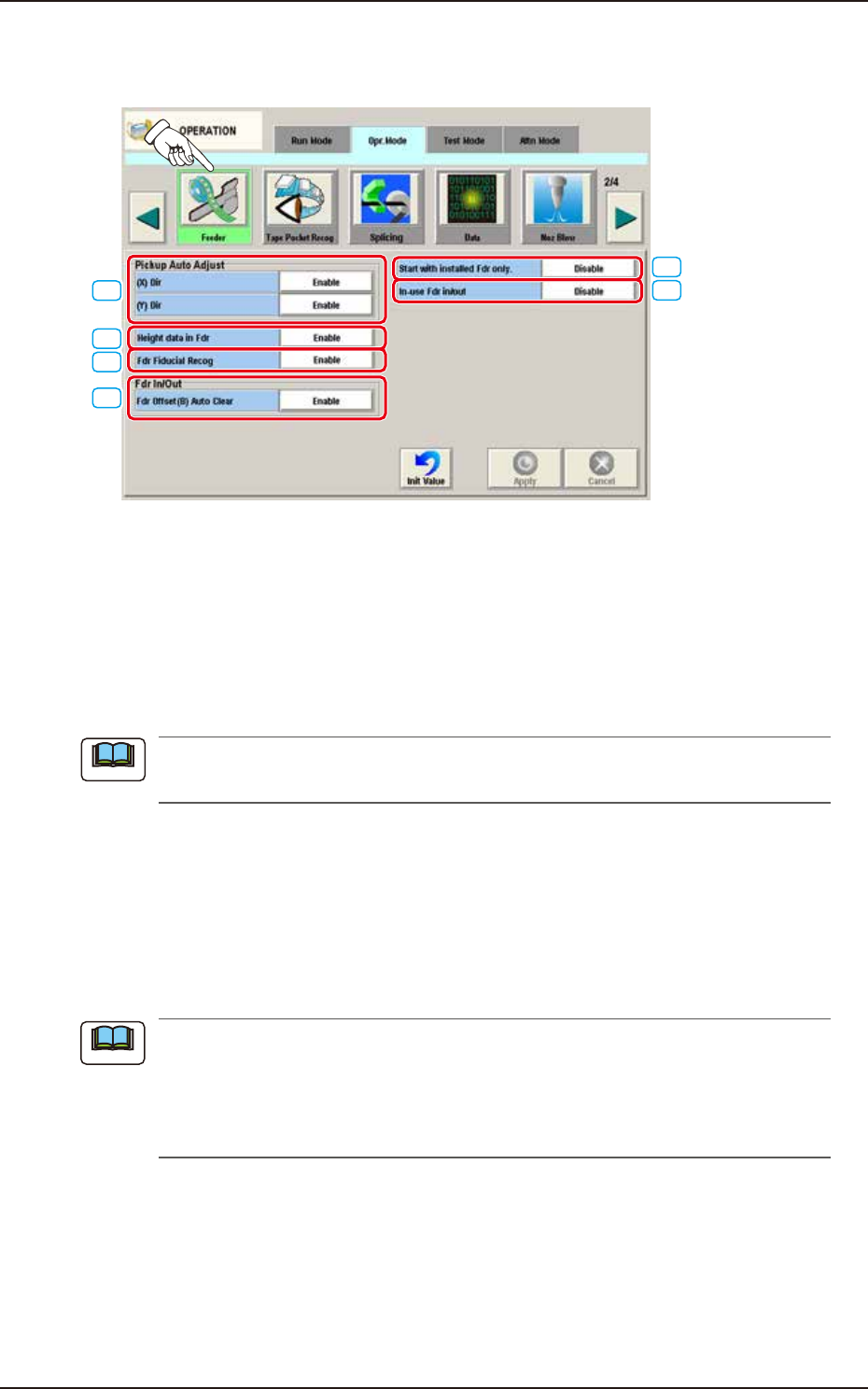
The following window appears by pressing the [Feeder] button on the “Opr. Mode“ tab sheet.
[1]
[4]
[2]
[3]
[5]
[6]
F2A32A
[1] Pickup Auto Adjust
This function is used to correct the feeder offset data through statistical processing of the difference
between the nozzle and component center positions calculated during component recognition
according to the parameters specified as "Auto fdr axis adj set" in the "Auto Ope. Set-up" tab sheet
in the "System" window.
The [Enable] or the [Disable] button can be selected for the pickup auto adjust mode.
Each button can be selected separately for the X and Y directions.
The "Auto Ope. Set-up" tab appears when the [Ope. Palam.] button is pressed after pressing
the [Sys. Setting] button on the common menu bar.
►
(X) Dir
Enable:
Select this button to use the automatic feeder axis adjustment function for the X direction.
Disable:
Select this button not to use the automatic feeder axis adjustment function for the X direction.
►
(Y) Dir
Enable:
Select this button to use the automatic feeder axis adjustment function for the Y direction.
Disable:
Select this button not to use the automatic feeder axis adjustment function for the Y direction.
(a) In normal cases, the [Enable] button should be selected.
(b) The designation of the pickup auto adjust function for a specific feeder can be canceled
in the component library data.
(c) When the machine is set in the “RUN” or the “WAIT” mode, the data save operation
(saving of changed settings) cannot be performed.
[2] Height data in Fdr
Enable:
Select this button to use the feeder height data when components are picked up.
Disable:
Select this button not to use the feeder height data when components are picked up.
Note
Note
4.2 "Opr.Mode" Tab Sheet

EUKYX
1-41199-2100
[3] Fdr Fiducial Recog
Enable:
It is selected when the Feeder Fiducial Recognition is used.
Disable:
It is selected when the Feeder Fiducial Recognition is not used.
[4] Fdr In/Out
"Enable" or "Disable" can be selected to determine whether or not the feeder offset (B) data should
be cleared automatically when the feeder is installed or uninstalled.
►
Fdr Offset (B) Auto Clear
Disable
Select this button not to clear the feeder offset (B) data automatically when the feeder is installed or
uninstalled.
Enable
Select this button to clear the feeder offset (B) data automatically when the feeder is installed or
uninstalled.
[5] Start with installed Fdr only
Disable
When pressed, automatic operation with installed feeder only is available.
Enable
When pressed, automatic operation with installed feeder only is disabled.
[6] In-use Fdr in/out
Disable
This button is selected when the "in-use feeder in/out" function is not used.
Enable
This button is selected when "in-use feeder in/out" function is used.
4.2 "Opr.Mode" Tab Sheet