EUKYX-199-2100_G5S2_Instruction_Vol2_E.pdf - 第77页
EUKYX 1-27 199-2100 4.2 "Opr .Mode" T ab Sheet 4.2. 2 Image Sav e When the [ Image Sa ve] but ton is pressed on the " Opr . Mo de" tab shee t, the fol low in g wi ndow appears. Set parameters in the &…
EUKYX
1-26199-2100
4.2 "Opr.Mode" Tab Sheet
4.2.1 Recog Display
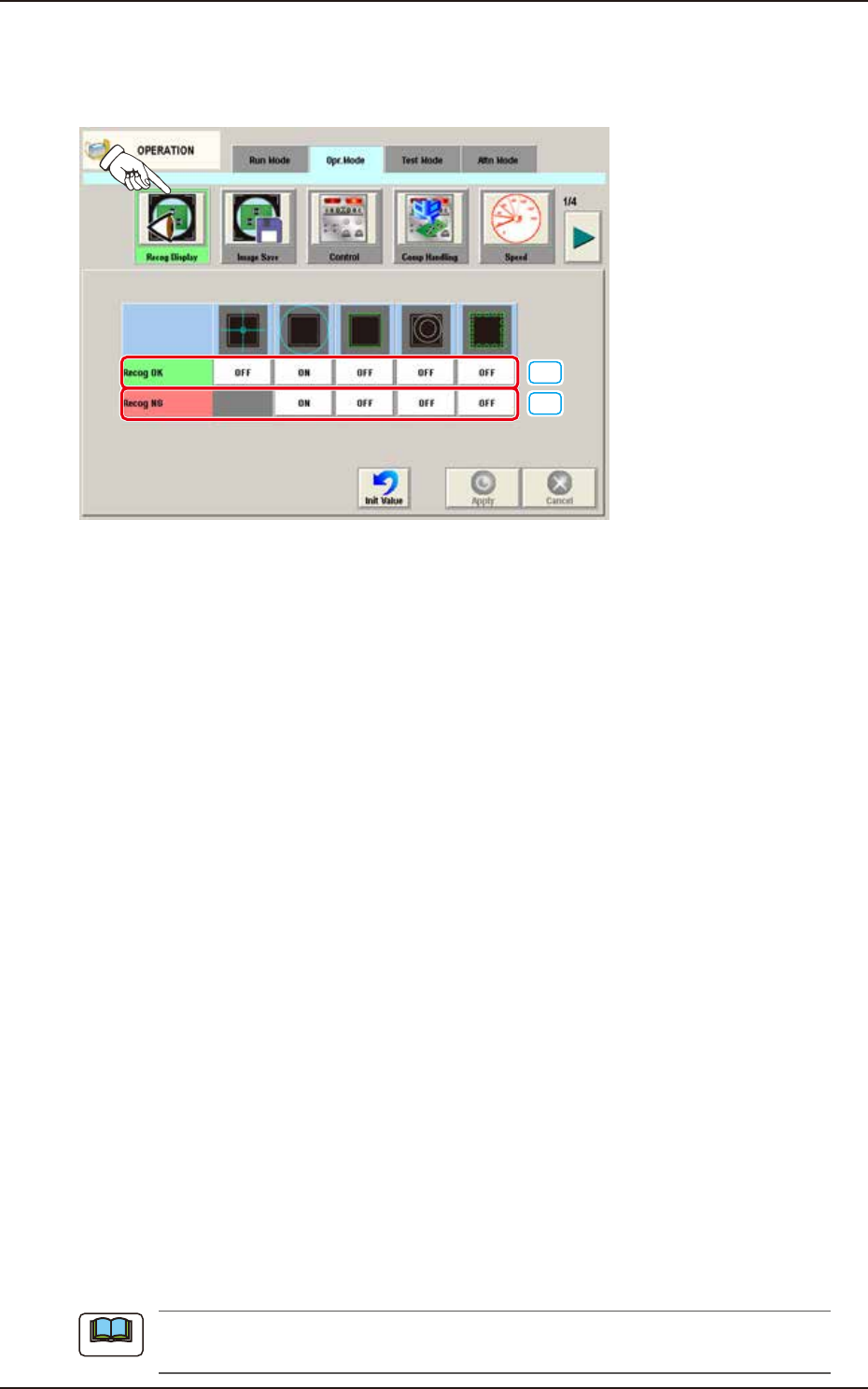
When the [Recog Display] button is pressed on the "Opr.Mode" tab sheet, the following window appears.
On this window, the graphic display setting when the recognition results are displayed, is performed.
[1]
[2]
F2A26A
[1] Recog OK
When the result of recognition is normal, the graphics of the items for which the setting has
been "ON" using the following buttons, are displayed.
[Cross] Button
When selected, this displays a crosshair at the center of the recognized object.
[Circle] Button
When selected, this displays a circle at the center of the recognized object.
[Outside] Button
When selected, this displays the outline of the recognized object.
[Nozzle Outside] Button
When selected, this displays the outline of the vacuum nozzle that was used to recognize a
component.
[Detect Pos] Button
When selected, this displays the detection area, detected corner or edge position.
[2] Recog NG
When the result of recognition is abnormal, the graphics of the items for which the setting
has been “ON” using the following buttons, are displayed.
[Circle] Button
When selected, this displays a circle at the center of the recognized object.
[Outside] Button
When selected, this displays the outline of the recognized object.
[Nozzle Outside] Button
When selected, this displays the outline of the vacuum nozzle that was used to recognize a
component.
[Detect Pos] Button
When selected, this displays the detection area, detected corner or edge position.
When the button corresponding to the set item, is pressed, turning ON/OFF of the button can
be performed. Multiple items can be selected.
Note
EUKYX
1-27199-2100
4.2 "Opr.Mode" Tab Sheet
4.2.2 Image Save
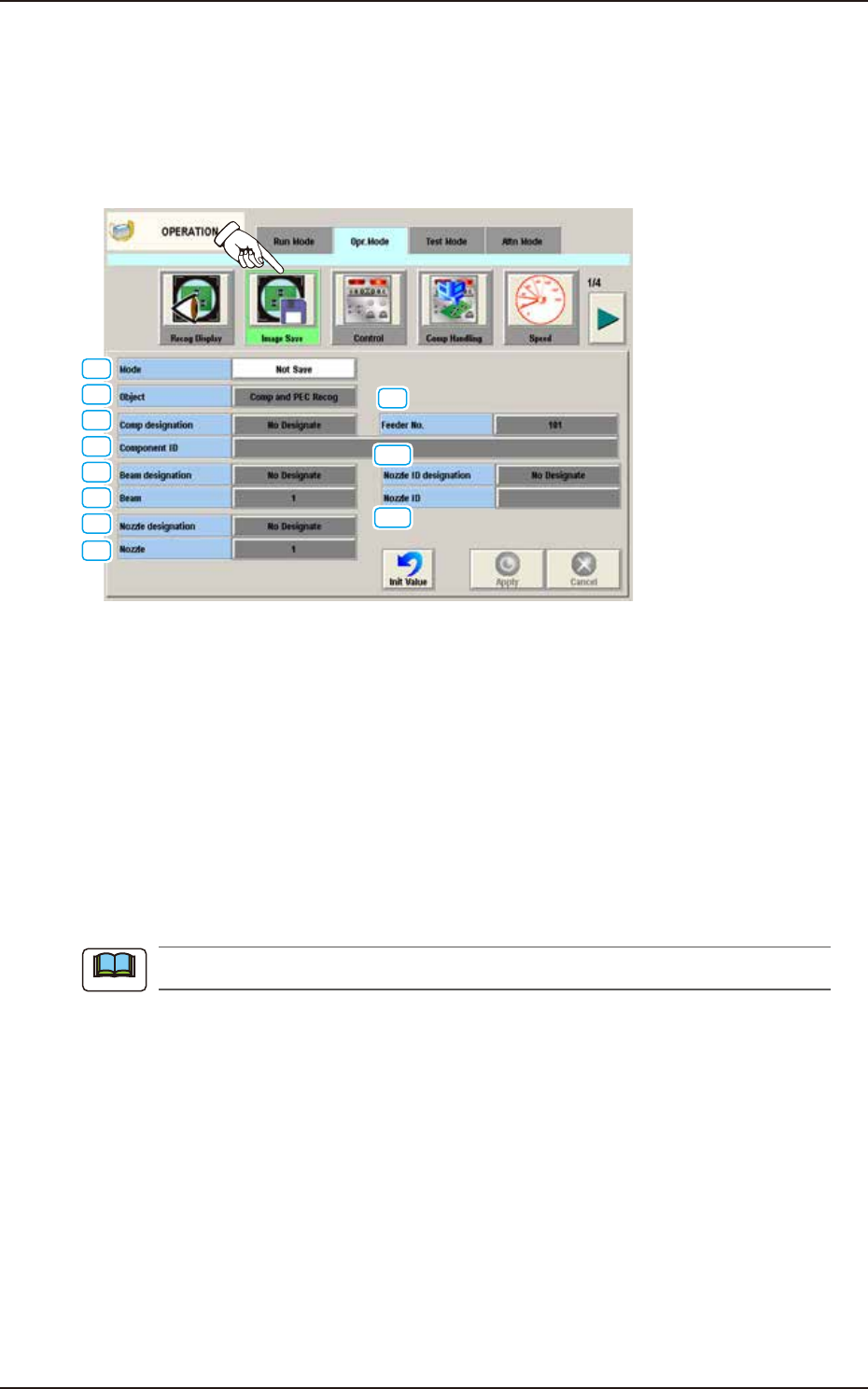
When the [Image Save] button is pressed on the "Opr. Mode" tab sheet, the following window
appears. Set parameters in the "Object" and "Select" text boxes to analyze the cause of a recognition
error in comparison with the error image on the monitor.
When "Save" is set in the "Mode" text box, the image which matches the parameters in the "Object"
and "Select" text boxes is stored in memory of the Machine.
[1]
[2]
[3]
[4]
[5]
[6]
[7]
[8]
[9]
[10]
[11]
F2A27A
[1] Mode
Select one of the following options to determine whether or not the recognized image should be
saved.
Not Save : The recognized image is not saved.
Save [Recog NG] : The recognized image is saved only when the recognition results in
"NG" (No Good).
Save [Recog OK] : The recognized image is saved only when the recognition results in
"OK".
Save [Recog NG/OK] : The recognized image is saved when the recognition results in "NG" (Not
Good) or "OK".
When "Not Save" is selected, the other items cannot be set.
Note

EUKYX
1-28199-2100
4.2 "Opr.Mode" Tab Sheet
[2] Object
Select one of the following options as a recognized object to be saved.
Comp and PEC Recog : Both images captured through component and PEC recognition
operations are regarded as object images to be saved.
Comp Recog : Only the image captured through a component recognition
operation is regarded as an object image to be saved.
PEC Recog : Only the image captured through a PEC recognition operation is
regarded as an object image to be saved.
[3] Comp designation
In this section box, whether or not the component to be saved is designated, is selected.
No Designate : The component to be saved is not designated.
Feeder No. : The component to be saved is designated using the feeder No.
Component ID : The component to be saved is designated using the component ID.
[4] Feeder No.
When it is selected, enter the feeder No. to be designated.
[5] Component ID
When "Component ID" is selected in the "Comp designation" text box, enter the component ID to
be designated.
[6] Beam designation
When the image only of the specified beam is to be saved, select "Designate" in this text box.
[7] Beam
When "Designate" is selected in the "Beam designation" text box, select 1 or 2.
[8] Nozzle designation
When saving the image of the specified nozzle only, select "Designate" in this text box.
[9] Nozzle
When “Designate” is selected in the “Nozzle designation” text box, enter the No. of the nozzle to
be designated.
[10] Nozzle ID designation
When saving the image of the specified nozzle ID only, select “Designate” in this text box.
[11] Nozzle ID
When “Designate” is selected for the “Nozzle ID designation”, enter the nozzle ID to be designated.