1OM-1050-002.pdf - 第141页
3.1.2 During Pass Operation T able 1D6 Symptom (1) The LED of the [POWER ON] button illuminates in red and the following window opens. Fig. 1D6-1 Cause (1) An [EMERGENCY STOP] switch was pressed. Remedy (1) Press the [RE…
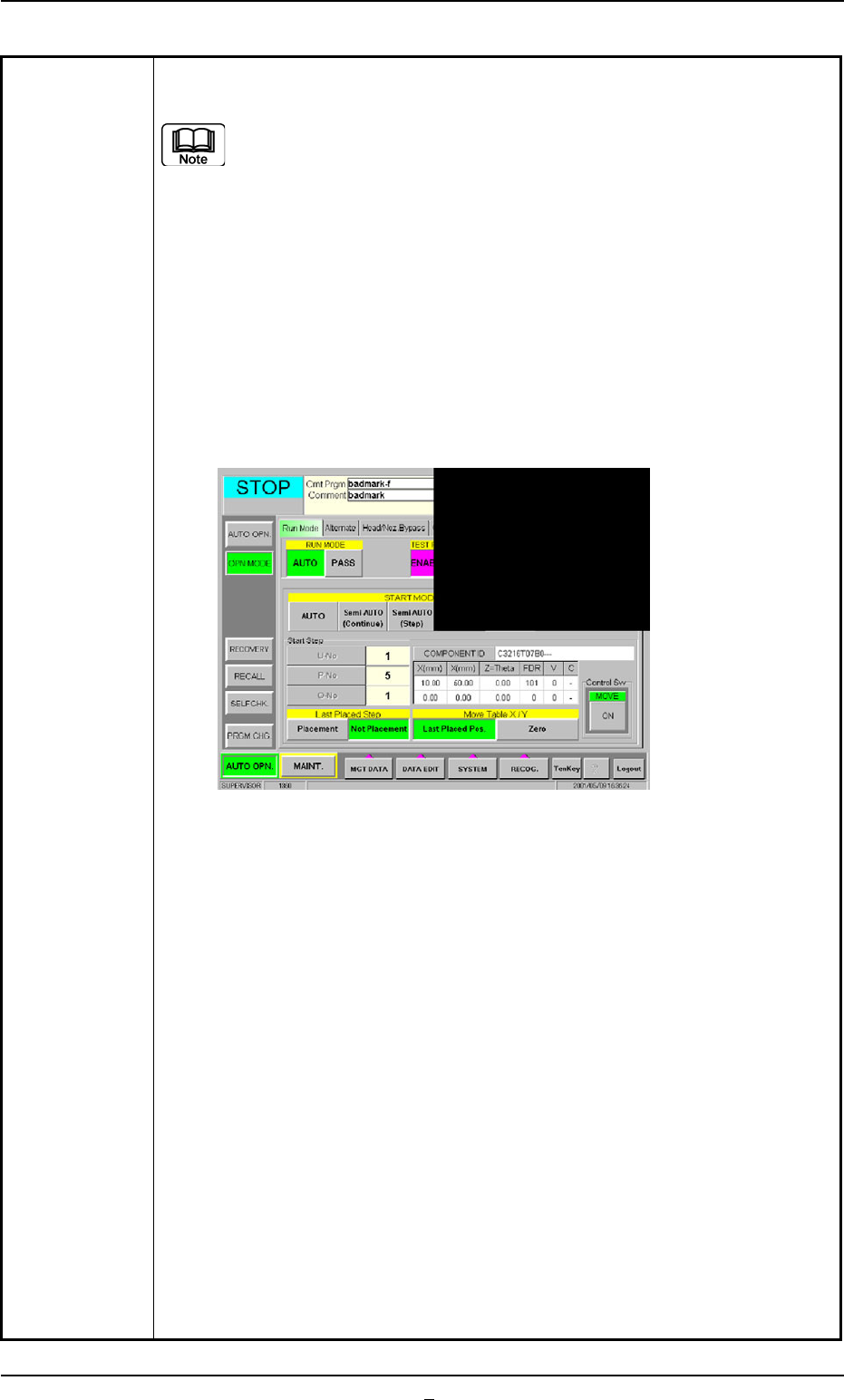
Table 1D5
(10) Check how the last component was placed when the operation was in-
terrupted.
The last placement step is indicated in the "Start Step" group box in
the "OPN. MODE" window (submenu).
Check visually whether or not the relevant component is placed on
the P.C.B.
(11) Press the [Last Placed Pos.] button (entitled "Move Table X/Y") in the
"OPN. MODE" window (submenu).
(12) Press the [RECOG.] button on the main menu bar and make the recog-
nition window (1/4 of the whole view at the upper right corner) appear.
(13) Press the [ON] button (entitled "MOVE"). In two seconds, press the [EN-
ABLE] button on the operation panel.
The last placement position is displayed as a recognition image.
Fig. 1D6 "OPN. MODE" Window (Last Step Confirmation)
(14) Check whether or not the component is placed. If not, select the [Place-
ment] button. If the component is already placed, select the [Not Place-
ment] button.
(15) Press the [Zero] button (entitled "Move Table X/Y") and press the [ON]
button (entitled "MOVE"). In two seconds, press the [ENABLE] button on
the operation panel. The X/Y Table is zeroed.
(16) Press the [START] button on the operation panel. The "Warm Start" op-
eration is implemented.
(17) As for the P.C.B. produced through "Warm Start" operations, be sure to
confirm that all components are correctly placed.
0301-004 4-5 AFO01EOPP
3.1 [EMERGENCY STOP] Switch Pressed
3.1.2 During Pass Operation
Table 1D6
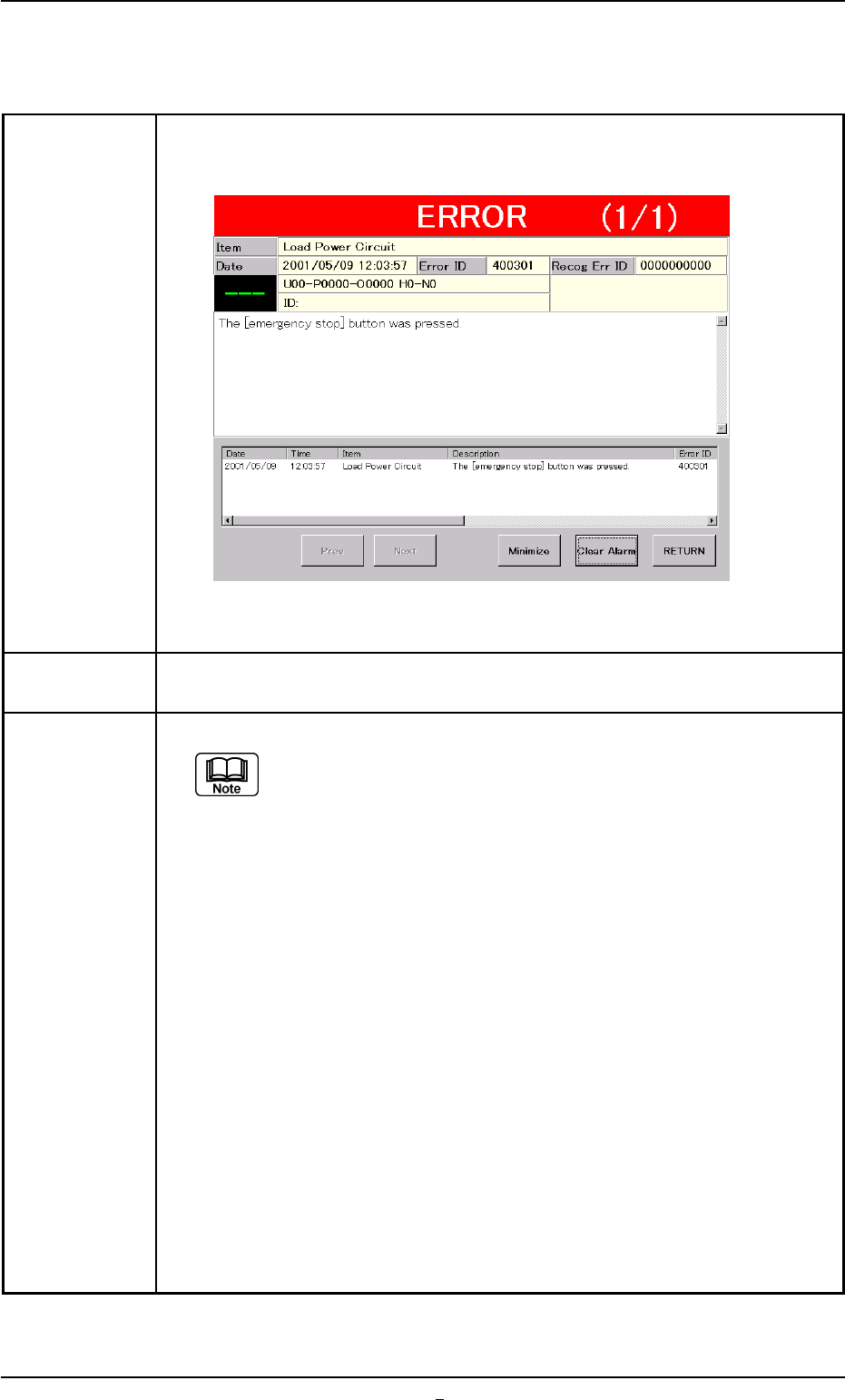
Symptom (1) The LED of the [POWER ON] button illuminates in red and the following
window opens.
Fig. 1D6-1
Cause (1) An [EMERGENCY STOP] switch was pressed.
Remedy (1) Press the [RETURN] button.
Remove the P.C.B. in the middle of passing inside the machine
if any.
(2) Unlock the [EMERGENCY STOP] switch.
(3) Hold down the [POWER ON] button for more than 1 second to re-supply
power to the machine.
• When the LED of the [POWER ON] button illuminates in yellowish
green, it indicates that the power is supplied to the machine.
When the LED is kept red, re-check the cause and remove it.
(4) Press the [ALL] button (entitled “ZERO") in the “AUTO OPN." window. In
2 seconds, press the [ENABLE] button on the operation panel to zero all
device.
0301-002 4-5-1 AFO01EOPP
3.1 [EMERGENCY STOP] Switch Pressed
3.2 Continuous Operation Disabled during Component
Placement
Table 1D7
Symptom The continuous operation became impossible during component placement.
No error message is issued on the touch screen and the machine is kept in
the "RUN" or the "WAIT" mode without any movement.
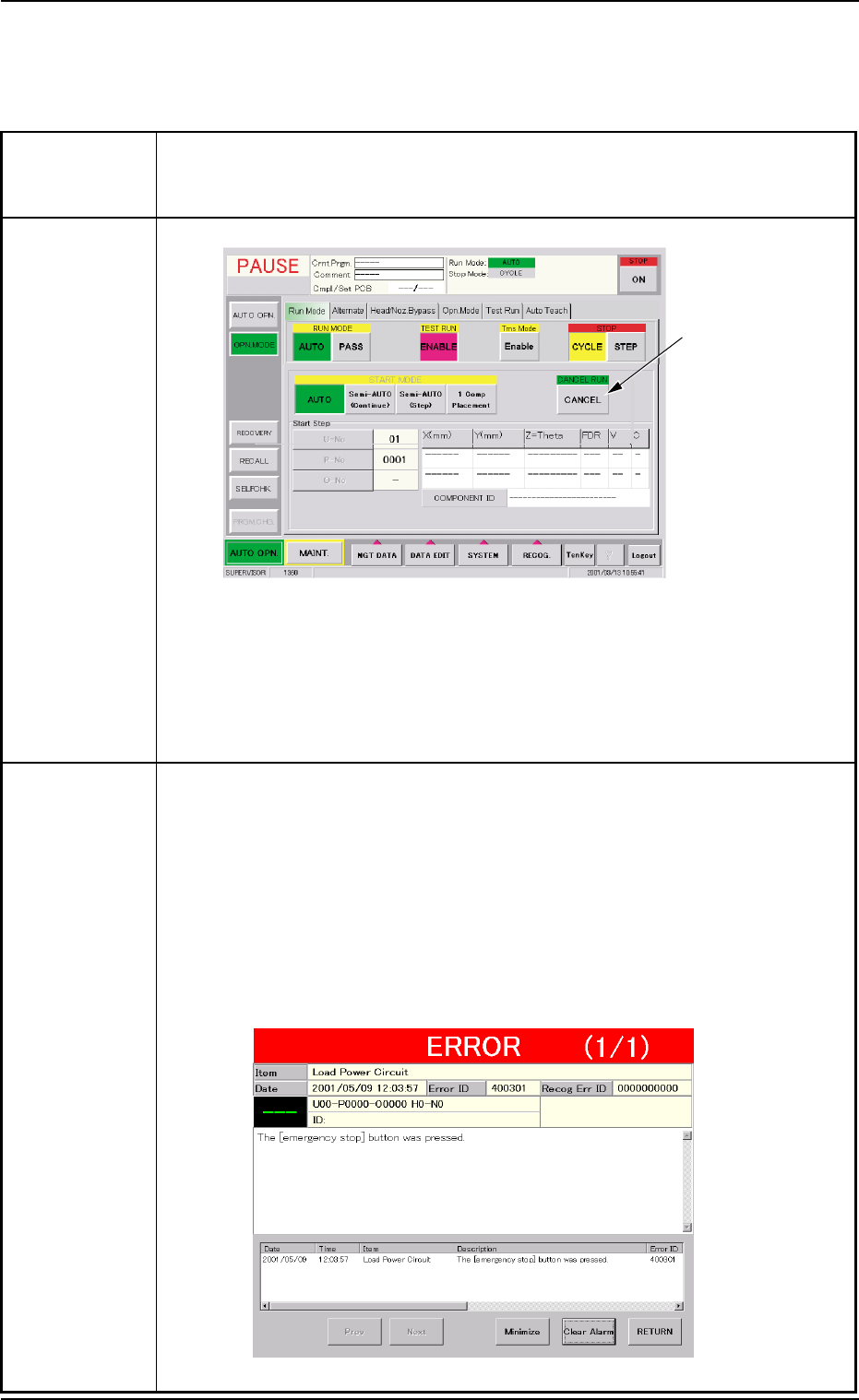
Cause (Cause 1) The [CANCEL] button was pressed.
Fig. 1D7 "Opn. Mode" Tab Sheet ("PAUSE" Mode)
(Cause 2) A timing error has occurred.
An interlock error has occurred.
The machine stopped at an emergency although the cause is un-
known.
Remedy When a normal restart operation is performed after the continuous operation
has become impossible during component placement, the P.C.B. in the middle
of process is discharged to the output machine, producing a defective P.C.B.
Therefore, it is required to perform the following "Warm Start" operation to set
the machine to its normal condition.
(1) Press an [EMERGENCY STOP] switch.
The "ERROR" window opens.
(2) Confirm that the message "The [emergency stop] button was pressed."
has appeared on the screen.
Fig. 1D8 "ERROR" Window
[CANCEL] button
3.2 Continuous Operation Disabled during Component Placement
0301-004 4 - 6 AFO01EOPP