1OM-1050-002.pdf - 第95页
1.2 T ouch Screens 1.2.1 Operation Windows V arious operation windows appear on the touch screen for parameter settings (data input). Basically , operations become available by touching the buttons in a win- dow . T o en…
1. Basic Operations
0207-003 2 - 1 AFO01EOPP
1. Basic Operations
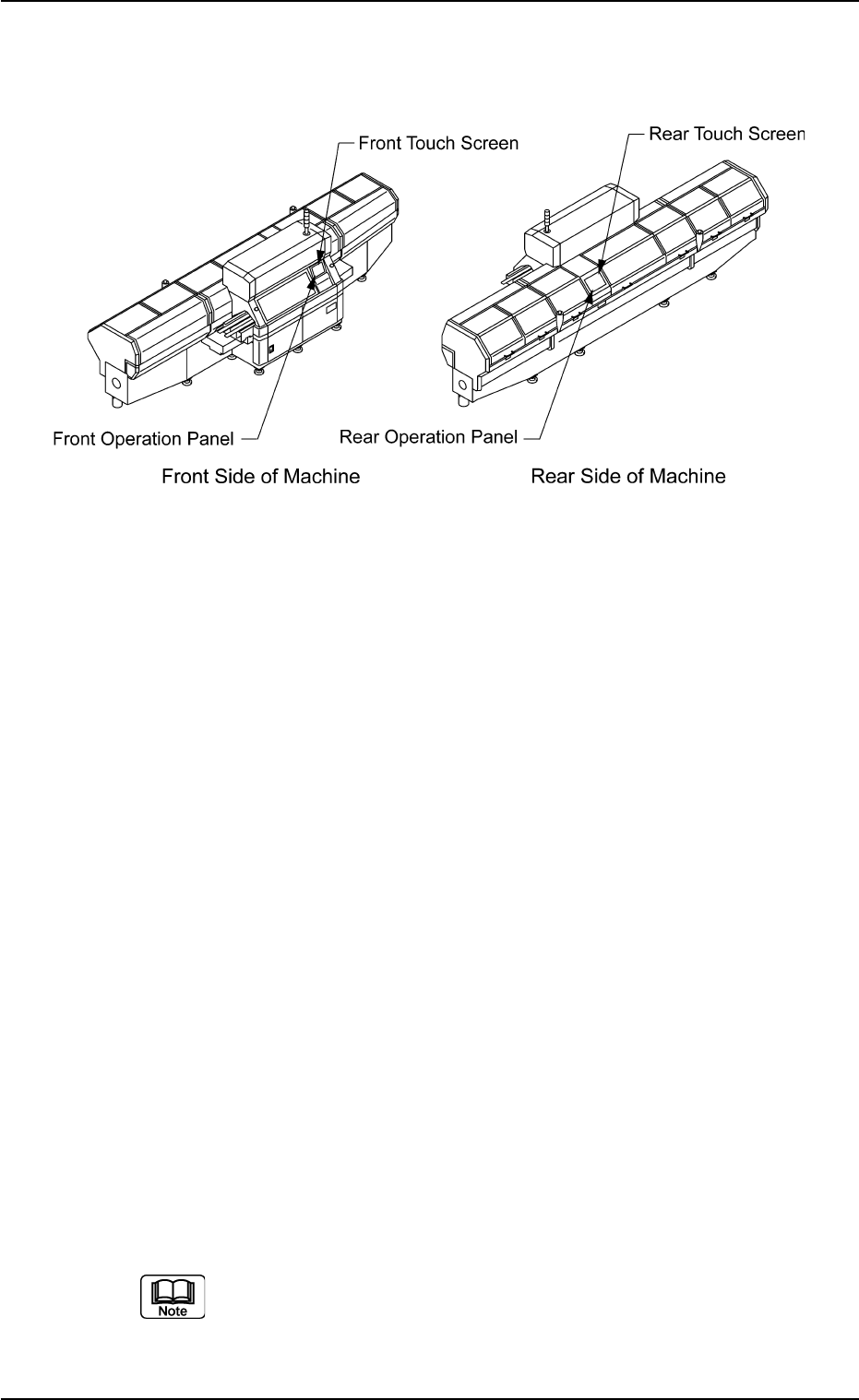
1.1 Selection of Front or Rear Operation Panel
Fig. 1B1
The machine is equipped with operation panels on both front and rear
sides. Each operation panel has a touch screen and some switches
and buttons required to operate the machine.
One of the operation panels is always available (valid) in operations and
the other one can be selected with the [PNL CHANGE] button. It is im-
possible to activate both operation panels at the same time.
• When the [PNL CHANGE] button on the selected operation panel is
pressed, the LED of the button illuminates, indicating that the opera-
tion panel is set available in operations.
• When the [PNL CHANGE] button is pressed with the button being
illuminated, the [LOCK] lamp illuminates, indicating that only the panel
is available in operations (Operation Locked).
• To cancel "LOCK" mode on the selected operation panel, press the
[PNL CHANGE] button located on the panel again.
When the "LOCK" mode is canceled, the "LOCK" lamp extinguishes.
• The other operation panel can be selected by pressing the [PNL
CHANGE] button on the unavailable (invalid) side only when the cur-
rently selected panel is not set in the "Operation Locked" mode.
Either one of the operation panels can be selected regardless of the
operation mode (Ex. "RUN" or "PAUSE" mode) of the machine.
(a) When the machine is powered, the front operation panel
is activated (available).
(b) The pointing device and the keyboard can be used only for
operations on the front operation panel.

1.2 Touch Screens
1.2.1 Operation Windows
Various operation windows appear on the touch screen for parameter
settings (data input).
Basically, operations become available by touching the buttons in a win-
dow.
To enter alphanumeric characters, open the ten-key pad or the keyboard
by pressing the pertinent key in an operation window and press the de-
sired keys on the ten-key pad or the keyboard.
(a) The front operation panel is equipped with a keyboard and
a pointing device.
The keyboard and the pointing device can be used to work
with operation windows.
(b) The pattern program and component library data can be
edited in the edit windows, using the keyboard and the
pointing device.
0102-002 2 - 2 AFO01EOPP
1.2 Touch Screens
1.2.2 Notes on Handling Touch Screens
(1) Since the touch screen uses the molecules in liquid crystals, handle
it like glass. Do not apply strong pressure to the touch screen.
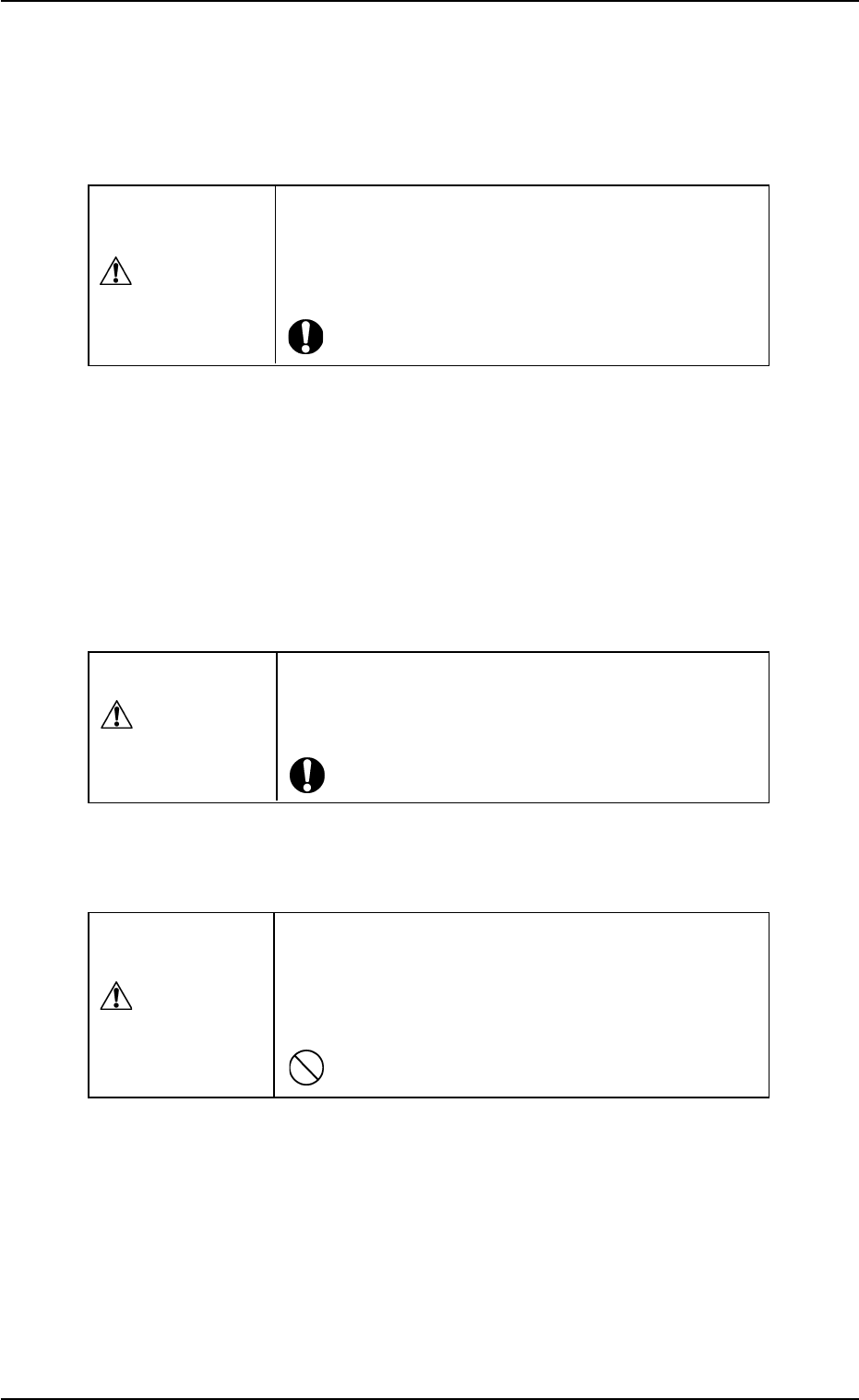
CAUTION
Do not apply strong pressure to the touch screen.
Otherwise, it may easily break.
Do not press the touch screen with a force of 0.78
Ncm
2
(approx. 80 gf/cm
2
) or more.
(2) When temperature is low at power-up, the brightness of the back
light drops. The deterioration is not abnormal. The brightness re-
sumes normal after a few minutes.
When the back light is turned on or off repeatedly at low tempera-
ture, the life will be shortened.
(3) Cleaning of Touch Screen
CAUTION
Turn off the [POWER ON] button before cleaning. Oth-
erwise, the touch screen will react to your touch dur-
ing cleaning, resulting in data corruption.
When the surface of the touch screen is stained, use neutral de-
tergent for wiping.
CAUTION
Do not use acetone, thinner, benzene, alcohol, etc.,
to clean the touch screen.
If the surface is wiped with an organic solvent, the
surface of the touch screen may melt or get cloudy.
1.2 Touch Screens
0207-004 2 - 3 AFO01EOPP