1OM-1050-002.pdf - 第71页
2.3 Operational Measures 0307-001 1-15-2 AFO01EOPP • Storage Procedure (1) Hold the B-marked area and turn it in the D-marked arrow direction until it clicks. Note: Be sure to turn it until it clicks. Otherwise, the keyb…
How to set up and store the keyboard
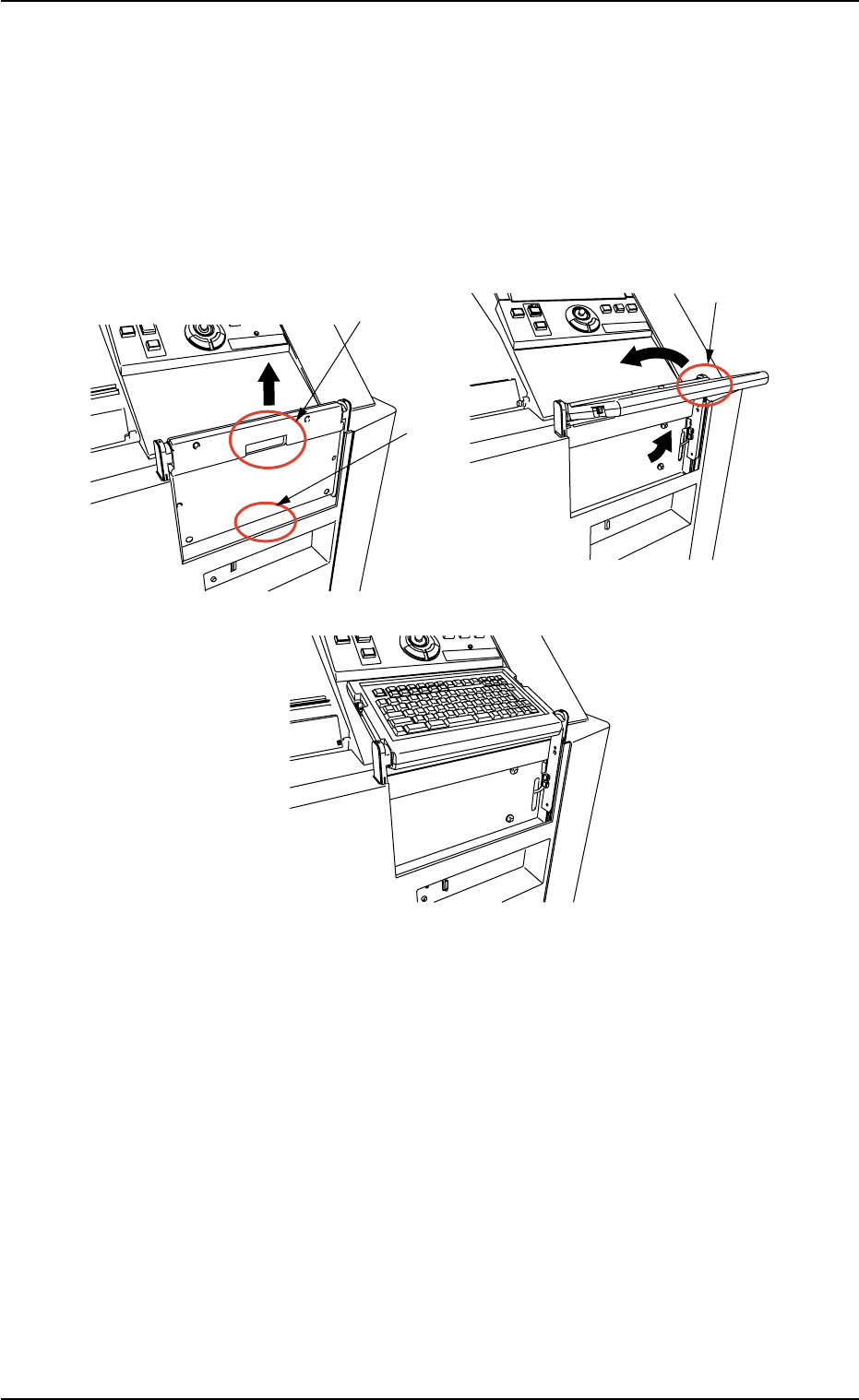
• Setup Procedure
(1) Hold the A-marked area and lift it up until it clicks.
(2) Hold the B-marked area and turn it in the C-marked arrow direction.
Fig. 1A12-1
A
B
B
C
2.3 Operational Measures
0307-001 1-15-1 AFO01EOPP
2.3 Operational Measures
0307-001 1-15-2 AFO01EOPP
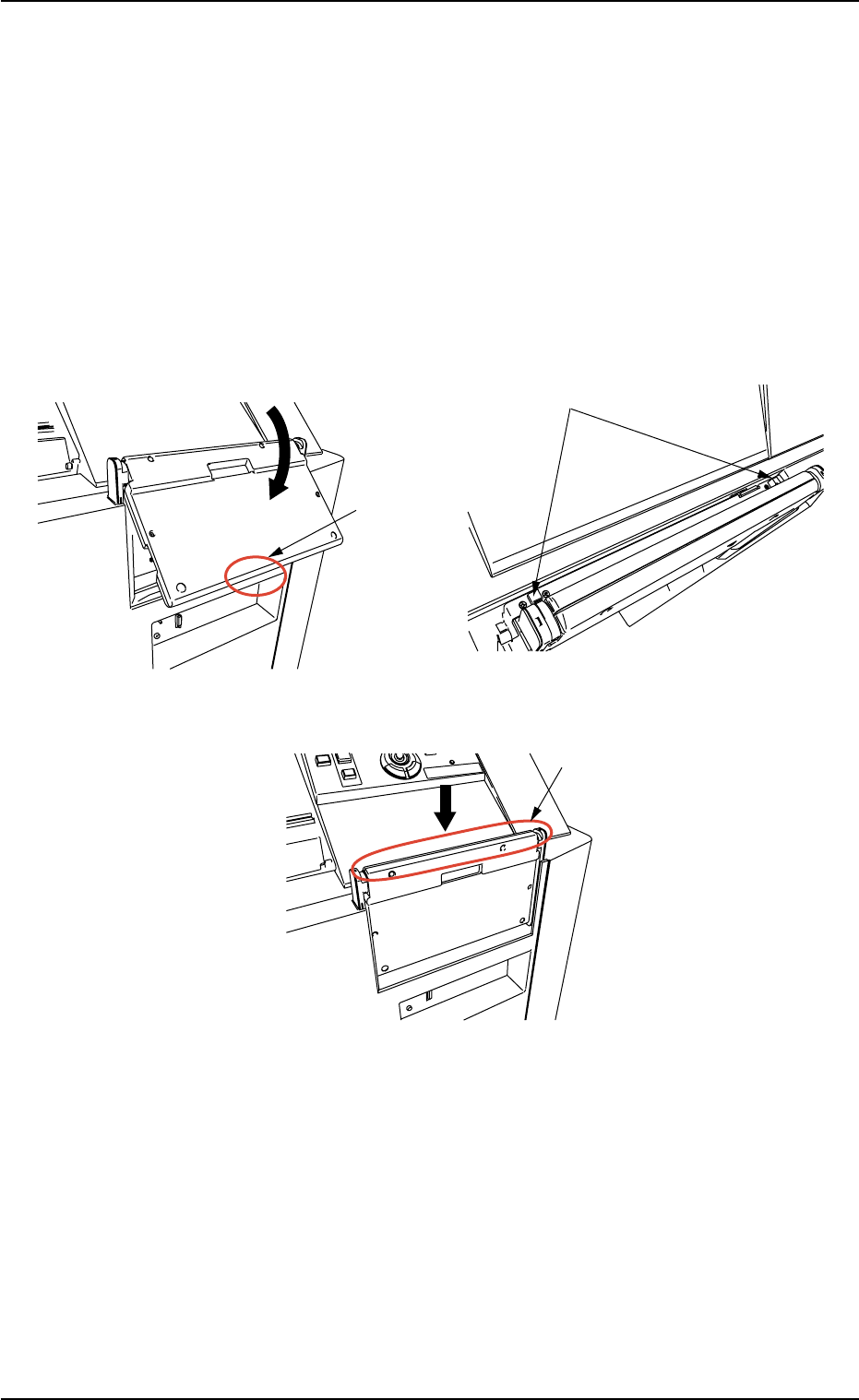
• Storage Procedure
(1) Hold the B-marked area and turn it in the D-marked arrow direction
until it clicks.
Note: Be sure to turn it until it clicks. Otherwise, the keyboard will
be damaged when stored.
(2) Press the E-marked two buttons at the same time.
(3) Push down the F-marked area.
Fig. 1A12-2
B
D
E
F
*10 Pointing Device
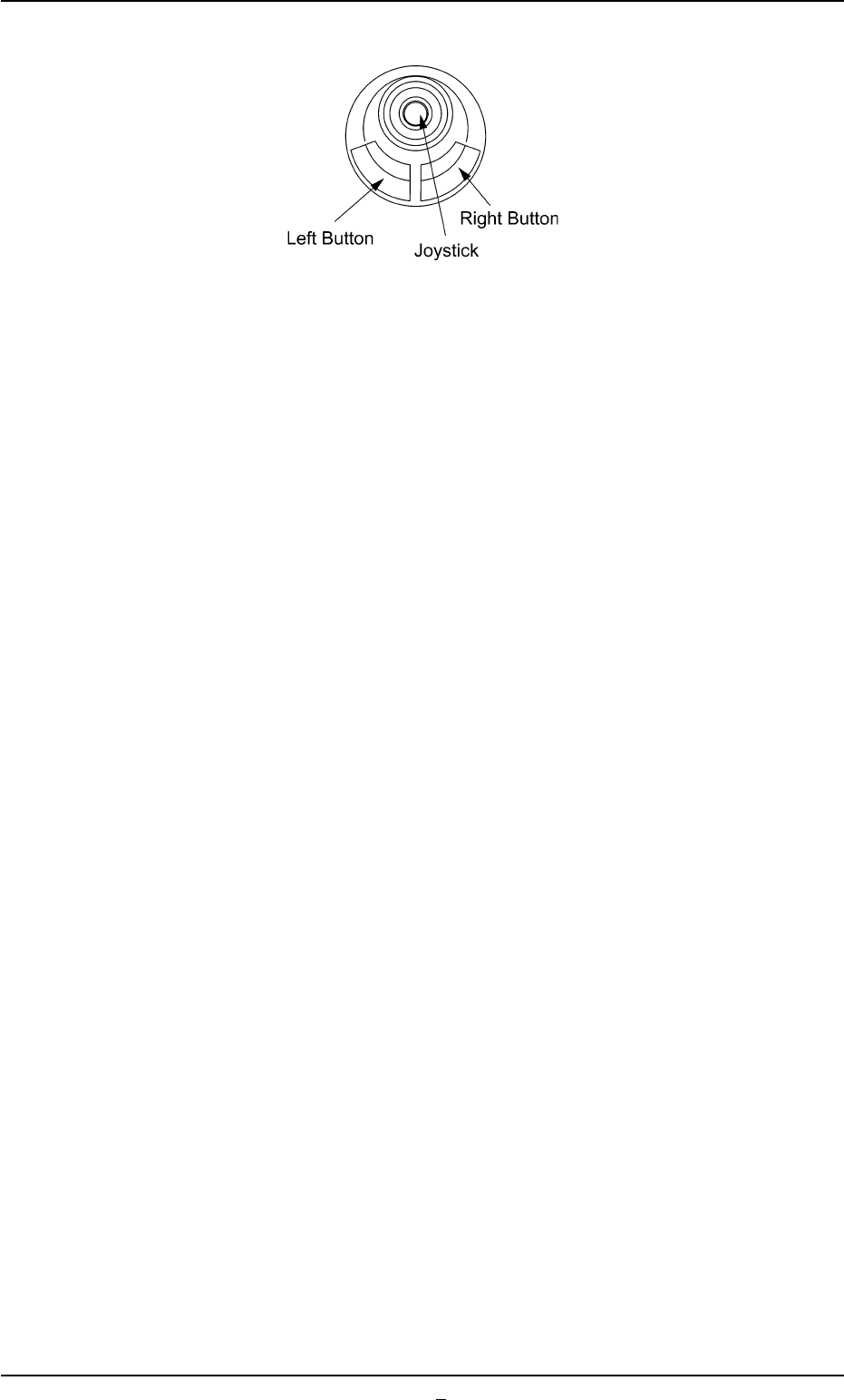
Fig. 1A13
This device is used to indicate where the pointer is on the operation
screen.
Basic Operations of Pointing Device
• Pointer
To point to an object on the operation screen, move the pointer with
the joy stick.
• Click
To click, point the pointer at the object you want to select, and quickly
press and release the left button.
Quickly pressing and releasing the right button is called "Right-Click".
• Double-Click
To press the left button twice in rapid succession while keeping the
pointer motionless between clicks.
• Drag
To move an object on the screen from one place to another by point-
ing to it, holding the left button down, and pulling it to where you want
it to be, using the joy stick. When the pointer has dragged the object
to the desired position, release the left button.
2.3 Operational Measures
0307-001 1-15-3 AFO01EOPP