YesAX V3.1.2 - Software User Manual.pdf - 第166页
11 - 22 3D X-Ray Inspection Methodology Align Source to II is the first step of X-ray calibration. The procedure of this step is similar to that of X2. But the actual hardware adjustments are quite different. Hardware ad…
3D X-Ray Inspection Methodology 11-21
Angle View: The default step angle between each side angle views are 45°, which indicates
totally 8 (360/45) side angle images will be used for 3D reconstruction. However, this step angle
could be changed in this Angle View section. For inline inspection the step angle can be changed
to 90° so only 4 (360/90) side angle images will be used for reconstruction. In this case the
inspection speed will be doubled but the reconstructed slices may not have as good quality as
those slices reconstructed by using 8 angle images. Normally 4 side angle images are only used
for 3D sites without much overlap between top side components and bottom side components.
The step angle could also be changed to a number higher than 8. Sliced reconstructed with more
side angle images will have better image quality. Higher angle image numbers can only be used
for manual inspection purpose and cannot be applied to inline 3D programming. Whenever user
makes a change to the number of step angle, the Use this step angle for 3D recon. checkbox
must be checked to take effect. When sample board is right at certain 3D site, the change of step
angle number may affect setting of current 3D site. So please be very careful when use this
options.
11.8 3D Related Calibrations
3D inspection is much complicated compare to normal 2D inspection. It requires high precision
of moving and full calibration of X-Ray cameras. The basic steps of X-ray calibration on X3
AXI systems are similar to X2 AXI systems but with some differences and some extra steps. The
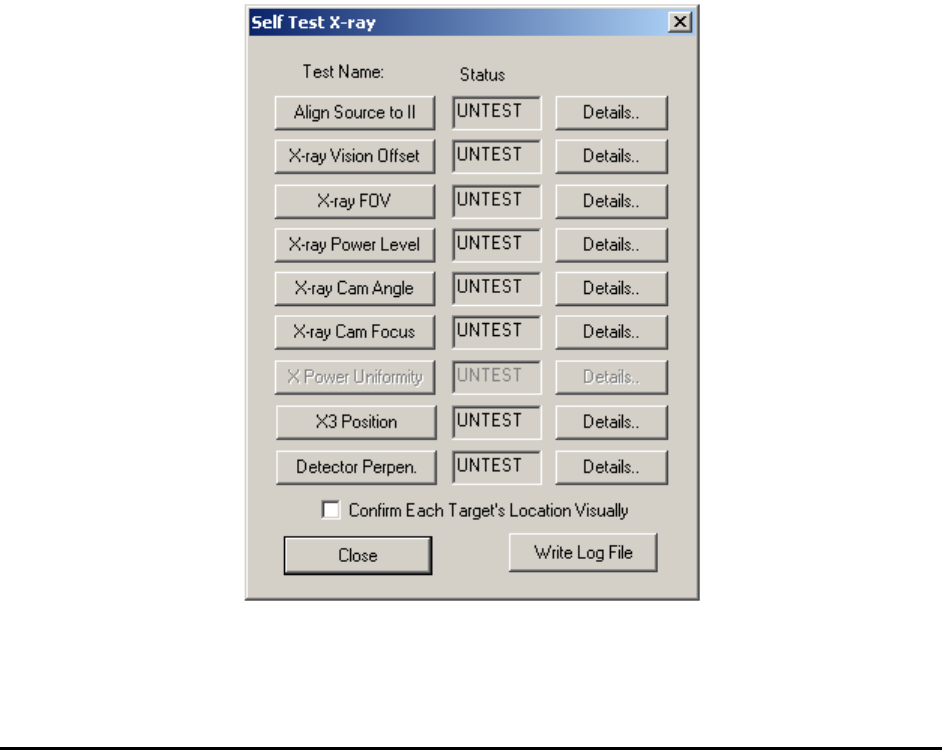
same calibration board is used for both X2 and X3 X-ray test. The Self Test X-ray dialog is
shown below.
11-22 3D X-Ray Inspection Methodology
Align Source to II is the first step of X-ray calibration. The procedure of this step is similar to
that of X2. But the actual hardware adjustments are quite different. Hardware adjustments for the
X3 AXI system are always more complicated and more difficult. The hardware adjustments are
normally done in factory before the unit is shipped.
X-ray Vision Offset, X-ray FOV, X-ray Power Level, X-ray Cam Angle and X-ray Cam
Focus these tests are quite similar for both X2 and X3.
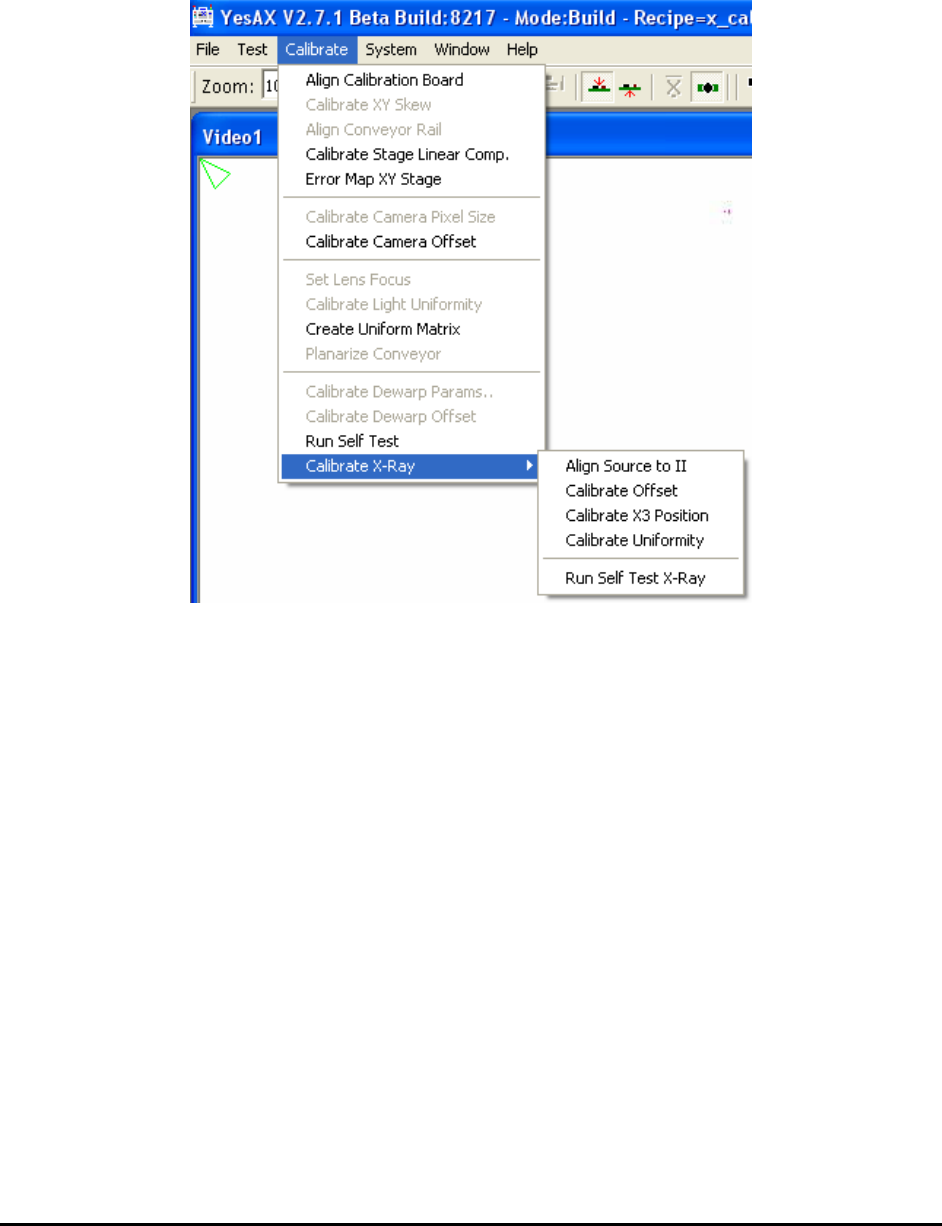
X Power Uniformity for X3 is quite different from the X Power Uniformity test for X2. For X3
this item has been grayed out in self-test dialog. To do the test, the user needs to load a special
test board (same size as X-ray calibration board, and share the same recipe file: x_cal_board.rcp)
and do the X Power Uniformity test from menu, as seen from picture in left.
X3 Position is a unique test for X3 AXI system. This one calibrates top stage positions for all 3D
side angle views. On prompt user can select to either do 8 position calibration only or do a full
calibration for all positions.
Detector Perpendicularity is also a unique test for X3 AXI system. This one tests the
perpendicularity of top detector (X-ray camera) plane and see whether the top plane is parallel to
the XY moving stage. The software test is very simple. But the actual hardware adjustments are
more complicated. Normally the hardware adjustments are done in factory before X3 is shipped
to customer site.
The Confirm Each Target’s Location Visually checkbox if checked paused after each X-ray
target’s location during the calibration process and give the user an opportunity to visually verify
the correct location of each target. The feature is especially useful when NORDSON
YESTECH’s tech-support engineers need to calibration a machine remotely via WebEx.
Other X-Ray Inspection Features 12-1
12 - Other X-Ray Inspection Features
The X2/X3 AXI system is a fully automated inline X-Ray inspection system. However, there are
several features in YesAX software that allow you do some manual X-Ray inspection, like the
YTX-X1 manual X-Ray inspection system. These features add more flexibility to the system and
provide more power to fully utilize X-Ray inspection capabilities. This section details these
features.
NOTE
These features are designed specifically for X-Ray images and not for images
acquired by top camera.
12.1 Image Filters and Restore Command
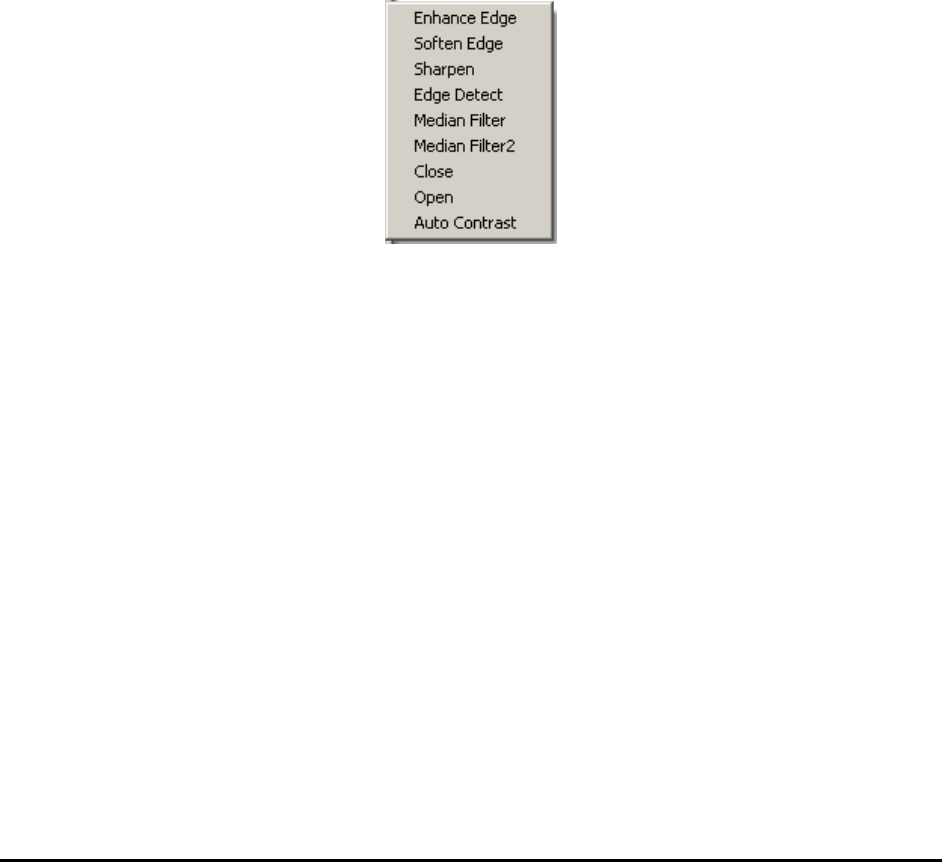
Inside the X-Ray view window, position the current cursor outside any inspection box (part box,
lead box, solder box, etc…). Right mouse click to launch the Video pop-up, then select the
Filters sub-menu.
Most manual inspection functions can be found within this menu.
The Filters sub-menu consists of functions that perform two dimensional filters upon the current
image and display the results. These filters are designed to emphasize or de-emphasize specific
features in the image. If a filter or multiple filters are applied to a captured image, the original
image can be recovered by selecting the Restore function in the pop-up menu.
NOTE
These filters only apply to X-Ray images. All available filter options will be
grayed out when this menu is shown under top view.
12.1.1 Enhance Edge
The Enhance Edge function emphasizes the edge content of the image. Local regions of similar
gray level, or slowly varying gray level are suppressed and areas of dissimilar gray level that
change significantly are accentuated. The edge enhancement filter operator is a high-pass filter; it
retains the high frequency content of the image and rejects the low frequency content.