YesAX V3.1.2 - Software User Manual.pdf - 第224页
17 -2 SmartStart 17.3 SmartStart Setup Parameters SmartStart is launched by selecting File>SmartStart from the menu. The S martStart dialog display s. From this dialog press Start to start the inspection process, or p…
SmartStart 17-1
17 - SmartStart
17.1 Introduction
SmartStart is a feature that selects inspection recipes based on the printed circuit board’s serial
number (SN from barcode) or appearance. With the help of a customized extension DLL
(DataLogExt.DLL) it integrates with the WIP (Work in Process) tracking host system via TCP/IP
or other interfaces.
17.2 System Part List
On the YesAX software, similar to the part list for each board, there is also a system part list
which is common across all recipes. The system part list is used by SmartStart to automate the
process of selecting and loading inspection recipes. Adding a part to the system part list is
similar to adding a part to board part list. It starts by pressing the Add Part button “ ” on the
toolbar.
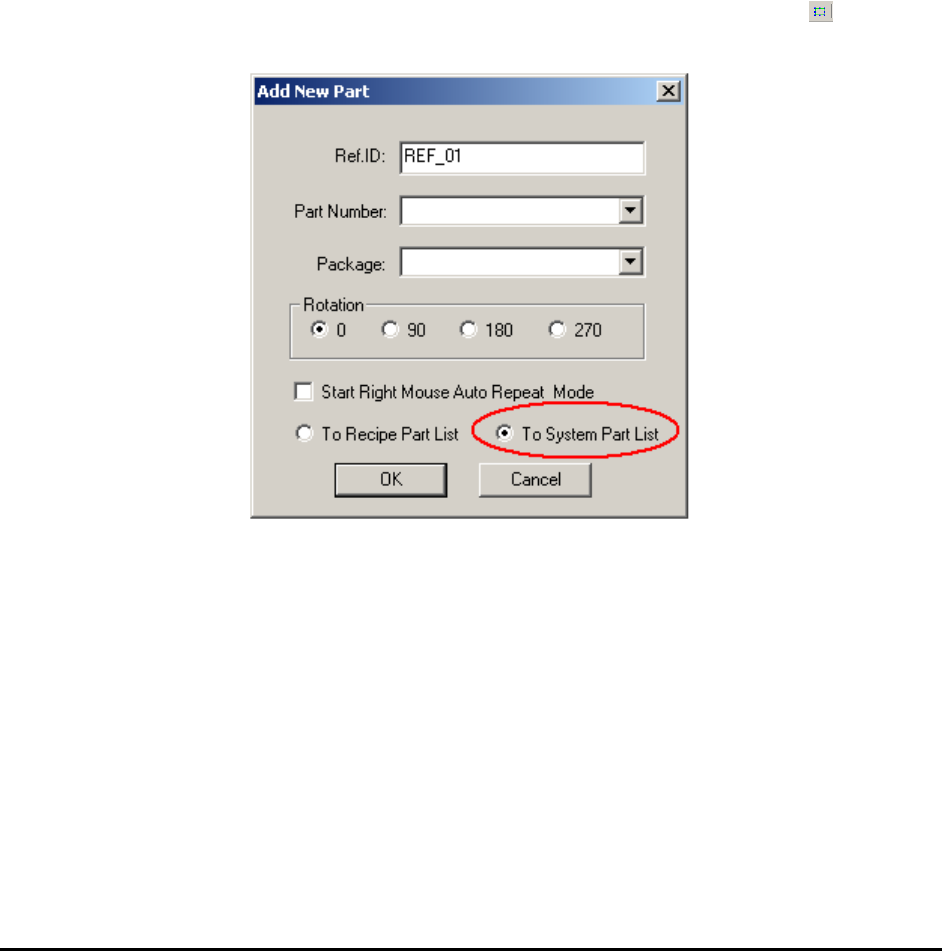
In the Add New Part dialog, select the To System Part List radio button.
17-2 SmartStart
17.3 SmartStart Setup Parameters
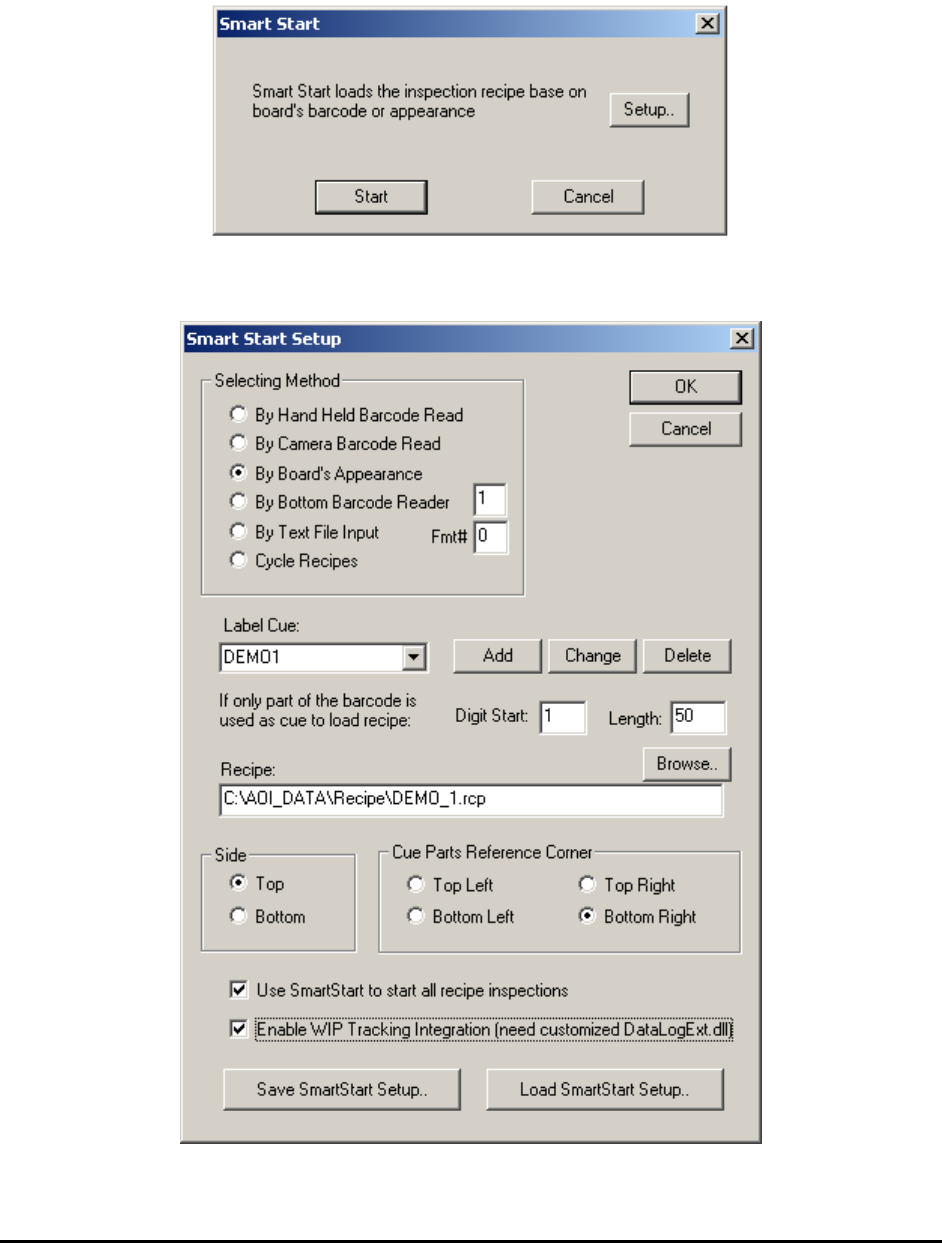
SmartStart is launched by selecting File>SmartStart from the menu. The SmartStart dialog
displays.
From this dialog press Start to start the inspection process, or press Setup to launch the
SmartStart Setup dialog.

SmartStart 17-3
From this dialog users setup the parameters for SmartStart. In the Selecting Method group, select
one of the following four methods to select recipe:
Hand Held Barcode Read - does NOT require any part in the system part list.
Camera Barcode Read - must have at least one part in the System Part list setup to read
barcode.
Board’s Appearance - train one part per recipe in the set of recipes to be loaded
automatically. Each part should have trained a marking that uniquely identifies that
particular board assembly.
Bottom Barcode Reader - does NOT require any part in the system part list.
Text File Input – does NOT require any part in the system part list.
Cycle Recipes – does NOT require any part in the system part list.
You define the link between the “Cue” and the recipes being loaded. For the methods that
involve barcode, part or all of the barcode is a cue. For the Board Appearance method, the
Reference ID of the corresponding part is the cue. If only a portion of the barcode is used as cue
(e.g. from digit 2 to digit 6), then specify that accordingly.
Inspection recipes on YesAX are for top side only. Specify the Top side to load in the Side group
of the dialog. The Cue Parts Reference Corner group sets the reference corner for all the
reference parts in the system part list. It is only important if the boards in the selection set are of
different sizes.
The Use SmartStart to start all recipe inspections option forces the software to use SmartStart
to start all inspections. When it is checked the Run Recipe button in the toolbar will use
SmartStart instead of the Load Board dialog.
With the help of a custom DataLogExt.DLL the Enable WIP Tracking Integration option
allows the YesAX software to integrate with any WIP (Work in Process) tracking system via
TCP/IP or other interfaces. The message formats are defined in DataLogExt.DLL. You
customize the DataLogExt.DLL for your internal needs.
All the setup parameters for SmartStart, together with the corresponding system part list, can be
saved into disk files for later retrieval. This allows multiple groups of recipes to be SmartStarted.
The SmartStart setups are saved in files with extension .sss. The .sss files can only be located in
the INI folder of the YesAX software. Select the Save SmartStart Setup.. button to save the
SmartStart setup.