YesAX V3.1.2 - Software User Manual.pdf - 第47页
Inspection and De fect Revie w Step by S tep 5-1 5 - Inspection and Defect Review S tep by S tep 5.1 Step1: Load the R ecipe Inspection process starts by selecting and loading the correct inspec tion recipe . To load the…

4-10 User Interface Basics
To change the X-ray focal spot size, select one of the options on the right: Small, Middle or
Large. Smaller spot sizes generate an image with better resolution.
NOTE If the spot size is changed while the X-ray is on, X-ray will be turned off
automatically. Touch the X-ray On button to turn the X-ray back on.
Since the X-ray tube used on the X3 AXI system only has one spot size available, there is no
spot size selection area available for X3 AXI system.
The position of the control bar can be changed. To do that, left mouse click on the control bar,
drag it to a new position, then release the mouse button.
For each X2/X3 AXI system there are ten pre-defined X-ray power level settings. Each power
level has its own voltage, current and spot size settings. During system calibration values of
voltages and currents of each power level will be adjusted so that for the same kind of sample,
the same power level of different systems will generate very similar levels of image quality. To
use a pre-defined power level, select the specific power level from the drop down list and then
click the X-ray On button.
4.9 3D Control Dialog
The 3D Control dialog displays various status information and control for 3D related inspections
and operations. This dialog box is designed for X3 AXI systems only. Details of 3D inspection
will be described in Section 10.
Inspection and Defect Review Step by Step 5-1
5 - Inspection and Defect Review Step
by Step
5.1 Step1: Load the Recipe
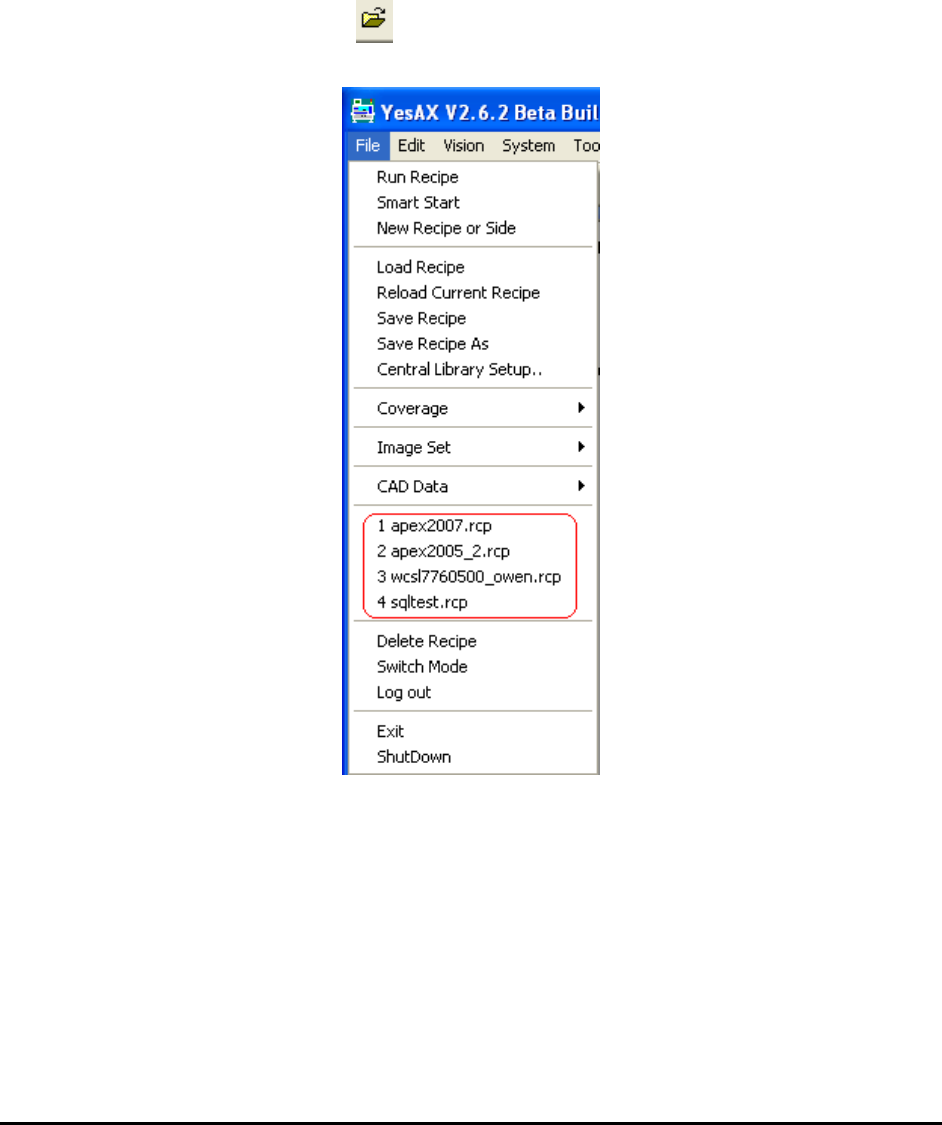
Inspection process starts by selecting and loading the correct inspection recipe. To load the
recipe, click the Load Recipe button or select it from the list of recently loaded recipes in the
File menu.
5-2 Inspection and Defect Review Step by Step
5.2 Step2: Run the Inspection
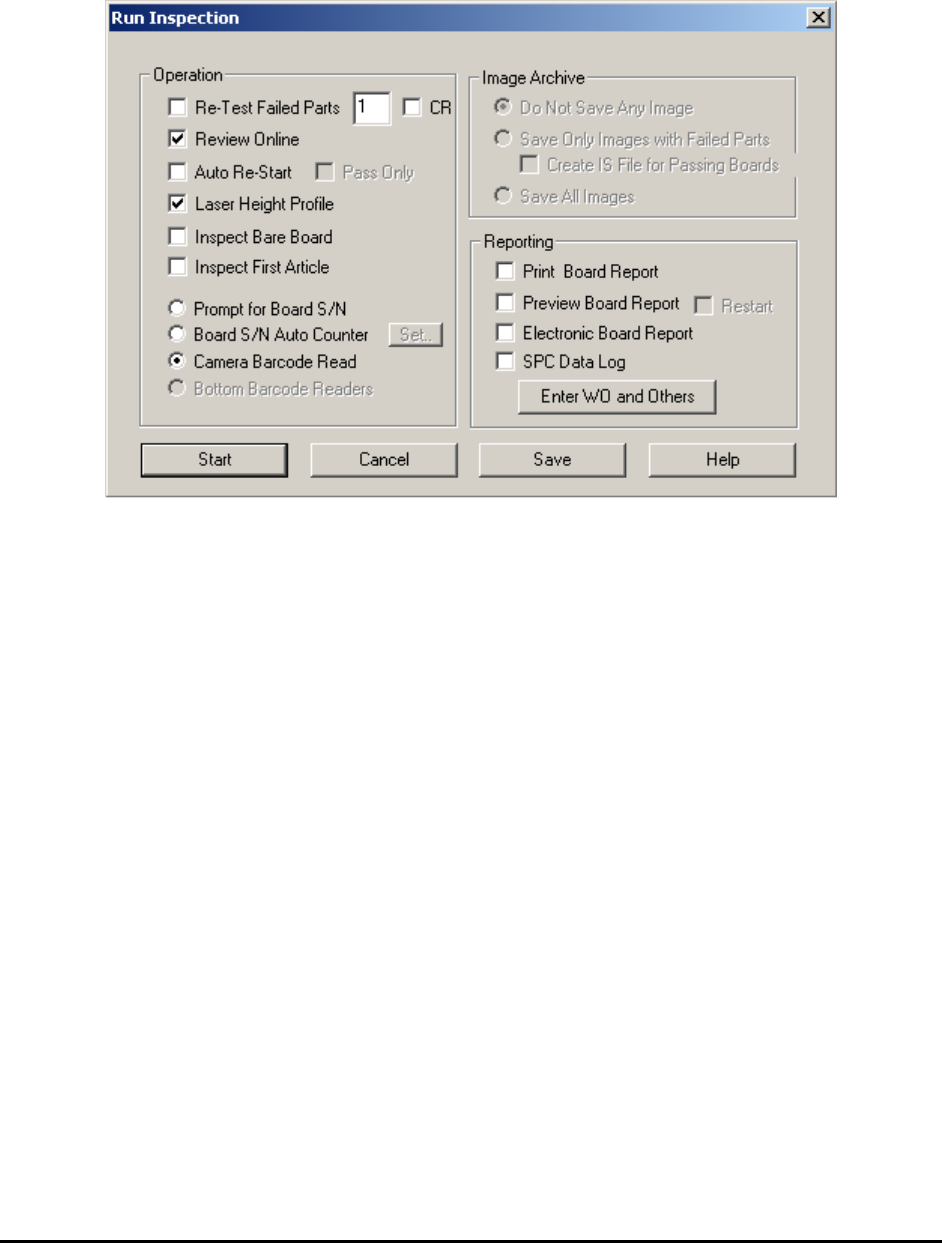
To run the inspection, click the Run Recipe button. The Run Inspection dialog opens. In this
dialog the user can set various options for the inspection process.
The options in this dialog are arranged in three groups; Operation, Image Archive and
Reporting.
In the Operation group there are nine checkboxes and five radio buttons.
Re-Test Failed Parts
Enable or Disable the Re-Test feature. The re-testing of failed parts reduces the false call rate.
The number defines the re-test criteria. For example if a 3 is entered the system will retest
any frame having 3 or more failures. The default number is 1; re-test every failure.
CR
Perform a Center Retest. Any failure found during the run will be moved under the crosshairs,
and retested.
Review Online
Select online or offline review. If online review is not selected user must select one of the
save image options in the Image Archive to allow offline review.
Auto Re-Start
If enabled, this feature will repeat the inspection step for the next board without the user
pressing the Next button in the Result dialog.
Pass Only
This option is only available when the Auto Re-Start option is selected. If enabled, Auto Re-
start is only active when the board being inspected has passed the inspection.