YesAX V3.1.2 - Software User Manual.pdf - 第53页
Inspection and De fect Revie w Step by S tep 5-7 During defect review, verify the defect visually. If there is a true defect, classify it accordingly using the Defect Classification drop-down list. The data in the list c…
5-6 Inspection and Defect Review Step by Step
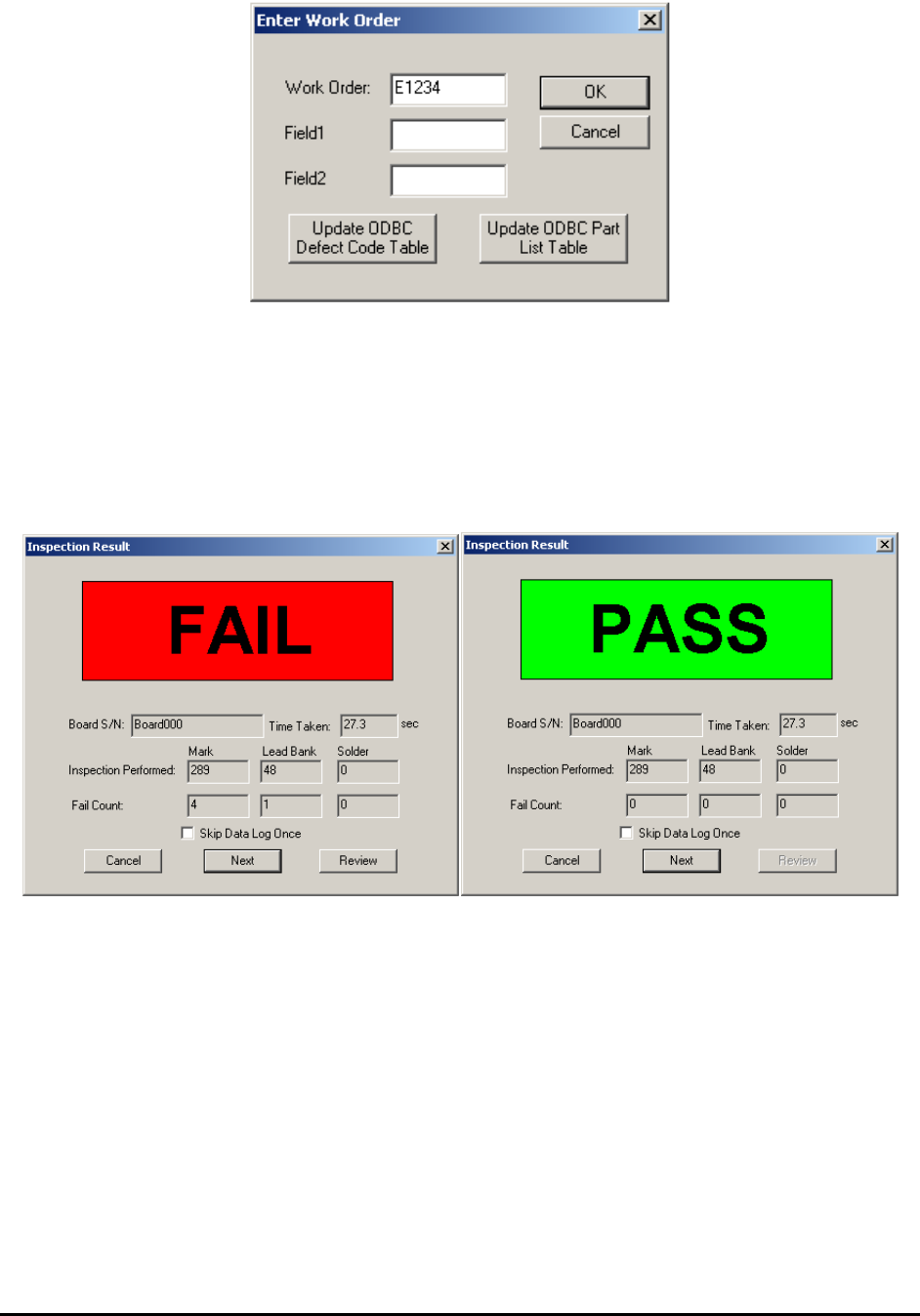
The Update ODBC Defect Code Table button when pressed will update the DefectCode table
in the ODBC database using on the information from the defect.ini file. The Update ODBC
Part List Table button creates a PartList table for the current recipe in the database.
Pressing the Ok button on the Run Inspection dialog will start the inspection process. The
process involves locating the fiducials and inspecting all the parts based on the recipe. At the end
of the inspection the Inspection Result dialog appears. Based on the inspection results the dialog
will show “Fail” or “Pass”
5.3 Step3: Review the Defect
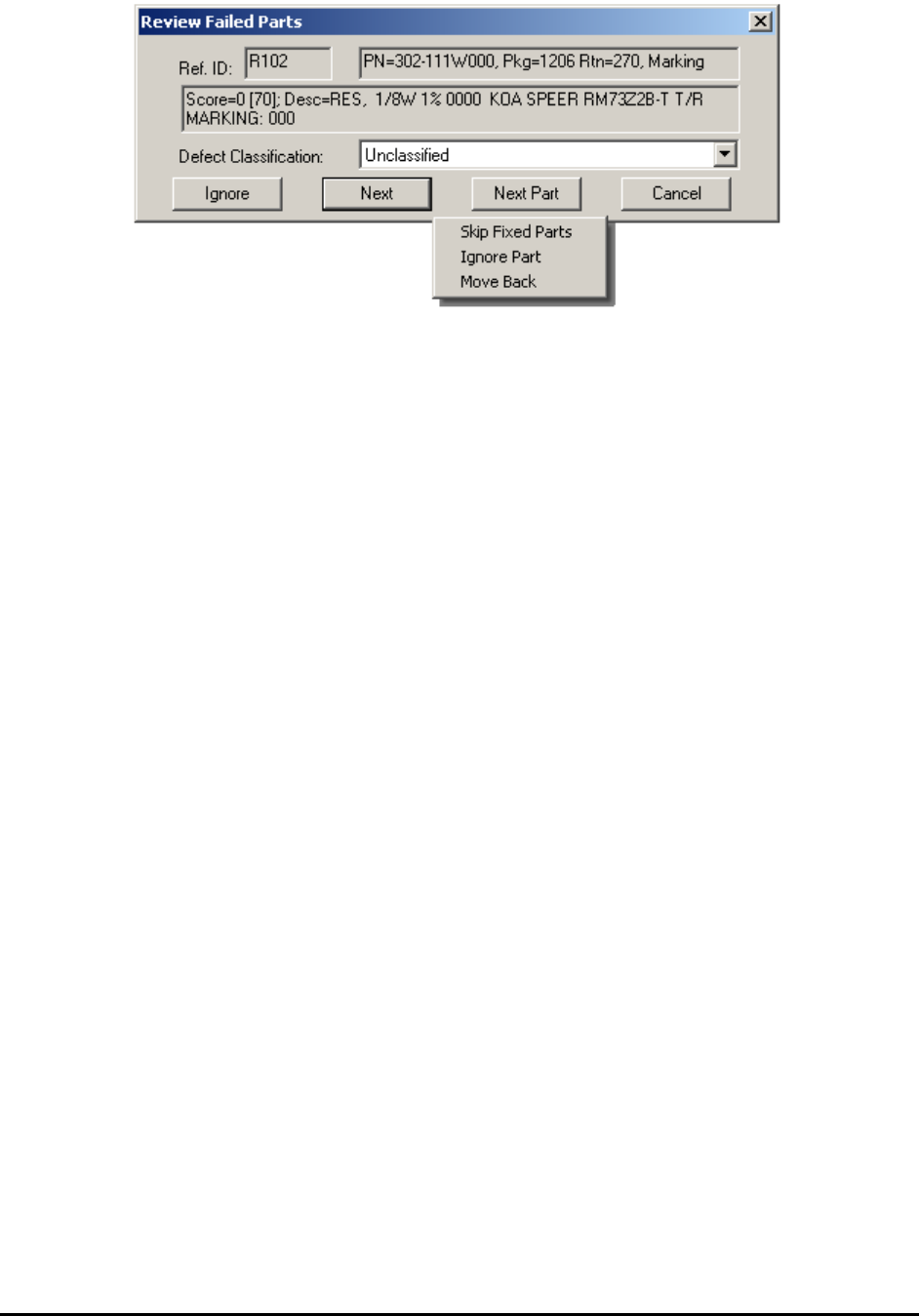
Defect review can be done online or offline. The online review process starts with pressing the
Review button in the Inspection Result dialog. The machine steps through each defect and
displays the Review Failed Parts dialog as shown below.
Inspection and Defect Review Step by Step 5-7
During defect review, verify the defect visually. If there is a true defect, classify it accordingly
using the Defect Classification drop-down list. The data in the list comes from the Defect.ini
file in the INI folder of the software. If there is NOT a true defect, in other words, a false call is
made by the machine; press the Ignore button to have it removed from the defect list.
There is a pop-up menu for less frequently used functions. To display the menu, point the mouse
inside the dialog and press the right mouse button. The pop-up has nine items. The Skip Fixed
Parts item removes parts in the review list that have been modified. The Ignore Part item
ignores parts with multiple defects with one click. The Move Back item “undoes” the Ignore or
Next button. The Ignore item ignores a defect. Have the Auto Retest Fixed item selected will
automatically re-test parts that are modified during the review process. The Ignore Block item
ignores all defects on a selected block. The Next Slice item is for 3D inspection only. It ignores
parts within the same slice and moves on to parts in next slice. The Next 3D Site item is also for
3D inspection only. It ignores parts within the same 3D site and moves on to parts in next 3D site.
The Pause Review item pause the current review process. If the same image set was selected and
being reviewed again, the user can select to review the defect from where it was paused during
last review, instead of review from the beginning of the defect list.
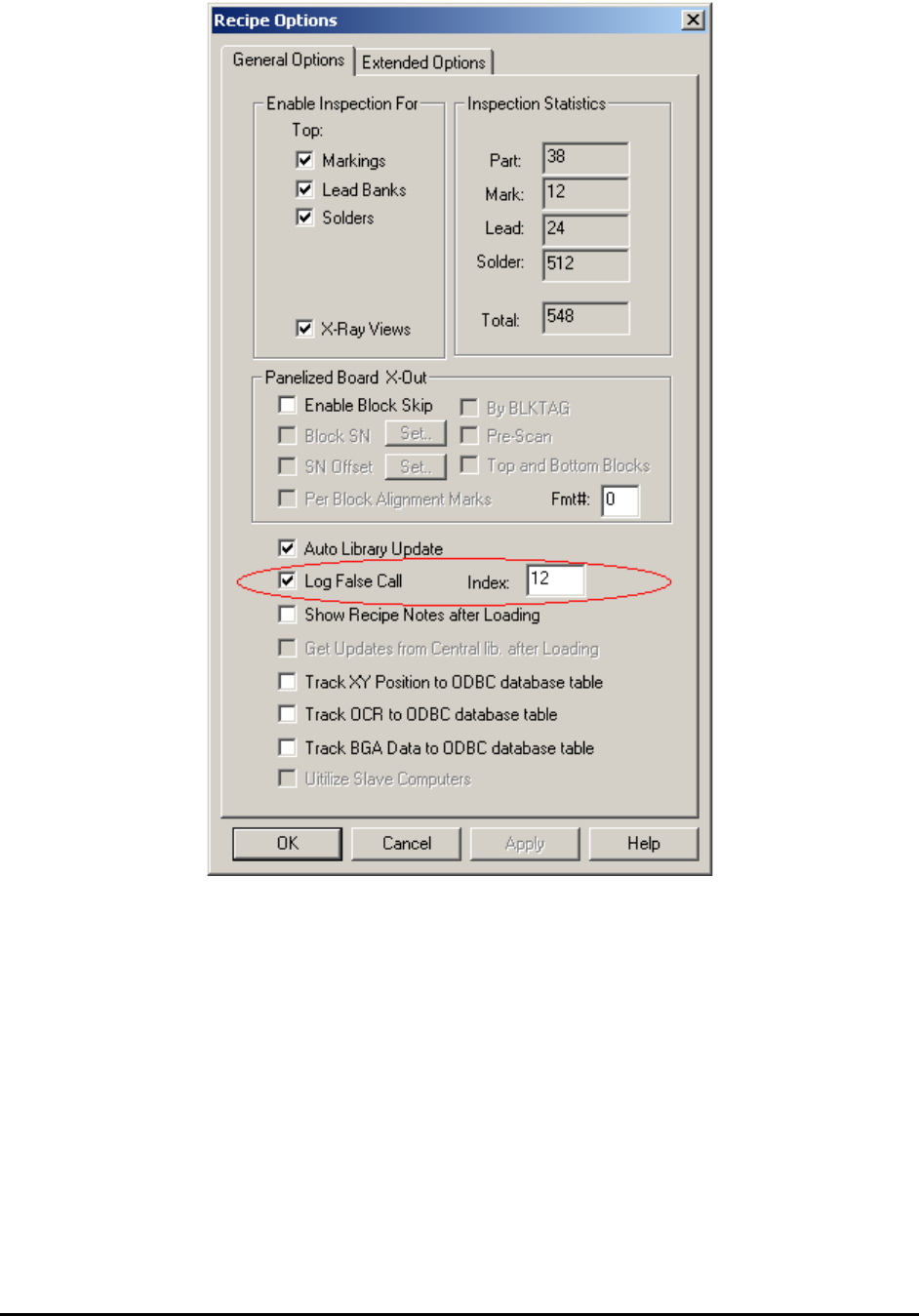
You can also log the false calls. Select Vision>Recipe Option from the Main Menu. Select the
Log False Call checkbox in the Recipe Options dialog. When Log False Call is selected, the
Ignore Part button will change to a False Call button. Pressing the False Call button classifies
the defects as false calls and leaves them in the defect list. The Index specifies the classification
linked to the False Call button. For example, if the false call classification is in line 12 in the
defect.ini then the Index should be set to 12. The total number of false calls on the board is
reported in the defect report.
5-8 Inspection and Defect Review Step by Step
Recipe programmers can fine-tune the inspection recipe during defect review. An alternate
template can be added to handle new alternate component markings and the inspection pass score
can be adjusted to handle random noise in the image.
The Next button on the Review Failed Parts dialog moves to the next defect whether it is on the
same part or next part. The Next Part button moves to the first defect on the next part of the
defect list.