YesAX V3.1.2 - Software User Manual.pdf - 第38页
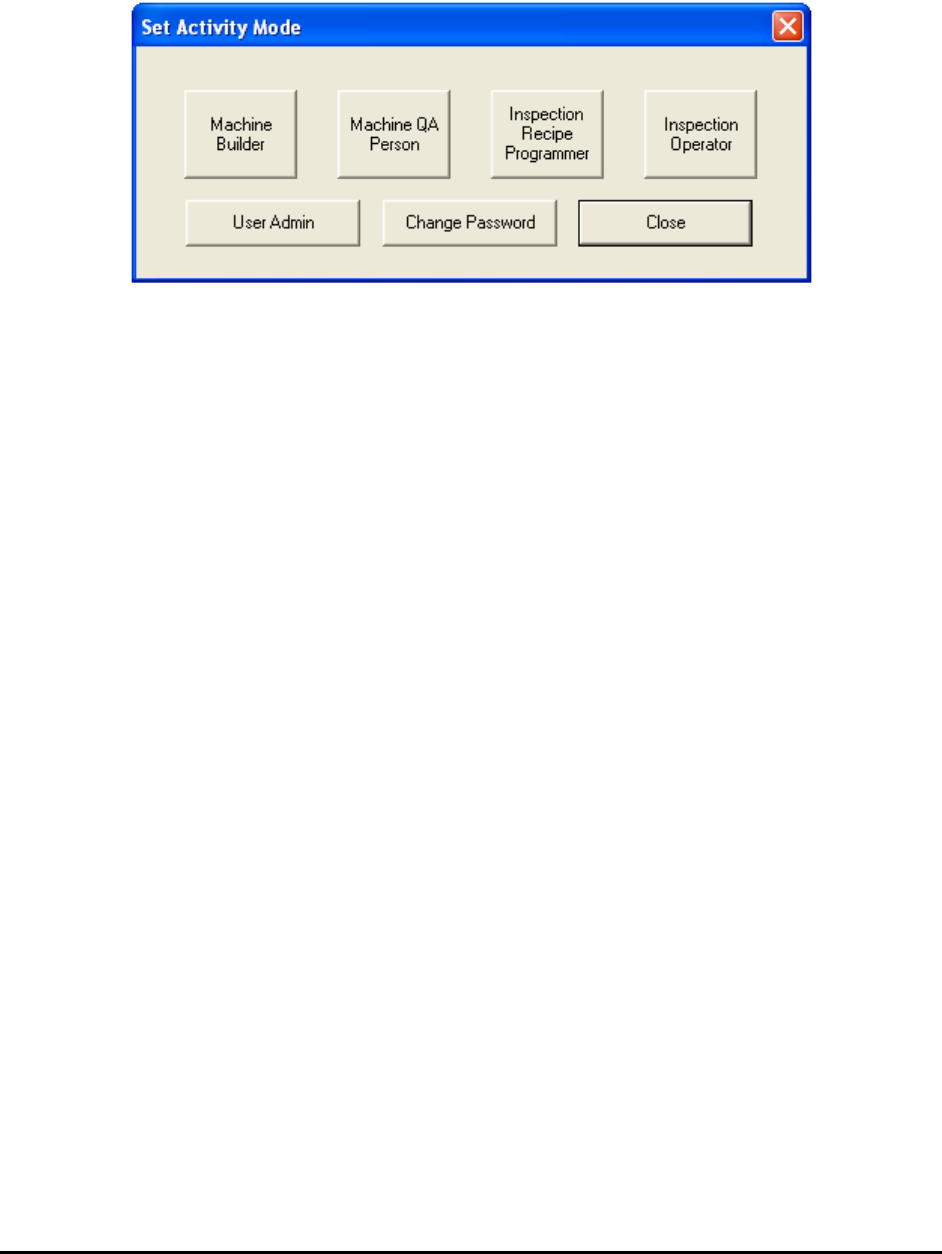
4-2 User Interface Ba sics Based on the user ’ s access privilege, the appropriate user interface is selected. In the case where the user has multi-mode privileges, the following Set Activity Mode dialog appears for the …
User Interface Basics 4-1
4 - User Interface Basics
The software user interface is designed around its users. There are four types of users:
Machine Builder
Nordson YESTECH employees use this mode to calibrate and verify machine
functionality.
Machine QA Person (Maintenance)
Maintenance personnel use this mode to ensure the machine’s hardware integrity and
calibration accuracy.
Inspection Recipe Programmer
Users who create and modify the inspection recipes will use this mode.
Inspection Operator
Users who operate the system and run the inspection recipes will use this mode to
run/inspect boards.
For each user mode the user interface is optimized to allow you to achieve maximum efficiency.
For example, in the builder mode, the primary concern is to identify any problem with the
machine’s electrical or mechanical hardware. In this case the software uses a low level hardware
control interface that allows the user to isolate any problem quickly and take corrective actions.
Also in this mode the software presents comprehensive self test features which objectively
determine machine quality and production readiness.
4.1 Login
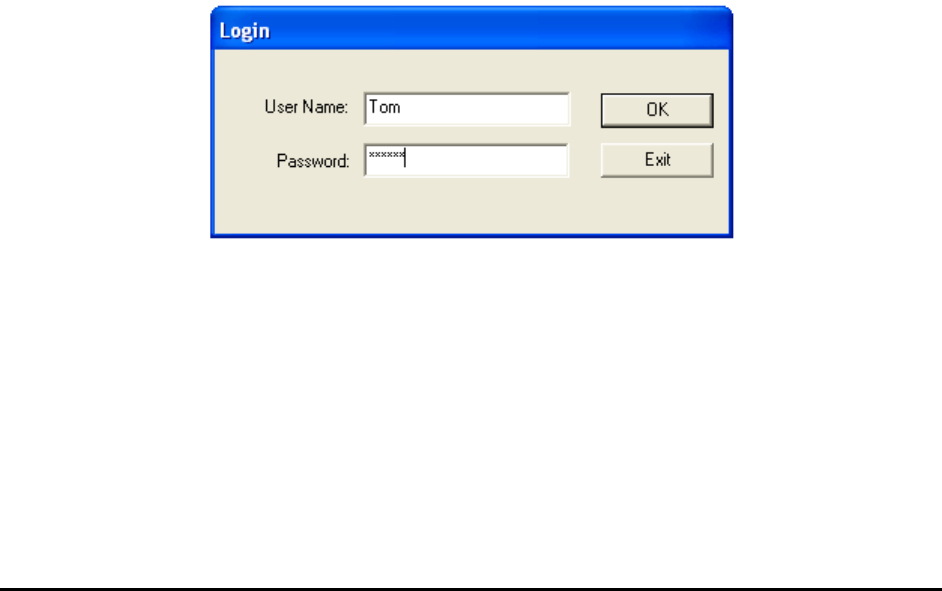
Each user mode is protected by password; a system administrator assigns access privileges to
users based on the activity that user needs to perform. When the software starts, a login prompt
will appear.
4-2 User Interface Basics
Based on the user’s access privilege, the appropriate user interface is selected. In the case where
the user has multi-mode privileges, the following Set Activity Mode dialog appears for the user
to select the activity mode.
User Interface Basics 4-3
4.2 Video View
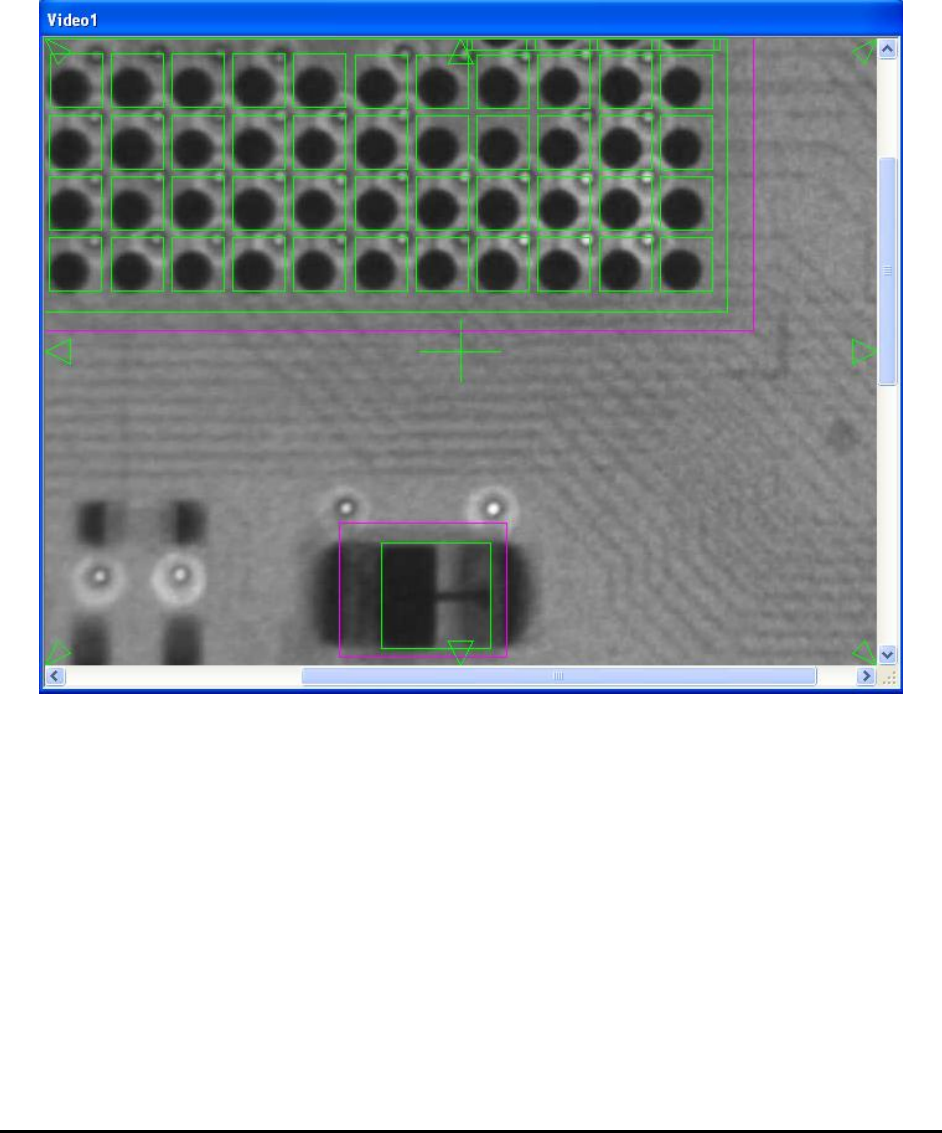
The Video View window displays a video image of the board captured by the camera. A
crosshair is provided to indicate the exact position of the camera. Image can be shown in 3 zoom
levels: 50%, 100% and 200%. The unique video navigation feature allows the user to control the
position of the camera by pointing and clicking in this window. Using the mouse, place the
cursor on a feature in the image and double click. The system will move the camera to center the
feature on the crosshairs. Arrows are also provided to allow incremental camera movement.