YesAX V3.1.2 - Software User Manual.pdf - 第237页
User Administrat ion 20 -1 20 - User Administration To provide inspection traceability, the software tracks all users of the software. The login user name is on every defect report and SPC data rec ord. A user can have o…

19-6 Optional Accessories
19.4 Audible Alarm
It is possible to connect an audible alarm to the AXI system to alert the operators when the
machine requires human intervention in order to continue with the inspection process. Users can
purchase an optional audible alarm from Nordson YESTECH or, much more economically,
connect their own alarm hardware onto the AXI system. Compatible alarms must operate from
24V DC power supplies and have a continuous tone.
To connect the alarm, locate the IOB (Assy#10072) from the back of the machine. IOB is a
square PCB about 5” by 6” in size with screw terminal connectors on the top. Connect the
negative terminal of the alarm to pin 11 or 12 (Ground) on the ST2 screw terminal connector,
and connect the positive terminal to pin 6 of ST2 (OUT2-). Then use a jumper cable to connect
pin 5 (OUT2+) to pin 1 or 2 (+24V). You may find wires that are already connected on pin
1,2,11 or 12 (Signal Ground or +24V). The alarm wire can share terminal with existing wires.
There are entries in the YesAX.ini file that you can use to customize alarm settings:
[AudiAlarm]
DelayTime=10000
OnTime=300
OffTime=300
The DelayTime is the time in milliseconds that the alarm will sound after user intervention is
requested by the software. If the operator responds within the delay time limit, then no alarm will
sound. Once the alarm begins to sound it oscillates on and off. The OnTime and OffTime set the
duration of it’s on and off time.
User Administration 20-1
20 - User Administration
To provide inspection traceability, the software tracks all users of the software. The login user
name is on every defect report and SPC data record. A user can have one or more of the 5 types
of privileges: Operate, Build, QA, Program and Admin. The first 4 types of privileges
correspond to the 4 activity modes of the software. For example, users with Operate privileges
can operate the machine in Operator mode, users with Program privileges can create and
modify inspection recipes, etc. and the Admin privilege is for users who are given the right to
administer other users.
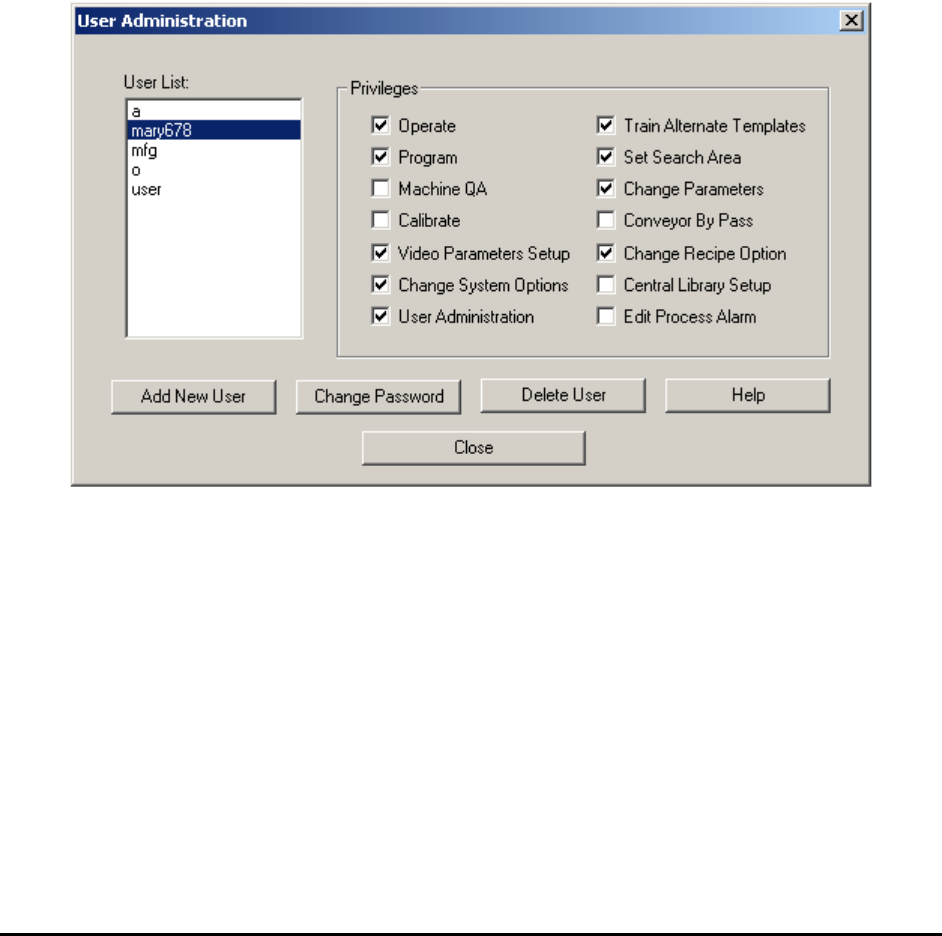
Admin users can launch the User Administration dialog (shown below) from the Switch mode
dialog. A valid user has a name and a password. A valid user name contains between 1 and 15
alphanumeric characters without spaces. A valid password contains between 0 and 15
alphanumeric characters, therefore a blank password is allowed.
Amongst the 4 activity modes, Operator and Recipe Programmer mode can have additional
selectable privileges. The following privileges can be added to operator mode: Train Alternate
Templates, Set Search Area, Change Parameters, Conveyor By Pass and Change Recipe
Options. The following privileges can be added to the Programmer mode: Video Parameters
Setup, Change System Options, Central Library Setup and Edit Process Alarm.