YesAX V3.1.2 - Software User Manual.pdf - 第39页
User Interface B asics 4-3 4.2 Video View The Video View window displays a video image of the board captured by the camera. A crosshair is provided to indicate the exact position of the camera. I mage can be shown in 3 z…
4-2 User Interface Basics
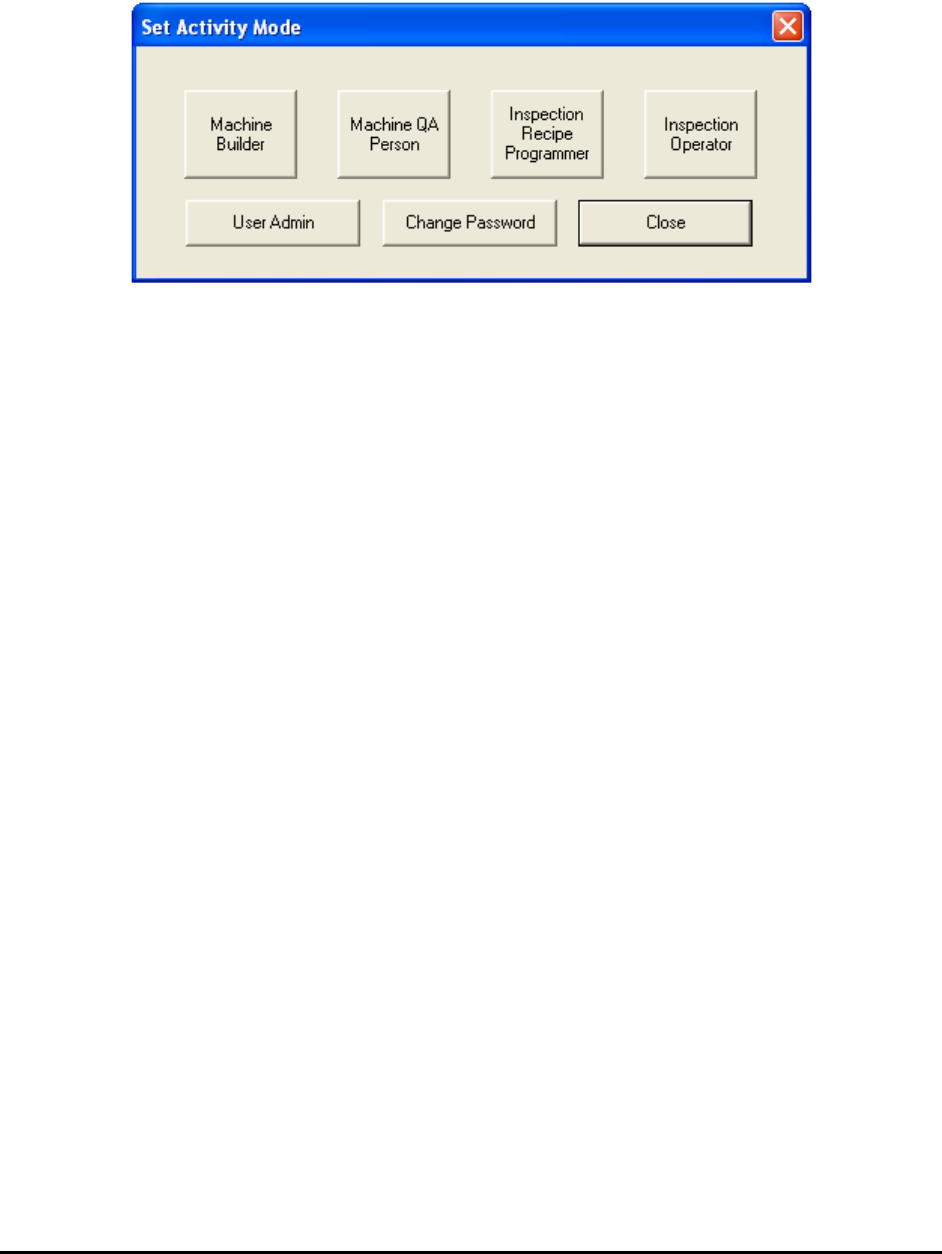
Based on the user’s access privilege, the appropriate user interface is selected. In the case where
the user has multi-mode privileges, the following Set Activity Mode dialog appears for the user
to select the activity mode.
User Interface Basics 4-3
4.2 Video View
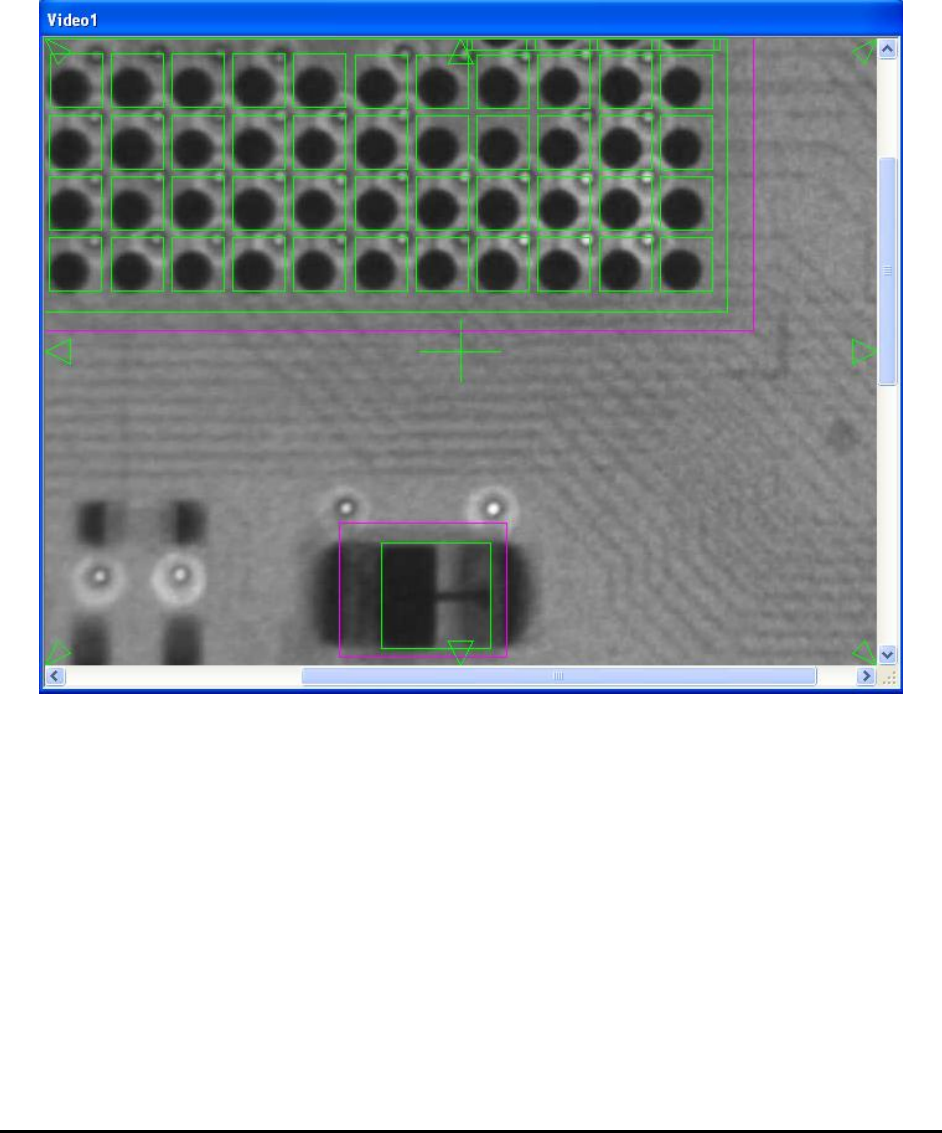
The Video View window displays a video image of the board captured by the camera. A
crosshair is provided to indicate the exact position of the camera. Image can be shown in 3 zoom
levels: 50%, 100% and 200%. The unique video navigation feature allows the user to control the
position of the camera by pointing and clicking in this window. Using the mouse, place the
cursor on a feature in the image and double click. The system will move the camera to center the
feature on the crosshairs. Arrows are also provided to allow incremental camera movement.
4-4 User Interface Basics
4.3 Map View
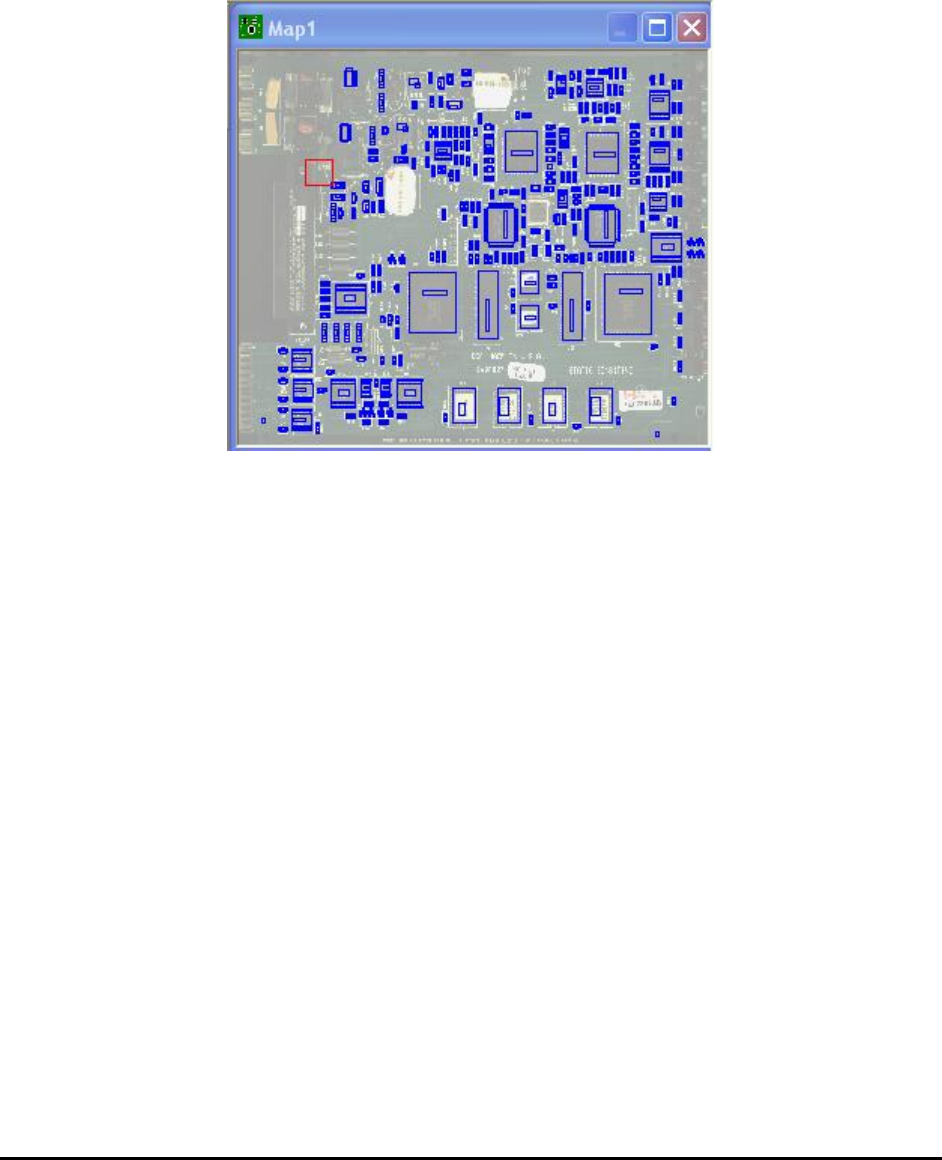
The Map View window provides a complete view of the entire PCB. Each time a new part is
trained, a small rectangle will appear on the Map View indicating the part position. A moving
red rectangle marks the current camera position. The Map View is also a navigating tool: double-
clicking the trackball (or mouse) on the map will move the camera to the corresponding position
on the board.