YesAX V3.1.2 - Software User Manual.pdf - 第195页
A dvance Inspection Features 14 -9 14.5 Layers Layers are used to inspect the same area (e.g. same solder joint) with multiple inspection boxes. The individual layer can use different inspection algorithms. All the inspe…
14-8 Advance Inspection Features
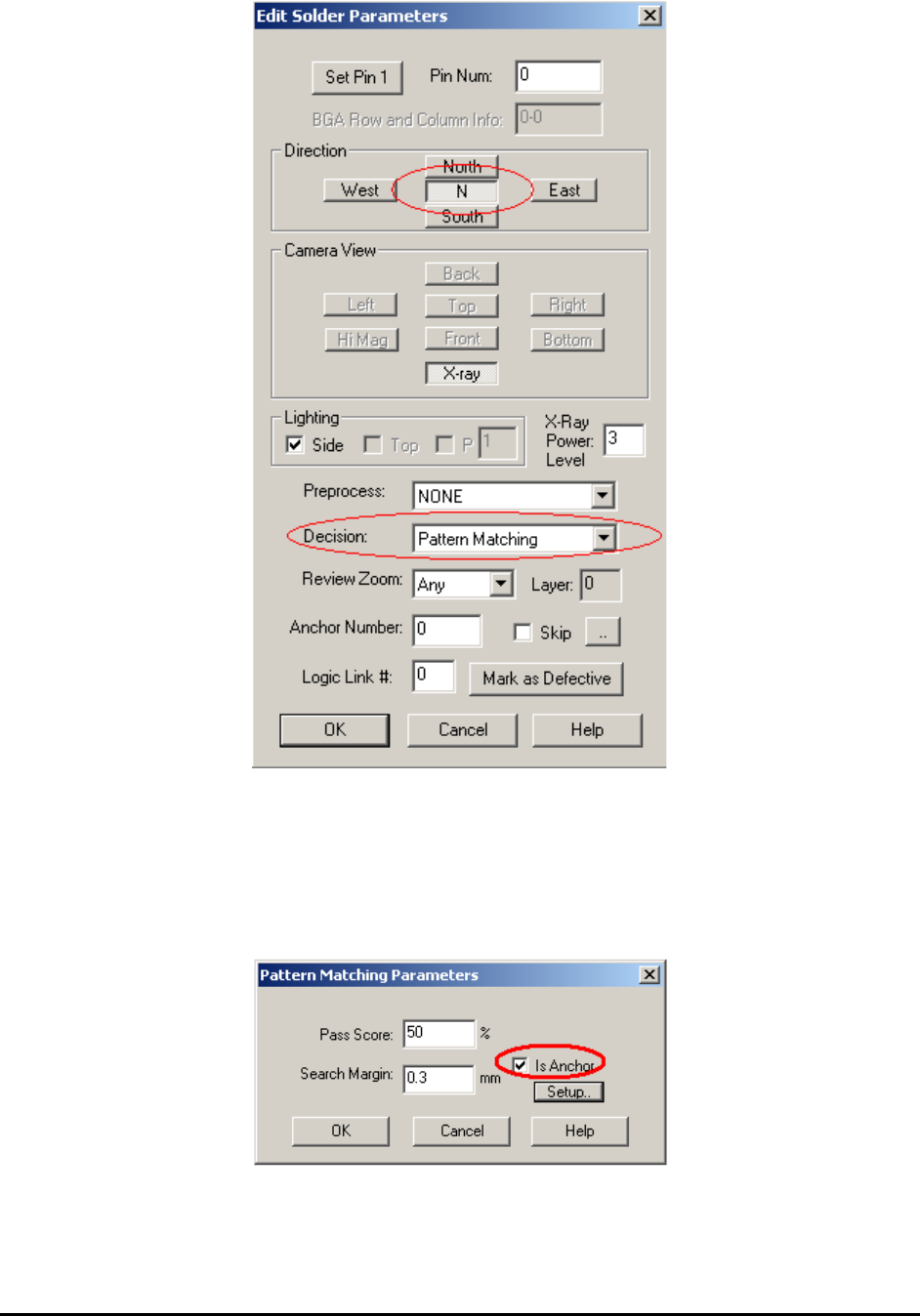
Anchors are normally Mark inspection boxes. The changes in the Mark inspection boxes
propagate via part number during a library update. Sometimes it is advantageous to have anchor
functions propagate via package as opposed to part number. YesAX software allows solder
inspection boxes to also be used as an anchor. To do so, select Pattern Matching as the decision
algorithm for the inspection box and select direction N in the Edit Solder Parameters dialog. Also
in the Pattern Matching Parameters dialog, select Is Anchor.
Advance Inspection Features 14-9
14.5 Layers
Layers are used to inspect the same area (e.g. same solder joint) with multiple inspection boxes.
The individual layer can use different inspection algorithms. All the inspection boxes have layer
parameter, by default they are all set to layer zero. The software maintains a current display layer.
When YesAX starts, the display layer is set to zero.
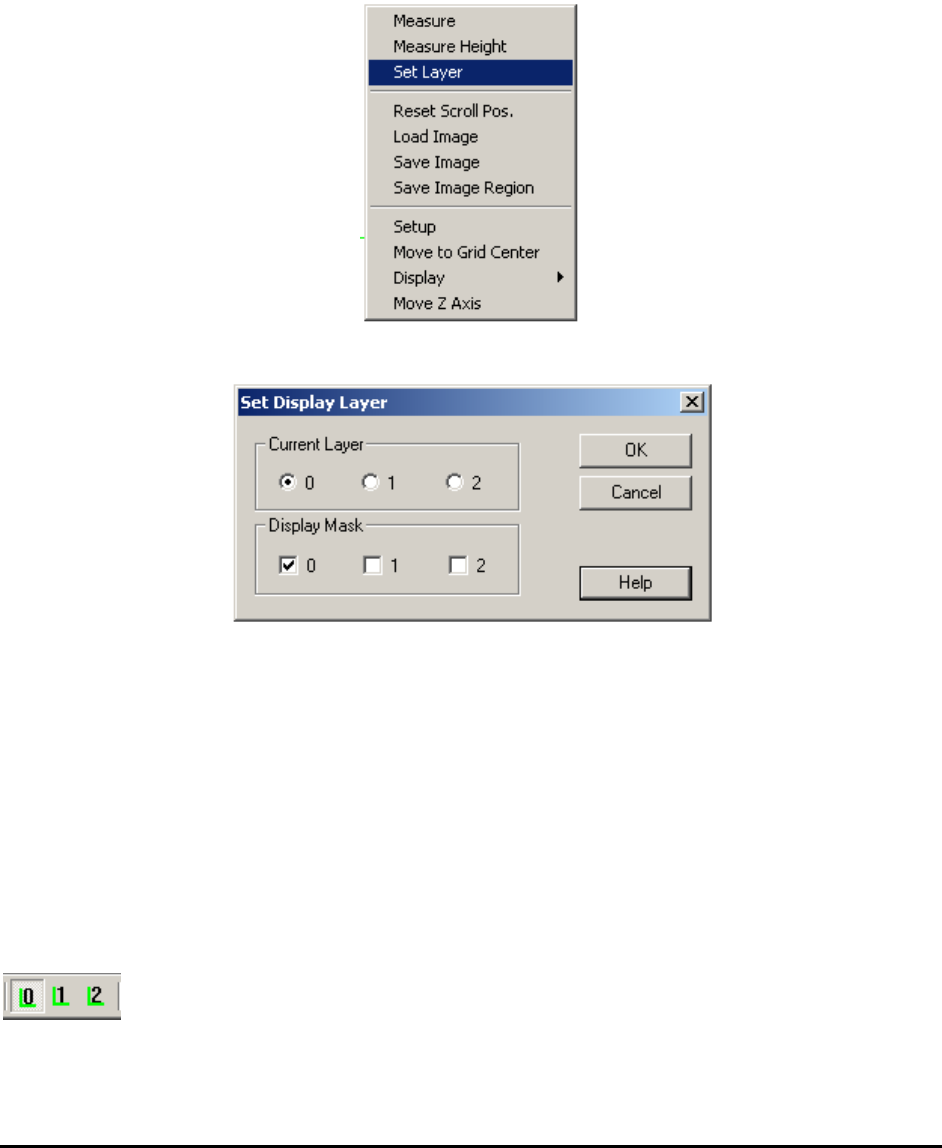
To change the display layer setting, select Set Layer from the video pop-up menu.
The Set Display Layer dialog displays.
Only the inspection boxes with layer matches of the display layer are displayed. Newly created
inspection boxes have the layer parameter set to the current display layer.
For inspection programs use multiple layers, it will be convenient to click layer buttons inside
toolbar so that switching between different layers is easy. To turn on the feature, close YesAX
software first then edit the YesAX.ini file and change:
[MainFrame]
..
ShowLayerButtons=1
..
Open YesAX software again the three layer buttons will show up in toolbar.

14-10 Advance Inspection Features
14.6 Reducing Inspection and Review Time for Non First Article
Inspection
The very first board that comes off a freshly setup line is considered the first article board. A first
article board requires the most stringent inspection because of the large possibility of setup errors.
This includes but is not limited to:
Incorrect material reel put on the placement machine
Incorrect programming of the placement machine
Incorrect version of the program loaded on the placement machine
Problem with the solder paste stencil screen
Problem with oven profile
Etc.
It is usually a standard practice to verify the correctness of the first article board before the rest
of the boards are built. If the first article board’s correctness is verified, the subsequent boards
have a much smaller possibility of defects. The defects on the subsequent boards are usually
machine related, such as a part dropped by a placement head of a pick-and-place machine, a
blocked stencil aperture resulting in an open solder, etc.
Based on this nature of the assembly process, the YesAX software has a feature to speed up the
inspection and review process of the non-first article boards. Here is the theory of its operation:
1. Inspect everything on the first article board. If there are defects, review every instance.
2. For non first article board if one instance of a part number (PN) is verified correct
(present, correct orientation and correct component), then the other instances of that PN
need to verify only present (and/or polarity if applicable).
3. If all instances of a PN failed during inspection and one instance is OKed during the
review process, then any instance of that PN which had been verified present is taken off
the review list.
14.6.1 Modifying Recipe to Utilize the Feature
There are 3 modifications needed to use this feature:
1. Modify the recipe to include inspections for nomenclature in one layer and present/absent
in another layer.
2. Enable the feature in Recipe Option.
3. In the Run dialog, indicate if the inspection is for a first article board or not.
The first step is the most time consuming. For each part number, 2 sets of markings need to be
trained: one for verifying nomenclature and the other for verifying present or absent.
For the templates to detect present or absent of the component, don’t-care-masks are used to
mask out the regions of the nomenclatures. The don’t mask is setup using the Edit Alternate
dialog from the marking pop-up menu (see Section 10.2.2). You are not limited to using template
matching algorithm for detection.
It is not necessary to add the 2 layer inspection onto every part number. Any part number with
only one layer will be inspected the same way: first article or not. Focus on adding the 2 layer
inspection onto the most abundant part numbers. That will achieve the most time savings.