YesAX V3.1.2 - Software User Manual.pdf - 第42页
4-6 User Interface Ba sics 4.5 Main Menu The Main Menu is customized to the activity mode the user logs into. The Programmer’s main menu is different from that of the Machine Builder ’s . The Recipe Programmer’s main men…
User Interface Basics 4-5
4.4 List View
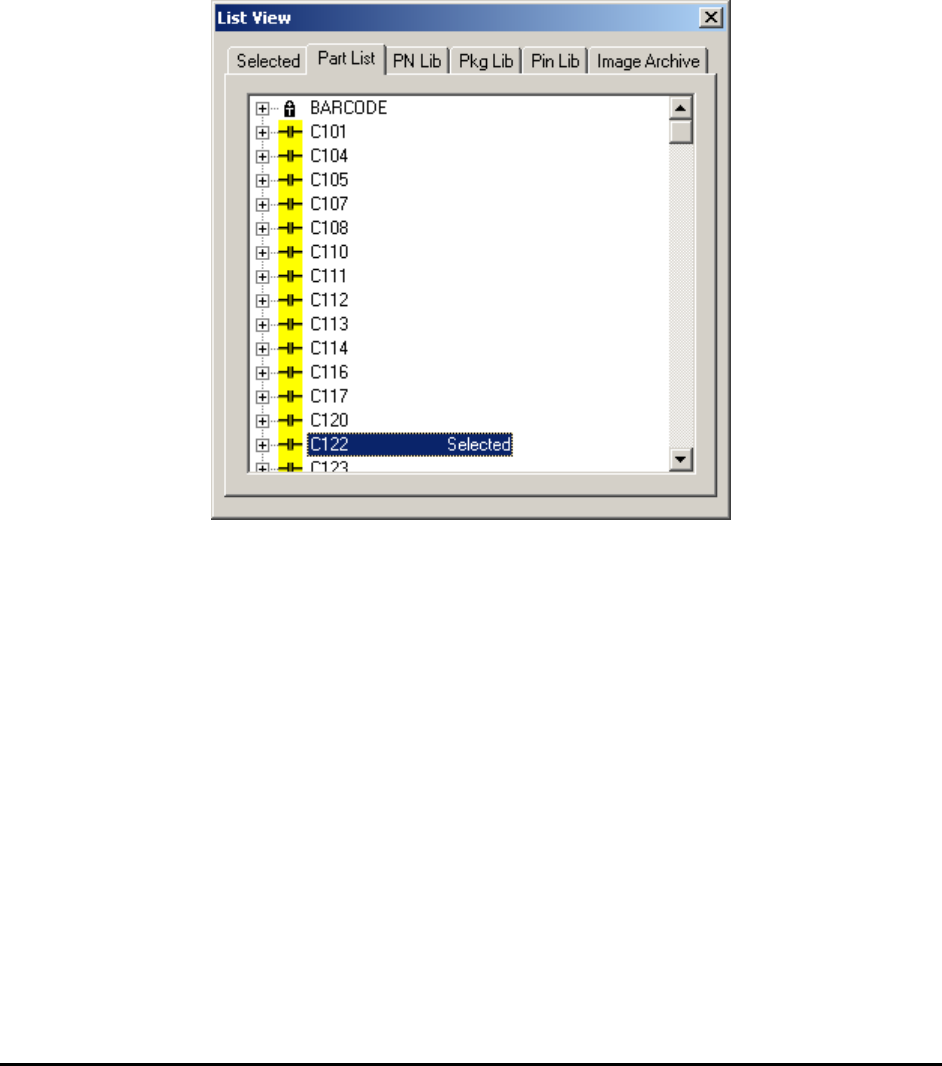
The List View window has six tabbed pages: Selected, Part List, Part Lib, Package Lib, Pin
Lib and Image Archive. The Selected page lists the selected parts by Reference ID for review
or walk through. The Part List page lists the entire part list of the board by reference ID. The
Part Lib page lists parts by part number. The Package Lib page lists parts by package name.
The Pin Lib page lists pins by pin name. Lastly, the Image Archive page lists the available
Image Set in the Image Archive for the current recipe.
In both the Part List page and Selected pages, the user can move the camera to the part on the
board by double-clicking on the part ID in the list.
4-6 User Interface Basics
4.5 Main Menu
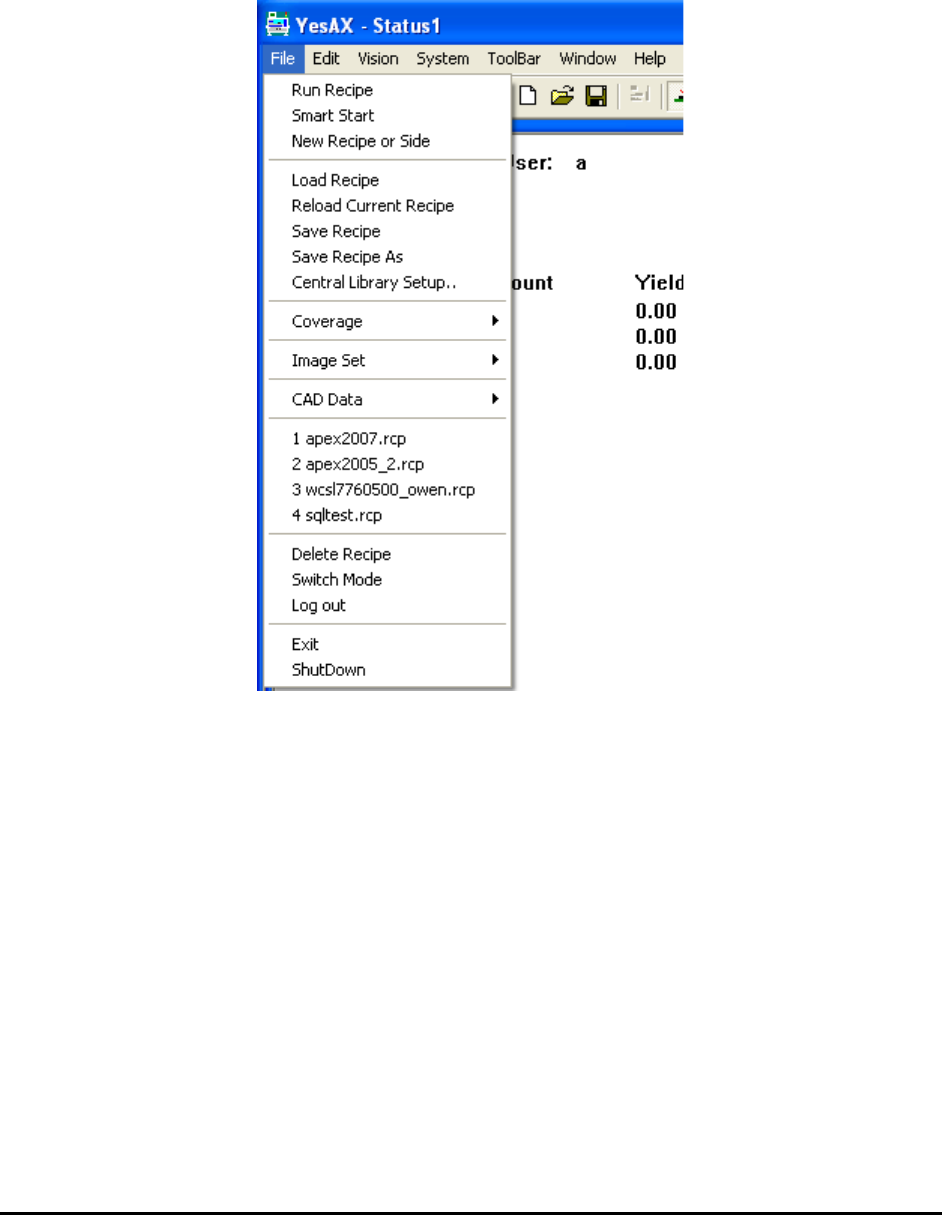
The Main Menu is customized to the activity mode the user logs into. The Programmer’s main
menu is different from that of the Machine Builder’s. The Recipe Programmer’s main menu is
displayed below.
Most of the main items are either self-explanatory or their functions are explained in the later
sections of this document. The sub-menu ToolBar and Window will be described here. The
ToolBar sub-menu contains all the functions that the ToolBar button provides. Its sole purpose
is to allow you to use a programmable keyboard accelerator to access the functions of the
ToolBar. Programmable keyboards can provide one touch access to all the commonly used
functions of the software. They are commonly used to speed up the defect review process.
User Interface Basics 4-7
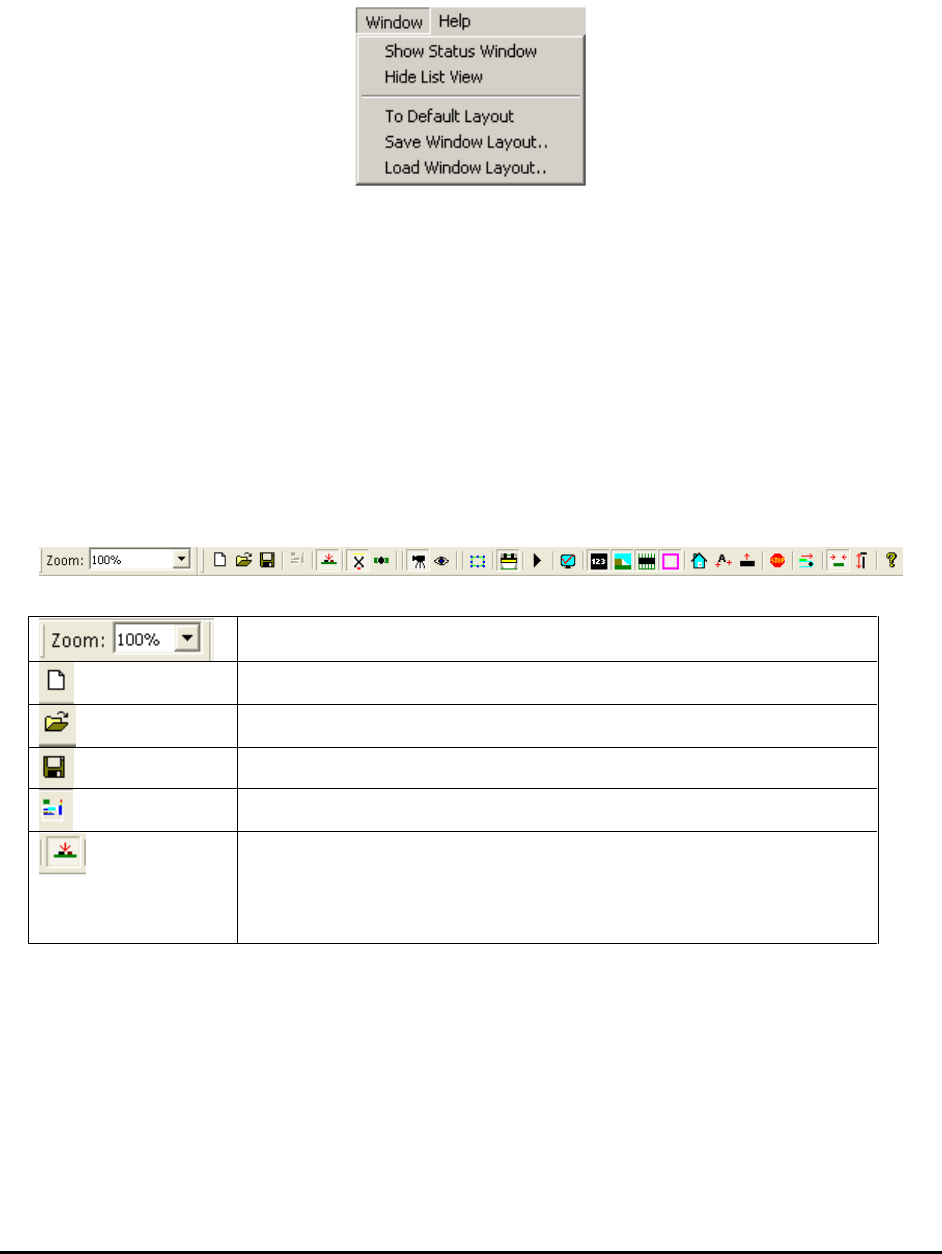
The Window sub menu handles window layout related features. In the YesAX software, the user
can move and re-size the software windows. When the software is closed it will remember the
window layout, and will restore it when the software re-starts.
This menu provides 5 selections:
Show Status Window – Re-display the Status window after it was being closed.
Hide List View –Close the List View Windows.
To Default Layout – Allocate windows to their default positions.
Save Window Layout – Save the current window layout to a disk file.
Load Window Layout – Load window layout from a disk file and layout the windows
according to it.
4.6 Tool Bar
The toolbar buttons provide shortcuts for the commonly used menu selections:
Video View Zoom factor selection.
Create new recipe.
Load recipe file from disk.
Save current recipe to disk.
Toggle on or off line.
Select top side part list for inspection. Different from AOI
software, there is no bottom side part list for X-Ray software
since both top side and bottom side parts can be seen in X-Ray
view with X-Ray camera.