YesAX V3.1.2 - Software User Manual.pdf - 第74页
7-4 3D Recipe Creatio n 7.2.2 ConvertFM Utilit y FabMaster is a common CAD format. It contains detail ed information of the board. The ConvertFM program reads the FabMaster text file and generates .YCD and .YPC files. Th…
3D Recipe Creation 7-3
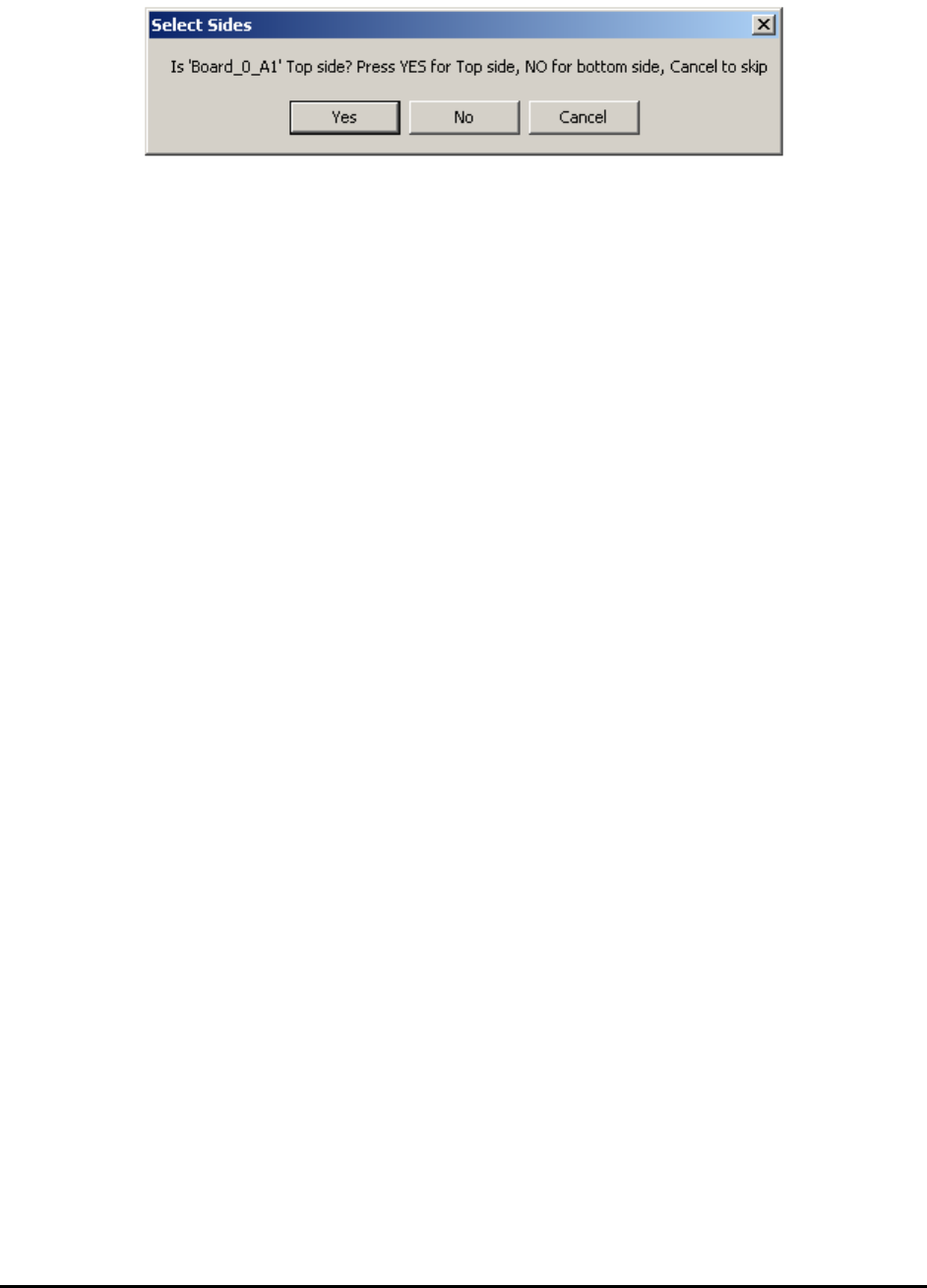
The Select Sides dialog will display twice to determine the sides.
The first prompt asks if the board is a top side and the second prompt asks if the board is a
bottom side. For a top side board, the correct responses would be “Yes” on the first prompt and
“No” on the other prompt.
5DX names the board side different from X3. Using X3 convention you may say 5DX usually
inspects board up-side-down. The term “Secondary Side” in 5DX usually refers to the top side
for X3. The only way to be certain is to try it. Since the conversion process takes no more than a
few minutes, trying out the combination will take no more than 10 minutes. The side convention
for each customer site is usually consistent, so once you figure it out, the next board should be
the same.
The conversion process generates a total of 4 YCD files and 2 YPC files.
BoardName_Full_T.YCD and BoardName_Full_B.YCD are YCD files for top and bottom
side of the board with all the parts in them.
BoardName_BGA_T.YCD and BoardName_BGA_B.YCD are YCD files for top and bottom
side with only BGA parts plus the parts needed for CAD alignment (parts near the corners of the
boards). Copy and paste additional parts from the BoardName_Full_x.YCD file into the
BoardName_BGA_x.YCD if more parts are needed to be imported.
For best utilization of the X3’s 3D inspection capability, Nordson YESTECH recommends using
it only to inspect BGA and Through Connectors. Other parts are more efficiently inspected by
AOI machines.
The two YPC files are BoardName.YPC and BoardName_Sorted.YPC. These two files may
be identical for a lot of the boards where the entries for pin in the 5DX LANDPAT.NDF file are
sorted by pin name. Always use the sorted version for pin CAD import on the YesAX software.
7-4 3D Recipe Creation
7.2.2 ConvertFM Utility
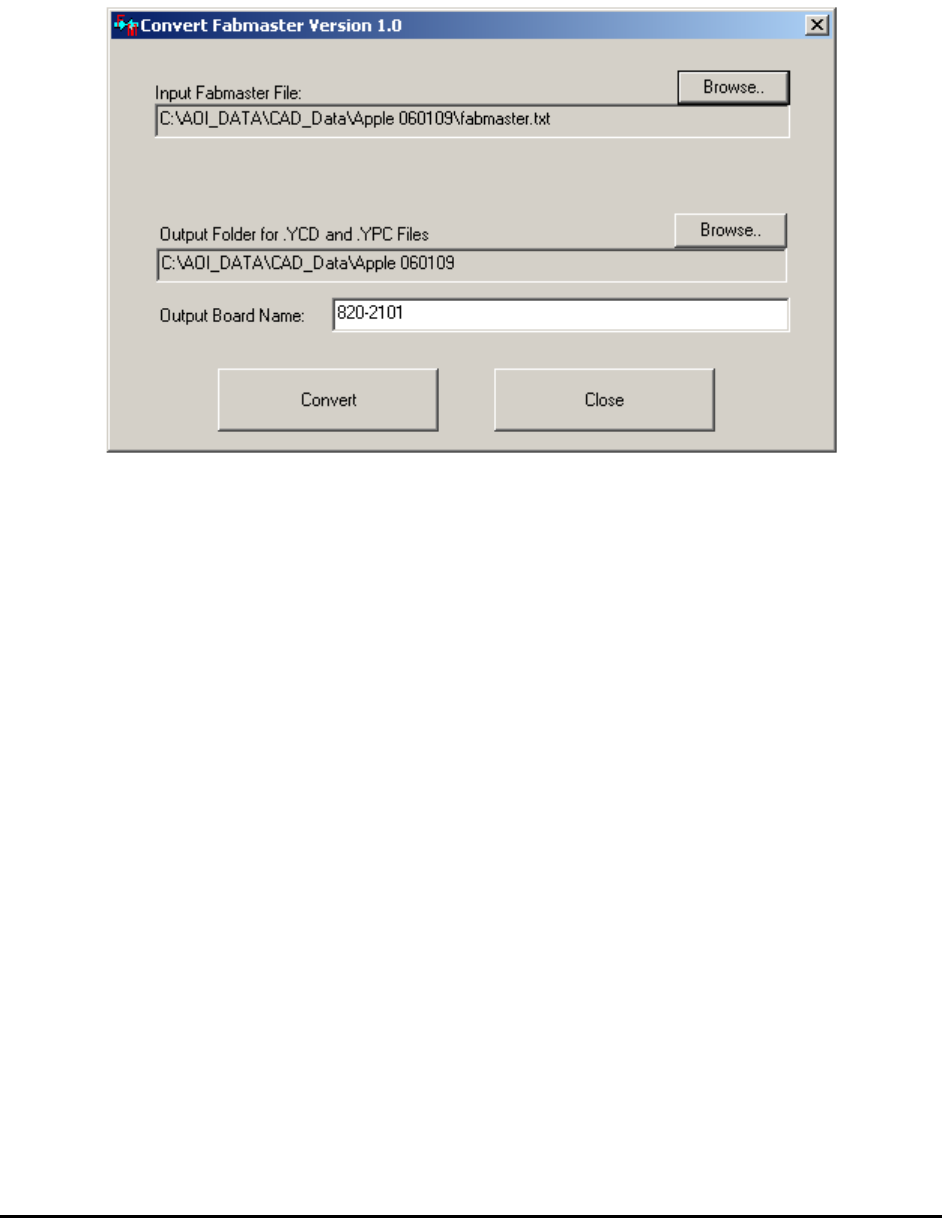
FabMaster is a common CAD format. It contains detailed information of the board. The
ConvertFM program reads the FabMaster text file and generates .YCD and .YPC files. The user
interface is simple, as shown below.
The conversion process for the ConvertFM utility is the same as for the Convert5DX utility.
ConvertFM generates a total of 4 YCD files and 2 YPC files.
BoardName_Full_T.YCD and BoardName_Full_B.YCD are YCD files for top and bottom
side of the board with all the parts in them.
BoardName_BGA_T.YCD and BoardName_BGA_B.YCD are YCD files for top and bottom
side with only BGA parts plus the parts needed for CAD alignment (parts near the corners of the
boards). Copy and paste additional parts from the BoardName_Full_x.YCD file into the
BoardName_BGA_x.YCD if more parts are needed to be imported.
The two YPC files are BoardName.YPC and BoardName_Sorted.YPC.
7.2.3 ConvertGenCAD Utility
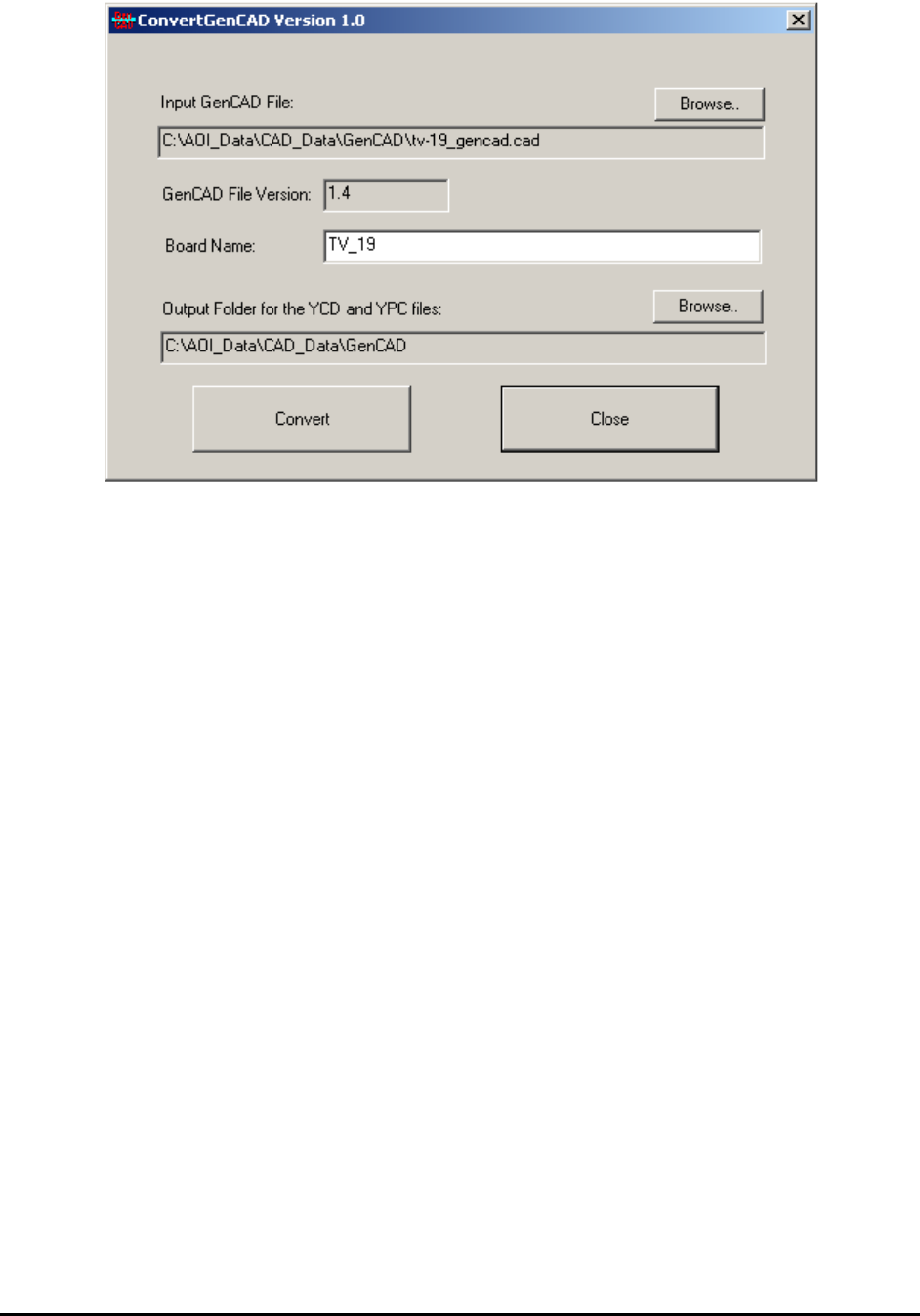
GenCAD is another common generic CAD format. A GenCAD .cad file contains detailed
information of the board. The ConvertGenCAD program reads the GenCAD .cad file and
generates .YCD and .YPC files. The user interface is simple and very similar to other conversion
utilities.
3D Recipe Creation 7-5
The conversion process for the ConvertGenCAD utility is similar to other conversion utility.
ConvertGenCAD generates a total of 2 YCD files and 1 YPC files.
BoardName_TOP.YCD and BoardName_BOT.YCD are YCD files for top and bottom side of
the board with all the parts in them.
The YPC file is BoardName.YPC.
7.3 Creation Process When Machine Time is Unlimited
7.3.1 Step1: Prepare CAD Data
CAD data can greatly speed up the recipe creation process. If the board to be inspected has more
than 20 parts, it is important to insist on getting the proper CAD data before starting the recipe
creation process. We currently have conversion utilities to automatically convert from 5DX NDF
format, GenCAD format, and FabMaster CAD format to the proper data formats (YCD and YPC)
for YesAx import. CAD data can also be manually converted using Excel or other text
formatting utilities.
7.3.2 Step2: Determine Which Side Faces Up
The side with the most critical components that require 3D inspection should face up.
7.3.3 Step3: File, New Board
In this step we define the board size and train the fiducials. Also capture a 5% visual image set to
create the board background image for the recipe. Do NOT import CAD data in this step.