YesAX V3.1.2 - Software User Manual.pdf - 第40页
4-4 User Interface Ba sics 4.3 Map View The Map View window provides a complete view of the entire PCB. Each time a new part is trained, a small rectangle will appear on the Map View indicating the part position. A movin…
User Interface Basics 4-3
4.2 Video View
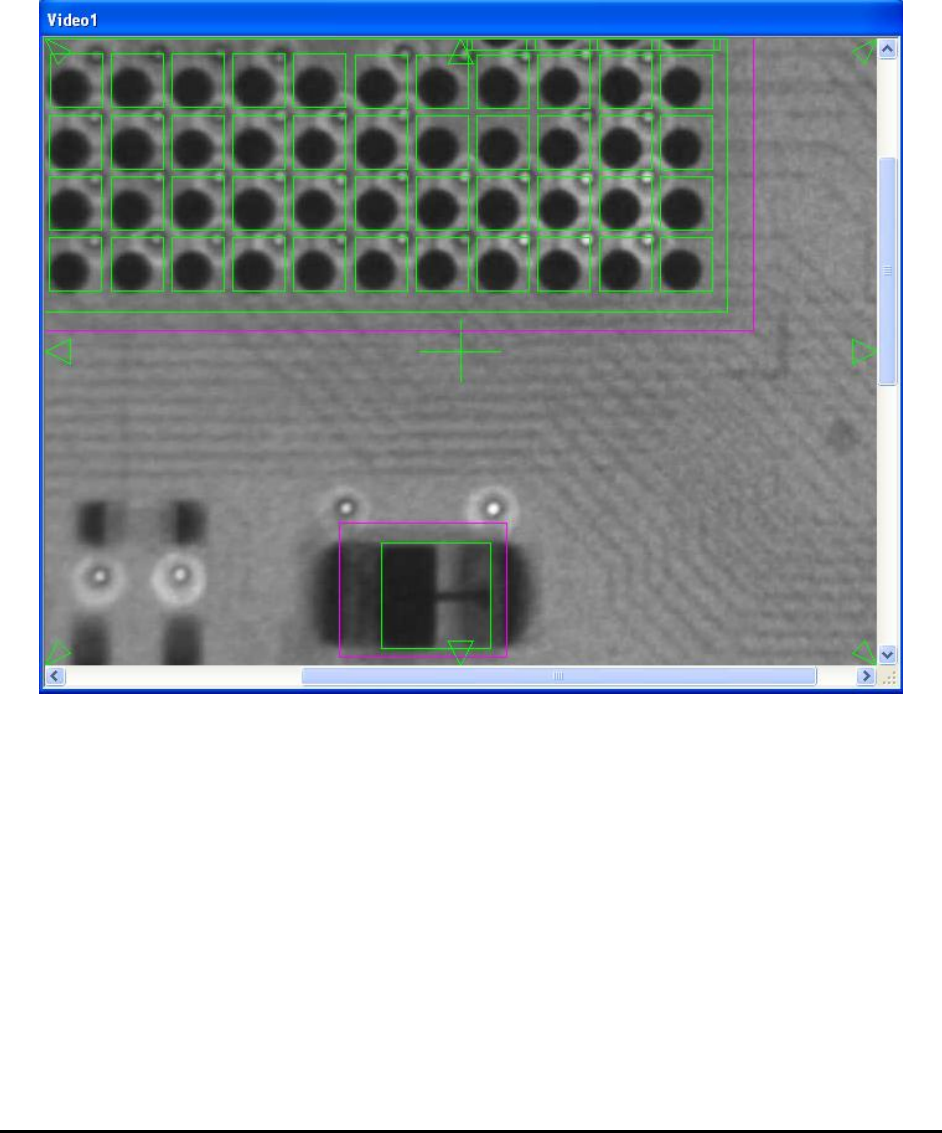
The Video View window displays a video image of the board captured by the camera. A
crosshair is provided to indicate the exact position of the camera. Image can be shown in 3 zoom
levels: 50%, 100% and 200%. The unique video navigation feature allows the user to control the
position of the camera by pointing and clicking in this window. Using the mouse, place the
cursor on a feature in the image and double click. The system will move the camera to center the
feature on the crosshairs. Arrows are also provided to allow incremental camera movement.
4-4 User Interface Basics
4.3 Map View
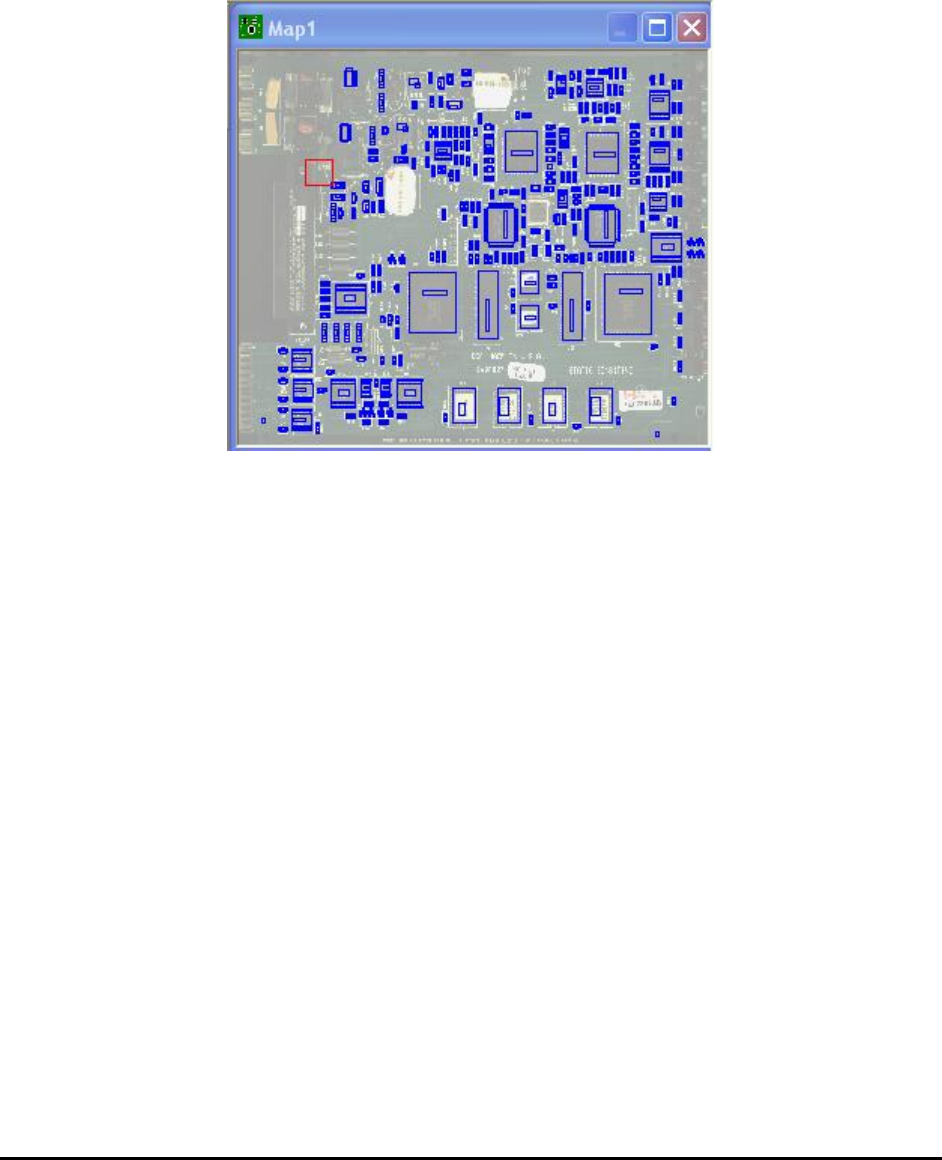
The Map View window provides a complete view of the entire PCB. Each time a new part is
trained, a small rectangle will appear on the Map View indicating the part position. A moving
red rectangle marks the current camera position. The Map View is also a navigating tool: double-
clicking the trackball (or mouse) on the map will move the camera to the corresponding position
on the board.
User Interface Basics 4-5
4.4 List View
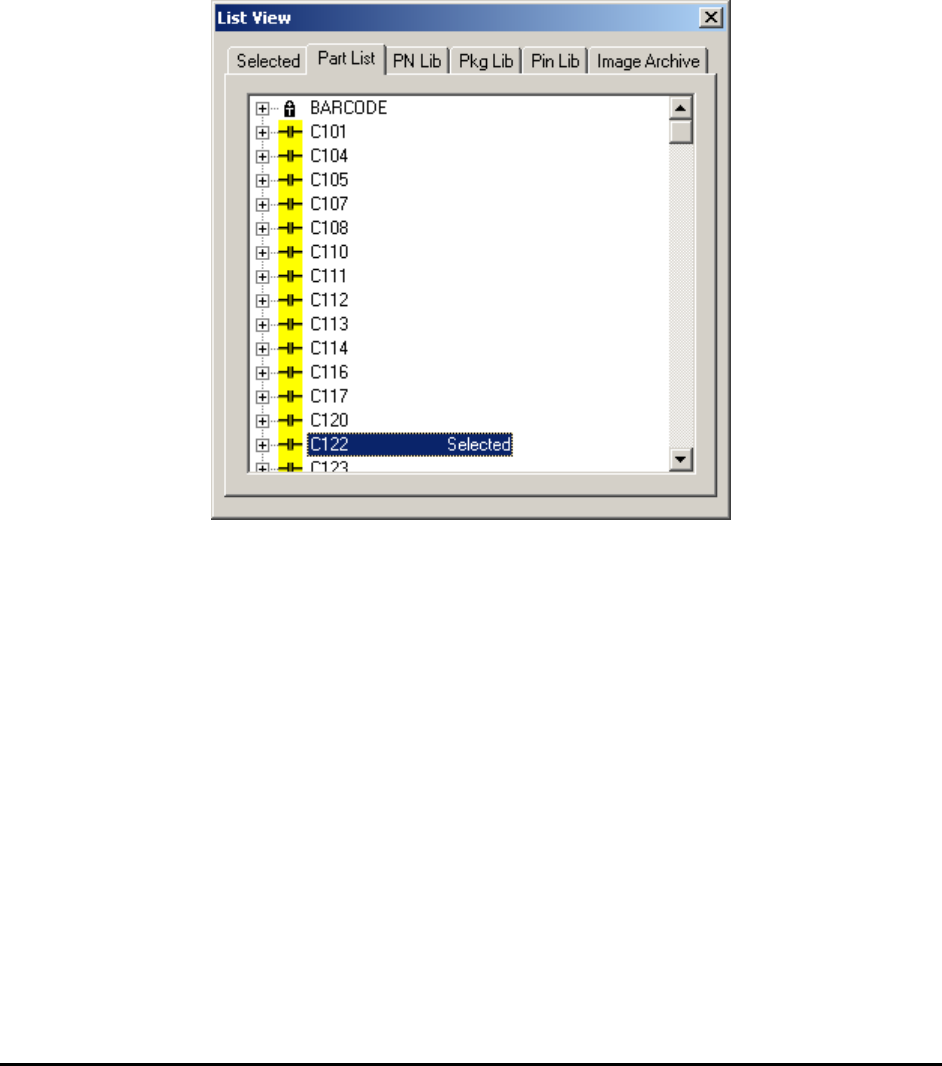
The List View window has six tabbed pages: Selected, Part List, Part Lib, Package Lib, Pin
Lib and Image Archive. The Selected page lists the selected parts by Reference ID for review
or walk through. The Part List page lists the entire part list of the board by reference ID. The
Part Lib page lists parts by part number. The Package Lib page lists parts by package name.
The Pin Lib page lists pins by pin name. Lastly, the Image Archive page lists the available
Image Set in the Image Archive for the current recipe.
In both the Part List page and Selected pages, the user can move the camera to the part on the
board by double-clicking on the part ID in the list.