X7056_Operating manual_en.pdf - 第113页
Software Viscom Vision Pi lot 113 Inspection system X7056 | Operating manual | Version 3.1 Rev.006| 2016-01-06 | 30.009.1930a 10 H ELP AND S UPPORT O p ens the Viscom Online Help. 11 S HUT D OWN Shuts down the V ISCOM V …
Software
Viscom Vision Pilot
112
Inspection system X7056 | Operating manual |
Version 3.1 Rev.006| 2016-01-06 | 30.009.1930a
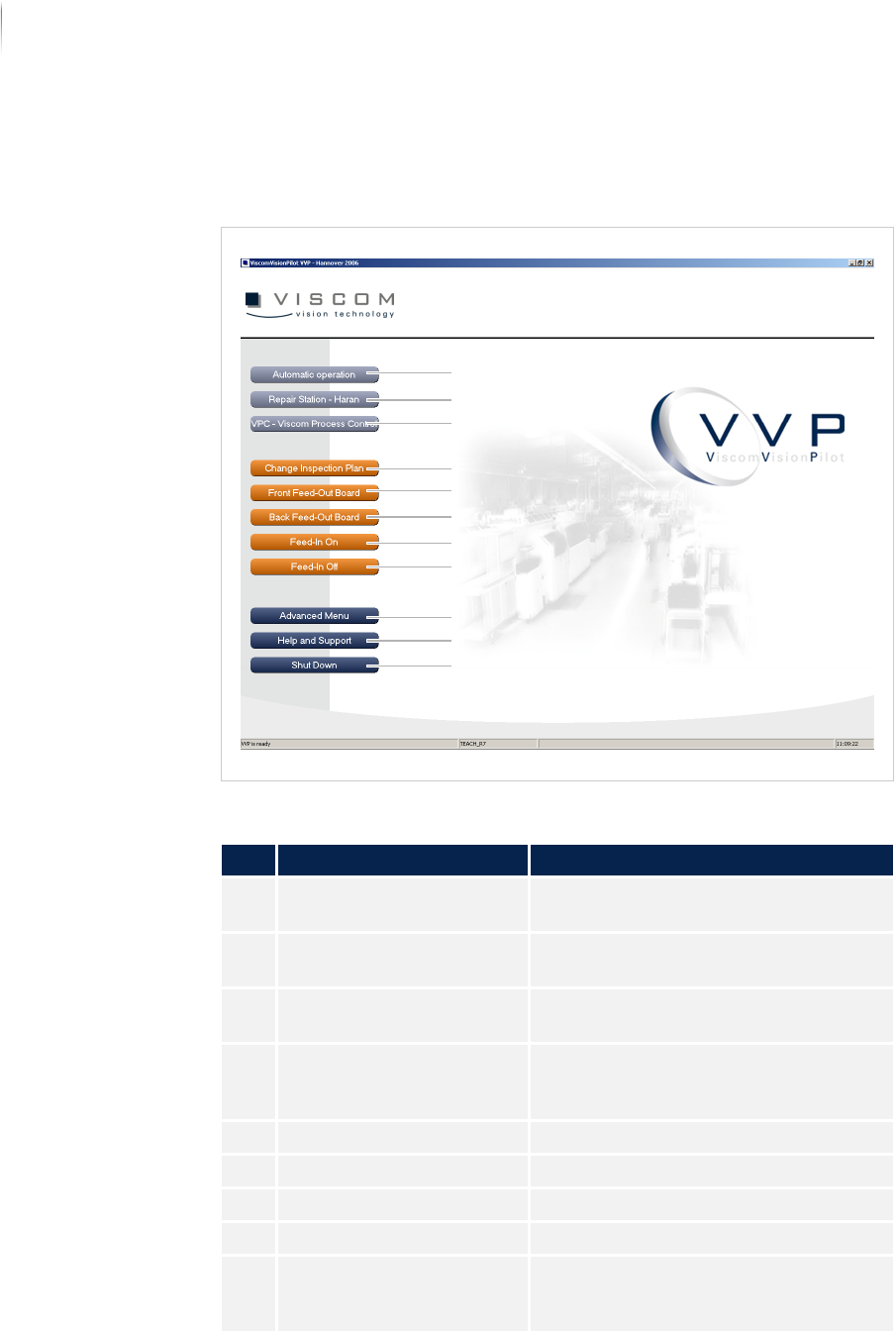
Navigation
The navigation buttons are explained in the following.
Unified user interface VVP
Description of the buttons
No. Name Description
1 AUTOMATIC OPERATION Starts the inspection in „Automatic
mode“ (Page 114).
2 REPAIR STATION -
HARAN (
OPTIONAL)
Starts the verification software.
3 VPC - VISCOM PROCESS
C
ONTROL (OPTIONAL)
Starts the SPC software.
4 CHANGE INSPECTION PLAN Opens the dialog window CHANGING
INSPECTION PLANS. See „Changing
inspection plans“ (Page 141)
5 FRONT FEED-OUT BOARD Outfeeds the PCB from the front track.
6 BACK FEED-OUT BOARD Outfeeds the PCB from the rear track.
7 FEED-IN ON Switches on the automatic PCB infeed.
8 FEED-IN OFF Switches off the automatic PCB infeed.
9 ADVANCED MENU Changes to the ADVANCED MENU of the
Viscom software. See „Advanced
menu“ (Page 142)
4
5
6
7
8
9
10
11
3
2
1
Software
Automatic mode
114
Inspection system X7056 | Operating manual |
Version 3.1 Rev.006| 2016-01-06 | 30.009.1930a
Automatic mode
The automatic PCB inspection is done during automatic operation.
The following elements are described:
User interface (Page 114)
Information bar (Page 115)
Status bar (Page 115)
Operation bar (Page 116)
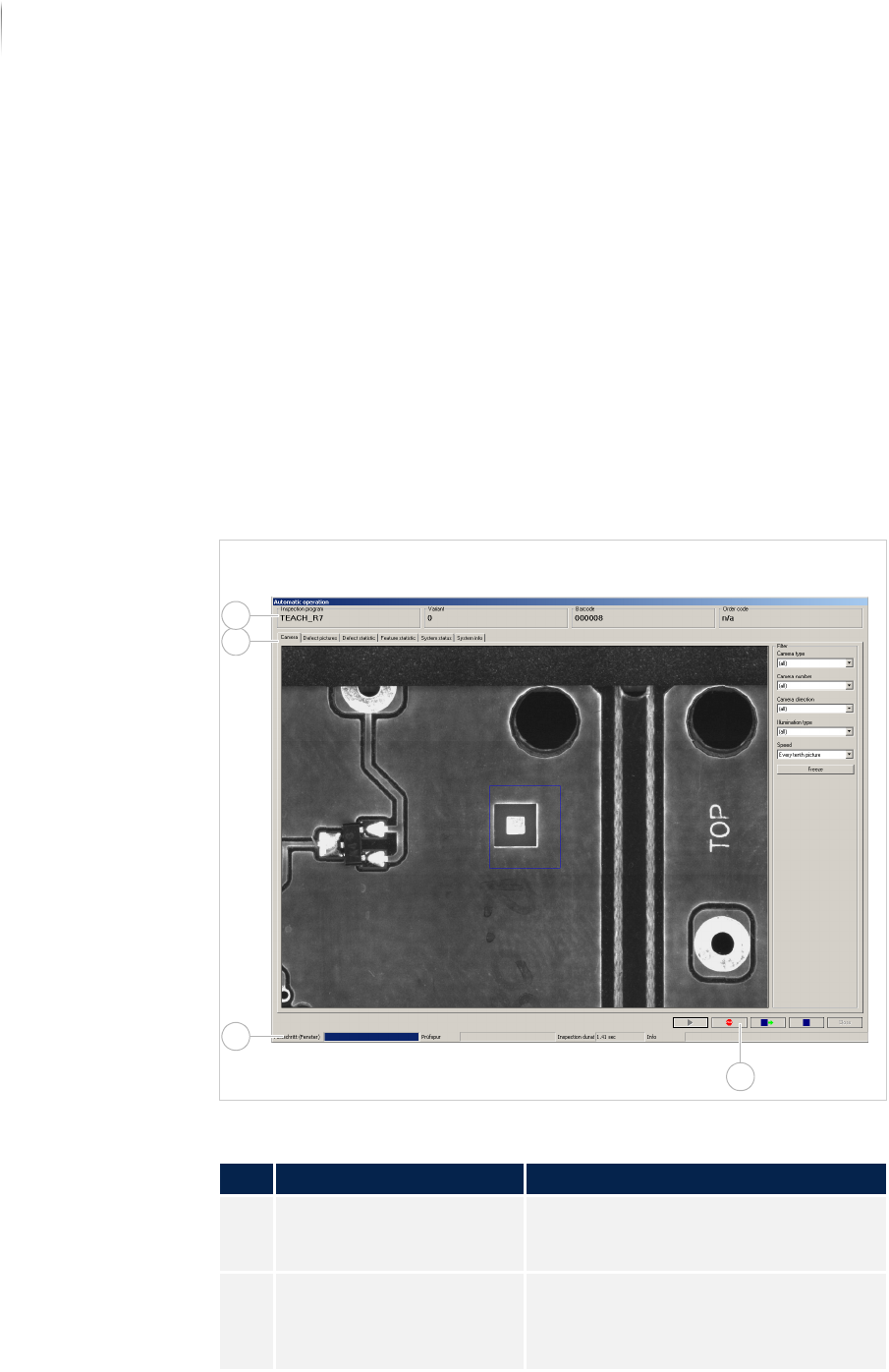
User interface
The user interface in automatic operation is divided into different
areas.
Automatic operation window
Description of the areas
No. Area Description
1 Information bar Shows general information for the
inspection in progress. See „Informa-
tion bar“ (Page 115)
2 User interface Displays defect images and statistics
for the current inspection as well as
system status and information. See
„User interface“ (Page 117)
4
2
3
1