X7056_Operating manual_en.pdf - 第142页
Software Advanced menu 142 Inspection system X7056 | Operating manual | Version 3.1 Rev.006| 2016-01-06 | 30.009.1930a Advanced menu The "Advanced menu " contains all the menu items relevan t for programming an…
Software
Changing inspection plans
141
Inspection system X7056 | Operating manual |
Version 3.1 Rev.006| 2016-01-06 | 30.009.1930a
Changing inspection plans
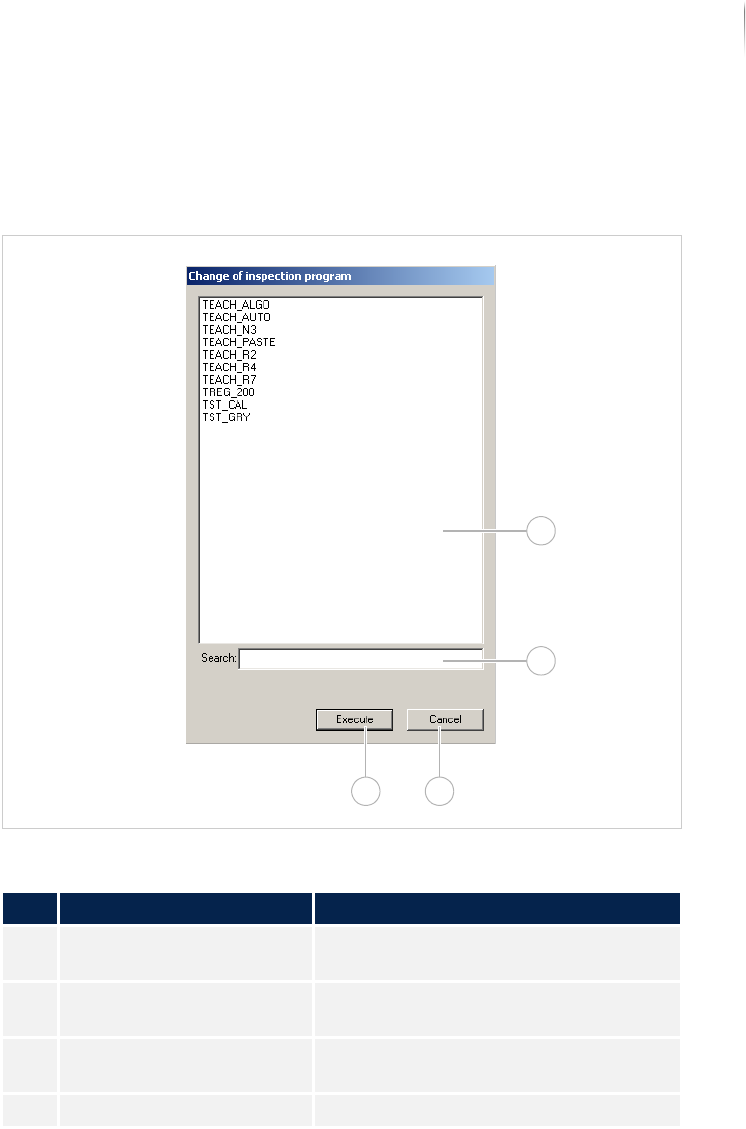
The window CHANGING INSPECTION PLANS opens.
Window CHANGE OF INSPECTION PROGRAM
Description of the window "Changing inspection plans"
No. Name Description
1 Inspection program
display
Displays all the inspection programs
available on the system.
2 SEARCH Searches for the inspection program
selected in no. 1.
3 CANCEL Closes the window without an inspec-
tion program change.
4 EXECUTE Loads the selected inspection program.
1
2
34
Software
Advanced menu
142
Inspection system X7056 | Operating manual |
Version 3.1 Rev.006| 2016-01-06 | 30.009.1930a
Advanced menu
The "Advanced menu" contains all the menu items relevant for
programming and maintenance/diagnosis of the inspection system.
Since programming and maintenance/diagnose should not be
performed by the user, this software description does not cover
them. Thus, the advanced menu should be used only by program-
mers and setup personnel.
The following elements are described:
S
TART DISPLAY (Page 142)
P
ROGRAMMING OPERATION (Page 143)
M
AINTENANCE/DIAGNOSIS (Page 144)
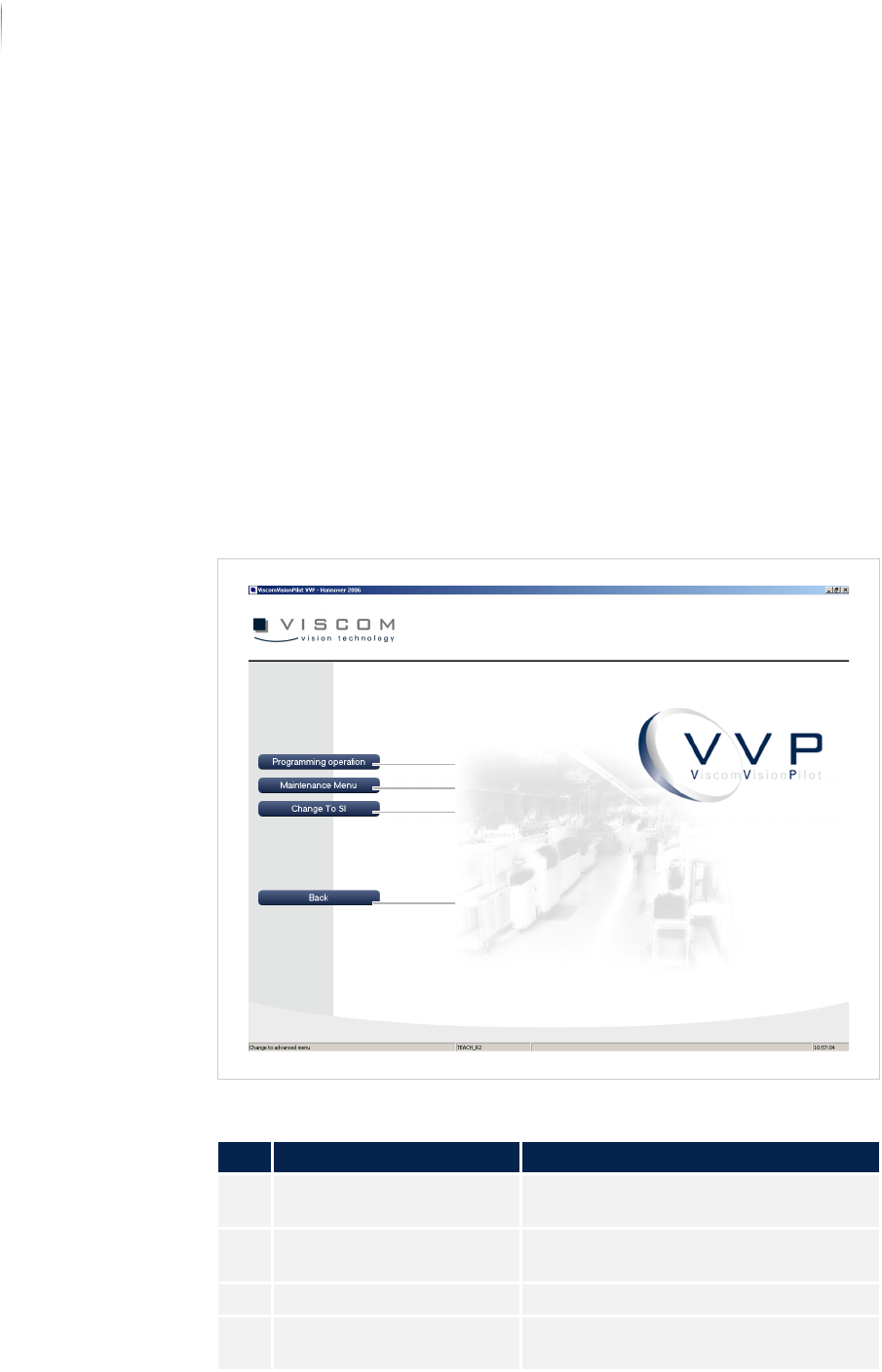
Start display
Start display of the advanced menu
Description of the start page of the advanced menu
No. Name Description
1 PROGRAMMING OPERA-
TION
Changes to programming operation
„Programming operation“ (Page 143).
2 MAINTENANCE MENU Changes to maintenance operation
„Maintenance/diagnosis“ (Page 144).
3 CHANGE TO SI Changes to the SI software interface
4 BACK Returns to the VVP interface. See
„Start display“ (Page 110)
4
3
2
1
Software
Advanced menu
143
Inspection system X7056 | Operating manual |
Version 3.1 Rev.006| 2016-01-06 | 30.009.1930a
Programming operation
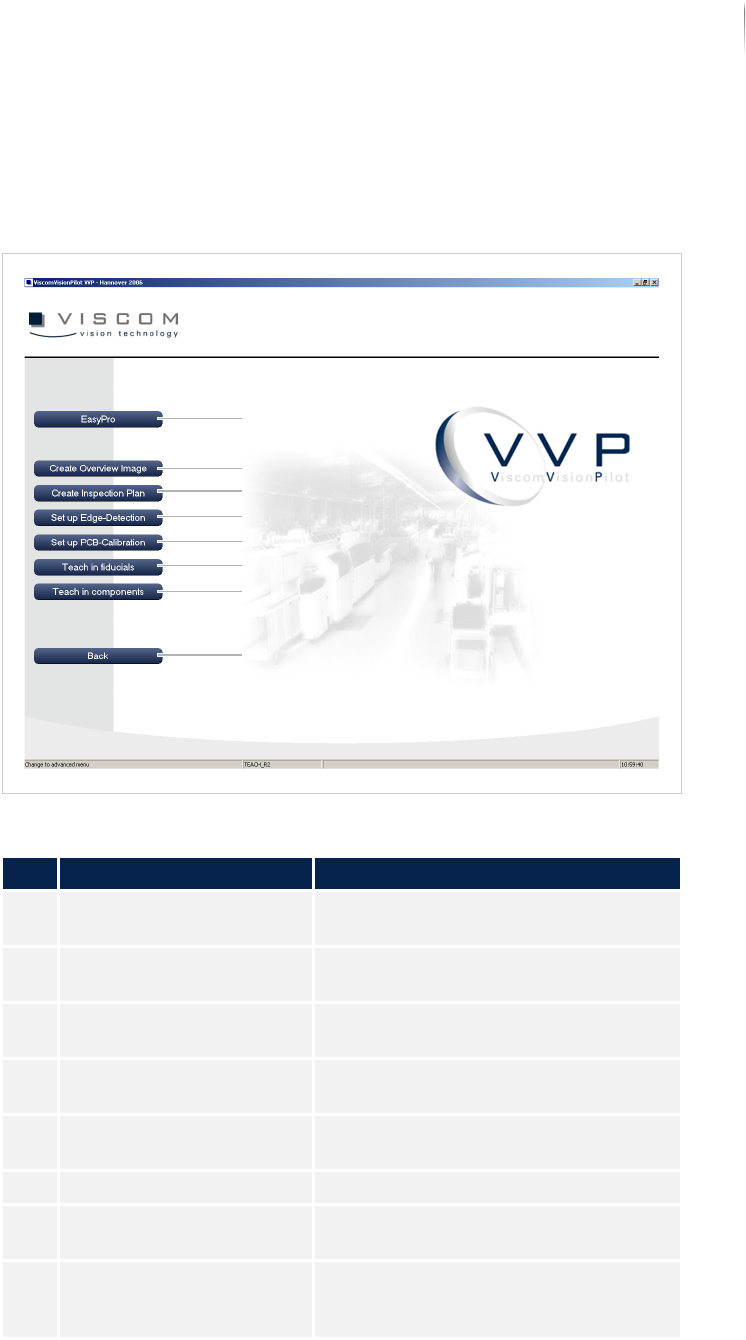
In the window PROGRAMMING OPERATION, inspection programs are
created, adapted, and optimized.
Window PROGRAMMING OPERATION
Description of the buttons of the programming window
No. Name Description
1 EASYPRO Changes over to the EasyPro user
interface.
2 CREATE OVERVIEW IMAGE Opens the wizard "Create overview
image".
3 CREATE INSPECTION PLAN Opens the wizard "Create inspection
plan".
4 SETUP EDGE DETECTION Opens the wizard "Setup edge detec--
tion".
5 SETUP PCB CALIBRATION Opens the wizard "Setup PCB calibra-
tion".
6 TEACH IN FIDUCIALS Opens the wizard "Teach in fiducials".
7 TEACH IN COMPONENTS Opens the wizard "Teach in compo--
nents".
8 BACK Returns to the start page of the
advanced menu. See „Start display“
(Page 110)
4
3
2
1
5
6
7
8