1OM-1075-002.pdf - 第113页
AHB01EOPP (6) Confirm that the lamp of the [READY] button illuminates in green. Otherwise, press the [READY] button and wait until the lamp illumi- nates. (7) When the [ST ART] button on the front operation panel is pres…
AHB01EOPP
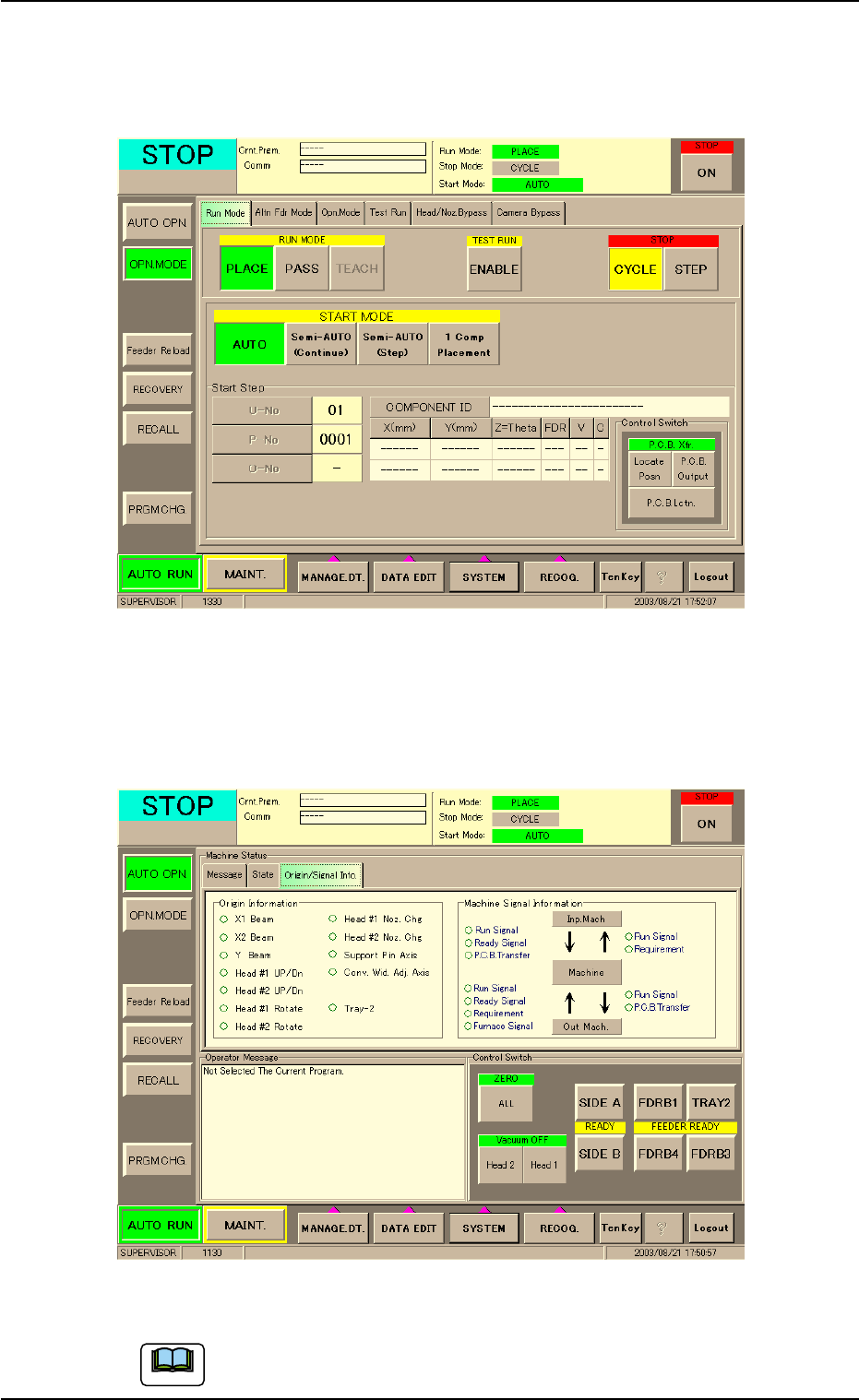
(4) Press the [OPN. MODE] button on the submenu bar on the touch
screen. The "OPN. MODE" window opens. Press the [PLACE] but-
ton (entitled "RUN MODE") in the "Run Mode" tab sheet.
Fig. 1C17
(5) Press the "Origin/Signal Info." tab in the "AUTO OPN." window
(submenu). The "Origin/Signal Info." tab sheet opens. Check the
origin marks.
Fig. 1C18 "Origin/Signal Info." Tab Sheet (Provided with Multi-Layer Tray Feeder 2)
The tab sheet may look different, depending on which options
are selected.
0308-004 3-13
1.3 Start of Automatic Operation
Note
AHB01EOPP
(6) Confirm that the lamp of the [READY] button illuminates in green.
Otherwise, press the [READY] button and wait until the lamp illumi-
nates.
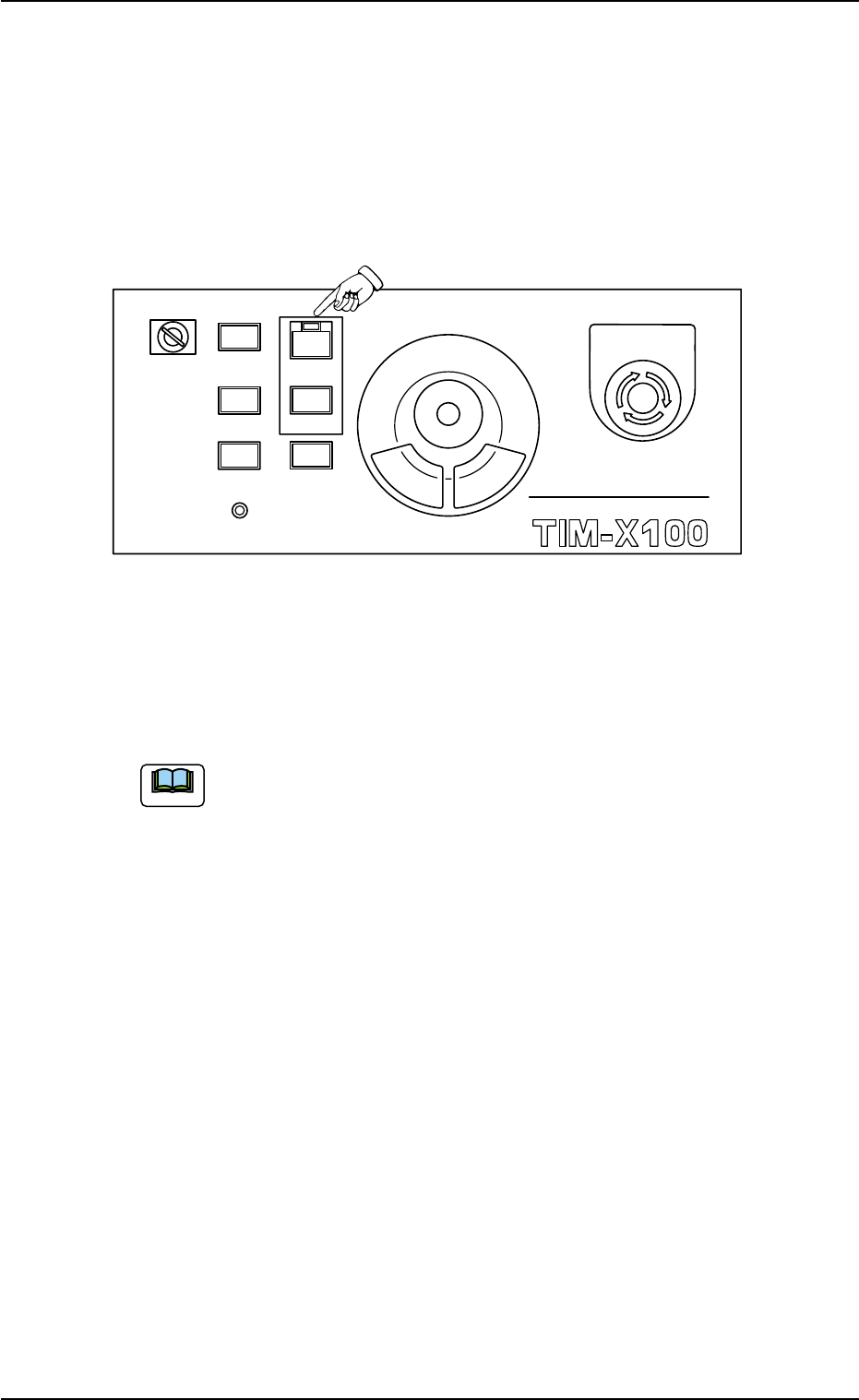
(7) When the [START] button on the front operation panel is pressed
while the lamp is flickering, the automatic operation (placement)
starts.
Fig. 1C19
When the automatic operation (component placement) starts, the
lamp of the [START] button on the front operation panel illuminates
in green and the green lamp of the light tower also goes on.
(a) When a window other than the "AUTO OPN." one (main
menu) is active, it is impossible to start the automatic op-
eration because the lamp of the [START] button does not
flicker.
(b) When a P.C.B. already exists in the P.C.B. positioning sec-
tion, the machine discharges the P.C.B. without placing
any component on the P.C.B.
0308-003 3-14
Note
MULTI FUNCTIONAL MOUNTER
STOP
LOCK
OPERATION
RUN SETUP
START
ENABLE
PNL CHANGE
READY
POWER ON
EMERGENCY
1.3 Start of Automatic Operation

AHB01EOPP
1.4 Temporary Stop and Restart of Automatic Opera-
tion
1.4.1 Replenishment of Components
There will be two cases of component supply replenishment during au-
tomatic operation - Component Replenishment with Machine in Short of
Components and Intentional Component Replenishment.
The following is explained, presuming that the tape feeders are
being used.
As for the replenishment of the vibratory stick feeders and the
multi-layer tray feeders (option), refer to each instruction manual
for details.
• Component Shortage Mode
When a component shortage error occurs during automatic opera-
tion, an error alarm is issued and the machine stops.
In this case, follow the steps below to replenish components and re-
start the automatic operation.
(1) Check which feeder is short of components.
(2) Press the [RESET] button to cancel the error alarm.
(3) Detach the feeder base pullout prevention bar of the feeder base
where the feeder in short of components is located.
(4) Detach the feeder from the slot No. (Fdr. No.) where a component
shortage error has occurred.
In the case of tape feeders, the status indicator flickers.
(5) Replenish the feeder with components.
(6) Attach the feeder to the specified slot No. (Fdr. No.).
(7) Attach the feeder base pullout prevention bar.
(a) An error alarm means the following condition.
Tower Light : Error Indication
Component Shortage Light : Component Shortage Indi-
cation
Screen Display : Error Indication
Buzzer : Buzzer Sounds which cor-
respond to an error
0206-003 3-15
1.4 Temporary Stop and Restart of Automatic Operation
Note
Note
Note